Tuesday, October 15, 2024

Linux Directory Structure and Important Files Paths Explained

 There are three broad categories of files in Linux.

  • General Files – These are ordinary files made up of binary or ASCII data. These are regular files such as documents, images, audio and video files, etc.
  • Directory Files – In Linux, directories are also categorized as files since they also serve as storage space for other files and folders.
  • Device Files – These are special files that provide an interface to device drivers which enable the usability of hardware devices on the system such as mice, keyboards, USB devices, hard drives, etc. These are found in the /dev directory.

Linux Directory Structure Diagram

A standard Linux distribution follows the directory structure as provided below with Diagram and explanation.
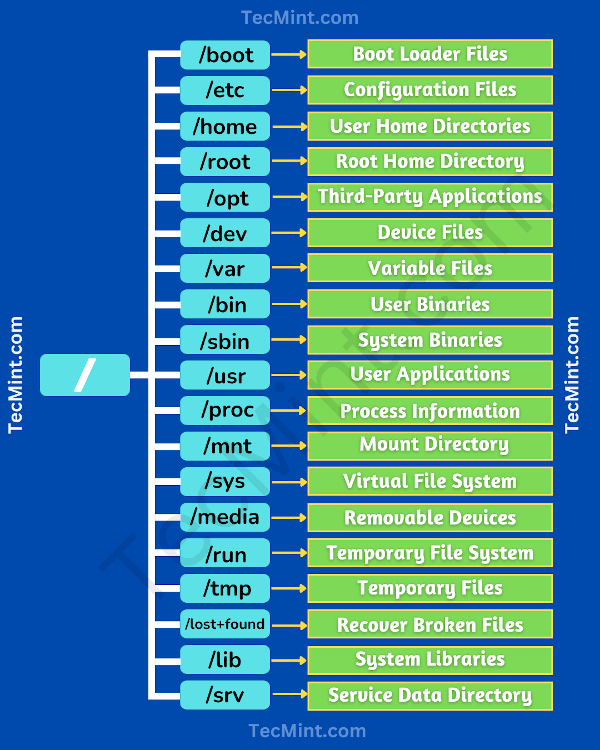
Linux File System Structure
Linux Directory Structure

Each of the above directories (which is a file, in the first place) contains important information, required for booting to device drivers, configuration files, etc. Describing briefly the purpose of each directory, we are starting hierarchically.

/ Directory

The root directory, denoted by a single forward slash (/), is the uppermost directory in the Linux directory structure. It contains all directories, sub-directories, and files on your Linux system. It’s from the root directory where the Linux directory hierarchy starts.

NOTE: The root directory (/) should not be confused with the root home directory (/root).
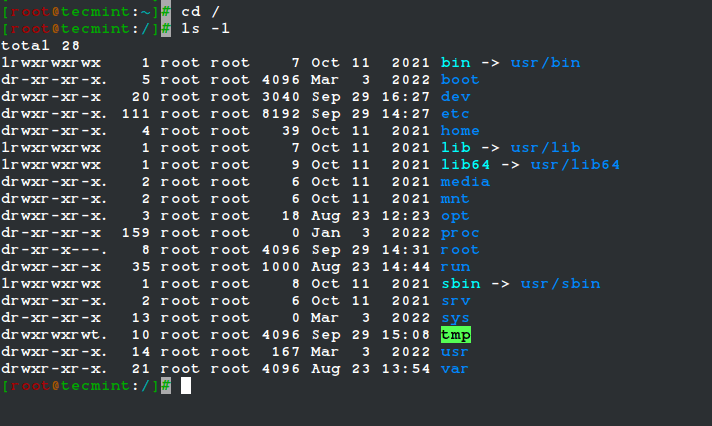
Root Directory in Linux

/boot Directory

This is one of the most vital directories in a Linux system. As the name infers, the boot directory contains Linux boot files such as the bootloader, the kernel, and its associated files. Files such as ‘vmlinuz‘ represent the compressed image of the Linux kernel.
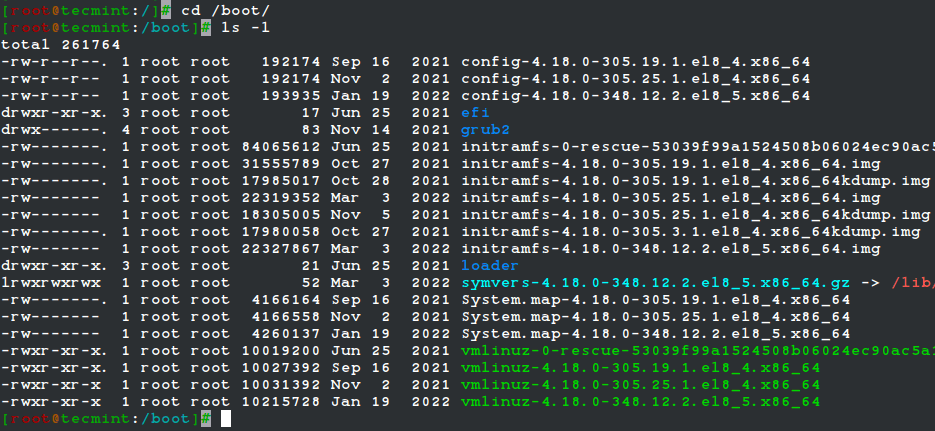
Boot Directory in Linux

/etc Directory

The /etc directory contains system configuration files for all the services, scripts, and third-party applications that are installed. This directory is considered the nerve center of the Linux system.
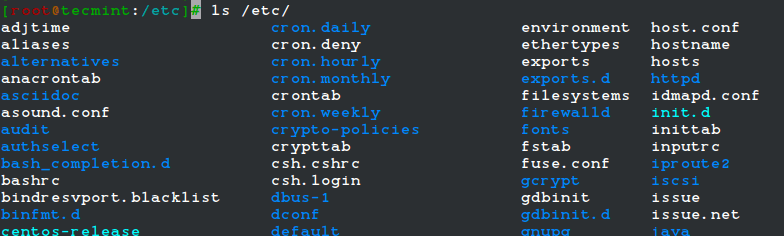
/etc Directory in Linux

/home Directory

The /home directory is a directory that contains a user’s personal folders and files. On a graphical Linux system, the home directory, by default, contains folders such as Desktop, Documents, Downloads, Pictures, Videos, and Public.

In addition, the /home directory contains personal configuration files which are prefixed with a dot (.). These are hidden files that contain user-specific settings for the login shell session.

Home Directory in Linux

/root Directory

The /root directory is the home directory for the root user, which is also referred to as the root user’s home directory (and not as the root (/) directory).

The root account also referred to as the superuser, administrative user, system administrator or just the root user has all the access to commands and system files in Linux.
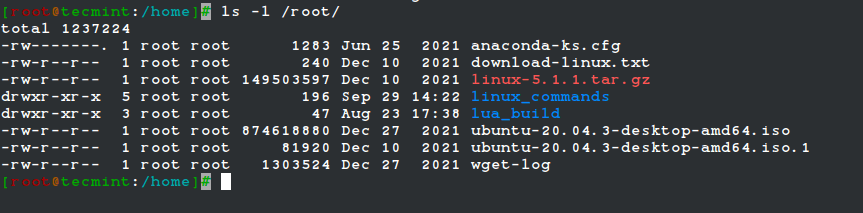
Root User Directory in Linux

/opt Directory

The /opt directory is a directory that is reserved for add-on packages and third-party software applications that are not included by default in the system’s official repositories.

For example, when you install applications such as Skype, DiscordSpotify, and Java, to mention a few, they get stored in the /opt directory.

/opt Directory in Linux

/dev Directory

The /dev directory contains device files or special files for devices that are attached to the system such as the hard drive, keyboard, and mouse. As mentioned, these are not regular that a user can read and write to.

These are abstractions of standard devices that applications on your system interact with through input and output system calls.
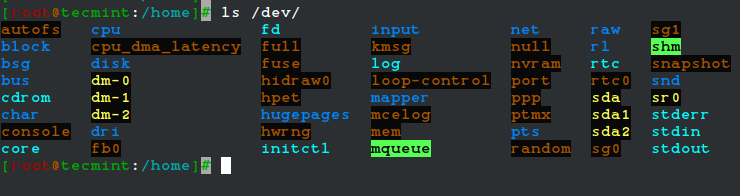
/dev Directory in Linux

/var Directory

The /var directory stores system-generated variable files, which include log files, caches, and spool files just to mention a few.
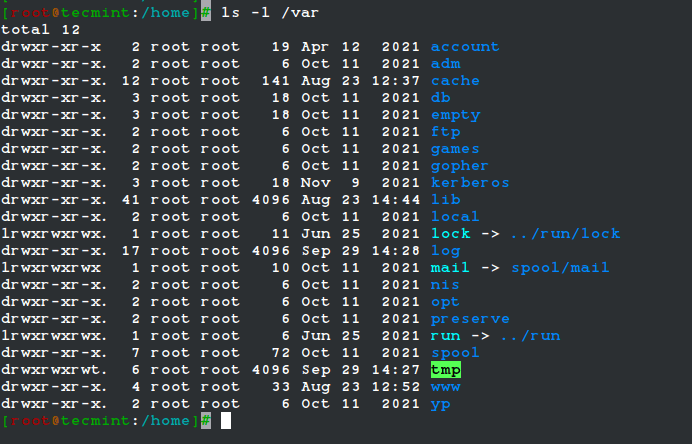
/var Directory in Linux

/bin Directory

The /bin directory contains user binaries, executable programs, and common system commands that are used by all users in the system. These include ls, pwd, cat, mkdir, cd, mv, cp, du, df, tar, rpm, wc, history, etc.
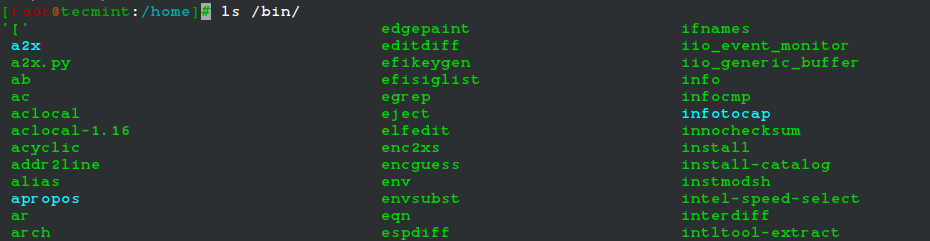
/bin Directory in Linux

/sbin Directory

The /sbin directory contains executable files, utilities, and system commands that are reserved for the root user or a user with root privileges. Such commands include halt, reboot, mkfs, fsck, fdisk, halt, iptables, ifconfig, ip, swapon, etc.
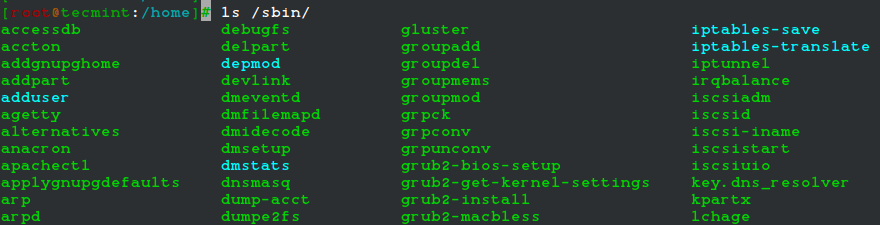
/sbin Directory in Linux

/usr Directory

The /usr directory ranks as one of the most important directories due to the enormous amount of data it holds. The directory contains system-wide read-only files. These include libraries, user binaries and their documentation, programs, and system utilities.
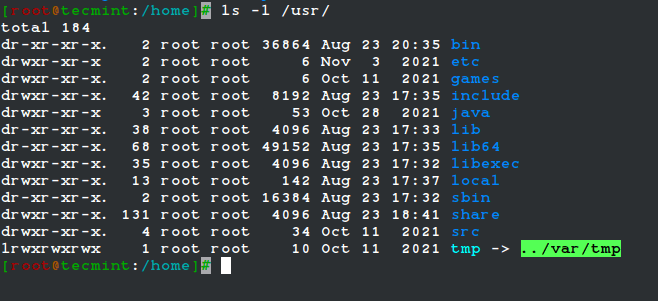
/usr Directory in Linux

/proc Directory

The /proc directory is somewhat of a strange directory. It is a virtual or pseudo filesystem that contains vital information about running processes. It is considered the control and information center for the Linux kernel.

The filesystem is created on the fly upon system startup and is destroyed once the system is powered off.
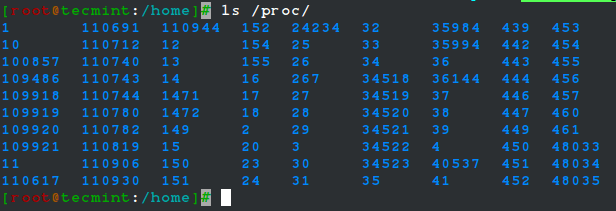
/proc Directory in Linux

/mnt Directory

The /mnt directory along with its subdirectories is a directory intended to be used as a temporary mount point for mounting storage devices such as Hard disk drives, USB drives, and CDROMs.
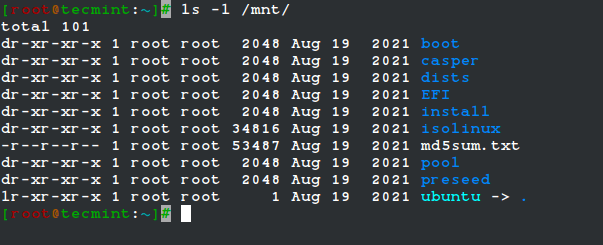
mnt Directory in Linux

/sys Directory

The /sys is a virtual file system that contains a set of virtual files that provide an interface to the Linux kernel.
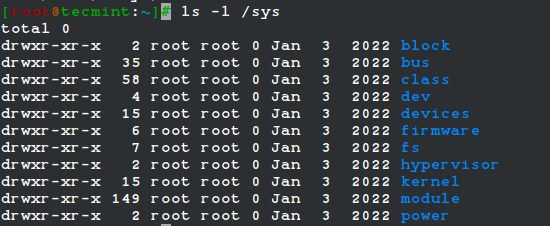
/sys Directory in Linux

/media Directory

The /media directory is a directory where the system mounts removable media such as USB drives.

/media Directory in Linux

/run Directory

The /run directory is a temporary filesystem that contains volatile runtime data that shows the system has since it was booted. Files under the /run directory must be deleted (removed or truncated as convenient) at the start of the boot process.

/run Directory in Linux

/tmp Directory

The /tmp directory is a directory that stores temporary files and many programs use this directory to create lock files and keep the temporary storage of data.

Do not delete files under the/tmp directory unless you know exactly what you are doing! Many of these files are critical for presently running programs and removing them may affect a system crash.

/tmp Directory in Linux

/lib Directory

The /lib directory stores all the essential standard libraries required by user binaries in the /bin directory.

/lib Directory in Linux

/lost+found Directory

The lost+found directory is installed during the installation of Linux, useful for recovering files that may be broken due to unexpected shut-down.

/srv Directory

The /srv directory is the service directory and is abbreviated as ‘srv‘. This directory contains server-specific and service-related files.

Exploring Important file, their location, and their Usability

Linux is a complex system that requires a more complex and efficient way to startstopmaintain and reboot a system, unlike Windows. There is a well-defined configuration filebinariesman pagesinfo files, etc. for every process in Linux.

In addition to the major directories, here is a list of some of the prominent files and directories and their uses.

  • /boot/vmlinuz : The Linux Kernel file.
  • /dev/hda : Device file for the first IDE HDD (Hard Disk Drive).
  • /dev/hdc : Device file for the IDE Cdrom, commonly.
  • /dev/sda: Device file for the first SATA Drive (Hard Disk Drive).
  • /dev/null : A pseudo-device, that doesn’t exist. Sometimes garbage output is redirected to /dev/null, so that it gets lost, forever.
  • /etc/bashrc : This file contains system-wide defaults, functions, and aliases among other files that are used by all the system users.
  • /etc/crontab : This is a system-wide file that is uniquely formatted to schedule or automate system tasks on a Linux system.
  • /etc/exports : A file that determines which file systems are exported to remote hosts and specifies options.
  • /etc/fstab : This is a special file that contains information about all avaiable mount points and mount point options. Each line in this file provides six options, each of which denotes information about a mount point or filesystem.
  • /etc/hosts : This is a configuration file that maps system hostnames to their corresponding IP addresses.
  • /etc/hosts.allow : The file specifies which hosts are permitted to connect to the local system.
  • /etc/host.deny : The file specifies which hosts are denied access and services on the local machine.
  • /etc/issue : Contains a pre-login message.
  • /etc/modules : This file contains the names of kernel modules that should be loaded at boot time, one per line.
  • /etc/motd : motd stands for a message of the day, the message users get upon login.
  • /etc/mtab : A read-only file that contains a list of currently mounted filesystems.
  • /etc/passwd : A file that contains the system user’s information such as the username, UID, GID, and login shell among others
  • /etc/printcap : Contains printer information that is generated by the /etc/cups/printers.conf file.
  • /etc/profile : Contains Linux system-wide environment and other startup scripts.
  • /etc/profile.d : Application script, executed after login.
  • /etc/rc.d : Information about run level specific script.
  • /etc/rc.d/init.d : Run Level Initialisation Script.
  • /etc/resolv.conf : This is a DNS resolver file. It specifies how the system leverages DNS to resolve hostnames.
  • /etc/security : Contains configuration files for various PAM modules.
  • /etc/skel : This is a directory that contains a set of user configuration files that are copied to the user’s home directory when a user is created.
  • /etc/X11 : This is a directory that contains configuration files for the X-window System.
  • /usr/bin : Normal user executable commands.
  • /usr/bin/X11 : This directory contains infinitely nested directories and binaries for the X Windows System.
  • /usr/include : The directory contains header files for C compilers. This includes stdio.h, stdlib.h, and string.h among others.
  • /usr/share : Shared directories of man filesinfo files, etc.
  • /usr/lib : This directory consists of object files and directories
  • /usr/sbin : The directory contains binaries with superuser privileges or for System Administration.
  • /proc/cpuinfo : The file contains system info including CPU model, model name, number of cores, and clock speed to mention a few files.
  • /proc/interrupts : Information about the current interrupts being utilized currently.
  • /proc/ioports : The file contains all the Input/Output addresses used by devices on the server.
  • /proc/meminfo : A file that stores memory usage information including swap information.
  • /proc/modules : A file that lists all the modules being used by the kernel
  • /proc/mount : The file contains detailed mounted file-system information.
  • /proc/stat : The file contains detailed information about the system and kernel activity.
  • /proc/swaps : The file contains information about the swap file.
  • /proc/version : The file contains Linux version information.
  • /var/log/lastlog : A binary file that contains information about the last successful user logins.
  • /var/log/messages : The file contains a log of messages produced by the syslog daemon at boot.
  • /var/log/syslog : A file that contains non-critical system logs.
  • /var/log/wtmp : A file listing the login time and duration of each user on the system currently.

Saturday, October 12, 2024

A Basic Guide to Linux Boot Process


1. The BIOS Integrity Check (POST)

The boot process is usually initialized when a user presses the power-on button – if the PC was already shut down – or reboots the system using either the GUI or on the command line.

When the Linux system powers up, the BIOS (Basic Input Output System) kicks in and performs a Power On Self Test (POST). This is an integrity check that performs a plethora of diagnostic checks.

The POST probes the hardware operability of components such as the HDD or SSDKeyboardRAMUSB ports, and any other piece of hardware. If some hardware device is not detected, or if there’s a malfunction in any of the devices such as a corrupt HDD or SSD, an error message is splashed on the screen prompting your intervention.

In some cases, a beeping sound will go off especially in the event of a missing RAM module. However, if the expected hardware is present and functioning as expected, the booting process proceeds to the next stage.

2. The Bootloader (GRUB2)

Once the POST is complete and the coast is clear, the BIOS probes the MBR (Master Boot Record) for the bootloader and disk partitioning information.

The MBR is a 512-byte code that is located on the first sector of the hard drive which is usually /dev/sda or /dev/hda depending on your hard drive architecture. Note, however, that sometimes the MBR can be located on a Live USB or DVD installation of Linux.

There are 3 main types of bootloaders in Linux: LILOGRUB, and GRUB2. The GRUB2 bootloader is the latest and primary bootloader in modern Linux distributions and informs our decision to leave out the other two which have become antiquated with the passage of time.

GRUB2 stands for GRand Unified Bootloader version 2. Once the BIOS locates the grub2 bootloader, it executes and loads it onto the main memory (RAM).

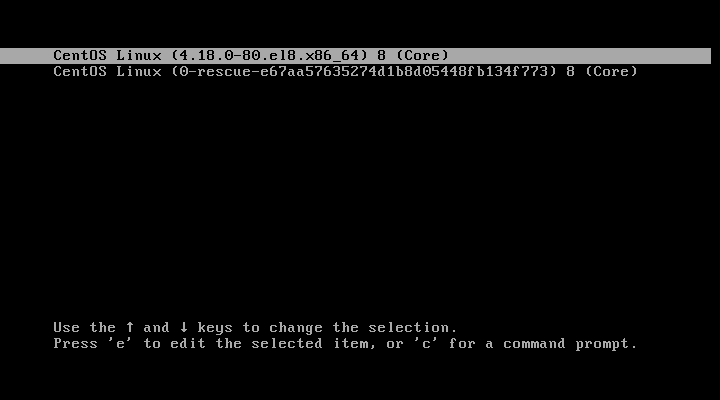
The grub2 menu allows you to do a couple of things. It allows you to select the Linux kernel version that you’d want to use. If you have been upgrading your system a couple of times, you might see different kernel versions listed. Additionally, it gives you the ability to edit some kernel parameters by pressing a combination of keyboard keys.

Select Kernel Version

Also, in a dual-boot setup where you have multiple OS installations, the grub menu allows you to select which OS to boot into. The grub2 configuration file is the /boot/grub2/grub2.cfg file. GRUB’s main objective is to load the Linux kernel onto the main memory.

3. Kernel Initialization

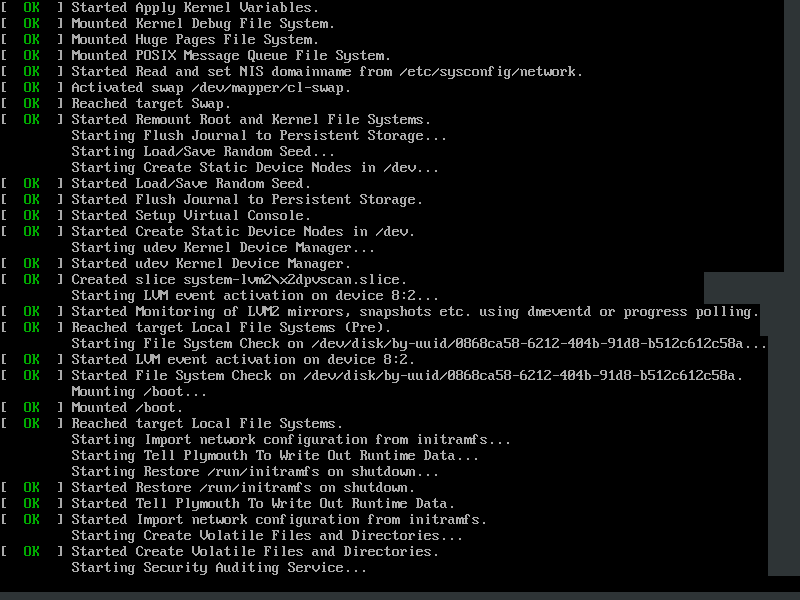
The kernel is the core of any Linux system. It interfaces the PC’s hardware with the underlying processes. The kernel controls all the processes on your Linux system. Once the selected Linux kernel is loaded by the bootloader, it must self extract from its compressed version before undertaking any task. Upon self-extracting, the selected kernel mounts the root file system and initializes the /sbin/init program commonly referred to as init.

Kernel Initialization Process

Init is always the first program to be executed and is assigned the process ID or PID of 1. It’s the init process that spawns various daemons & mounts all partitions that are specified in the /etc/fstab file.

The kernel then mounts the initial RAM disk (initrd) which is a temporary root filesystem until the real root filesystem is mounted. All kernels are located in the /boot directory together with the initial RAM disk image.

4.Starting Systemd

The kernel finally loads Systemd, which is the replacement of the old SysV init. Systemd is the mother of all Linux processes and manages among other things mounting of file systems, starting and stopping services to mention just a few.

Systemd uses the /etc/systemd/system/default.target file to determine the state or target that the Linux system should boot into.

  • For a desktop workstation (with a GUI) the default target value is 5 which is the equivalent of run level 5 for the old SystemV init.
  • For a server, the default target is multi-user.target which corresponds to run level 3 in SysV init.

Here’s a breakdown of the systemd targets:

  • poweroff.target (runlevel 0): Poweroff or Shutdown the system.
  • rescue.target (runlevel 1): launches a rescue shell session.
  • multi-user.target (runlevel 2,3,4): Configures the system to a non-graphical (console) multi-user system.
  • graphical.target (runlevel 5): Set the system to use a graphical multi-user interface with network services.
  • reboot.target (runlevel 6): reboots the system.

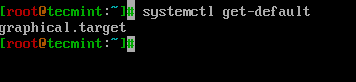
To check the current target on your system, run the command:

$ systemctl get-default
Check Run Level
Check Run Level

You can switch from one target to another by running the following command on the terminal:

$ init runlevel-value

For example, init 3 configures the system to a non-graphical state.

The init 6 command reboots your system and init 0 powers off the system. Be sure to invoke sudo command when you want to switch to these two targets.

The booting process ends once systemd loads all the daemons and sets the target or run level value. It’s at this point you are prompted for your username and password upon which you gain entry to your Linux system.

What Is Linux? and How Does Linux Work?

What Is Linux?

Linux is an open-source, community-developed operating system with the kernel at its core, alongside other tools, applications, and services.

Like any other operating system like Windows or MAC, it manages the hardware resources of a system such as CPU, RAM, and storage. The kernel interfaces the operating system and the underlying hardware and facilitates communication between the two.

What is a Linux Command Line?

A command line is an interface that allows you to type and run Linux commands which instruct the operating system on what actions to carry out. A command-line interface is provided by a terminal or terminal emulator such as GNOME TerminalKonsole, and XTERM.

Working on the command line is the ideal way of administering a Linux system, especially when working with a headless server or a minimal system (A Linux system that does not provide a GUI).

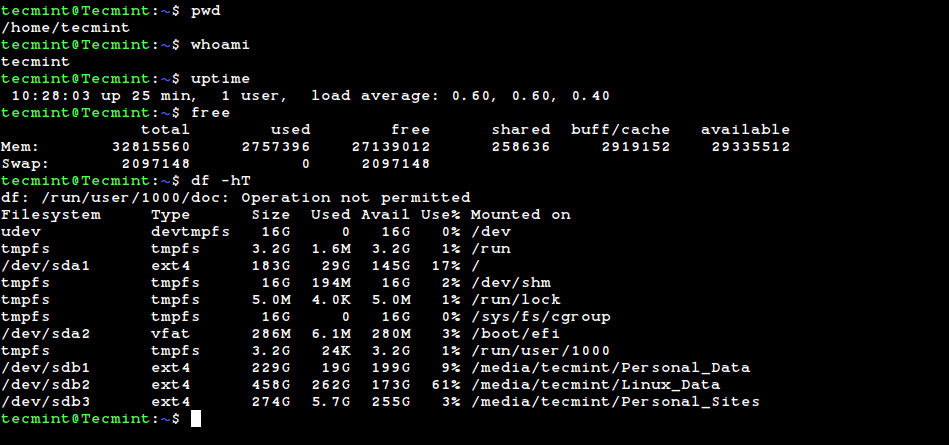
Linux Command Line Interface

How Does Linux Work?

At the core of every Linux system is the kernel. The kernel is what sets apart Linux from other operating systems. It is the central component of the operating system and acts as a bridge between the user-level applications and the underlying hardware components.

It enables the communication between the software and the underlying physical hardware. The kernel manages all the running processes, memory, files, and so on. In a nutshell, the kernel takes care of the following:

  • Memory Management – The kernel keeps track of memory usage by various applications on the system.
  • Device Management – It also manages various devices that are connected to the system, such as input and output devices.
  • Process Management – The kernel manages running processes in order to avoid conflicts and deadlocks and also for the optimal functioning of the system.
  • System Calls and Security – The kernel receives and handles requests for service from the processes.

As mentioned before, the kernel sits right in the middle of User processes and the underlying hardware which comprises RAM, CPU, I/O devices, storage, graphics, and networking.

Apart from the kernel, the Linux Operating system includes other essential components such as GNU tools, system utilities, installed applications, and many others. All of these bundled together constitute a functional operating system.

What is a Linux Desktop Environment

A desktop environment is a collection of components that provide a Graphical User Interface (GUI) that allows users to seamlessly interact with the operating system. It comprises graphical elements such as icons, menus, windows, taskbars, wallpapers, widgets, and panels to mention a few.

A desktop environment is provided, by default, in modern graphical Linux distributions such as Debian, Ubuntu, Fedora, Rocky, and AlmaLinux. It enhanced user interaction and enables users to easily manage the system as opposed to the command line interface which requires a high skill set to use.

Examples of popular desktop environments include GNOME, Cinnamon, KDE Plasma, MATE, Deepin, XFCE, LXDE, and LXQt.

Linux Desktop Environment

Linux and Open Source

Linux is a free and open-source operating system that was initially released to the general public in 1991. It is currently under the GNU General Public License (GPL). Opensource implies that anyone can study, modify and redistribute the source code, provided they do so under the GNU GPL license terms.

Over time, Linux has grown in leaps and bounds to become one of the biggest open-source projects in the world. It has won the hearts of IT professionals, desktop lovers, and hobbyists from all over the globe.

It enjoys a wide community of vibrant and indefatigable developers who contribute to the kernel, search and fix bugs, add new features and brainstorm new ideas while sharing their views and opinions with the community.

What is a “Distribution?” and List of Linux Distros

Often abbreviated as ‘distro’ a Linux distribution is a version of the Linux operating system that is based on the Linux kernel. It ships with other components such as system tools and services, applications, and additional programs such as LibreOffice, GIMP, and Firefox web browser.

Popular free Linux distributions include Ubuntu from Canonical, Debian from the Debian Project, Fedora from the Fedora Project, OpenSUSE from SUSE, and Rocky and AlmaLinux both of which are 100% binary compatible with Red Hat.

Commercial distributions include Oracle Linux, Red Hat Enterprise Linux (RHEL), and SUSE Enterprise Server (SLES).

Which Linux Distribution is Right for You?

There are tons of Linux distributions and choosing the right one usually boils down to what you want to accomplish with it. Before opting for your distribution of choice, it’s worth taking time to familiarize yourself with the differences and nuances that exist between various Linux distributions.

At a glance, Linux distributions differ in the following ways.

  • Package Management – This is how packages are installed and managed. Debian distributions use APT, Red Hat variants use DNF, SUSE distributions use zypper and Arch distributions use Pacman to mention a few examples. )
  • Cost – Where it’s completely free, subscription-based (in the case of RHEL and SUSE), or partly paid in the case of subscription-based customer support.
  • Documentation – Extensive documentation and manuals or lack thereof.
  • Quality of Software – Some distributions provide the latest versions of software, while others don’t.
  • Customer Support – Whether the vendor offers exemplary support to users or not.
  • Ease of Use – Most of the distros are user-friendly and easy to use.

With that in mind, choosing the right distribution is mostly a personal thing and depends on what your goal is. So here is a breakdown of Linux distributions suited for particular use cases:

Beginner-Friendly Linux Distributions

When it comes to choosing a beginner-friendly Linux distro for learners or beginners in Linux, Ubuntu leads the pack. It’s a completely free and open-source distribution that provides an intuitive and user-friendly user interface that offers a seamless user experience.

Out of the box, you also get essential applications needed to get off the ground such as LibreOffice suite, Firefox browser, audio & video player, photo viewer, screenshot tool, thunderbird email client, calendar, and many more. It’s highly customizable and versatile.

Other beginner-friendly distributions include Linux MintZorinElementary OSMX Linux, and Linux Lite. It’s worth noting that most of these are based either on Debian or Ubuntu.

Intermediate to Advanced Linux Distributions

For intermediate to advanced users such as developers and system engineers and administrators, Debian, SUSE Linux, RHEL, Rocky, AlmaLinux, and Fedora are recommended.

These are excellent all-rounders that can serve both as desktop distributions and also in enterprise setups handling production workloads.

Linux distributions for Servers

Linux distributions optimized for server environments, including bare-metal and cloud deployments include RHEL, SUSE Linux Enterprise Server (SLES), Debian stable, Ubuntu Server, and Fedora (Fedora Server and Fedora CoreOS for containerized workloads.

They are considered ideal due to their high performance, impressive stability, and security.

Linux Distributions for Multimedia Purposes

For artists, content creators, and producers of multimedia content, Ubuntu Studio and Fedora Design Suite come in handy.

Security-Centric Linux Distributions

Kali Linux, Black Arch, and Parrot OS are Linux distributions considered ideal for security-related tasks such as penetration testing, and digital forensics. 

Thursday, October 3, 2024

Role and duties of a Linux/Windows system administrator


Role and duties of a Linux/Windows system administrator

Role and duties of a Linux/Windows system administrator

Create and update repositories. At the same time you must be able to install packages, remove or search them.
  1. Setting permissions on files and directories. You need to be good with special permissions such as SGID,SUID and sticky bits. Gain knowledge about ACLs.
  2. Process management. This is something practically required in company environment. Learn basic process management commands such as top, ps, vmstat etc.
  3. Managing and creating partitions. You must be good with file systems. Also gain knowledge about type of partitions such as swap.
  4. Sharing of files through NFS and SAMBA.
  5. Understanding of SElinux concepts. Understand how contexts work in SELinux .
  6. Learn SSH.
  7. Learn networking basics and understanding of firewalls would be great.
  8. Cron scheduling basics.
  9. Basic understanding of configuration files of various services.
  10. Basic shell scripting.


Role and duties of a Linux/Windows system administrator

The duties of a system administrator are wide-ranging and vary widely from one organization to another. Sysadmins are usually charged with installing, supporting, and maintaining servers or other computer systems, and planning for and responding to service outages and other problems. Other duties may include scripting or light programming, and project management for systems-related projects.

The system administrator is responsible for the following things:

  1. User administration (setup and maintaining account)
  2. Maintaining system
  3. Verify that peripherals are working properly
  4. Quickly arrange the repair for hardware in the occasion of hardware failure
  5. Monitor system performance
  6. Create file systems
  7. Install the software using tools such as apt command/apt-get command, dnf command/yum command, zypper command, apk command and others.
  8. Patching firmware and software
  9. Create a backup and recover policy (disaster recovery [DR])
  10. Monitor network communication
  11. Update system as soon as the new version of OS and application software comes out
  12. Implement the policies for the use of the computer system and network
  13. Setup security policies for users. A sysadmin must have a strong grasp of computer security (e.g. firewalls and intrusion detection systems. You must know how to use tools such as Wireshark and Nmap command)
  14. Documentation in form of an internal wiki. You must know how to read manual pages using the man command or help command.
  15. Password and identity management
  16. Network administration
  17. Database administration
  18. How to view and troubleshoot with Unix and Linux log files
  19. Setting up cron jobs on your Unix and Linux system using the crontab command
  20. Responsible for installing and maintaining all software systems and server hardware
  21. Maintenance of all system backup and providing training to all users.

  22. Upgrade the installed software with the new version of OS and create new storage.

  23. Ability to troubleshoot when required and work in Linux friendly applications

  24. Monitoring the servers and network communication

  25. Creating file systems

  26. Implementation of policies

  27. Creating security policies for users like firewalls.

  28. Managing the password and identity

  29. To monitor and evaluate everyday systems and all resources related to the server.


Linux System Administrator is a person who has ‘root’ access that is a ‘superuser’. It means he has the privilege to access everything which includes all user accounts, all system configurations, home directories with all files therein, and all files in the system.

Linux System Administrator has the following duties  (Write any five)

Installing and configuring server

A server is basically a computer program that facilitates the same computer or another computer by providing services to them.

It is the most important element of Modern OS and network design.

It is of the system administrator to configure the server so that the most essential server remains inaccessible. He must be aware of types of attacks and security bugs.

Installing and configuring application software

In order to ensure a correct execution environment, the administrator must provide software that is well configured and validated.

He should ensure adequate memory allotment and resolve software failure and dependency issues.

He must provide a set of activities to control hardware and software configuration and maintain policies for users.

Creating and maintaining user accounts

Users can access their own accounts but the administrator has access to every user account.

He can add, modify, delete or copy a user account.

He is responsible for maintaining security by providing role on a user account that defines the level of access.

Backing up and restoring files

To minimize the loss of data, the administrator must maintain a backup of files nd he should restore it whenever required.

Administrators can take backup in removable media such as hard drives or tapes as protection against loss.

Before creating a backup administrator must decide.

What is necessary to backup?

How frequently backup should perform.

Monitoring and tuning performance

Monitoring and tuning performance is essential for Linux to work more efficiently.

Administrators must identify system bottlenecks and should solve them.

Administrators can use system tools to increase performance, they can determine
 when hardware needs to be upgraded.

He should identify the early sign of failure .

Configuring a secure system
It is the duty of the administrator to involve tasks and decisions to run a secure Linux system and maintain data integrity.

It provides strong protection to individuals and corporate bodies and protects parts of the system even if it is under attack.

Administrator should ensure
The system has a firewall.

Not allow connection from unknown network.

Not install software if not needed.

Using tools to monitor security
Linux is the preferred operating system that demands secure networks, but it can be easily cracked by hackers.

It is important for administrators to be aware of the tools hackers use and software used to monitor and counter such activity.

It is duty of the administrator to prevent unauthorized use of his system.

HTTP Appache Server LAB 7

 Apache HTTP Server (httpd) Configuration,