Friday, October 18, 2024

LFCS: How to Configure and Troubleshoot Grand Unified Bootloader (GRUB) – Part 13

 The Linux boot process from the time you press the power button of your computer until you get a fully-functional system follows this high-level sequence:

  1. 1. A process known as POST (Power-On Self Test) performs an overall check on the hardware components of your computer.
  2. 2. When POST completes, it passes the control over to the boot loader, which in turn loads the Linux kernel in memory (along with initramfs) and executes it. The most used boot loader in Linux is the GRand Unified Boot loader, or GRUB for short.
  3. 3. The kernel checks and accesses the hardware, and then runs the initial process (mostly known by its generic name “init”) which in turn completes the system boot by starting services.

In Part 7 of this series (“SysVinit, Upstart, and Systemd”) we introduced the service management systems and tools used by modern Linux distributions. You may want to review that article before proceeding further.

Introducing GRUB Boot Loader

Two major GRUB versions (v1 sometimes called GRUB Legacy and v2) can be found in modern systems, although most distributions use v2 by default in their latest versions. Only Red Hat Enterprise Linux 6 and its derivatives still use v1 today.

Thus, we will focus primarily on the features of v2 in this guide.

Regardless of the GRUB version, a boot loader allows the user to:

  1. 1). modify the way the system behaves by specifying different kernels to use,
  2. 2). choose between alternate operating systems to boot, and
  3. 3). add or edit configuration stanzas to change boot options, among other things.

Today, GRUB is maintained by the GNU project and is well documented in their website. You are encouraged to use the GNU official documentation while going through this guide.

When the system boots you are presented with the following GRUB screen in the main console. Initially, you are prompted to choose between alternate kernels (by default, the system will boot using the latest kernel) and are allowed to enter a GRUB command line (with c) or edit the boot options (by pressing the e key).

GRUB Boot Screen
GRUB Boot Screen

One of the reasons why you would consider booting with an older kernel is a hardware device that used to work properly and has started “acting up” after an upgrade (refer to this link in the AskUbuntu forums for an example).

The GRUB v2 configuration is read on boot from /boot/grub/grub.cfg or /boot/grub2/grub.cfg, whereas /boot/grub/grub.conf or /boot/grub/menu.lst are used in v1. These files are NOT to be edited by hand, but are modified based on the contents of /etc/default/grub and the files found inside /etc/grub.d.

In a CentOS 7, here’s the configuration file that is created when the system is first installed:

GRUB_TIMEOUT=5
GRUB_DISTRIBUTOR="$(sed 's, release .*$,,g' /etc/system-release)"
GRUB_DEFAULT=saved
GRUB_DISABLE_SUBMENU=true
GRUB_TERMINAL_OUTPUT="console"
GRUB_CMDLINE_LINUX="vconsole.keymap=la-latin1 rd.lvm.lv=centos_centos7-2/swap crashkernel=auto  vconsole.font=latarcyrheb-sun16 rd.lvm.lv=centos_centos7-2/root rhgb quiet"
GRUB_DISABLE_RECOVERY="true"

In addition to the online documentation, you can also find the GNU GRUB manual using info as follows:

# info grub

If you’re interested specifically in the options available for /etc/default/grub, you can invoke the configuration section directly:

# info -f grub -n 'Simple configuration'

Using the command above you will find out that GRUB_TIMEOUT sets the time between the moment when the initial screen appears and the system automatic booting begins unless interrupted by the user. When this variable is set to -1, boot will not be started until the user makes a selection.

When multiple operating systems or kernels are installed in the same machine, GRUB_DEFAULT requires an integer value that indicates which OS or kernel entry in the GRUB initial screen should be selected to boot by default. The list of entries can be viewed not only in the splash screen shown above, but also using the following command:

In CentOS and openSUSE:

# awk -F\' '$1=="menuentry " {print $2}' /boot/grub2/grub.cfg

In Ubuntu:

# awk -F\' '$1=="menuentry " {print $2}' /boot/grub/grub.cfg

In the example shown in the below image, if we wish to boot with the kernel version 3.10.0-123.el7.x86_64 (4th entry), we need to set GRUB_DEFAULT to 3 (entries are internally numbered beginning with zero) as follows:

GRUB_DEFAULT=3
Boot System with Old Kernel Version

One final GRUB configuration variable that is of special interest is GRUB_CMDLINE_LINUX, which is used to pass options to the kernel. The options that can be passed through GRUB to the kernel are well documented in the Kernel Parameters file and in man 7 bootparam.

Current options in my CentOS 7 server are:

GRUB_CMDLINE_LINUX="vconsole.keymap=la-latin1 rd.lvm.lv=centos_centos7-2/swap crashkernel=auto  vconsole.font=latarcyrheb-sun16 rd.lvm.lv=centos_centos7-2/root rhgb quiet"

Why would you want to modify the default kernel parameters or pass extra options? In simple terms, there may be times when you need to tell the kernel certain hardware parameters that it may not be able to determine on its own, or to override the values that it would detect.

This happened to me not too long ago when I tried Vector Linux, a derivative of Slackware, on my 10-year old laptop. After installation it did not detect the right settings for my video card so I had to modify the kernel options passed through GRUB in order to make it work.

Another example is when you need to bring the system to single-user mode to perform maintenance tasks. You can do this by appending the word single to GRUB_CMDLINE_LINUX and rebooting:

GRUB_CMDLINE_LINUX="vconsole.keymap=la-latin1 rd.lvm.lv=centos_centos7-2/swap crashkernel=auto  vconsole.font=latarcyrheb-sun16 rd.lvm.lv=centos_centos7-2/root rhgb quiet single"

After editing /etc/defalt/grub, you will need to run update-grub (Ubuntu) or grub2-mkconfig -o /boot/grub2/grub.cfg (CentOS and openSUSE) afterwards to update grub.cfg (otherwise, changes will be lost upon boot).

This command will process the boot configuration files mentioned earlier to update grub.cfg. This method ensures changes are permanent, while options passed through GRUB at boot time will only last during the current session.

Fixing Linux GRUB Issues

If you install a second operating system or if your GRUB configuration file gets corrupted due to human error, there are ways you can get your system back on its feet and be able to boot again.

In the initial screen, press c to get a GRUB command line (remember that you can also press e to edit the default boot options), and use help to bring the available commands in the GRUB prompt:

Fix Grub Configuration Issues in Linux

We will focus on ls, which will list the installed devices and filesystems, and we will examine what it finds. In the image below we can see that there are 4 hard drives (hd0 through hd3).

Only hd0 seems to have been partitioned (as evidenced by msdos1 and msdos2, where 1 and 2 are the partition numbers and msdos is the partitioning scheme).

Let’s now examine the first partition on hd0 (msdos1) to see if we can find GRUB there. This approach will allow us to boot Linux and there use other high level tools to repair the configuration file or reinstall GRUB altogether if it is needed:

# ls (hd0,msdos1)/

As we can see in the highlighted area, we found the grub2 directory in this partition:

Find Grub Configuration

Once we are sure that GRUB resides in (hd0,msdos1), let’s tell GRUB where to find its configuration file and then instruct it to attempt to launch its menu:

set prefix=(hd0,msdos1)/grub2
set root=(hd0,msdos1)
insmod normal
normal
Find and Launch Grub Menu

Then in the GRUB menu, choose an entry and press Enter to boot using it. Once the system has booted you can issue the grub2-install /dev/sdX command (change sdX with the device you want to install GRUB on). The boot information will then be updated and all related files be restored.

# grub2-install /dev/sdX

Other more complex scenarios are documented, along with their suggested fixes, in the Ubuntu GRUB2 Troubleshooting guide. The concepts explained there are valid f

LFCS: How to Explore Linux with Installed Help Documentations and Tools – Part 12

 Once you get used to working with the command line and feel comfortable doing so, you realize that a regular Linux installation includes all the documentation you need to use and configure the system.

Another good reason to become familiar with command line help tools is that in the LFCS and LFCE exams, those are the only sources of information you can use – no internet browsing and no googling. It’s just you and the command line.

For that reason, in this article we will give you some tips to effectively use the installed docs and tools in order to prepare to pass the Linux Foundation Certification exams.

Linux Man Pages

A man page, short for manual page, is nothing less and nothing more than what the word suggests: a manual for a given tool. It contains the list of options (with explanation) that the command supports, and some man pages even include usage examples as well.

To open a man page, use the man command followed by the name of the tool you want to learn more about. For example:

# man diff

will open the manual page for diff, a tool used to compare text files line by line (to exit, simply hit the q key.).

Let’s say we want to compare two text files named file1 and file2 in Linux. These files contain the list of packages that are installed in two Linux boxes with the same distribution and version.

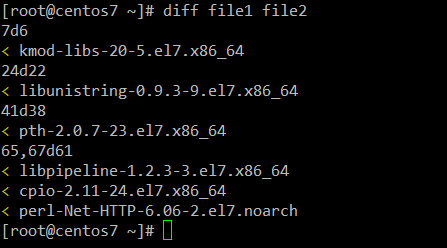
Doing a diff between file1 and file2 will tell us if there is a difference between those lists:

# diff file1 file2
Compare Two Text Files in Linux

where the < sign indicates lines missing in file2. If there were lines missing in file1, they would be indicated by the > sign instead.

On the other hand, 7d6 means line #7 in file should be deleted in order to match file2 (same with 24d22 and 41d38), and 65,67d61 tells us we need to remove lines 65 through 67 in file one. If we make these corrections, both files will then be identical.

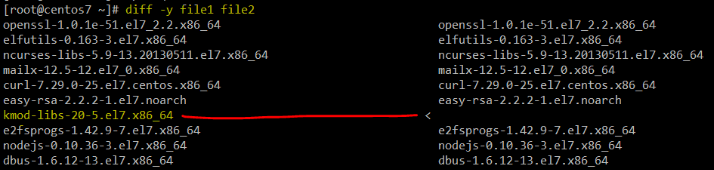
Alternatively, you can display both files side by side using the -y option, according to the man page. You may find this helpful to more easily identify missing lines in files:

# diff -y file1 file2
Compare and List Difference of Two Files

Also, you can use diff to compare two binary files. If they are identical, diff will exit silently without output. Otherwise, it will return the following message: “Binary files X and Y differ”.

The –help Option

The --help option, available in many (if not all) commands, can be considered a short manual page for that specific command. Although it does not provide a comprehensive description of the tool, it is an easy way to obtain information on the usage of a program and a list of its available options at a quick glance.

For example,

# sed --help

shows the usage of each option available in sed (the stream editor).

One of the classic examples of using sed consists of replacing characters in files. Using the -i option (described as “edit files in place”), you can edit a file without opening it. If you want to make a backup of the original contents as well, use the -i option followed by a SUFFIX to create a separate file with the original contents.

For example, to replace each occurrence of the word Lorem with Tecmint (case insensitive) in lorem.txt and create a new file with the original contents of the file, do:

# less lorem.txt | grep -i lorem
# sed -i.orig 's/Lorem/Tecmint/gI' lorem.txt
# less lorem.txt | grep -i lorem
# less lorem.txt.orig | grep -i lorem

Please note that every occurrence of Lorem has been replaced with Tecmint in lorem.txt, and the original contents of lorem.txt has been saved to lorem.txt.orig.

Replace A String in Files

Installed Documentation in /usr/share/doc

This is probably my favorite pick. If you go to /usr/share/doc and do a directory listing, you will see lots of directories with the names of the installed tools in your Linux system.

According to the Filesystem Hierarchy Standard, these directories contain useful information that might not be in the man pages, along with templates and configuration files to make configuration easier.

For example, let’s consider squid-3.3.8 (version may vary from distribution to distribution) for the popular HTTP proxy and squid cache server.

Let’s cd into that directory:

# cd /usr/share/doc/squid-3.3.8

and do a directory listing:

# ls
Linux Directory Listing with ls Command

You may want to pay special attention to QUICKSTART and squid.conf.documented. These files contain an extensive documentation about Squid and a heavily commented configuration file, respectively. For other packages, the exact names may differ (as QuickRef or 00QUICKSTART, for example), but the principle is the same.

Other packages, such as the Apache web server, provide configuration file templates inside /usr/share/doc, that will be helpful when you have to configure a standalone server or a virtual host, to name a few cases.

GNU info Documentation

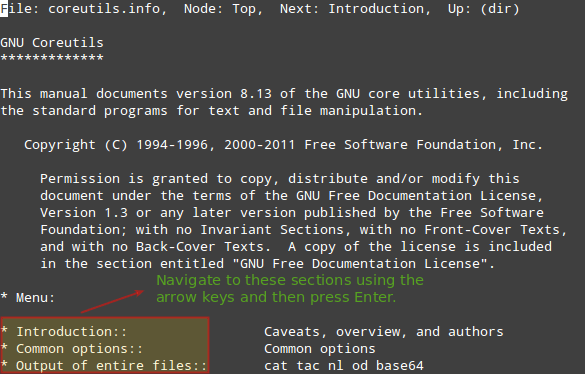
You can think of info documents as man pages on steroids. As such, they not only provide help for a specific tool, but also they do so with hyperlinks (yes, hyperlinks in the command line!) that allow you to navigate from a section to another using the arrow keys and Enter to confirm.

Perhaps the most illustrative example is:

# info coreutils

Since coreutils contains the basic file, shell and text manipulation utilities which are expected to exist on every operating system, you can reasonably expect a detailed description for each one of those categories in info coreutils.

Info Coreutils
Info Coreutils

As it is the case with man pages, you can exit an info document by pressing the q key.

Additionally, GNU info can be used to display regular man pages as well when followed by the tool name. For example:

# info tune2fs

will return the man page of tune2fs, the ext2/3/4 filesystems management tool.

And now that we’re at it, let’s review some of the uses of tune2fs:

Display information about the filesystem on top of /dev/mapper/vg00-vol_backups:

# tune2fs -l /dev/mapper/vg00-vol_backups

Set a filesystem volume name (Backups in this case):

# tune2fs -L Backups /dev/mapper/vg00-vol_backups

Change the check intervals and / or mount counts (use the -c option to set a number of mount counts and / or the -i option to set a check interval, where d=daysw=weeks, and m=months).

# tune2fs -c 150 /dev/mapper/vg00-vol_backups # Check every 150 mounts
# tune2fs -i 6w /dev/mapper/vg00-vol_backups # Check every 6 weeks

All of the above options can be listed with the --help option, or viewed in the man page.


HTTP Appache Server LAB 7

 Apache HTTP Server (httpd) Configuration,