1. Check Linux Disk Space Usage
The “df” command displays the information of device name, total blocks, total disk space, used disk space, available disk space, and mount points on a file system.
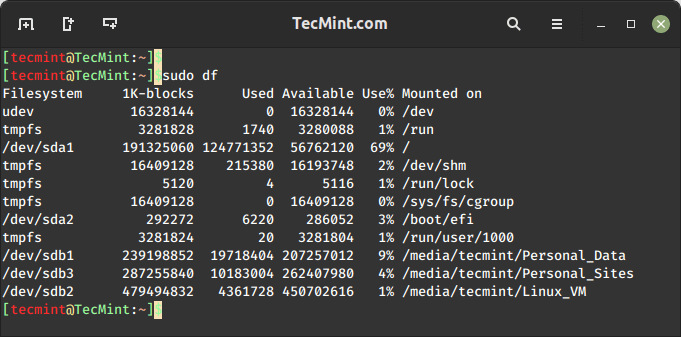
2. Check Information on Linux Disk Space Usage
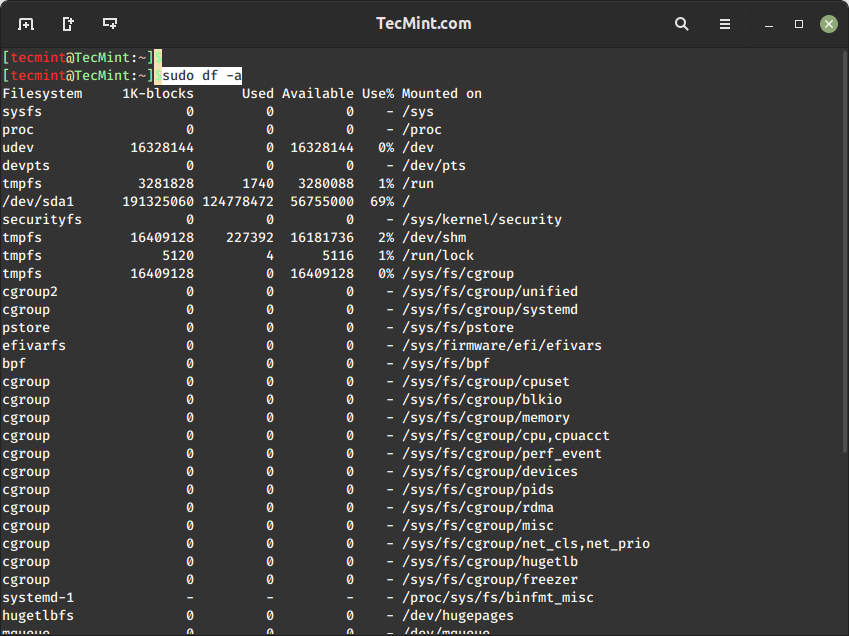
The command "df -a" is used to display information about all the mounted filesystems disk space usage, which includes total space, used space, available space, memory utilization, and the percentage of space used for each filesystem.
It also shows pseudo filesystems with 0 blocks (those not directly tied to a physical device) and are ignored by default.
3. Show Disk Space Usage in Human Readable Format
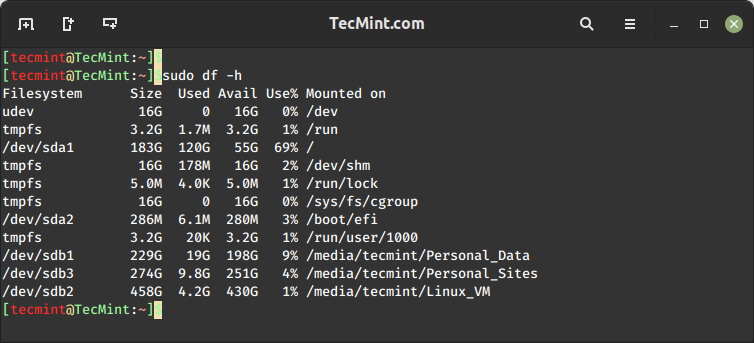
Have you noticed that the above commands display information in bytes, which is not readable at all because we are in a habit of reading the sizes in megabytes, gigabytes, etc. as it makes it very easy to understand and remember.
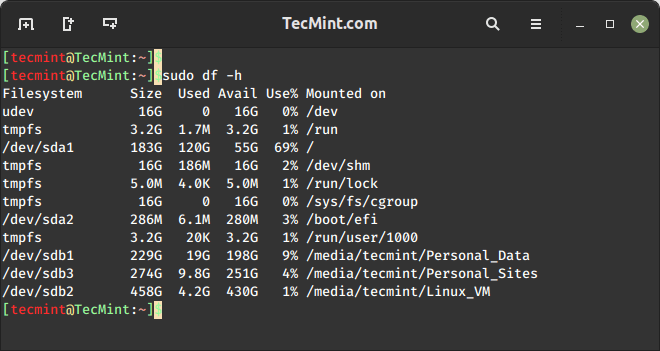
The command "df -h" is used to display disk space usage in a human-readable format. The "-h" option stands for “human-readable” and it shows information about all mounted filesystems on your system, presenting the sizes in a format that is easier for humans to understand, using units like kilobytes (KB), megabytes (MB), gigabytes (GB), etc.
4. Check Disk Space Usage of /home Directory
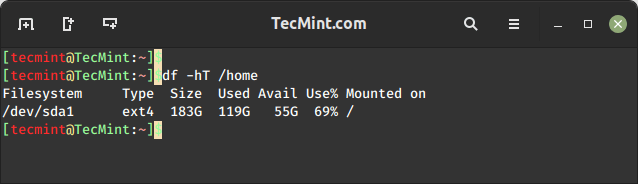
The command "df -hT /home" is used to display disk space utilization of /home directory or partition in a human-readable format. The -T option shows the filesystem type (ext4) along with other information.
5. Check Disk Space Usage in Kilobytes
To display all mounted filesystem information and usage in 1024-byte blocks, use the option ‘-k‘ (e.g. --block-size=1K), which provides information about each filesystem on your system, presenting sizes in kilobytes (kb).
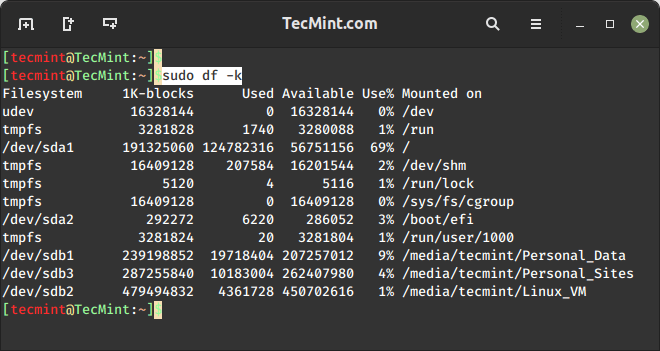
6. Check Disk Space Usage in Megabytes
To display information on all file system usage in MB (MegaByte) use the option ‘-m‘, which presents sizes in megabytes (MB).
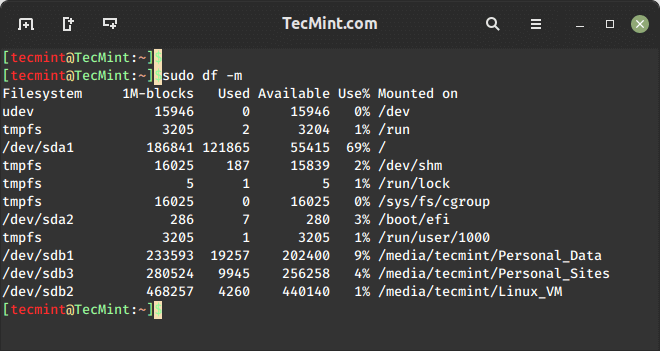
7. Check Disk Space Usage in Gigabyte
To display information on all file system statistics in GB (Gigabyte) use the command "df -h", which shows disk space in human-readable sizes such as kilobytes (KB), megabytes (MB), gigabytes (GB), and so on.
8. Check Inode Usage in Linux
The command "df -i" provides detailed information about the number of inodes used and available on each mounted filesystem on a Linux system. The inodes are data structures that store information about files and directories, such as ownership, permissions, and timestamps.
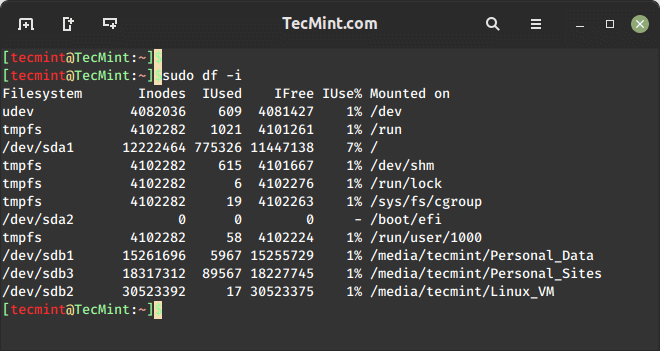
If you find yourself in a situation where there is a shortage of inodes, you will need to increase the inode count on your Linux filesystem.
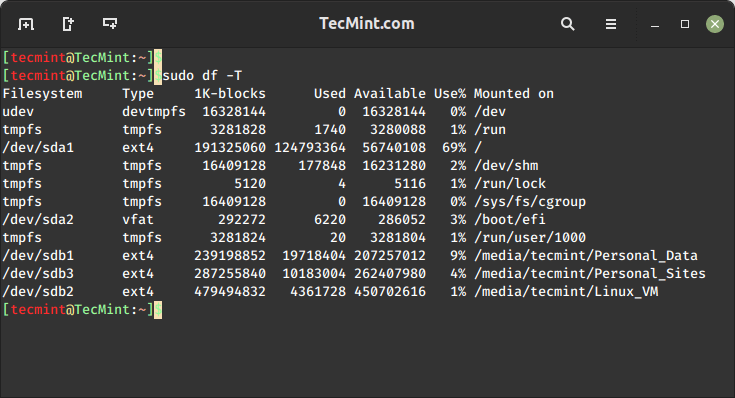
9. Check Linux File System Type
If you notice all the above commands output, you will see there is no Linux file system type mentioned in the results. To check the file system type of your system use the option ‘T‘, which will display file system type along with other information.
10. Check Disk Space Usage for ext4 Filesystems
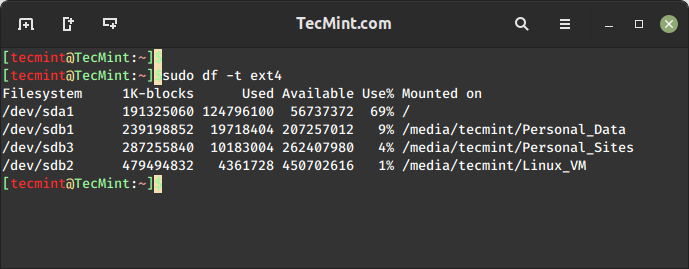
If you want to display a certain file system type use the ‘-t‘ option, which will display disk space usage specifically for filesystems of type ext4.
11. Exclude Certain File System Type
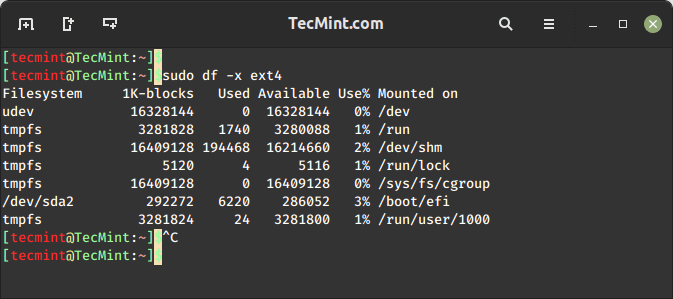
If you want to display a file system type that doesn’t belong to the ext4 type, use the option ‘-x‘, which will print disk space usage for all mounted non-ext4 filesystem filesystems excluding those of type ext4.
12. Check df Command Usage
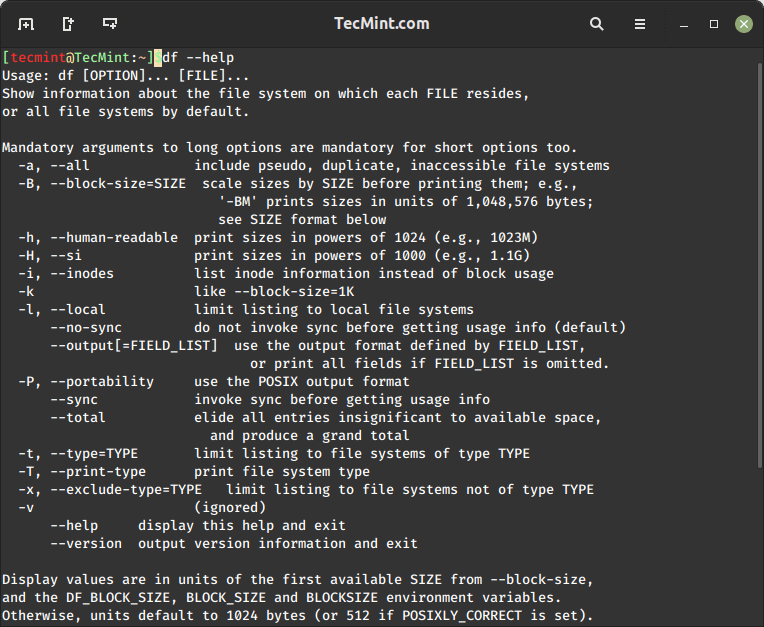
The command "df --help" provides a list of available option that is used with the df command.


No comments:
Post a Comment