What is apt-get Command?
The apt-get command is a powerful and free package management command line program, that is used to work with Ubuntu’s APT (Advanced Packaging Tool) library to perform the installation of new software packages, removing existing software packages, upgrading of existing software packages, and even used to upgrading the entire operating system.
The syntax for the apt-get command is as follows:
Here, <options> represent any additional flags or modifiers you can use with the command, and <command> specifies the action you want to perform, such as installing, upgrading, removing, or searching for packages.
1. Update Ubuntu System Packages
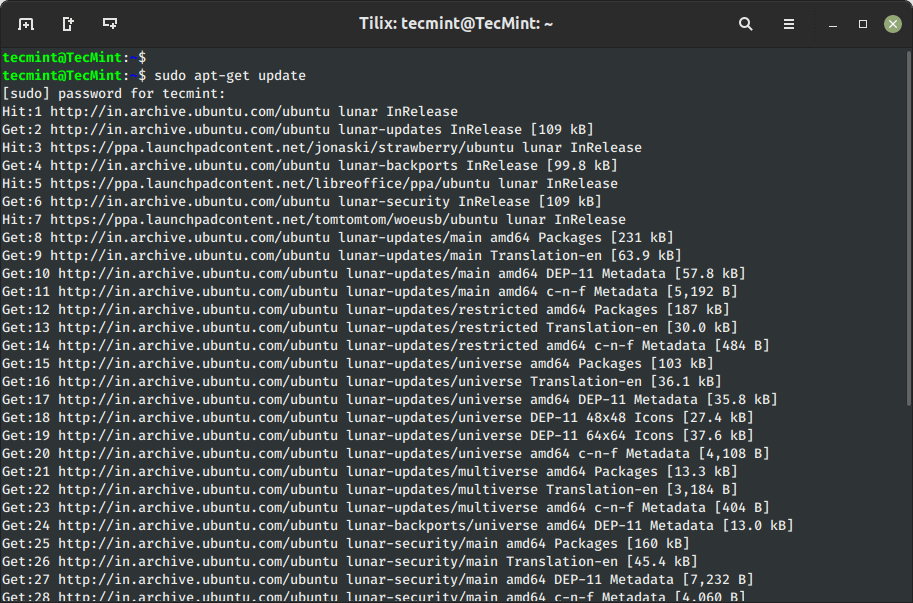
The ‘update‘ command is used to resynchronize the package index files from the sources specified in /etc/apt/sources.list file. The update command fetched the packages from their locations and update the packages to newer versions.
2. Upgrade Ubuntu System Packages
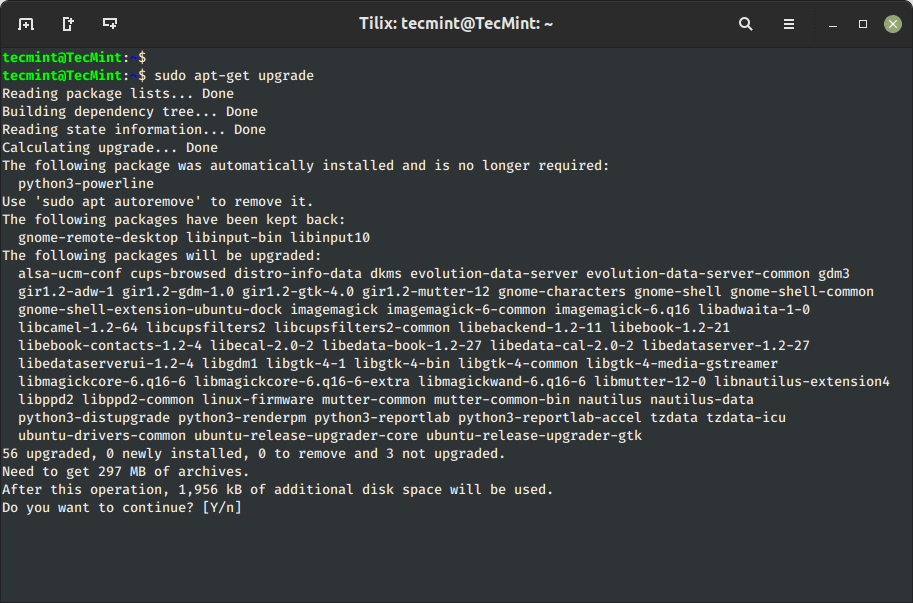
The ‘upgrade‘ command is used to upgrade all the currently installed software packages on the system. Under any circumstances currently installed packages are not removed or packages that are not already installed neither retrieved nor installed to satisfy upgrade dependencies.
3. Install Package in Ubuntu
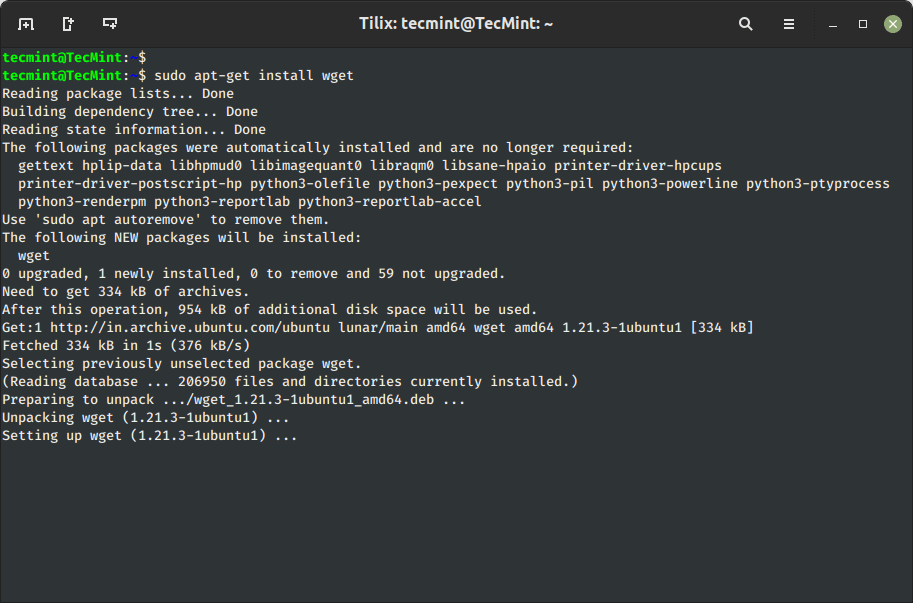
The ‘install‘ sub command is tracked by one or more packages wishing for installation or upgrading from the repositories. For example, to install or update the package named wget, you can run:
Alternatively, you can also use the apt-cache command to search for a package before installing in the system package cache based on a given search term such as name or description.
4. Install Multiple Packages in Ubuntu
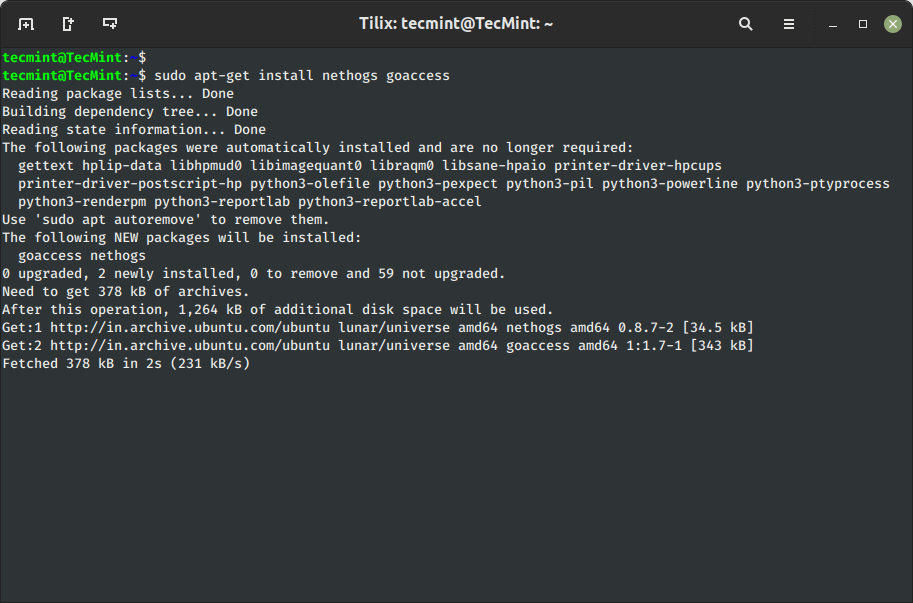
You can add more than one package name along with the command in order to install multiple packages at the same time. For example, the following command will install packages ‘nethogs‘ and ‘goaccess‘.
5. Install Several Packages Using Wildcard
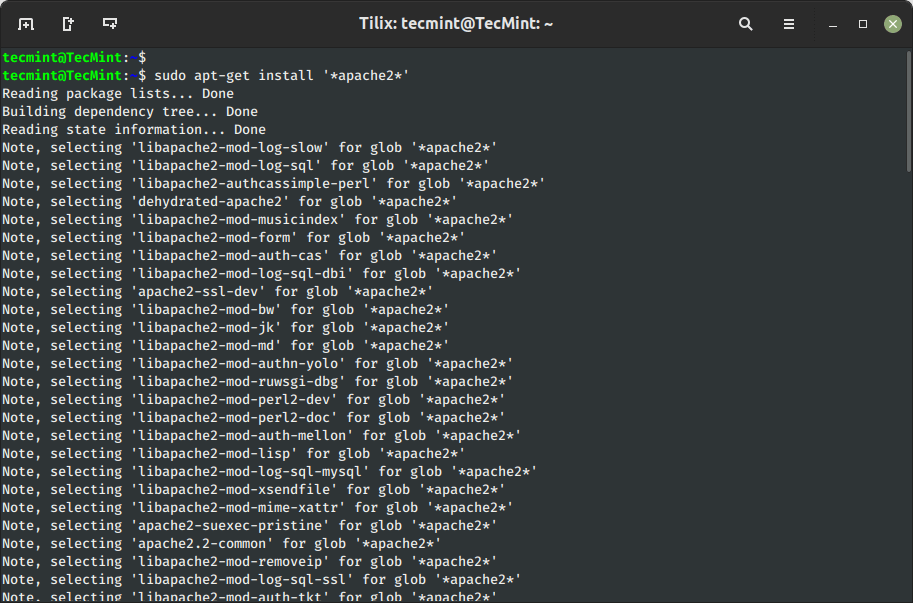
With the help of regular expression, you can add several packages with one string. For example, we use * wildcard to install several packages that contain the ‘*name*‘ string, the name would be ‘package-name‘.
6. Install Package Without Upgrading
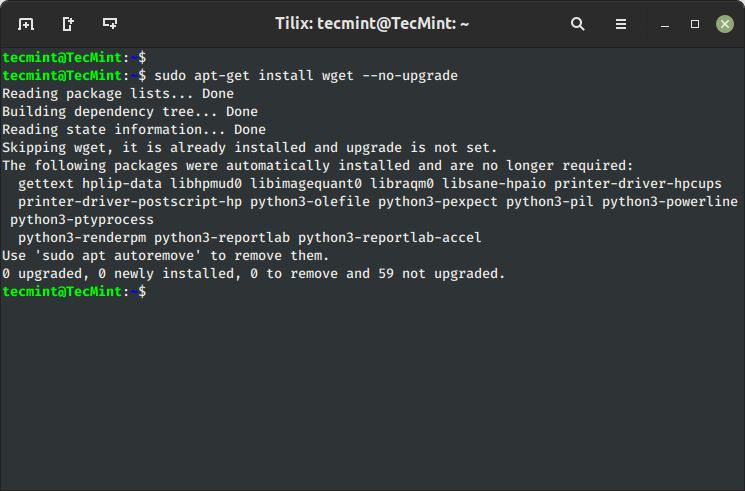
Using sub ‘--no-upgrade‘ command will prevent already installed packages from upgrading.
7. Update a Single Package
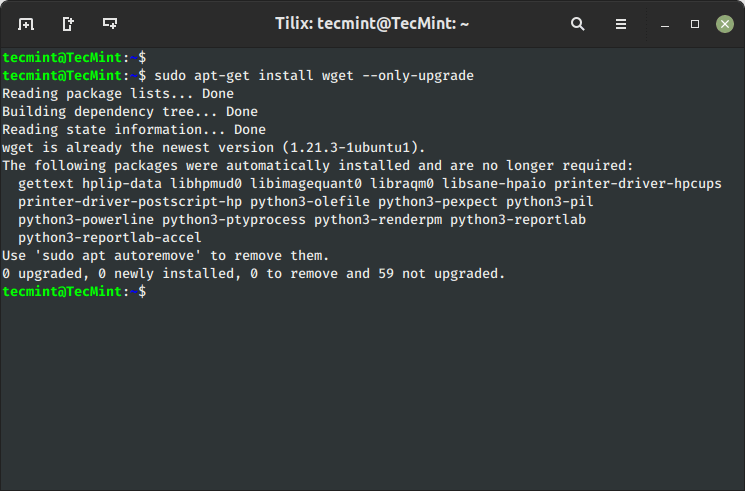
The ‘--only-upgrade‘ command does not install new packages but it only upgrades the already installed packages and disables new installation of packages.
8. Install Specific Package Version on Ubuntu
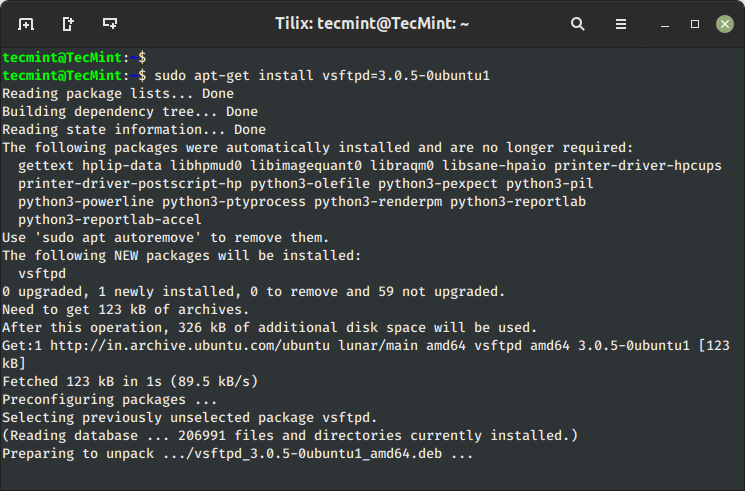
Let’s say you wish to install only specific versions of packages, simply use the ‘=‘ with the package name and append desired version.
9. Uninstall Package Without Configuration
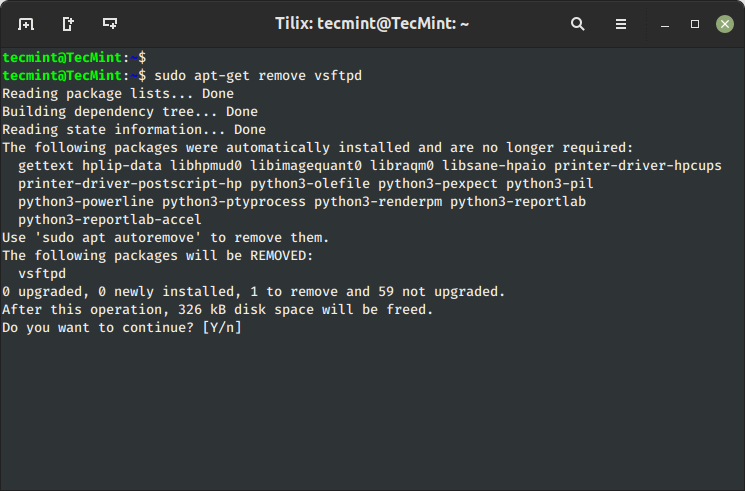
To uninstall software packages without removing their configuration files (for later re-use of the same configuration), use the remove command as shown.
10. Completely Remove Package with Configuration
To remove software packages including their configuration files, use the ‘purge‘ sub-command as shown below.
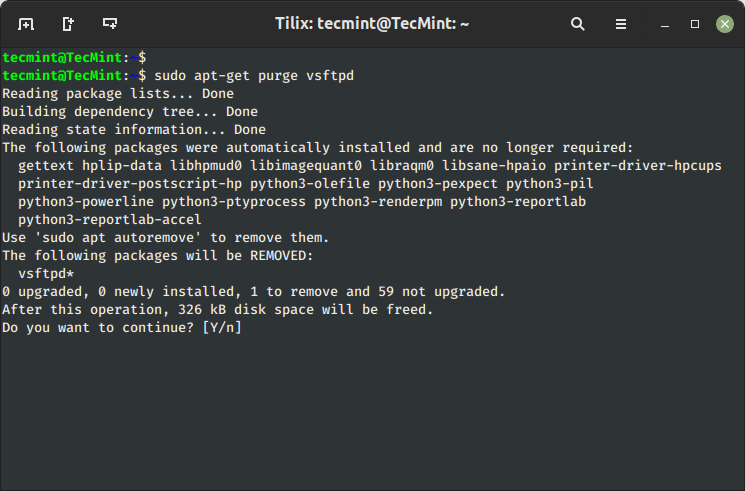
Alternatively, you can combine both commands together as shown below.
11. Clear Apt Cache to Save Disk Space
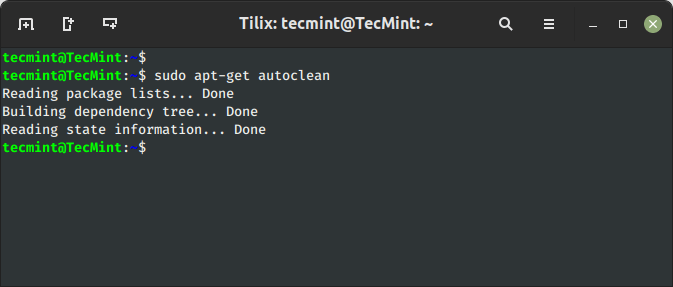
The ‘clean‘ command is used to free up the disk space by cleaning retrieved (downloaded) .deb files (packages) from the local repository.
12. Download Source Code of a Package in Ubuntu
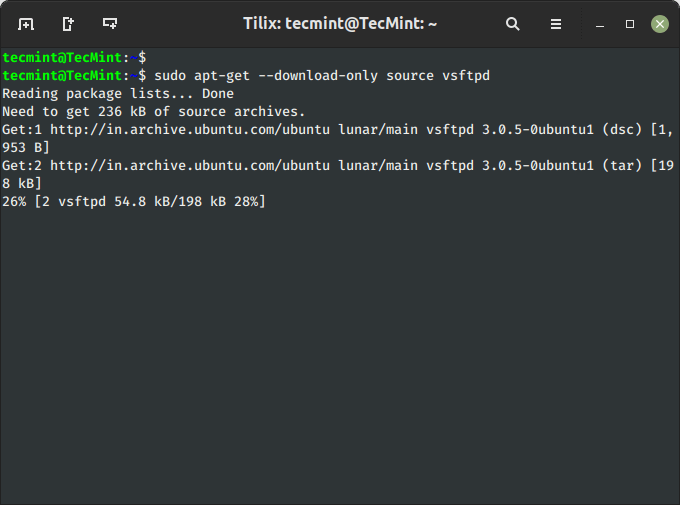
To download only the source code of a particular package, use the option ‘--download-only source‘ with ‘package-name‘ as shown.
13. Download and Extract Source Package in Ubuntu
To download and unpack the source code of a package to a specific directory, type the following command.
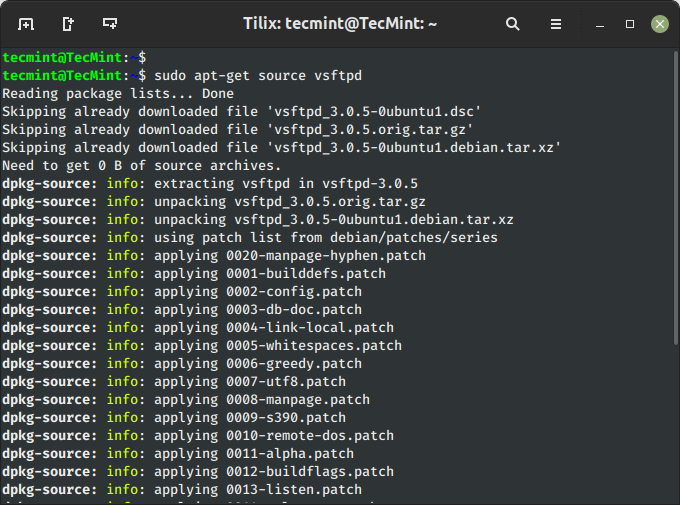
You may encounter one common error “E: You must put some ‘deb-src’ URIs in your sources.list” when attempting to download the source code of a package from the repositories.
14. Compile Ubuntu Package from Source
You can also download, unpack and compile the source code at the same time, using the option ‘--compile‘ as shown below.
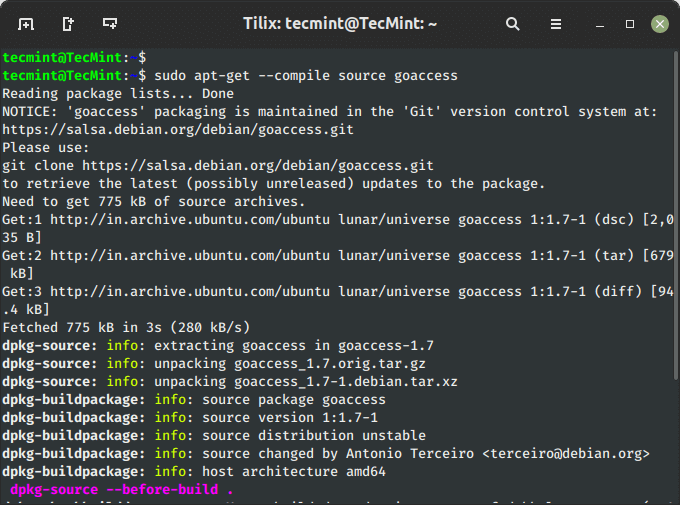
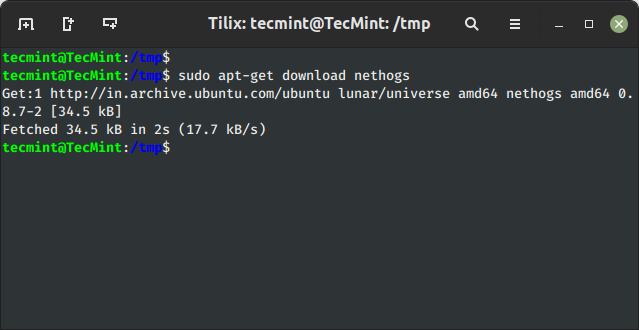
15. Download Package Without Installing
Using the ‘download‘ option, you can download any given package without installing it. For example, the following command will only download the ‘nethogs‘ package to the current working directory.
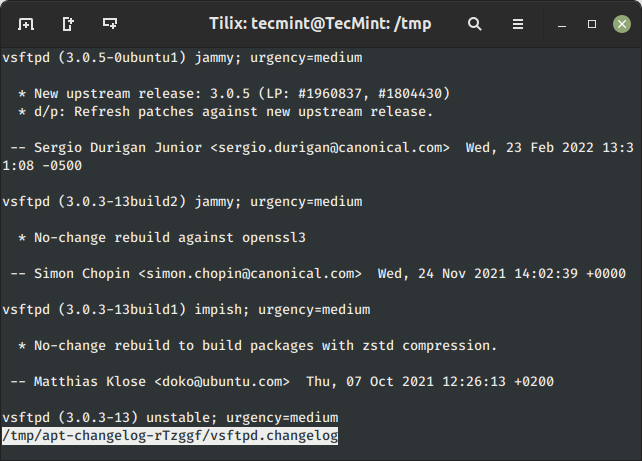
16. View Package Changelog in Ubuntu
The ‘changelog‘ flag downloads a package change-log and shows the package version that is installed.
17. View Broken Dependencies in Ubuntu
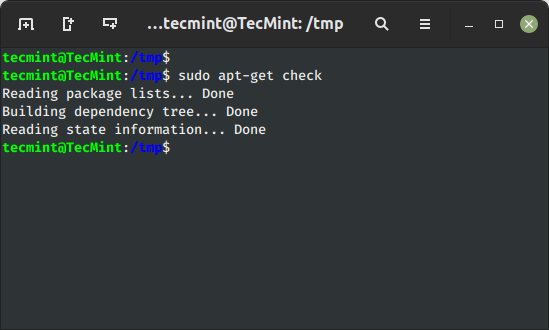
The ‘check‘ command is a diagnostic tool, which is used to update the package cache and check for broken dependencies.
18. Install Build Dependencies of Package
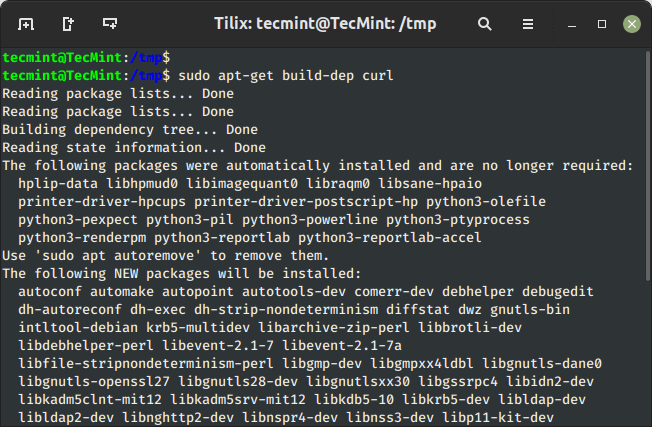
The ‘build-dep‘ command searches the local repositories in the system and installs the build dependencies for the curl package. If the package does not exist in the local repository it will return an error code.
19. Auto Remove Installed Packages
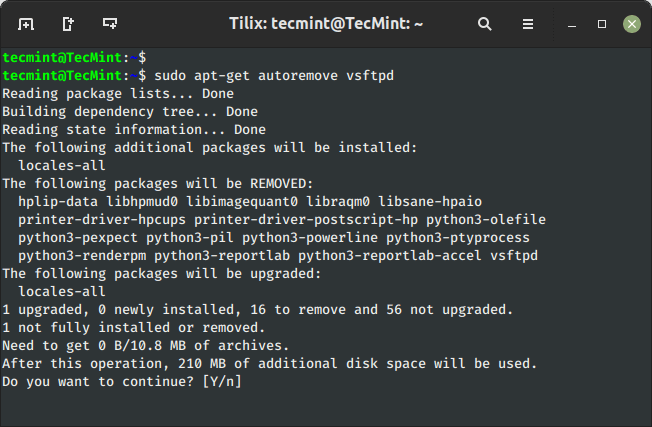
The ‘autoremove‘ sub-command is used to auto-remove packages that were certainly installed to satisfy dependencies for other packages but were now no longer required. For example, the following command will remove an installed package with its dependencies.
20. apt-get Command Help
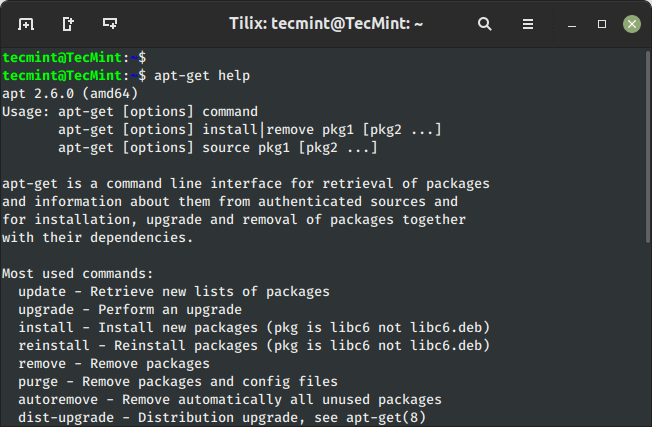
The apt-get help command displays the built-in help documentation with the available options to use with the apt-get command.
I’ve covered most of the available options with the apt-get command, but still, there are more options available, you can check them out using ‘man apt-get‘ from the terminal.
I hope you enjoyed reading this article, If I’ve missed anything and you would like me to add to the list. Please feel free to mention this in the comment below.


No comments:
Post a Comment