List All Processes in Current Shell
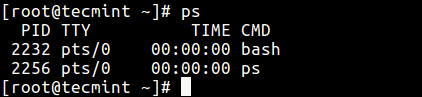
1. If you run the ps command without any arguments, it displays processes for the current shell.
Print All Processes in Different Formats
2. Display every active process on a Linux system in generic (Unix/Linux) format.
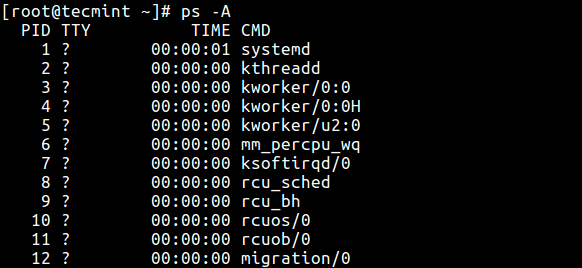
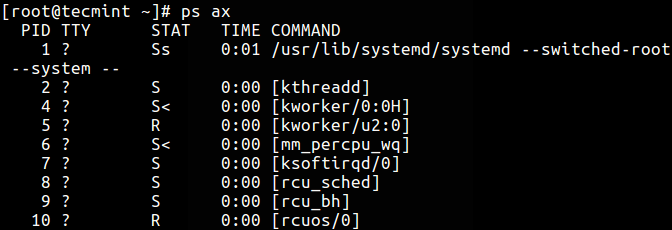
3. Display all processes in BSD format.
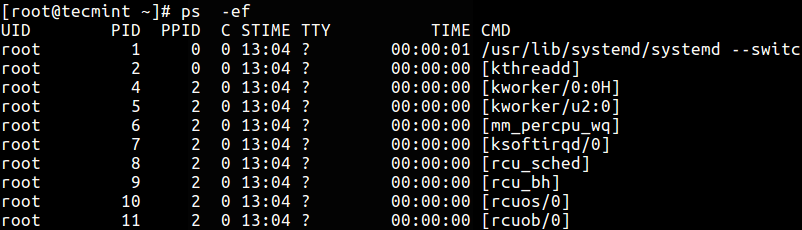
4. To perform a full-format listing, add the -f or -F flag.
Display User Running Processes
5. You can select all processes owned by you (runner of the ps command, root in this case), type:
6. To display a user’s processes by real user ID (RUID) or name, use the -U flag.
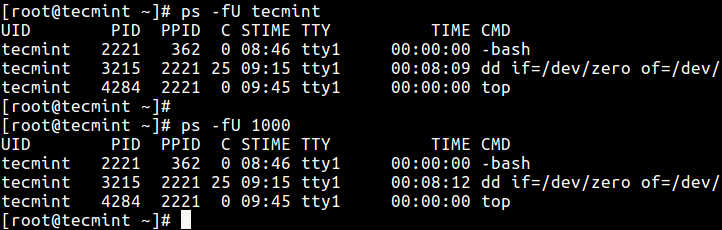
7. To select a user’s processes by effective user ID (EUID) or name, use the -u option.
Print All Processes Running as Root (Real and Effective ID)
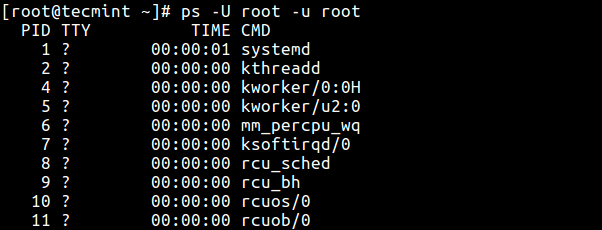
8. The command below enables you to view every process running with root user privileges (real & effective ID) in user format.
Display Group Processes
9. If you want to list all processes owned by a certain group (real group ID (RGID) or name), type.
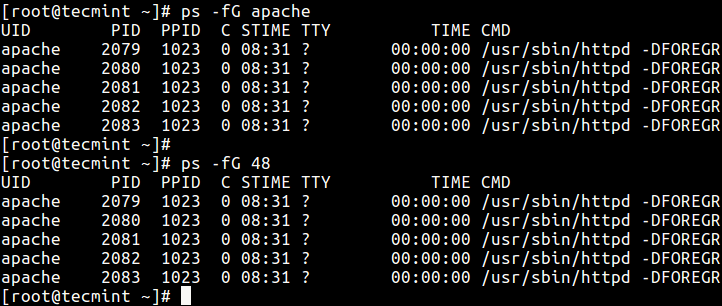
10. To list all processes owned by effective group name (or session), type.
Display Processes by PID and PPID
11. You can list processes by PID as follows.

12. To select process by PPID, type.

13. Make a selection using a PID list.

Display Processes by TTY
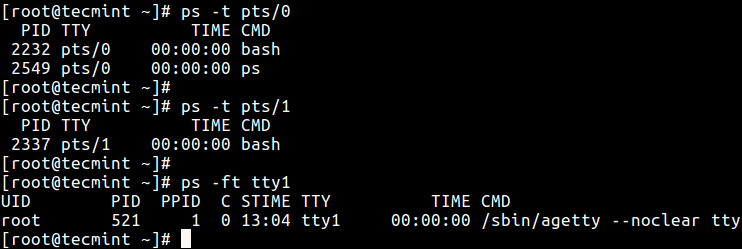
14. To select processes by tty, use the -t flag as follows.
Print Process Tree
15. A process tree shows how processes on the system are linked to each other; processes whose parents have been killed are adopted by the init (or systemd).
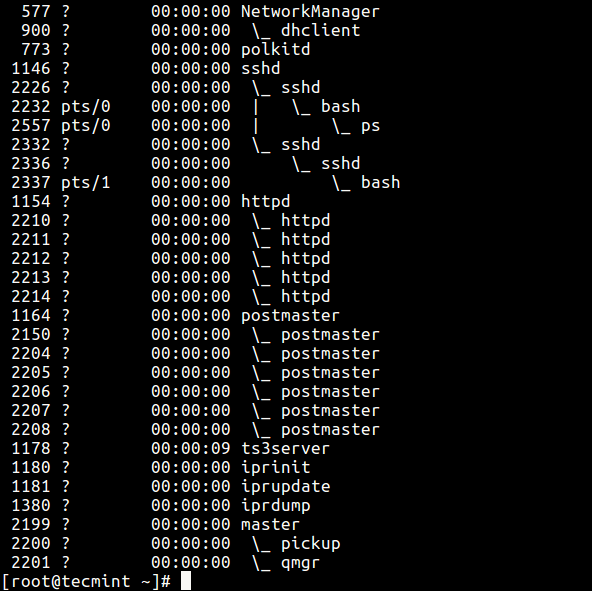
16. You can also print a process tree for a given process like this.
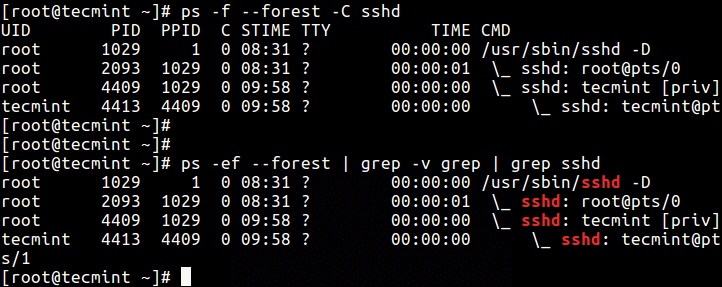
Print Process Threads
17. To print all threads of a process, use the -L flag, this will show the LWP (lightweight process) as well as NLWP (number of the lightweight processes) columns.

Specify Custom Output Format
Using the -o or –format options, ps allows you to build user-defined output formats as shown below.
18. To list all format specifiers, include the L flag.
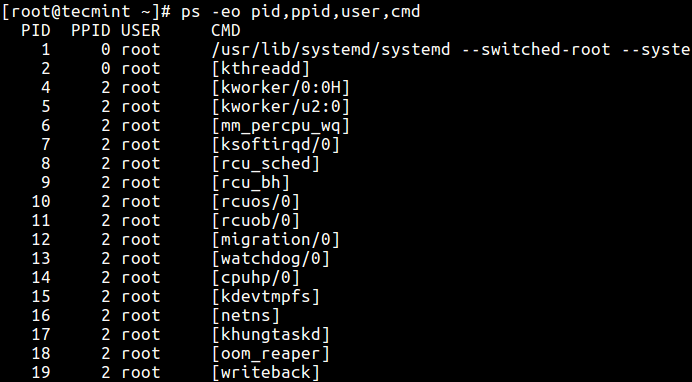
19. The command below allows you to view the PID, PPID, user name, and command of a process.
20. Below is another example of a custom output format showing file system group, nice value, start time, and elapsed time of a process.

21. To find a process name using its PID.

Display Parent and Child Processes
22. To select a specific process by its name, use the -C flag, this will also display all its child processes.
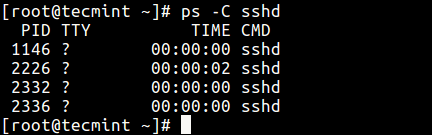
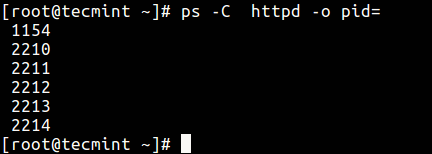
23. Find all PIDs of all instances of a process, useful when writing scripts that need to read PIDs from an std output or file.
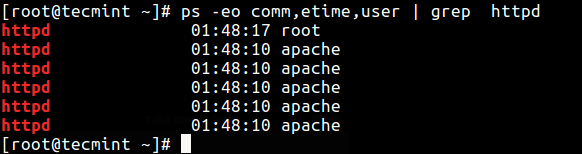
24. Check the execution time of a process.
The output below shows the HTTPD service has been running for 1 hour, 48 minutes, and 17 seconds.
Troubleshoot Linux System Performance
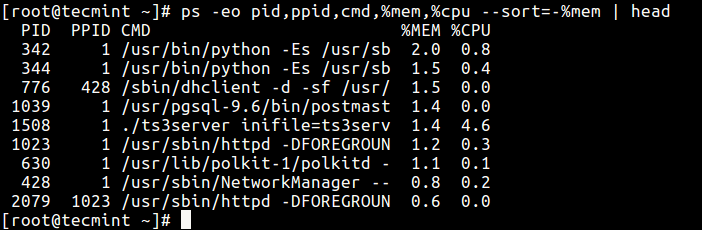
If your system isn’t working as it should be, for instance, if it’s unusually slow, you can perform some system troubleshooting as follows.
26. Find top running processes by highest memory and CPU usage in Linux.
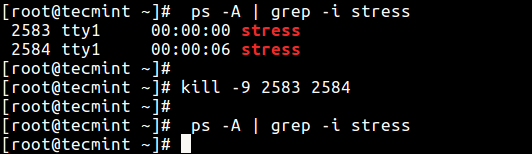
27. To kill Linux processes/unresponsive applications or any process that is consuming high CPU time.
First, find the PID of the unresponsive process or application.
Then use the kill command to terminate it immediately.
Print Security Information
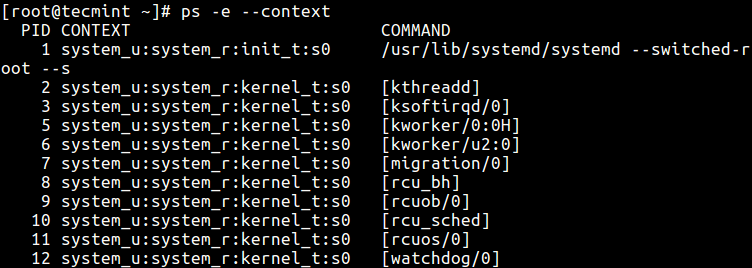
28. Show security context (specifically for SELinux) like this.
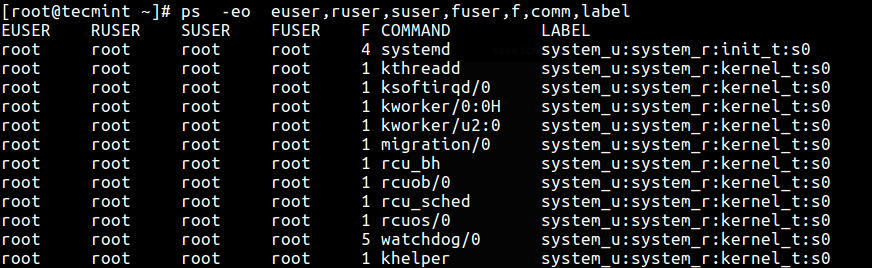
29. You can also display security information in a user-defined format with this command.
Perform Real-time Process Monitoring Using Watch Utility
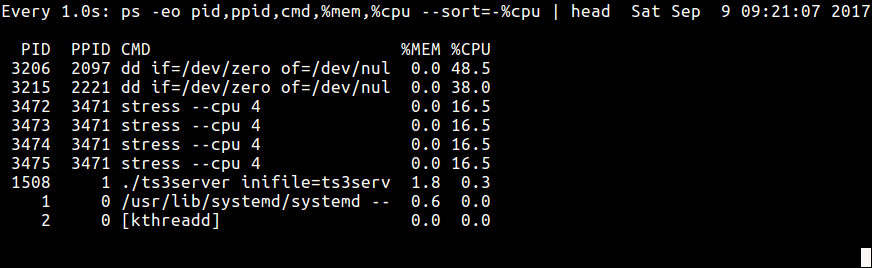
30. Finally, since ps displays static information, you can employ the watch utility to perform real-time process monitoring with repetitive output, displayed after every second as in the command below (specify a custom ps command to achieve your objective).
Important: ps only shows static information, to view frequently updated output you can use tools such as htop; top, and glances: the last two are in fact Linux system performance monitoring tools.


No comments:
Post a Comment