Linux shell scripting is the art of writing small programs (scripts) to automate tasks in the command-line interface, which involves using commands, variables, loops, and conditionals to create efficient and automated workflows.
This article is an extension of our first article, understanding linux shell scripting. In that piece, we introduced you to scripting. Continuing from there, we aim to maintain the momentum and not disappoint you in this article.
Script 1: Drawing a Special Pattern
The following “Special_Pattern.sh” Bash script prompts the user to input a number between 5 and 9. If the input is within this range, the script proceeds to create a pattern of dots in two stages: an ascending pattern and a descending pattern.
The script utilizes nested loops for this purpose, creating a visually appealing pattern. Finally, a message is displayed, indicating support from Tecmint.com whenever assistance is needed.
Most of the above ‘keywords‘ should be familiar to you, and many are self-explanatory. For example, ‘MAX‘ sets the maximum value of the variable, ‘for‘ is a loop, and anything within the loop executes repeatedly until the loop is valid for the given input value.
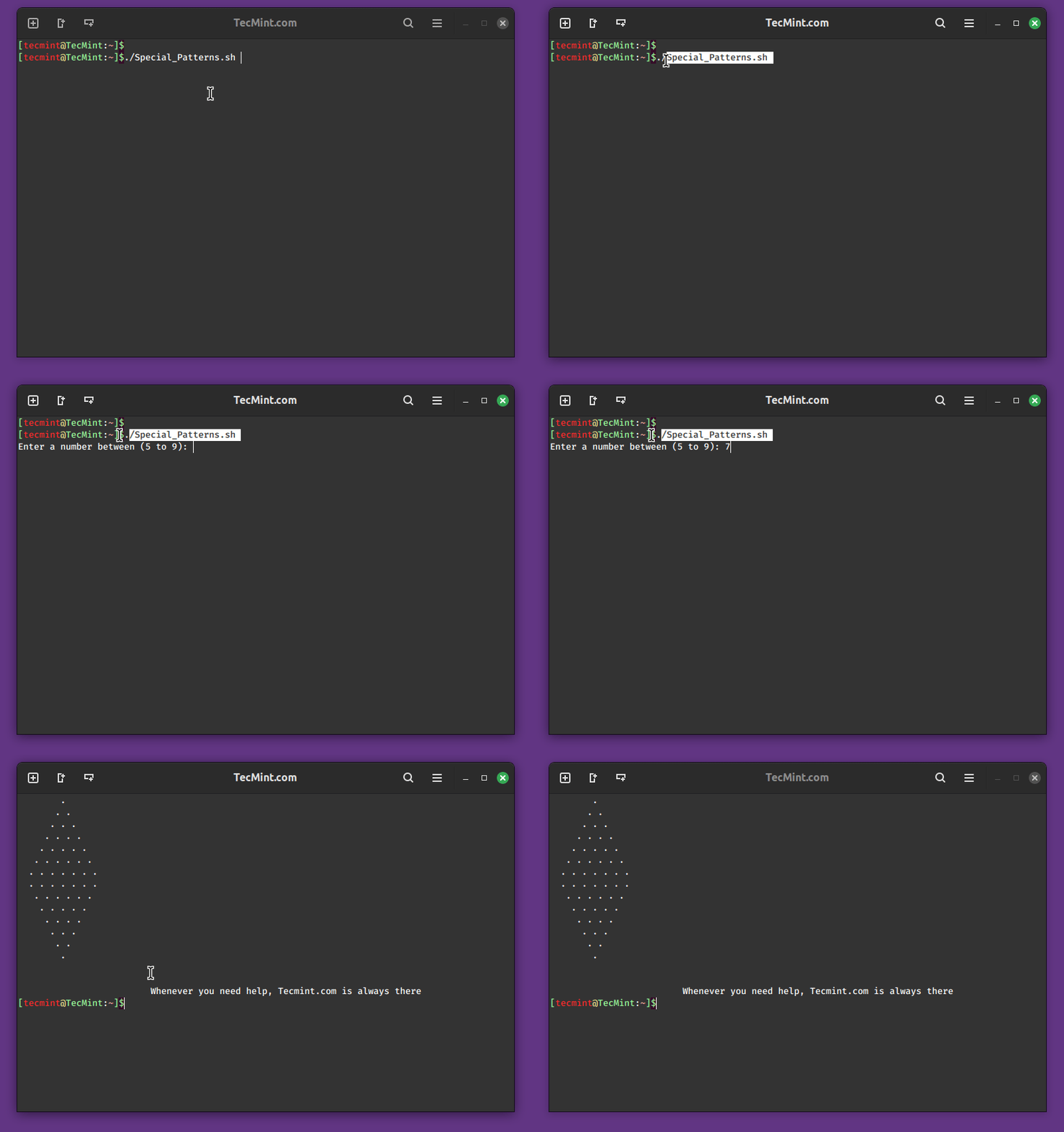
If you are a little aware of any programming language, learning the above script is not difficult, even if you are new to computation, programming, and Linux it is not going to be much more difficult.
Script 2: Creating Colorful Script
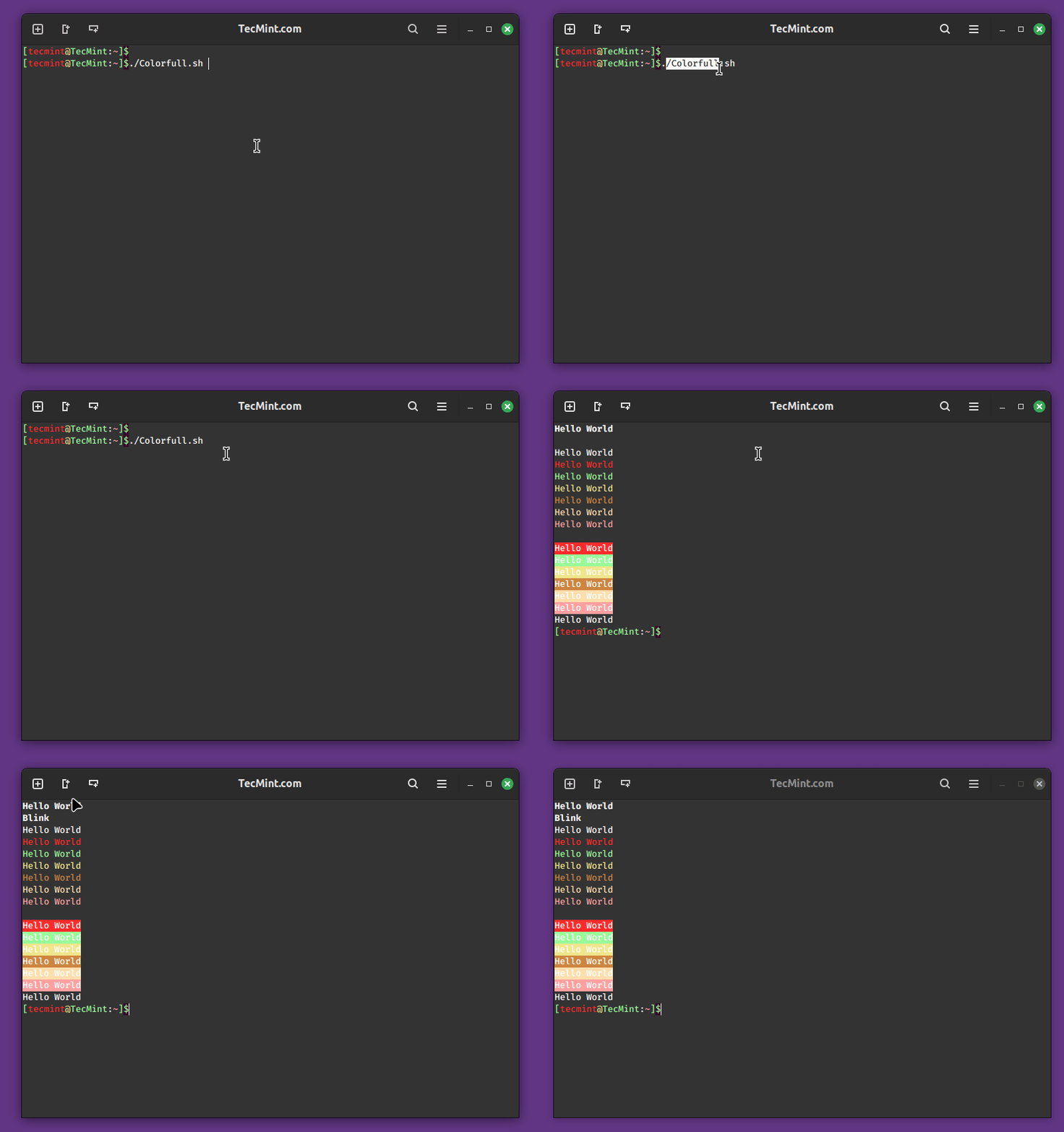
The “Colorful.sh” script is a Bash script created to demonstrate the use of ANSI escape codes for adding color and formatting effects to text output in the terminal.
These escape codes provide a simple way to enhance the visual appeal of terminal-based scripts or programs, which display various text styles, colors, and background colors, allowing users to experiment with different combinations.
Script 3: Encrypt a File or Directory
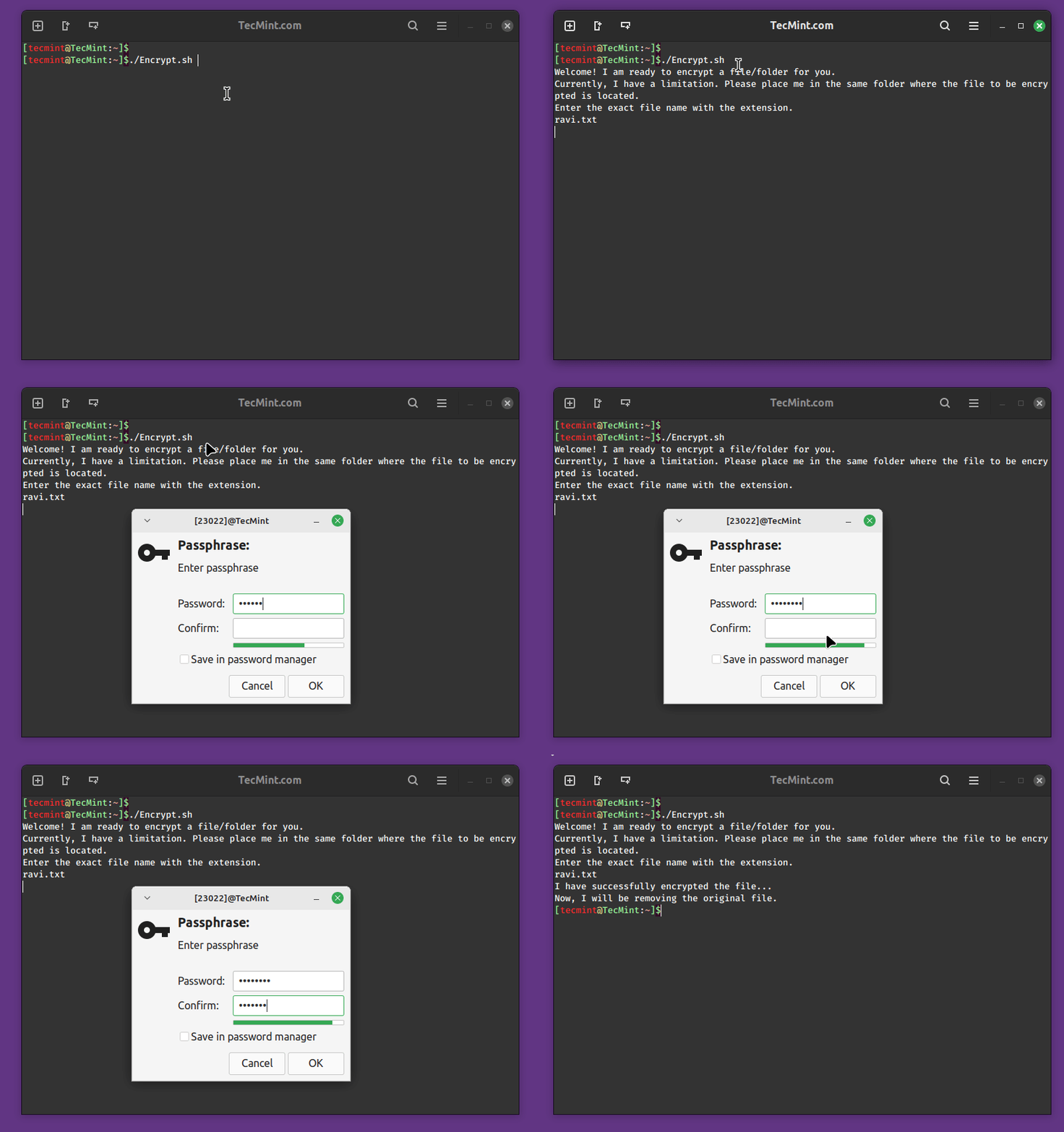
The “Encrypt.sh” script is a Bash script designed to provide a simple interface for encrypting a file using the GnuPG (GPG) encryption tool.
The script welcomes the user and prompts them to enter the exact filename, including the extension, of the file or folder they want to encrypt. It then uses GPG to encrypt the specified file, displaying a success message afterward.
Additionally, the script removes the original unencrypted file for added security. Note that the script should be placed in the same directory as the file to be encrypted due to its current limitation.
The command "gpg -c filename" is used to encrypt a file using GnuPG (GNU Privacy Guard) with symmetric encryption and the command "gpg -d filename.gpg > filename" is used to decrypt a GPG-encrypted file and save the decrypted content into a new file.
Script 4: Linux Server Monitor Script
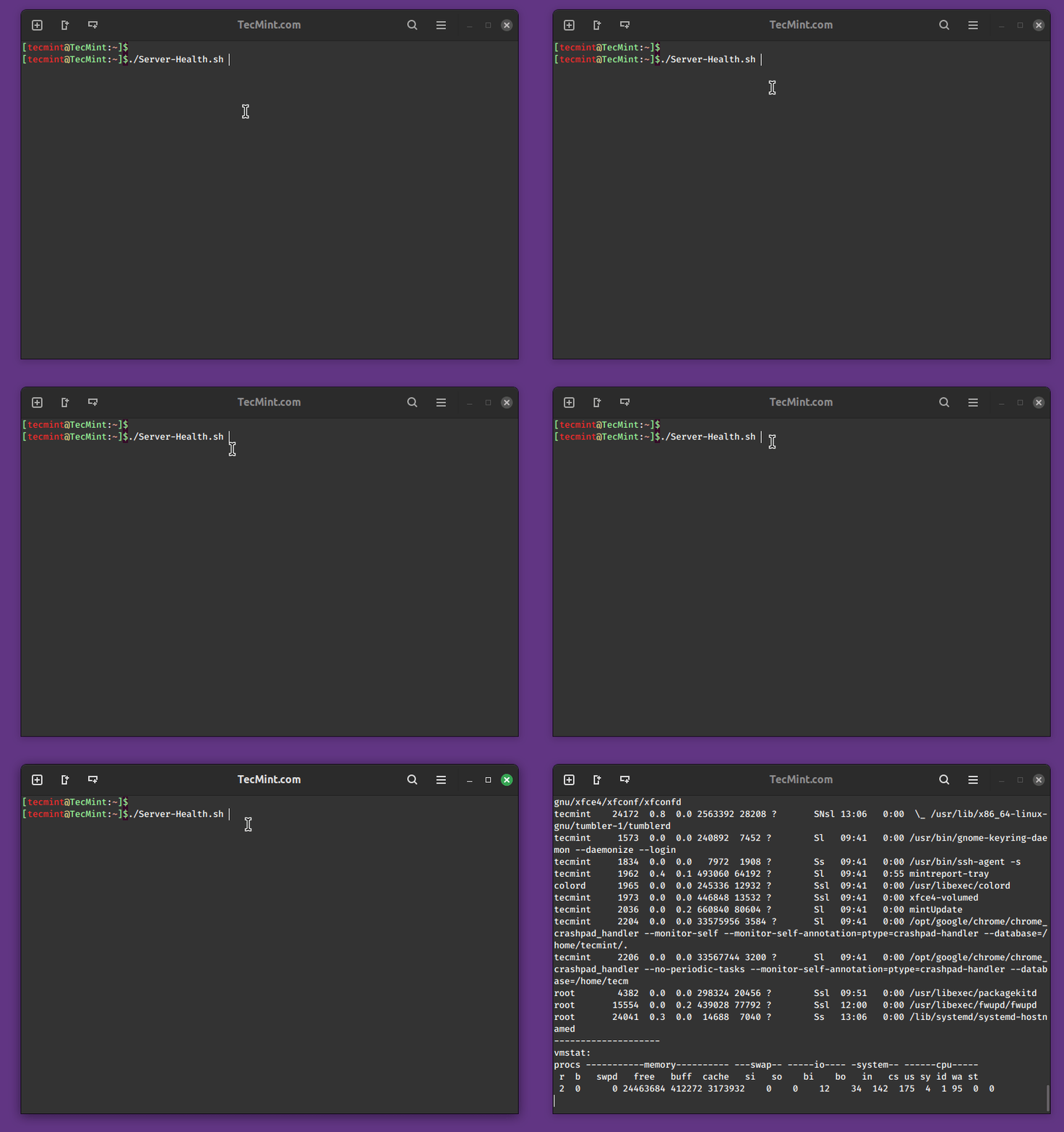
The “Server-Health.sh” script is a Bash script designed to provide a comprehensive overview of the health and performance of a server.
When executed, the script gathers various system-related information and presents it in a structured format that includes uptime, currently connected users, disk and memory usage, list open ports, network connections, running processes, and system statistics.
To redirect the output of the “Server-Health.sh” script to a file, you can use the following command:
Script 5: Linux Disk Space Monitor Script
The “Check-Disk-Space.sh” script is designed to monitor disk space usage on a specified partition of a server. Configurable parameters include the maximum allowed disk space usage percentage (`MAX`), the email address for receiving alerts (`EMAIL`), and the target partition (`PARTITION`).
The script utilizes the df command to gather disk usage information and sends email alerts if the current usage exceeds the defined threshold.
Script writing and programming have no limits; you can implement anything as needed. That’s all for now. In my next article, I will introduce you to some different scripting flavors.


No comments:
Post a Comment