Update: For newer version of pfSense, check out Installation and Configuration of pfSense 2.4.4 Firewall Router.
pfSense is an open source network firewall/router software distribution which is based on the FreeBSD operating system. pfSense software is used to make dedicated firewall/router for a network and it is considered for its reliability and offers many features which mostly found in commercial firewalls. Pfsense can be included with many third party free software packages for additional functionality.
As we are using many popular firewall’s in industry level such as Cisco ASA, Juniper, Check Point, Cisco PIX, Sonicwall, Netgear, Watchguard etc.. We can use the pfsense in free of cost with rich web interface to configure all our network components. pfsense supports traffic shapper, virtual ip, Load balancer and much more. It has several Diagnostics tool by default.
This article will guide you through the basic instructions on how to install and configure pfSense version 2.1.5 in a home/office network and offers few basic recommendations which is based on my experience.
Hardware Requirements
- Pentium II Processor, 256MB RAM, 1GB of HDD Space, CD-ROM.
- 2 Ethernet Card’s, Pfsense ISO file.
My Environment Setup
pfSense Installation and Configuration
1. First visit the pfSense download page and select your computer architecture and platform. Here I’ve chosen “i368 (32-bit)” as my computer architecture and platform as “LiveCD with installer“, but in your case it would be different, make sure to select and download correct architecture for your system.
2. After selecting the architecture and platform, you will get a list of mirrors to download, make sure to select nearest mirror link to download the image from there.
3. After download completes, the downloaded image must be burn to an CD/DVD media as an ISO image before we start using it. You can use any CD/DVD burning software to burn the image to CD/DVD media.
If incase, you don’t have an CD/DVD drive, you can use Unetbootin tool to create a Live bootable USB media or if you don’t want to follow all these procedures, just go the pfSense download page, there you will get pre-created bootable pfSense images for you USB media, just go there and grab the “Live CD with installer (on USB Memstick)“. Don’t forget to select USB console type before downloading…
4. Now switch on or reboot the target machine, place pfSense CD/DVD or USB stick and set the BIOS options to your booting method (CD/DVD or USB) according to your choice and choose the boot options by pressing a keyboard function keys, usually F10 or F12, pfSense will start booting….
5. As the pfSense starts booting, a prompt is displayed with some options and a countdown timer. At this prompt, press 1 to get install pfsense by default. If we don’t choose any option it will start to boot option 1 by default.
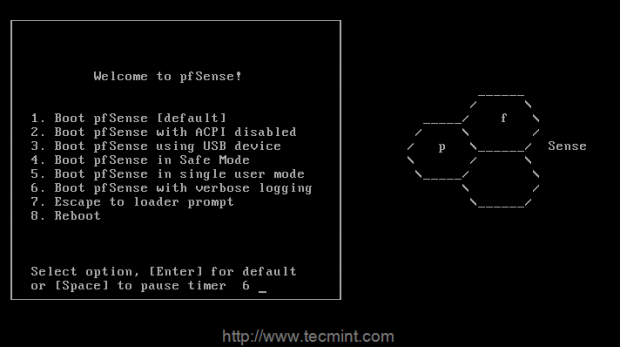
6. Next, press ‘I‘ to install fresh copy of pfsense, If we need to start a recovery use R, to Continue using Live CD choose C within 20 seconds count.

7. On the next screen, it will ask you to ‘Configure Console‘, just press ‘Accept these settings‘ to move forward for installation process.
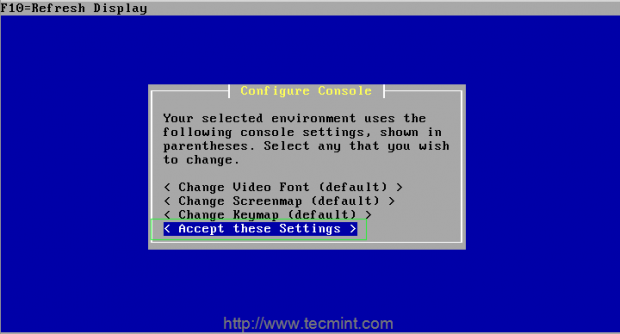
8. If you’re new to pfsense, choose ‘Quick/Easy Install‘ option to take make things easier or choose ‘Custom Install‘ to get advance options during installation process (recommended for advance users).
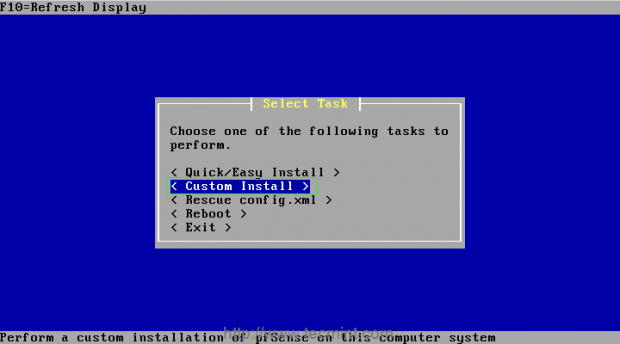
9. Next, select the disk on which you want to install pfsense.
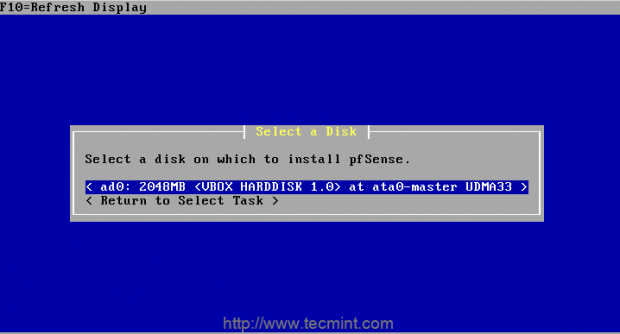
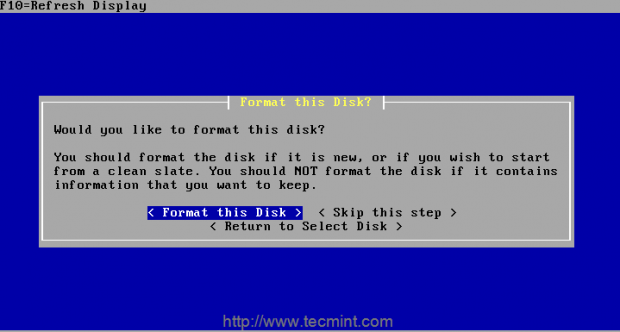
10. Next, it will ask you to format the selected disk, if it’s new disk you should format or if it contains any important data you should take backup before formatting the disk.
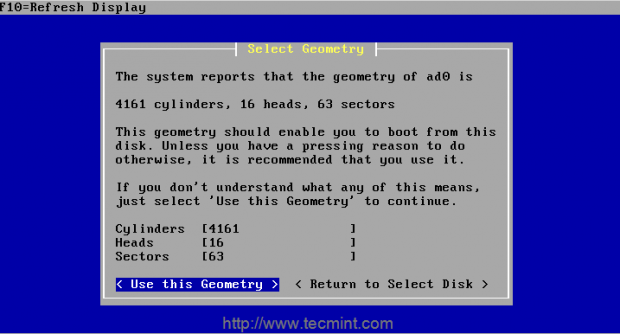
11. Choose the cylinder size and heads, here I’m using the default settings option ‘Use this Geometry‘ to move forward for the installation.
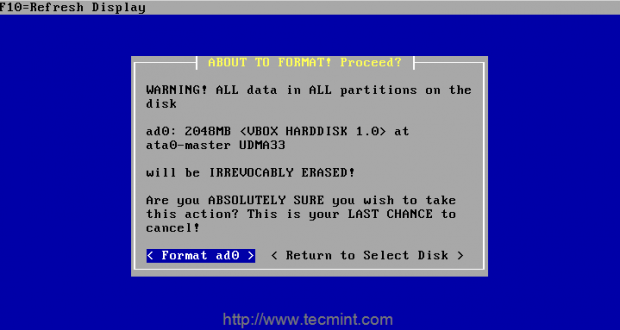
12. On the next step, it will prompt you a warning about disk format, if you sure about that the disk has no data, just move forward with the selection.
13. Now it’s time to partition the disk.
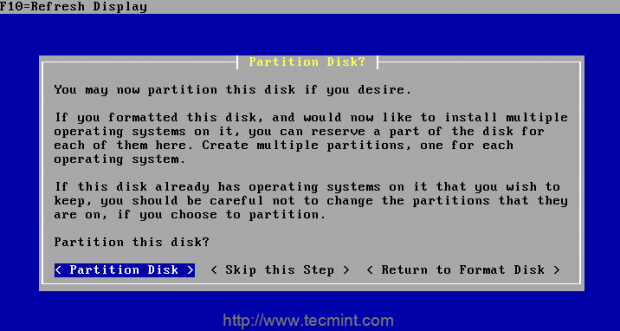
14. Next, select the partitions you want to have on the disk and enter a raw size in sectors, then accept and create the partition using the specified size or you may move forward with default options.
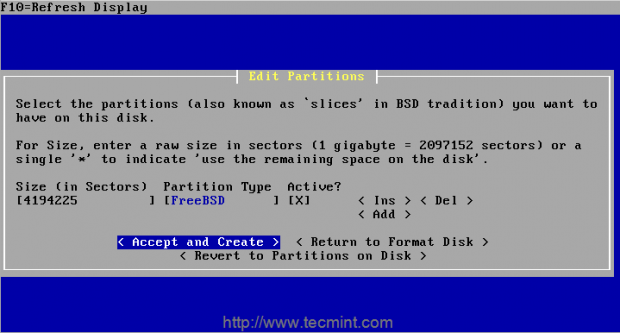
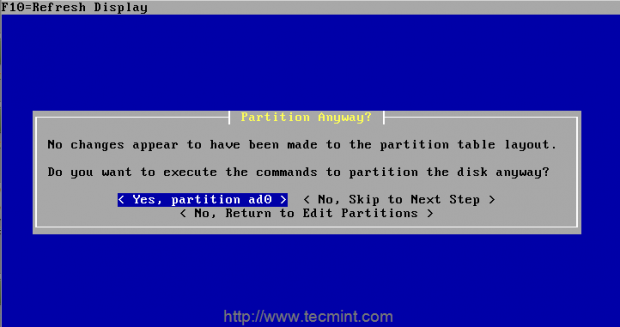
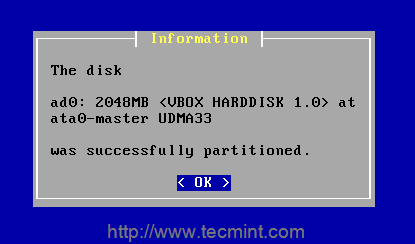
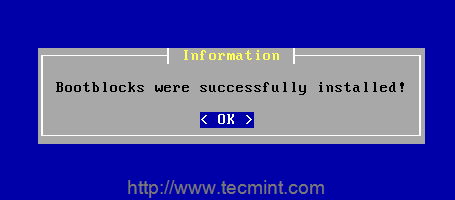
15. Once partition created successfully, it’s time to install bootblocks to get install the boot loader for pfsense.
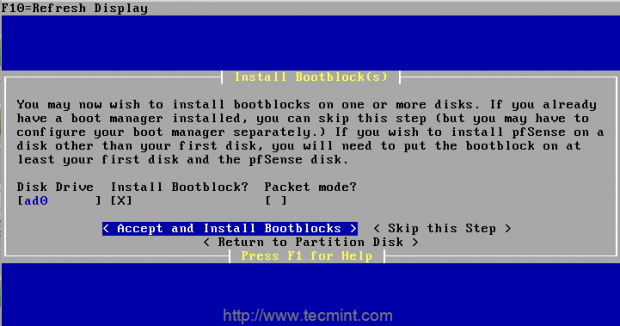
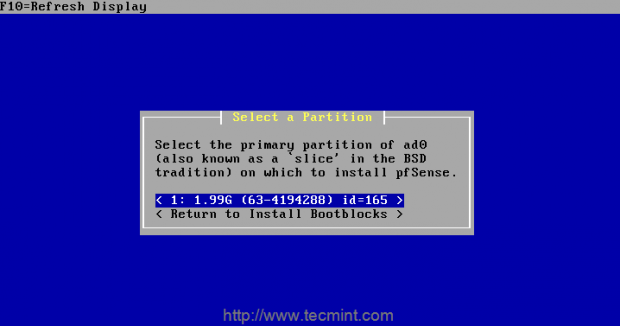
16. Select a partition to install the pfsense, which also called as slice in BSD.
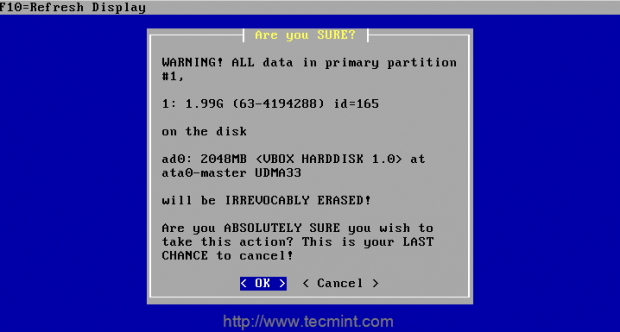
Note: A warning alert will be displayed, telling that during installing pfsense partition will be overwritten. Click on ‘Ok’ button to continue..
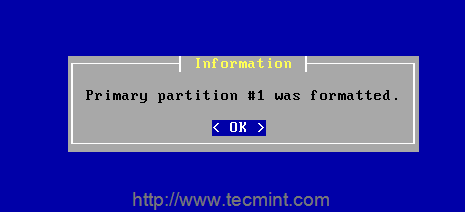
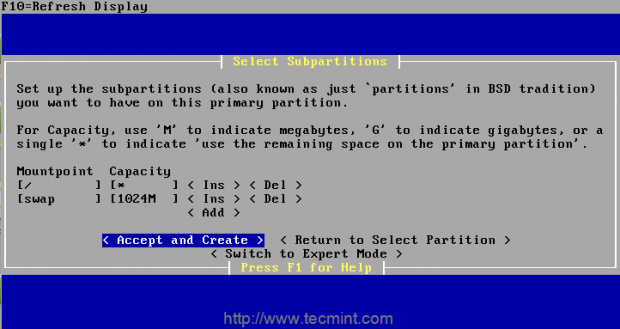
17. Next, setup the subpartitions (also well known as ‘partitions’ in BSD tradition) to create the subpartition.
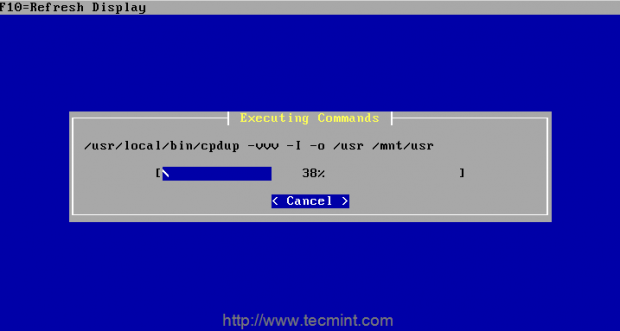
18. Once subpartitions has been created, you will see the installation process..
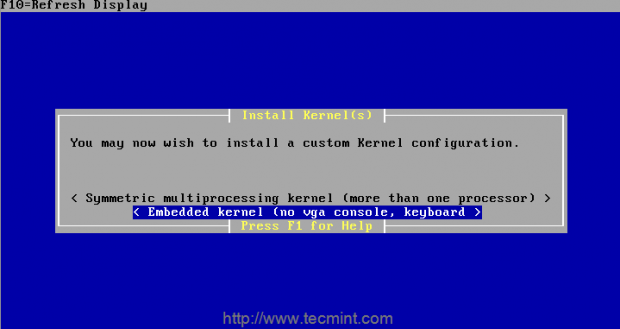
19. At last for installing the kernel, you can choose from the options as non-vga or symetmetric multiprocessing kernel. Here I’m going to choose non-vga and keyboard less.
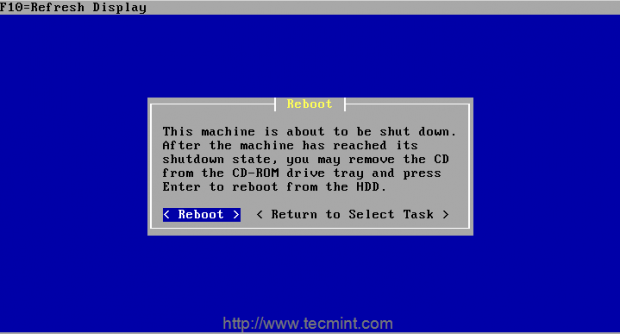
20. After kernel has been installed, reboot the machine and configure the networking and more in next step as follows.
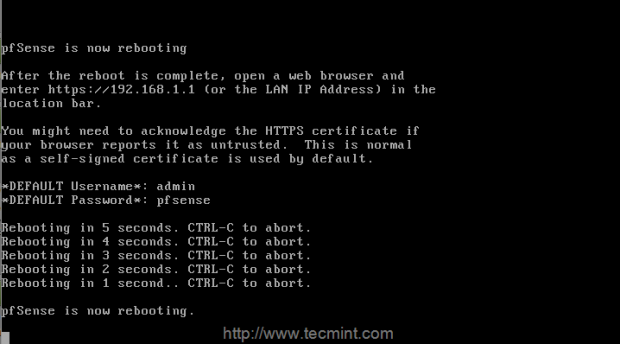
21. After rebooting, you will get the below screen with available interfaces to configure the network.
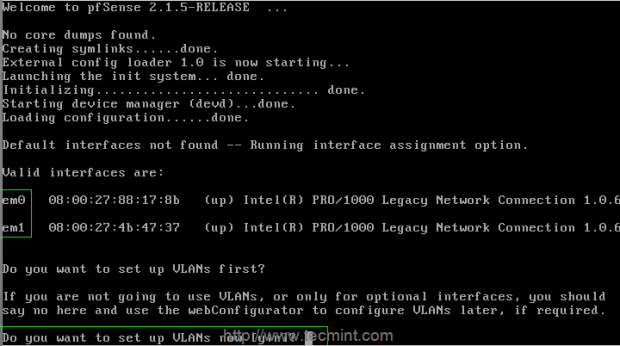
The first option is presented as VLAN’s, generally VLAN’s are not needed, they are needed for advance networking, simply here say No.
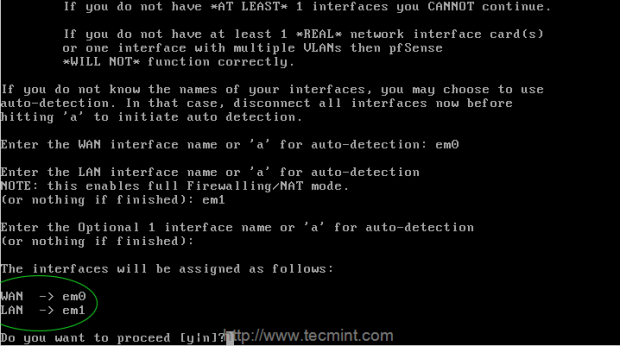
There are two interface’s em0 and em1, I have planned to assign em0 as WAN our external interface and em1 as LAN which for internal interface with firewall/NAT features enabled.
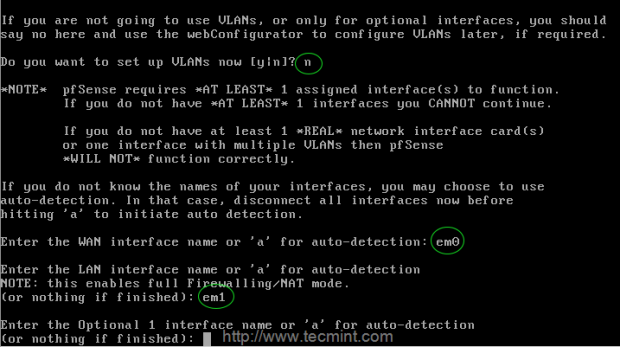
22. I don’t need a optional interface name, so just continue by pressing Return Key. It will ask for the confirmation Yes/No proceed with Y and press enter to continue.
23. After setting up interfaces, you will get the pfsense menu as show below.
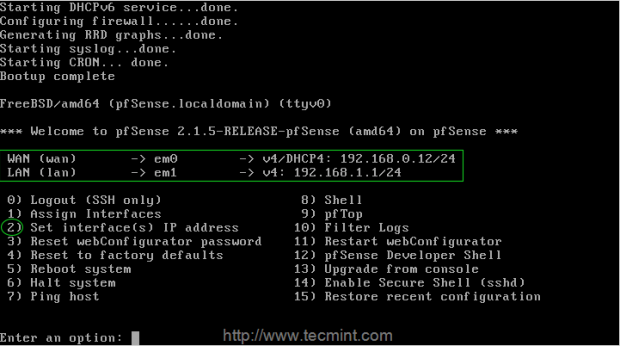
- WAN IP address will be assigned from DHCP. If you need we can assign a static IP.
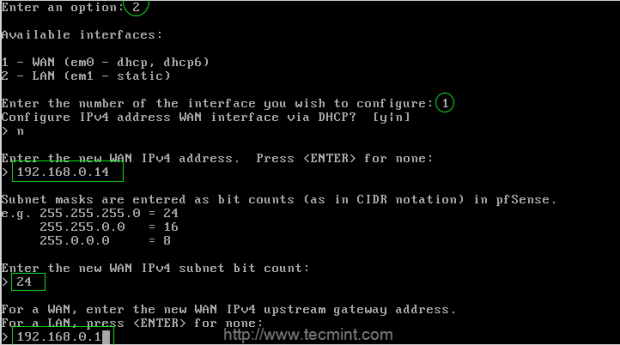
- LAN IP address will be default as 192.168.1.1, if you want to change choose option 2 and set interfaces IP address.
First let me define a Static IP, subnet mask in Bit count and gateway for the WAN and LAN. Disable the DHCP and continue by choosing Y.
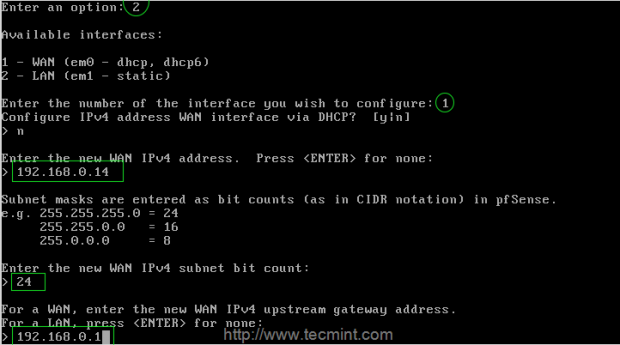
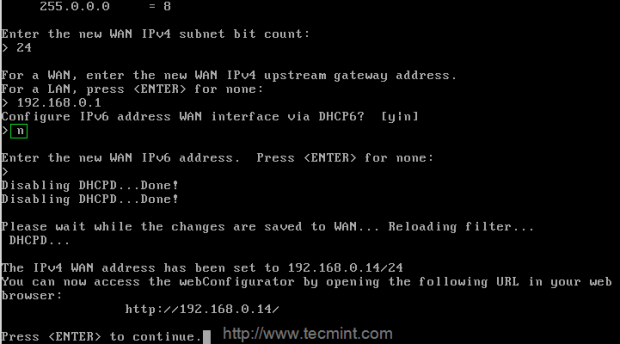
24. Then for LAN interface, If we need DHCP for local area network from pfsense we can assign a range of address from pfsense. I have chosen 192.168.0.15 as my pfsense LAN address and for client machine’s I need to assign a IP address from DHCP in the range of 192.168.0.16 – 192.168.0.25.
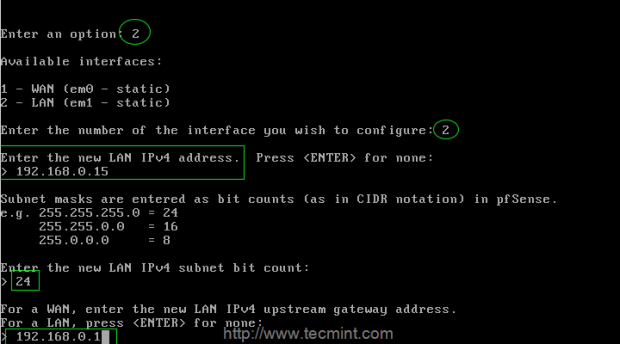
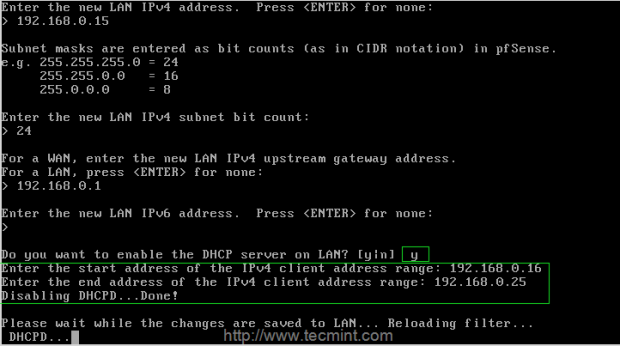
25. After all the above settings are performed, it will prompt you a link to access pfSense webconfigurator interface to configure further steps.
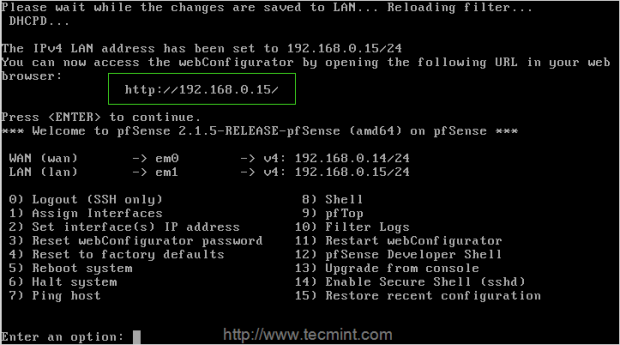
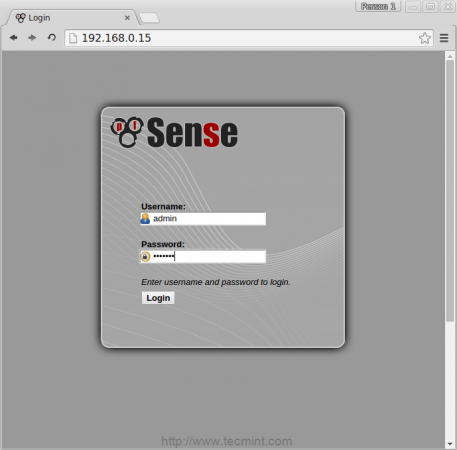
26. Open the given link using http protocol and enter the usernamd as ‘admin‘ and password ‘pfsense‘.
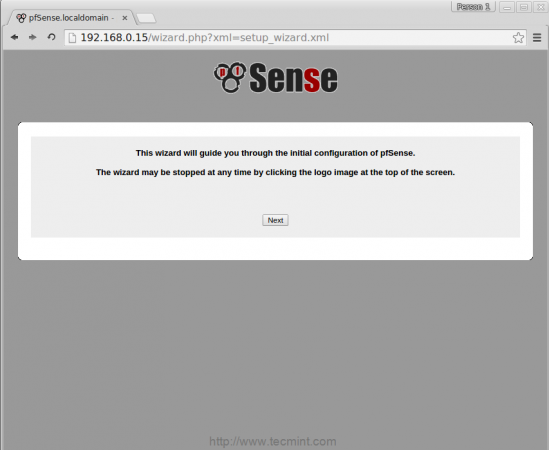
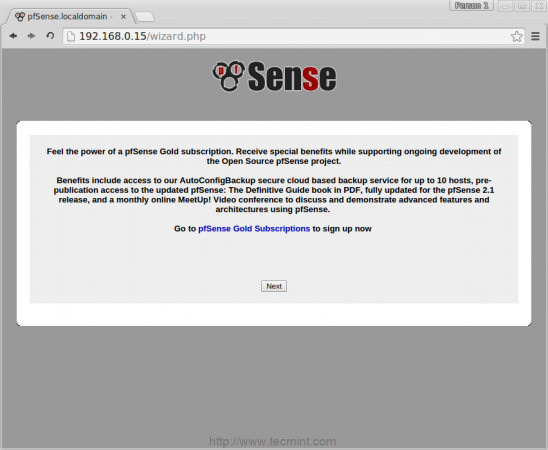
27. Once you logged in, a setup wizard window appears that will guide you through the initial configuration of pfSense.
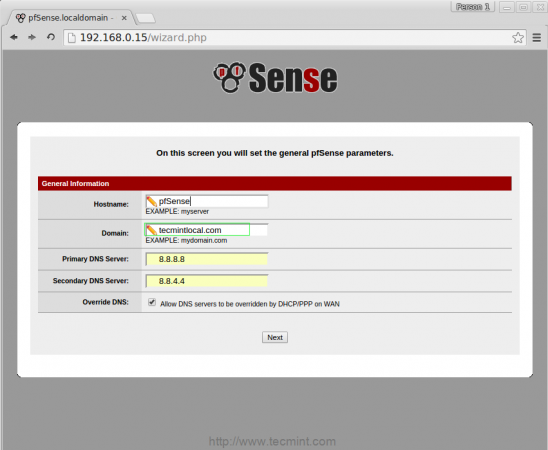
28. On the next screen, enter the hostname, and domain for pfsense, by following provide a Primary DNS server and secondary DNS and click Next.
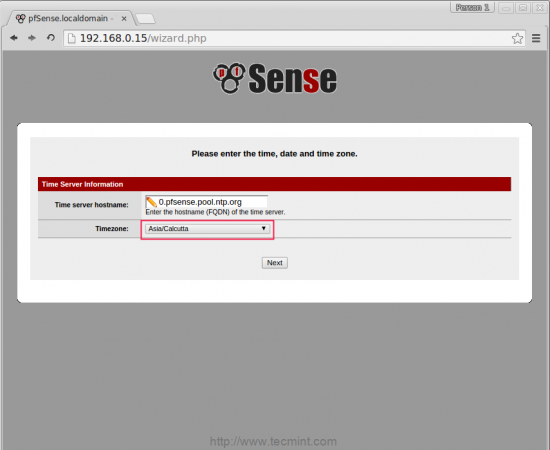
29. Choose the timezone and click next.
Configuring WAN
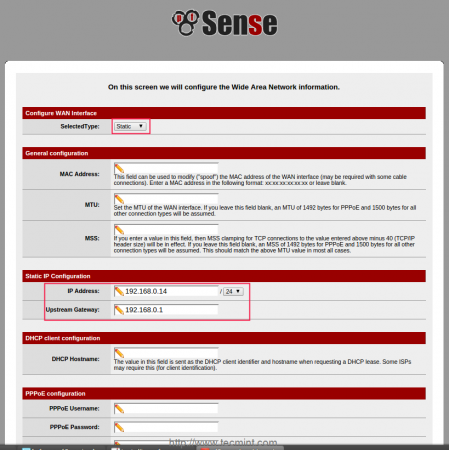
30. On this screen, configure WAN interface, if you have a PPOE connection or if you need to use this pfsense machine as a router, you need to choose PPOE from the drop menu or else simply select ‘static‘ and set the static IP address, gateway and click ‘Next‘ to continue…
Configuring LAN
31. We’ve already configured LAN network in terminal mode, just move forward by choosing NEXT.
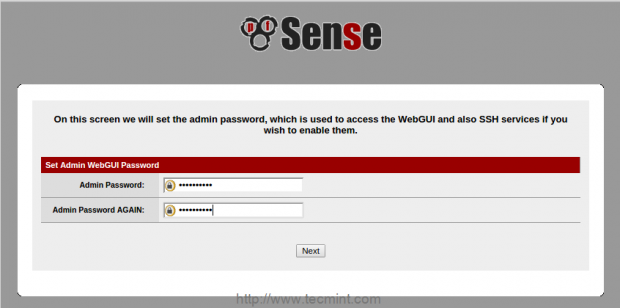
32. Next, change the admin password, which is used to access the WebGUI and SSH.
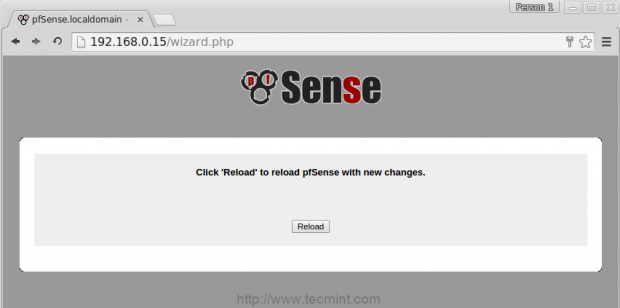
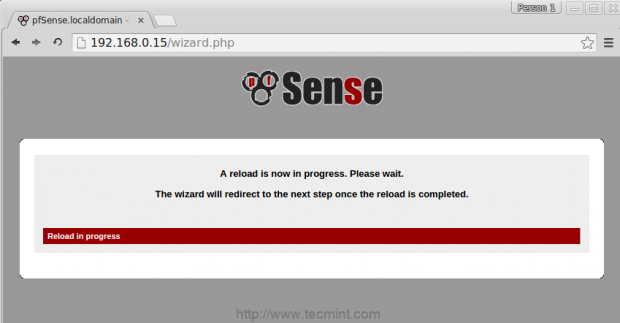
33. After setting admin password, click on reload to make changes.
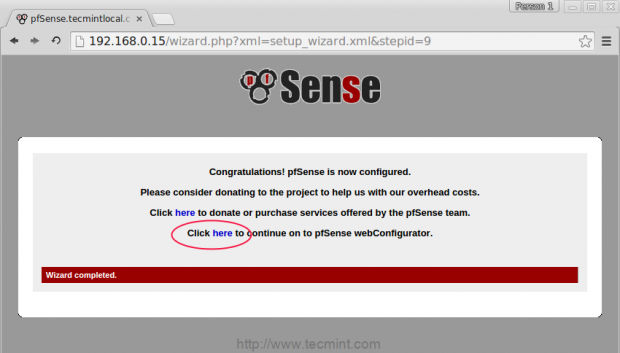
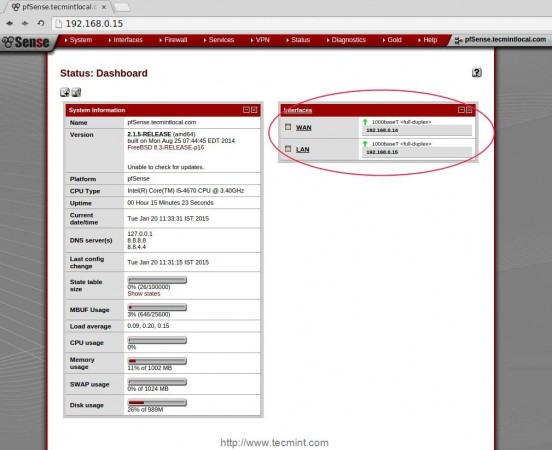
34. Click on the link, will take you to pfsense webconfigurator GUI Dashboard as shown in below picture.
Conclusion
pfsense can be used as router or firewall with many advanced features such as traffic shapper, Load Balancer and much more. It can be used in small scale to large scale environment. Hope this setup help you to build your own router and firewall for your environment. Give your valuable feedback in comment section for future help regarding this topic.


No comments:
Post a Comment