Step 1: Assign a Static IP Address to Arch Linux Network Interface
1. After minimal Arch Linux core installation reboot your server, log in with the root account or equivalent administrative sudo account, and identify your system NIC device names using ip link command.
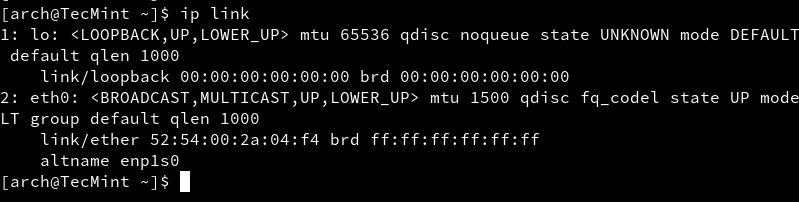
2. To assign static network configurations we are going to use the netctl package to manage network connections. After you have successfully identified your Network Interfaces names copy the ethernet-static file template to the netctl system path and change its name to a descriptive naming scheme ( try to use the “static” string combined with NIC’s name), by issuing the following command.
3. The next step is to edit this new template file by changing the file’s directives and providing your actual network settings (Interface, IP/Netmask, Gateway, Broadcast, DNS) like in the below excerpt.
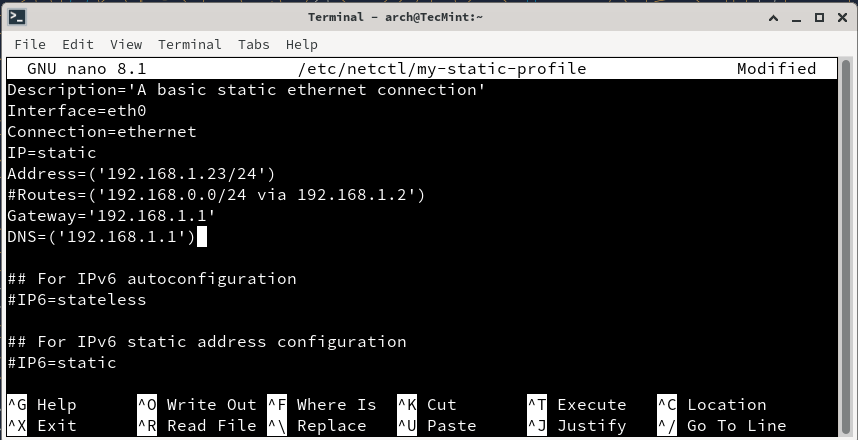
Modify the file with your network settings:
4. The next step is to start your network connection through the netctl system tool and verify your system connectivity by issuing the following commands.
5. If you get an active green exit status you have successfully configured your Network Interface and it’s time to automatically enable it on system-wide services.
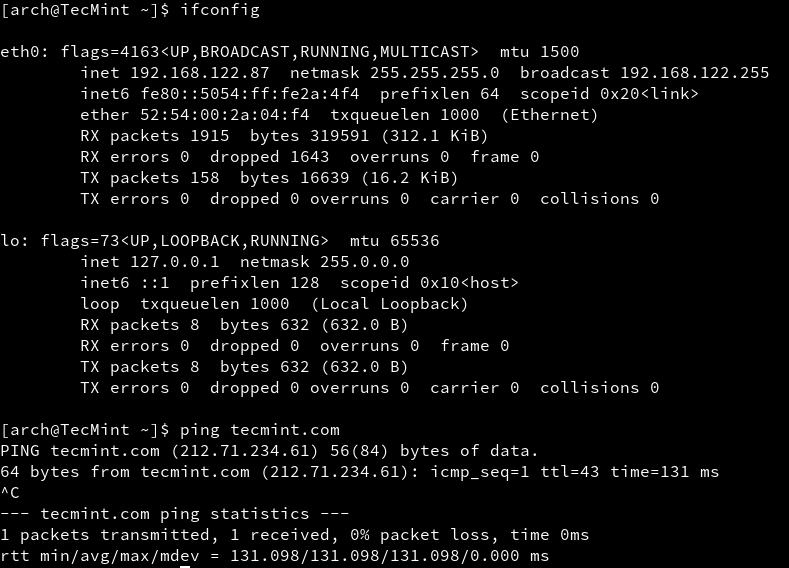
Also test your network by running a ping command against a domain name and also, install the net-tools package (the most well-known feature of this package is ifconfig command which Arch developers considered to be kind of deprecated and replaced with iproute2).
6. Now you can run the ifconfig command to verify your Network Interfaces settings and check if everything is correctly displayed, then reboot your system to make sure everything is in place and properly configured.
Step 2: Install LEMP Software on Arch Linux
As pointed out in this article’s introduction LEMP stands for Linux, Nginx, PHP/PhpMyAdmin, and MySQL/MariaDB which is one of the most widely spread web application platforms today after LAMP (the same stack with Apache in equation).
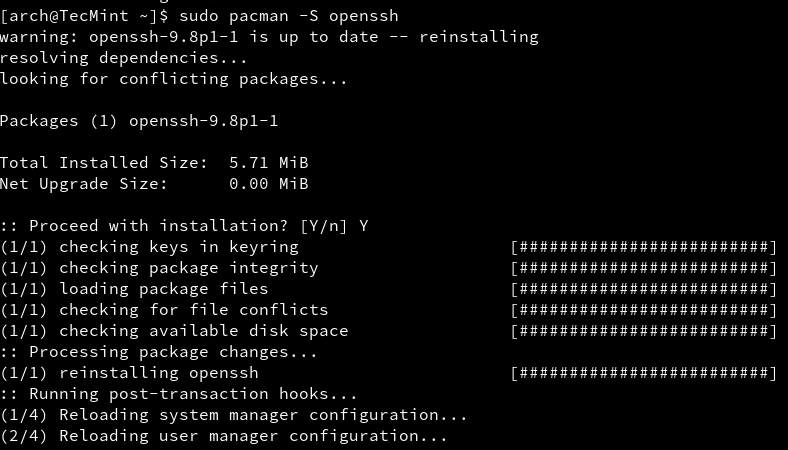
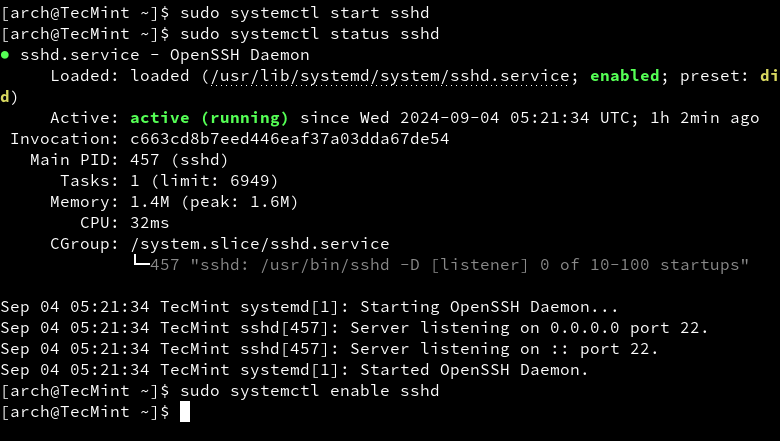
7. Before installing the LEMP stack we need to update the system and then gain remote control to the Arch Linux server. As you probably know OpenSSH is the main candidate for this job so go ahead and install it, start SSH daemon, and enable it system-wide.
Now is the time to proceed with LEMP installation. Because this tutorial is meant to be a comprehensive guide I will divide LEMP stack installation into small pieces, step by step.
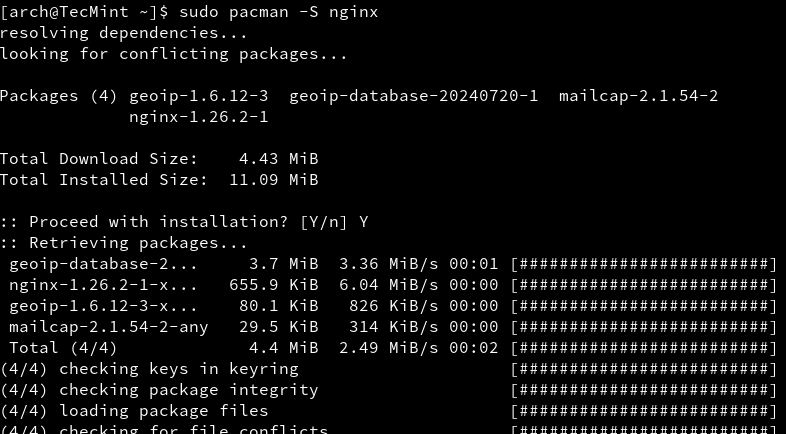
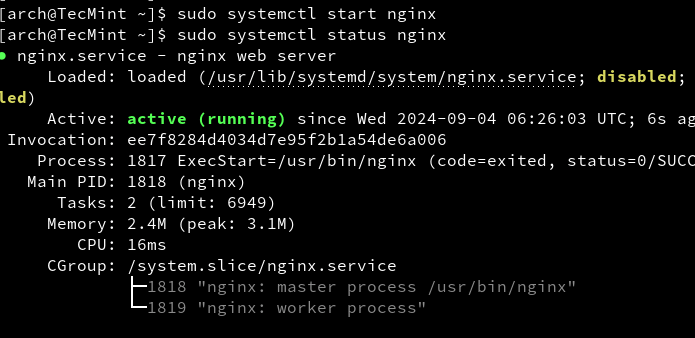
8. First install the Nginx Web Server, then start it and verify its status by issuing the following commands.
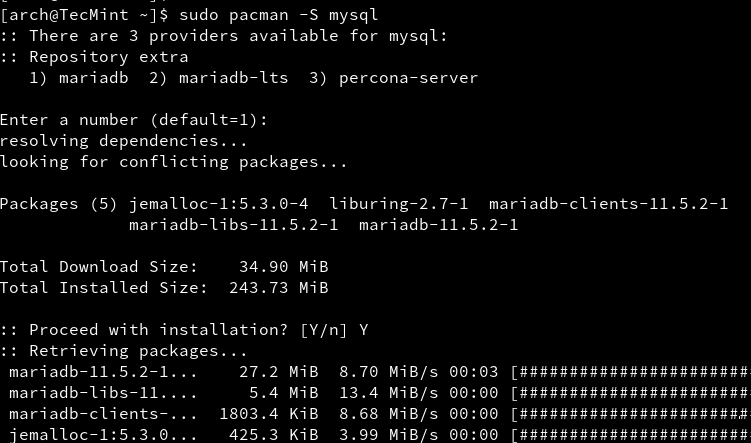
9. The next service to be installed is the MySQL database. Issue the following command to install the MySQL database server and choose the MariaDB engine, then start and verify the daemon status.
10. The next step is to provide a highly safe environment for MySQL databases by providing a password for the MySQL root account, removing an anonymous user account, remove the test database and root accounts that are accessible from outside localhost.
Run the following command to improve MySQL security, press [Enter] for the current root account password, then answer Yes to all questions ( also set up your root account password).
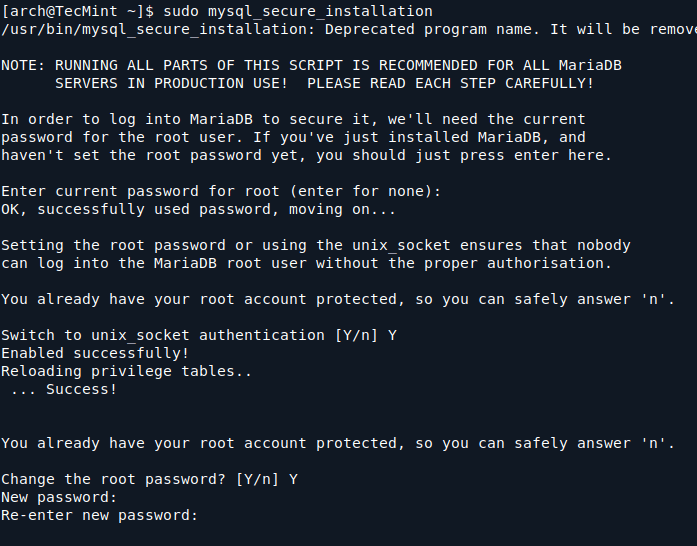
Note: By any means do not confuse MySQL root account with Linux system root account – they are two different things – not so different but they run on different levels.
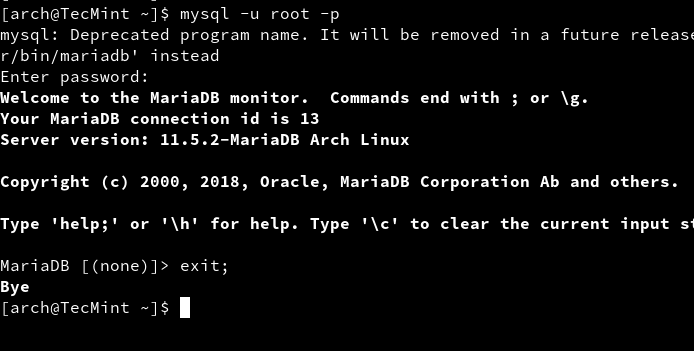
To verify MySQL security login into the database using mysql -u root -p command syntax, provide your root password then leave the database with exit; command.
11. Now it’s time to install PHP server-side scripting language to be able to develop and run complex dynamic web applications, not just serve HTML/CSS code.
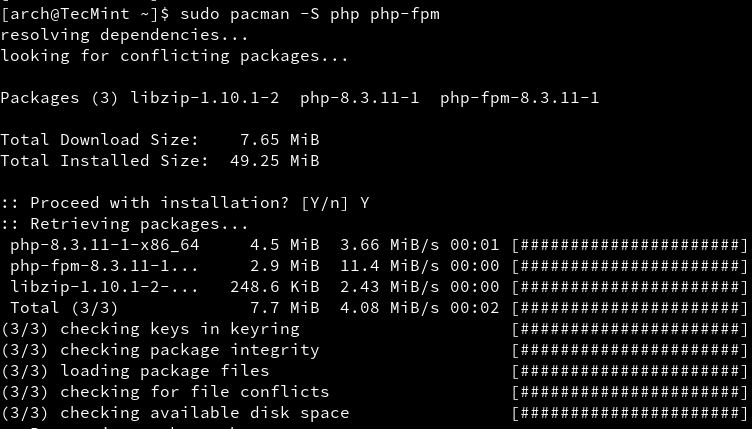
Because we are using Nginx as a web server we need to install a PHP-FPM-backed module to communicate through Fast Common Gateway and change dynamic content generated by PHP scripts.
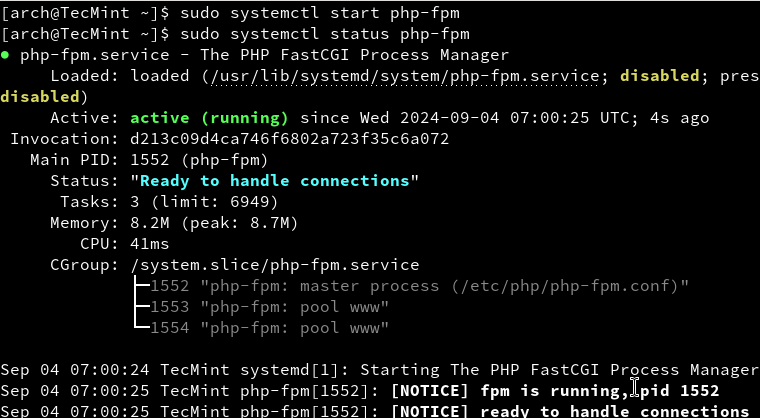
Issue the following command line to install the PHP-FPM service, then start the daemon and verify the status.
To list all available PHP module issues the following commands.
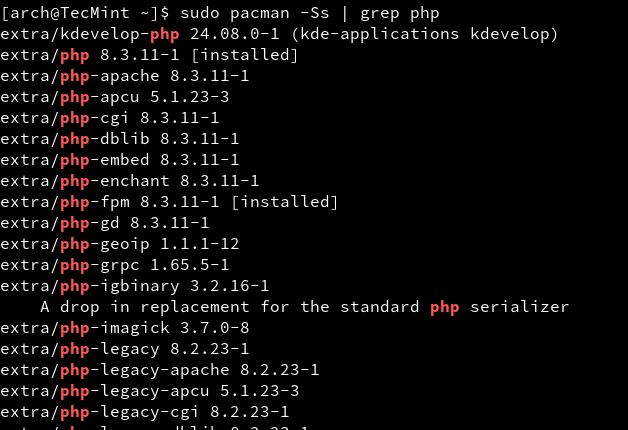
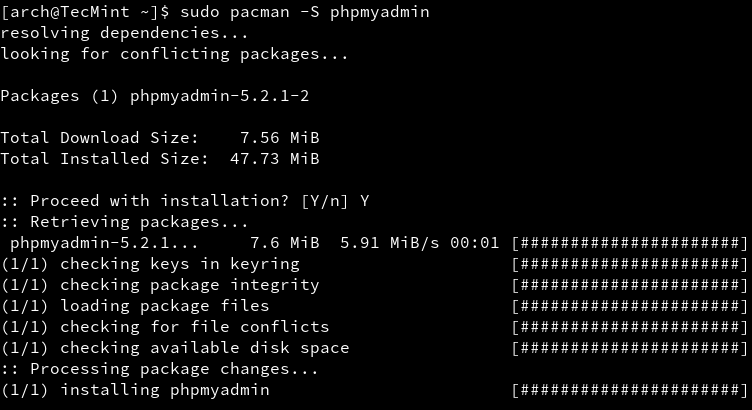
12. One of the last steps is to install the PhpMyAdmin Web Interface for the MySQL database. Issue the following command to install PhpMyAdmin along with its PHP-needed module then create a symbolic link for the PhpMyaAdmin system path to the Nginx default root path.
13. Then configure the php.ini file to include the necessary extensions needed by the PhpMyAdmin application.
Locate with [CTRL+W] keys and uncomment (remove ; at the line beginning) the following lines.
On the same file locate and edit open_basedir directive to resemble the following included directories.
14. The next step is to enable PHP-FPM FastCGI on the localhost Nginx directive. Issue the next command to backup nginx.conf web server file configuration then replace it with the following content.
Add the whole following content on nginx.conf.
15. After all file configurations have been made, all you need to do is to restart Nginx and PHP-FPM services and point your browser to http://localhost/phpmyadmin URL from local node or http://arch_IP/phpmyadmin form another computer.
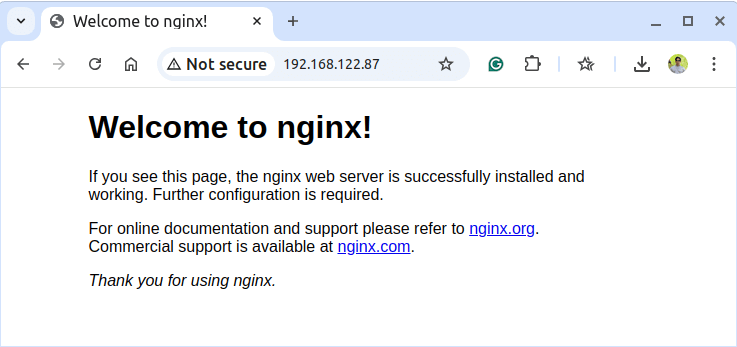
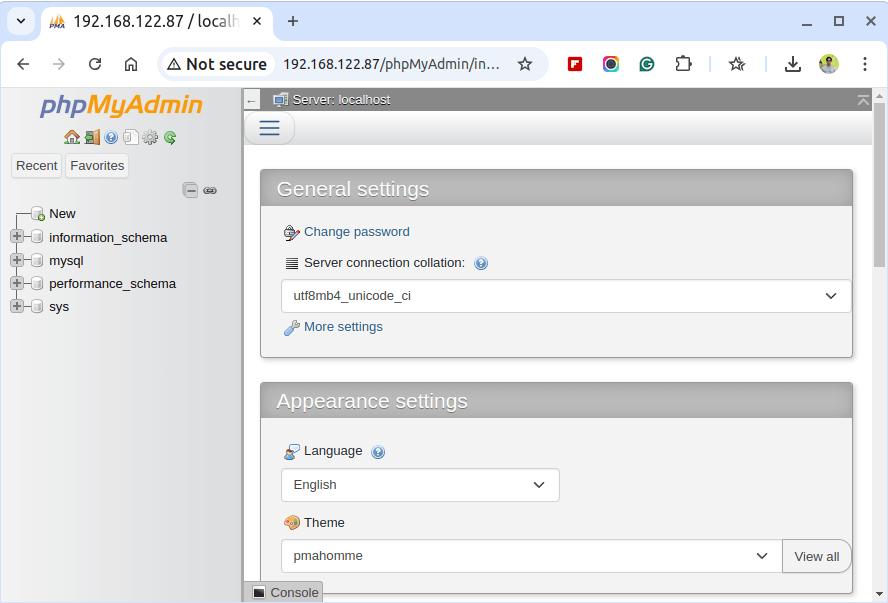
16. If everything runs as intended the final step is to enable LEMP system-wide with the following commands.
Congratulations! You have installed and configured LEMP on Arch Linux and, now, you have a full dynamic interface to begin and develop web applications.
Although Arch Linux is not the most very-best suited system to run on production servers due to its community-orientated rolling release model it can be a very fast and reliable source for small non-critical production environments.


No comments:
Post a Comment