How to Monitor Linux Users Activity with psacct or acct Tools
Thepsacctoracctpackage provides several features for monitoring process activities.
ac command prints the statistics of user logins/logouts (connect time) in hours.
lastcomm command prints the information of previously executed commands of the user.
accton commands is used to turn on/off process for accounting.
sa command summarizes information of previously executed commands.
last and lastb commands show a listing of last logged-in users.
Installing psacct or acct Packages in Linux
psacct and acct both are similar packages and there is not much difference between them, but the psacct package is only available for rpm-based distributions such as RHEL, CentOS, and Fedora, whereas the acct package is available for distributions like Ubuntu, Debian, and Linux Mint.
To install the psacct package under rpm-based distributions issue the following yum command.
# yum install psacct
To install the acct package using the apt command under Ubuntu / Debian / Linux Mint.
$ sudo apt install acct
On other Linux distributions, you can install it as shown.
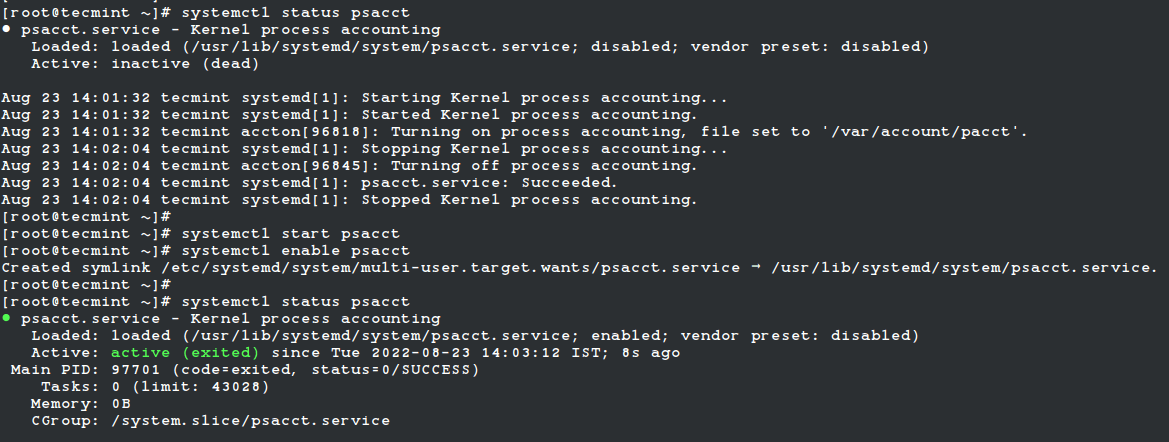
By default, the psacct service is in disabled mode and you need to start it manually under RHEL-based distributions. Use the following command to check the status of the service.
$ sudo systemctl status psacct
You see the status showing as disabled, so let’s start it manually using the following commands, which will create a /var/account/pacct file.
Under Ubuntu, Debian, and Mint service is started automatically, you don’t need to start it again.
Display Statistics of Users Connect Time
ac command without specifying any argument will display total statistics of connect time in hours based on the user logins/logouts from the current wtmp file.
# ac

total     11299.15
Print Total Connect Time of Linux User
Display Statistics of Linux Users Day-wise
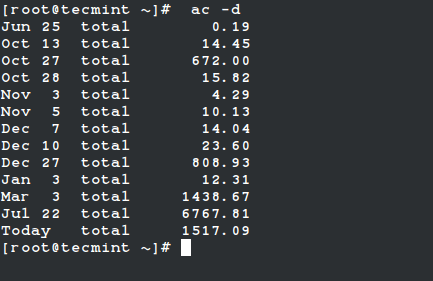
Using the command “ac -d” will print out the total login time in hours by day-wise.
# ac -d

Jun 25	total        0.19
Oct 13	total       14.45
Oct 27	total      672.00
Oct 28	total       15.82
Nov  3	total        4.29
Nov  5	total       10.13
Dec  7	total       14.04
Dec 10	total       23.60
Dec 27	total      808.93
Jan  3	total       12.31
Mar  3	total     1438.67
Jul 22	total     6767.81
Today	total     1517.09
Print Linux User Total Login Time
Display Total Login Time of All Linux Users
Using the command “ac -p” will print the total login time of each Linux user in hours.
# ac -p

	rockylinux                         425.61
	tecmint                            702.29
	root                             10171.54
	total    11299.44
Print Total Login Time of Users
Display Linux User Login Time
To get the total login statistics time of user “tecmint” in hours, use the command as.
# ac tecmint
total 702.29
Display Day-Wise Login Time of User
The following command will print the day-wise total login time of user “tecmint” in hours.
# ac -d tecmint
Oct 11  total        8.01
Oct 12  total       24.00
Oct 15  total       70.50
Oct 16  total       23.57
Oct 17  total       24.00
Oct 18  total       18.70
Nov 20  total        0.18
Print All Linux Commands Executed by Users
The “sa” command is used to print the summary of commands that were executed by users.
0.01cp is a sum of system/user time in cpu minutes
2466k is a cpu-time averaged core usage, i.e. 1k units
sshd command name
Print Linux User Information
To get the information of an individual user, use the options -u.
# sa -u
root       0.00 cpu      465k mem accton
root       0.00 cpu     1057k mem touch
root       0.00 cpu     1298k mem psacct
root       0.00 cpu      466k mem consoletype
root       0.00 cpu     1264k mem psacct           *
root       0.00 cpu     1298k mem psacct
root       0.00 cpu      466k mem consoletype
root       0.00 cpu     1264k mem psacct           *
root       0.00 cpu     1298k mem psacct
root       0.00 cpu      466k mem consoletype
root       0.00 cpu     1264k mem psacct           *
root       0.00 cpu      465k mem accton
root       0.00 cpu     1057k mem touch
Print Number of Linux Processes
This command prints the total number of processes and CPU minutes. If you see a continued increase in these numbers, then it’s time to look into the system about what is happening.
The ‘latcomm‘ command is used to search and display previously executed user command information. You can also search commands of individual usernames. For example, we see commands of the user (tecmint).
# lastcomm tecmint
su                      tecmint  pts/0      0.00 secs Wed Feb 13 15:56
ls                      tecmint  pts/0      0.00 secs Wed Feb 13 15:56
ls                      tecmint  pts/0      0.00 secs Wed Feb 13 15:56
ls                      tecmint  pts/0      0.00 secs Wed Feb 13 15:56
bash               F    tecmint  pts/0      0.00 secs Wed Feb 13 15:56
id                      tecmint  pts/0      0.00 secs Wed Feb 13 15:56
grep                    tecmint  pts/0      0.00 secs Wed Feb 13 15:56
grep                    tecmint  pts/0      0.00 secs Wed Feb 13 15:56
bash               F    tecmint  pts/0      0.00 secs Wed Feb 13 15:56
dircolors               tecmint  pts/0      0.00 secs Wed Feb 13 15:56
bash               F    tecmint  pts/0      0.00 secs Wed Feb 13 15:56
tput                    tecmint  pts/0      0.00 secs Wed Feb 13 15:56
tty                     tecmint  pts/0      0.00 secs Wed Feb 13 15:56
bash               F    tecmint  pts/0      0.00 secs Wed Feb 13 15:56
id                      tecmint  pts/0      0.00 secs Wed Feb 13 15:56
bash               F    tecmint  pts/0      0.00 secs Wed Feb 13 15:56
id                      tecmint  pts/0      0.00 secs Wed Feb 13 15:56
Search Logs for Commands
With the help of the lastcomm command, you will be able to view the individual use of each command.
# lastcomm ls
ls                      tecmint  pts/0      0.00 secs Wed Feb 13 15:56
ls                      tecmint  pts/0      0.00 secs Wed Feb 13 15:56
ls                      tecmint  pts/0      0.00 secs Wed Feb 13 15:56
For more information and usage, check out the manual pages of these tools.




No comments:
Post a Comment