Preparing A Drive / Partition / Loop Device for Encryption

Since we will wipe all data present in our chosen drive (/dev/sdb), first of all, we need to perform a backup of any important files contained in that partition BEFORE proceeding further.
Wipe all data from /dev/sdb. We are going to use dd command here, but you could also do it with other tools such as shred. Next, we will create a partition on this device, /dev/sdb1, following the explanation in Part 4 – Create Partitions and Filesystems in Linux of the LFCS series.
Testing for Encryption Support
Before we proceed further, we need to make sure that our kernel has been compiled with encryption support:
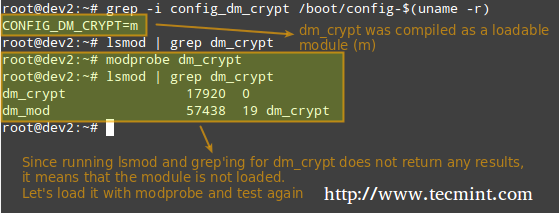
As outlined in the image above, the dm-crypt kernel module needs to be loaded in order to set up encryption.
Installing Cryptsetup
Cryptsetup is a frontend interface for creating, configuring, accessing, and managing encrypted file systems using dm-crypt.
Setting Up an Encrypted Partition
The default operating mode for cryptsetup is LUKS (Linux Unified Key Setup) so we’ll stick with it. We will begin by setting the LUKS partition and the passphrase:
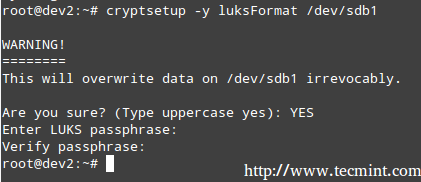
The command above runs cryptsetup with default parameters, which can be listed with,

Should you want to change the cipher, hash, or key parameters, you can use the –cipher, –hash, and –key-size flags, respectively, with the values taken from /proc/crypto.
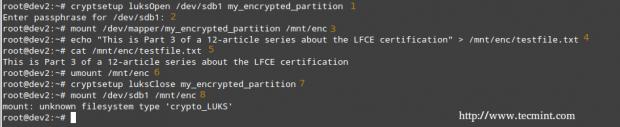
Next, we need to open the LUKS partition (we will be prompted for the passphrase that we entered earlier). If the authentication succeeds, our encrypted partition will be available inside /dev/mapper with the specified name:

Now, we’ll format out partition as ext4.
and create a mount point to mount the encrypted partition. Finally, we may want to confirm whether the mount operation succeeded.

When you are done writing to or reading from your encrypted file system, simply unmount it
and close the LUKS partition using,
Testing Encryption
Finally, we will check whether our encrypted partition is safe:
1. Open the LUKS partition
2. Enter your passphrase
3. Mount the partition
4. Create a dummy file inside the mount point.
5. Verify that you can access the file that you just created.
6. Unmount the file system.
7. Close the LUKS partition.
8. Try to mount the partition as a regular file system. It should indicate an error.
Encryptin the Swap Space for Further Security
The passphrase you entered earlier to use the encrypted partition is stored in RAM memory while it’s open. If someone can get his hands on this key, he will be able to decrypt the data. This is especially easy to do in the case of a laptop, since while hibernating the contents of RAM are kept on the swap partition.
To avoid leaving a copy of your key accessible to a thief, encrypt the swap partition following these steps:
1 Create a partition to be used as swap with the appropriate size (/dev/sdd1 in our case) and encrypt it as explained earlier. Name it just “swap” for convenience.’
2.Set it as swap and activate it.
3. Next, change the corresponding entry in /etc/fstab.
4. Finally, edit /etc/crypttab and reboot.
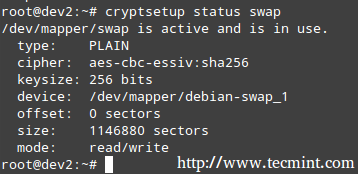
Once the system has finished booting, you can verify the status of the swap space:


No comments:
Post a Comment