Advanced IP and Network Device Configuration
The iproute package provides a set of tools to manage networking and traffic control that we will use throughout this article as they represent the replacement of legacy tools such as ifconfig and route.
The central utility in the iproute suite is called simply ip. Its basic syntax is as follows:
Where object can be only one of the following (only the most frequent objects are shown – you can refer to man ip for a complete list):
- link: network device.
- addr: protocol (IP or IPv6) address on a device.
- route: routing table entry.
- rule: rule in routing policy database.

Whereas command represents a specific action that can be performed on object. You can run the following command to display the complete list of commands that can be applied to a particular object:
For example,
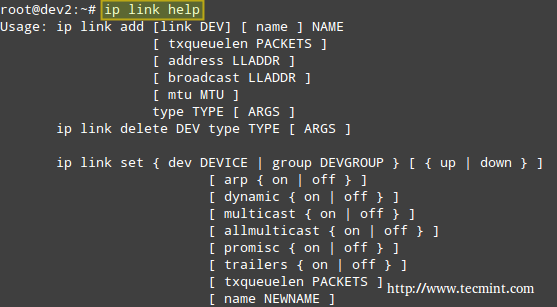
The above image shows, for example, that you can change the status of a network interface with the following command:
For such more examples of ‘ip‘ command, read 10 Useful ‘ip’ Commands to Configure IP Address
Example 1: Disabling and enabling a network interface
In this example, we will disable and enable eth1:
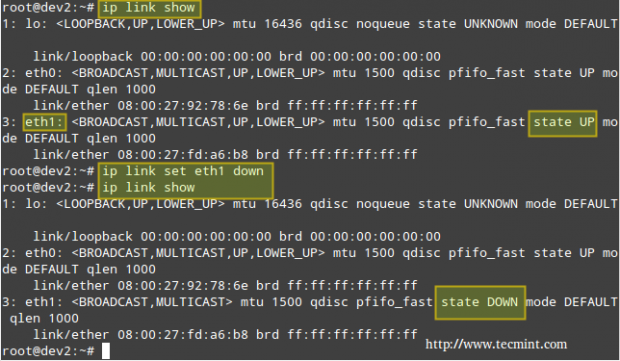
If you want to re-enable eth1,
Instead of displaying all the network interfaces, we can specify one of them:
Which will return all the information for eth1.
Example 2: Displaying the main routing table
You can view your current main routing table with either of the following 3 commands:
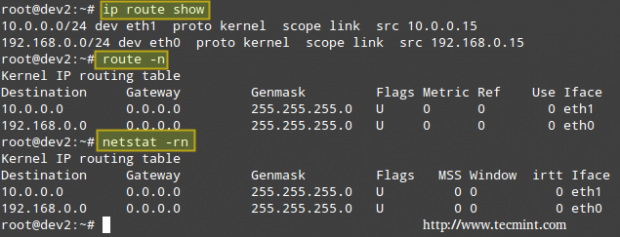
The first column in the output of the three commands indicates the target network. The output of ip route show (following the keyword dev) also presents the network devices that serve as physical gateway to those networks.
Although nowadays the ip command is preferred over route, you can still refer to man ip-route and man route for a detailed explanation of the rest of the columns.
Example 3: Using a Linux server to route packets between two private networks
We want to route icmp (ping) packets from dev2 to dev4 and the other way around as well (note that both client machines are on different networks). The name of each NIC, along with its corresponding IPv4 address, is given inside square brackets.
Our test environment is as follows:
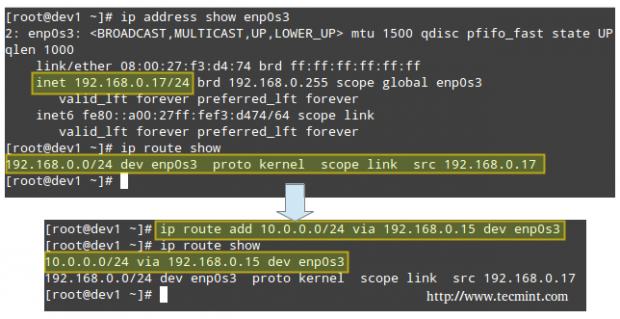
Let’s view the routing table in dev1 (CentOS box):
and then modify it in order to use its enp0s3 NIC and the connection to 192.168.0.15 to access hosts in the 10.0.0.0/24 network:
Which essentially reads, “Add a route to the 10.0.0.0/24 network through the enp0s3 network interface using 192.168.0.15 as gateway”.
Likewise in dev4 (openSUSE box) to ping hosts in the 192.168.0.0/24 network:
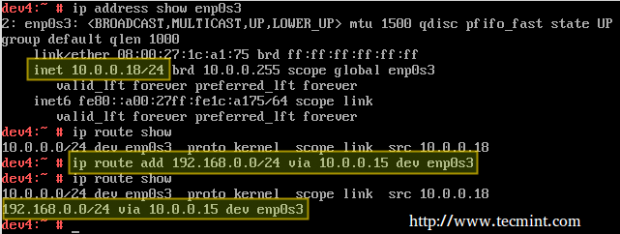
Finally, we need to enable forwarding in our Debian router:
Now let’s ping:
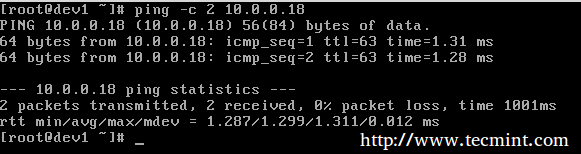
and,
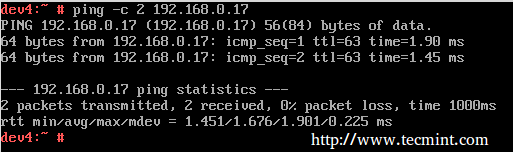
To make these settings persistent across boots, edit /etc/sysctl.conf on the router and make sure the net.ipv4.ip_forward variable is set to true as follows:
In addition, configure the NICs on both clients (look for the configuration file within /etc/sysconfig/network on openSUSE and /etc/sysconfig/network-scripts on CentOS – in both cases it’s called ifcfg-enp0s3).
Here’s the configuration file from the openSUSE box:
Example 4: Using a Linux server to route packages between a private networks and the Internet
Another scenario where a Linux machine can be used as router is when you need to share your Internet connection with a private LAN.
In addition to set up packet forwarding and the static routing table in the client as in the previous example, we need to add a few iptables rules in the router:
The first command adds a rule to the POSTROUTING chain in the nat (Network Address Translation) table, indicating that the eth0 NIC should be used for outgoing packages.
MASQUERADE indicates that this NIC has a dynamic IP and that before sending the package to the “wild wild world” of the Internet, the private source address of the packet has to be changed to that of the public IP of the router.
In a LAN with many hosts, the router keeps track of established connections in /proc/net/ip_conntrack so it knows where to return the response from the Internet to.
Only part of the output of:
is show in the following screenshot.

Where the origin (private IP of openSUSE box) and destination (Google DNS) of packets is highlighted. This was the result of running:
on the openSUSE box.
As I’m sure you can already guess, the router is using Google’s 8.8.8.8 as nameserver, which explains why the destination of outgoing packets points to that address.
Note: That incoming packages from the Internet are only accepted is if they are part of an already established connection (command #2), while outgoing packages are allowed “free exit” (command #3).
Don’t forget to make your iptables rules persistent following the steps outlined in Part 8 – Configure Iptables Firewall of this series.
Dynamic Routing with Quagga
Nowadays, the tool most used for dynamic routing in Linux is quagga. It allows system administrators to implement, with a relatively low-cost Linux server, the same functionality that is provided by powerful (and costly) Cisco routers.
The tool itself does not handle the routing, but rather modifies the kernel routing table as it learns new best routes to handle packets.
Since it’s a fork of zebra, a program whose development ceased a while ago, it maintains for historical reasons the same commands and structure than zebra. That is why you will see a lot of reference to zebra from this point on.
Please note that it is not possible to cover dynamic routing and all the related protocols in a single article, but I am confident that the content presented here will serve as a starting point for you to build on.
Installing Quagga in Linux
To install quagga on your chosen distribution:
We will use the same environment as with Example #3, with the only difference that eth0 is connected to a main gateway router with IP 192.168.0.1.
Next, edit /etc/quagga/daemons with,
Now create the following configuration files.
and add these lines (replace for a hostname and password of your choice):

Note: That ripd.conf is the configuration file for the Routing Information Protocol, which provides the router with the information of which networks can be reached and how far (in terms of amount of hops) they are.
Note that this is only one of the protocols that can be used along with quagga, and I chose it for this tutorial due to easiness of use and because most network devices support it, although it has the disadvantage of passing credentials in plain text. For that reason, you need to assign proper permissions to the configuration file:
Example 5: Setting up quagga to route IP traffic dynamically
In this example we will use the following setup with two routers (make sure to create the configuration files for router #2 as explained previously):
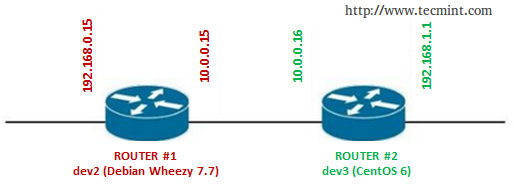
Important: Don’t forget to repeat the following setup for both routers.
Connect to zebra (listening on port 2601), which is the logical intermediary between the router and the kernel:
Enter the password that was set in the /etc/quagga/zebra.conf file, and then enable configuration:
Enter the IP address and network mask of each NIC:
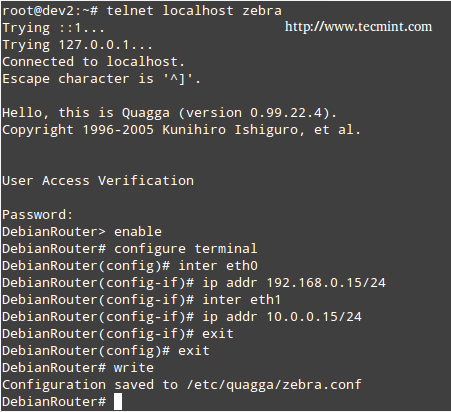
Now we need to connect to the RIP daemon terminal (port 2602):
Enter username and password as configured in the /etc/quagga/ripd.conf file, and then type the following commands in bold (comments are added for the sake of clarification):
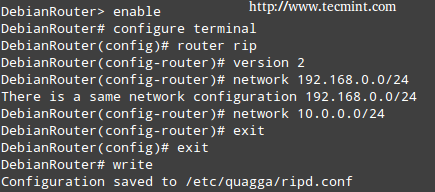
Note: That in both cases the configuration is appended to the lines that we added previously (/etc/quagga/zebra.conf and /etc/quagga/ripd.conf).
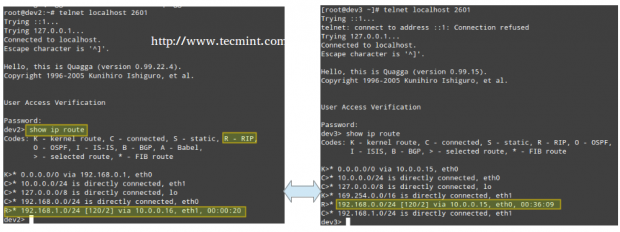
Finally, connect again to the zebra service on both routers and note how each one of them has “learned” the route to the network that is behind the other, and which is the next hop to get to that network, by running the command show ip route:


No comments:
Post a Comment