Rsync (Remote Sync) is the most commonly used command for copying and synchronizing files and directories remotely as well as locally in Linux/Unix systems.
With the help of the rsync command, you can copy and synchronize your data remotely and locally across directories, disks, and networks, perform data backups, and mirror between two Linux machines.
This article explains 16 basic and advanced uses of the rsync command to transfer your files remotely and locally in Linux-based machines. You don’t need to be a root user to run the rsync command.
Table of Contents
Advantages of Rsync Command
It offers several advantages, including:
- Efficient File Transfer – rsync uses a delta transfer algorithm, which means it only transfers the differences between source and destination files, which significantly reduces the amount of data transferred, making it efficient for syncing large files or directories.
- Remote File Synchronization – rsync supports both local and remote file transfers over SSH, which allows synchronization between local and remote systems or mirroring directories across multiple machines.
- Incremental Backups – rsync is well-suited for incremental backups, as it create and update backups efficiently by transferring only new or modified files.
- Preserves File Permissions – rsync can preserve various file attributes, such as permissions, ownership, timestamps, and symbolic links, which ensures that the copied files retain their original characteristics on the destination.
- Bandwidth Control – rsync allows you to limit the bandwidth usage during file transfers, as it uses compression and decompression method while sending and receiving data on both ends.
- Faster – rsync can be faster than scp (Secure Copy) for transferring files, especially when syncing large directories or when dealing with files that have already been partially transferred or exist on the destination.
Rsync Command Syntax
The rsync command follows the following syntax:
Here’s an explanation of the different components and options used with rsync commands:
-v– Verbose output, displaying detailed information about the transfer.-r– copies data recursively (but doesn’t preserve timestamps and permission while transferring data.-a– archive mode, which allows copying files recursively and it also preserves symbolic links, file permissions, user & group ownerships, and timestamps.-z– Compress files during transfer to reduce network usage.-h– human-readable, output numbers in a human-readable format.-P– Show progress during the transfer.SOURCE– Specifies the source file(s) or directory to be transferred, which can be a local or a remote location.DESTINATION– Specifies the destination path where the files or directories will be copied. Similar to the source, it can be a local path or a remote location.
Install Rsync in Linux System
We can install the rsync package with the help of the following package manager as per your Linux distribution.
1. Copy/Sync File Locally
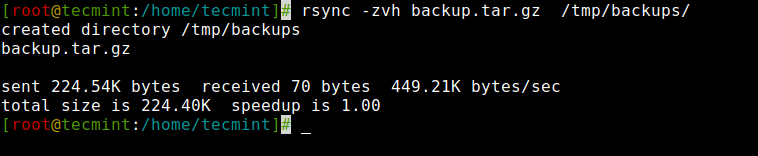
To copy or sync a file locally, you can use the following command that will sync a single file on a local machine from one location to another location.
Here in this example, a file name backup.tar needs to be copied or synced to /tmp/backups/ folder.
In the above example, you can see that if the destination is not already existed rsync will create a directory automatically for the destination.
2. Copy/Sync Directory Locally
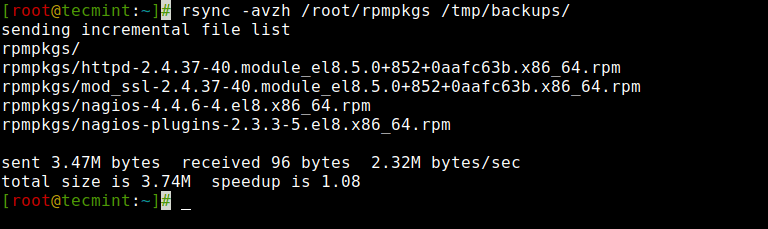
The following command will transfer or sync all the files from one directory to a different directory in the same machine.
Here in this example, /root/rpmpkgs contains some rpm package files and you want that directory to be copied inside /tmp/backups/ folder.
3. Copy a Directory from Local to Remote Server
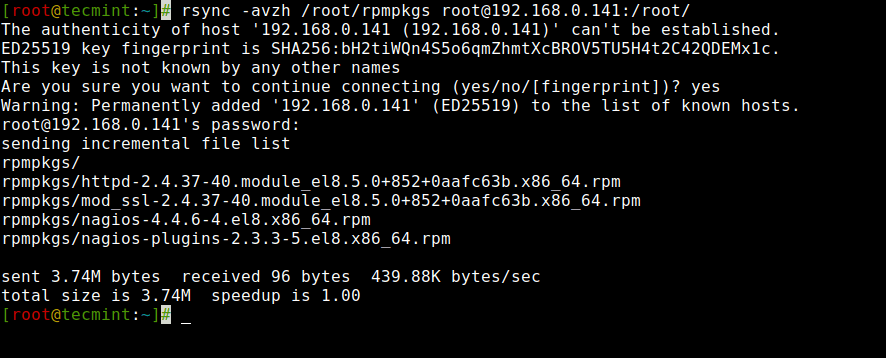
To copy a directory from a local server to a remote server, you can use the following command, which will sync a directory from a local to a remote machine.
For example, if there is a folder in your local computer “rpmpkgs” that contains some RPM packages and if you want that local directory’s content sends to a remote server, you can use the following command.
4. Copy a Directory from Remote to Local Server
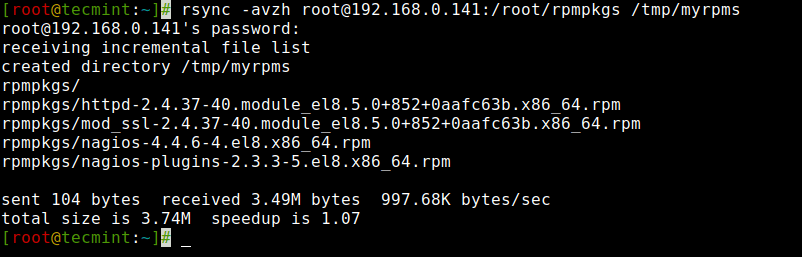
This command will help you sync a remote directory to a local directory. Here in this example, a directory /root/rpmpkgs which is on a remote server is being copied into your local computer in /tmp/myrpms.
5. Rsync Over SSH
With rsync, we can use SSH (Secure Shell) for data transfer, using SSH protocol while transferring our data you can be ensured that your data is being transferred in a secured connection with encryption so that nobody can read your data while it is being transferred over the wire on the internet.
Also when we use rsync we need to provide the user/root password to accomplish that particular task, so using the SSH option will send your logins in an encrypted manner so that your password will be safe.
To use rsync over SSH, you can use the -e option to specify the remote shell command, which is typically ssh as shown.
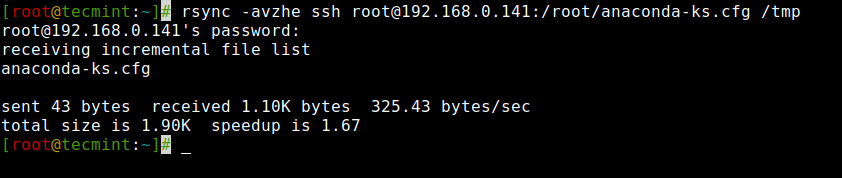
6. Copy a File from a Remote Server to a Local Server with SSH
To synchronize a file from a remote server to a local server, you can specify a protocol with rsync using the “-e” option with the protocol name you want to use.
Here in this example, We will be using the “ssh” with the “-e” option and perform data transfer.
7. Copy a File from a Local Server to a Remote Server with SSH
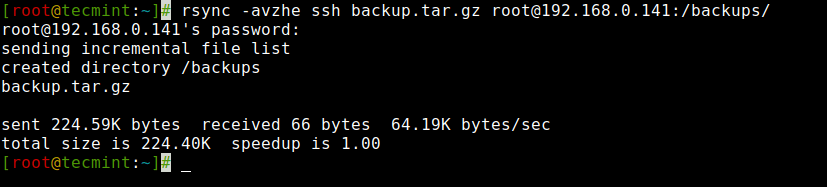
To synchronize a file from a local server to a remote server using SSH, you can leverage the following command as shown.
8. Show Progress While Transferring Data with Rsync
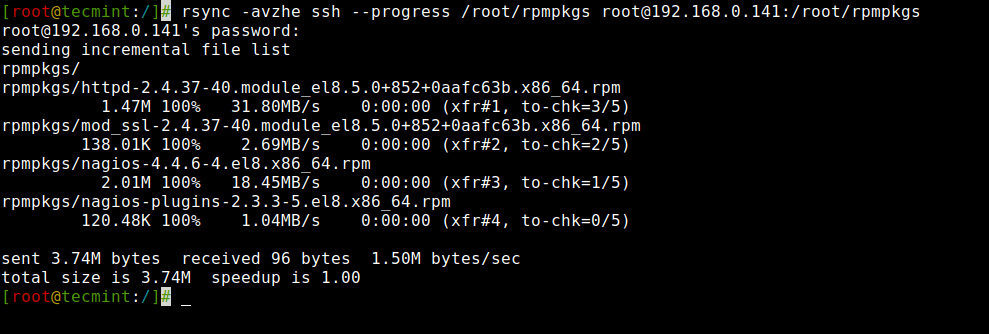
To show the progress while transferring the data from one machine to a different machine, we can use the ‘--progress' option, which displays the files and the time remaining to complete the transfer.
9. Include Files with Particular Extension with Rsync
To include specific files or patterns during a rsync operation, you can use the --include option with an extension that matches all files.
In the provided example, rsync will include only files with the .txt extension from the /path/to/source/ directory during the transfer.
10. Exclude Files with Particular Extension with Rsync
Similarly, to exclude a specific extension during a rsync operation, you can use the --exclude option with a wildcard pattern.
In the provided example, rsync will exclude files with the specified extension (*.ext) during the transfer, while including all other files and directories.
11. Include and Exclude Files with Rsync
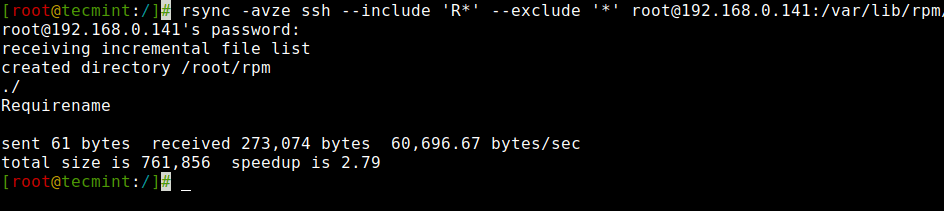
To include and exclude specific files or patterns during a rsync operation, you can use both the --include and --exclude options with appropriate wildcard patterns.
These two options allow us to include and exclude files by specifying parameters these option helps us to specify those files or directories which you want to include in your sync and exclude files and folders with which you don’t want to be transferred.
Here in this example, the rsync command will include those files and directories only which starts with ‘R’ and exclude all other files and directories.
12. Use of –delete Option with Rsync
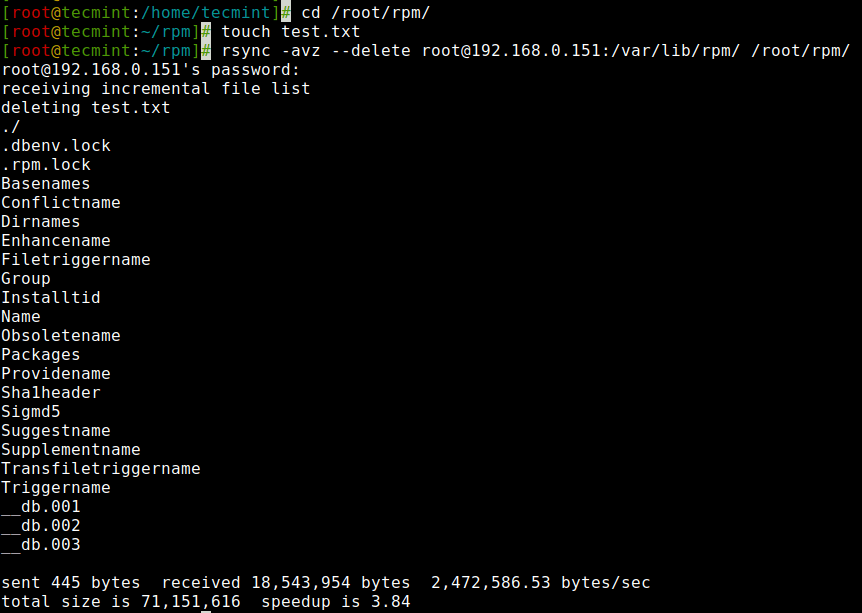
If a file or directory does not exist at the source, but already exists at the destination, you might want to delete that existing file/directory at the target while syncing.
We can use the ‘--delete‘ option to delete files that are not there in the source directory.
The source and target are in sync. Now create a new file test.txt at the target.
Target has the new file called test.txt when synchronizing with the source with the ‘–delete‘ option, it removed the file test.txt.
13. Set File Transfer Limit with Rsync
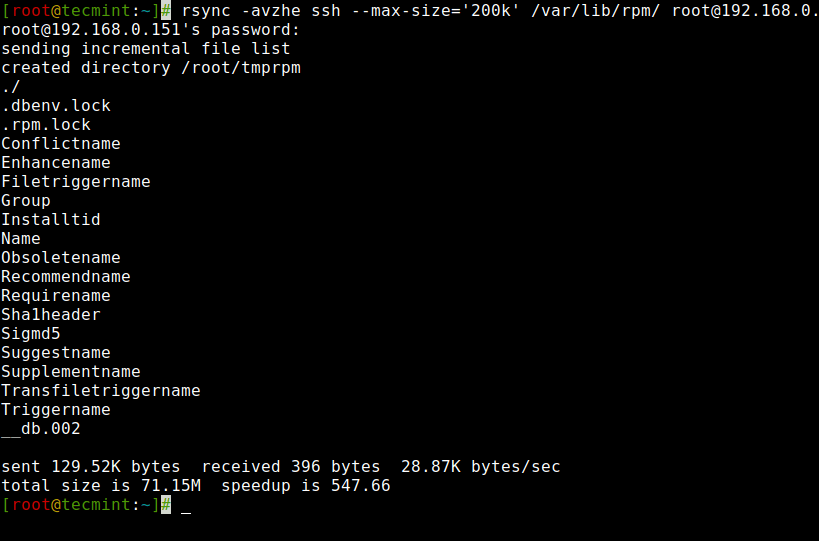
You can specify the Max file size to be transferred or synced. You can do it with the “--max-size” option. Here in this example, the Max file size is 200k, so this command will transfer only those files which are equal to or smaller than 200k.
14. Automatically Delete Source Files After Transfer
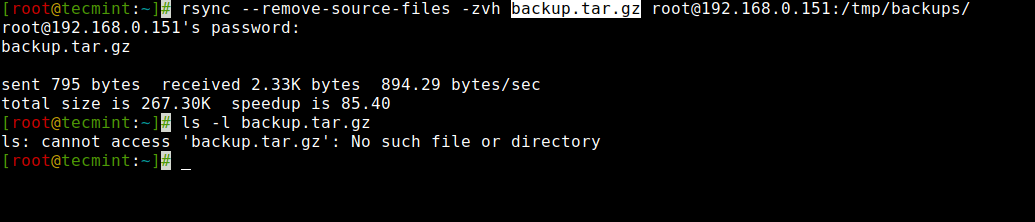
Now, suppose you have the main web server and a data backup server, you created a daily backup and synced it with your backup server, but now you don’t want to keep that local copy of the backup in your web server.
So, will you wait for the transfer to complete and then delete that local backup file manually? Of Course NO. This automatic deletion can be done using the ‘--remove-source-files‘ option.
15. Do a Dry Run with Rsync
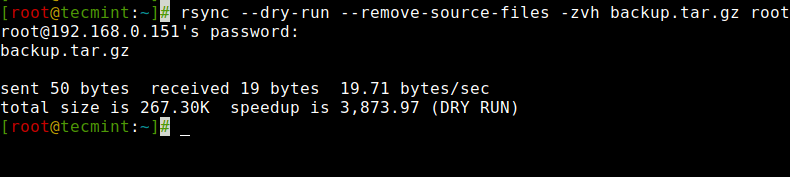
If you are a newbie using rsync and don’t know what exactly your command going to do. Rsync could really mess up the things in your destination folder and then doing an undo can be a tedious job.
Use of this option will not make any changes to the files and shows the output of the command, if the output shows exactly the same as you want to do then you can remove the ‘--dry-run‘ option from your command and run on the terminal.
16. Rsync Set Bandwidth Limit and Transfer File
You can set the bandwidth limit while transferring data from one machine to another machine with the help of ‘--bwlimit‘ option. This option helps us to limit I/O bandwidth.
Also, by default rsync syncs changed blocks and bytes only, if you explicitly want to sync the whole file then you use the ‘-W‘ option with it.
Conclusion
That concludes our overview of rsync and its capabilities. For further exploration of its extensive options and functionalities, I encourage you to refer to the comprehensive manual pages (man pages) available.


No comments:
Post a Comment