Step 1: Install Nginx Web Server
1. Before attempting to proceed with Nginx installation make sure that your NIC has been configured with a Static IP Address and make sure Portage sources and your system it’s up to date.
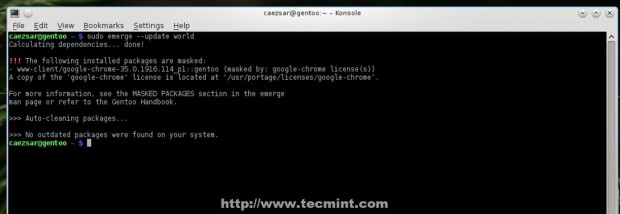
2. After update process finishes, proceed with Nginx installation by choosing the preferred settings and modules by echoing Nginx USE flags to Portage make.conf file. First list Nginx default installation modules by running the following command.
For detailed modules information (USE flags for packages) use equery command.
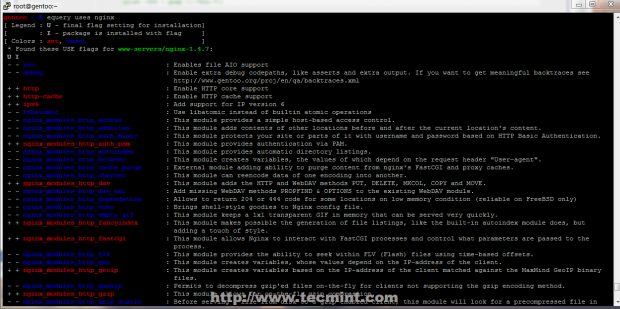
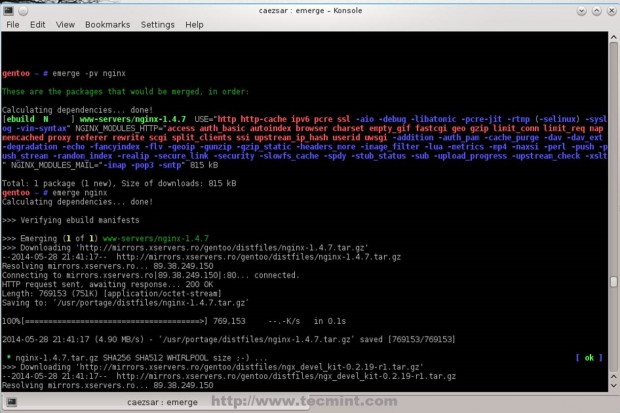
Then install Nginx with the following command.
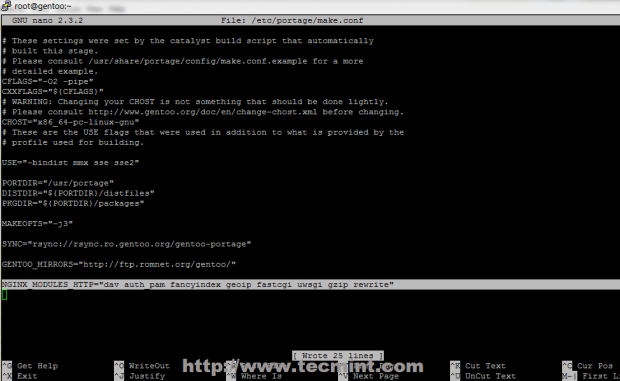
If you need extra modules (WebDAV, fancyindex, GeoIP, etc) besides default ones, that Nginx will compile with, append them all on a single line on Portage make.conf file with NGINX_MODULES_HTTP directive, then recompile Nginx with new modules.
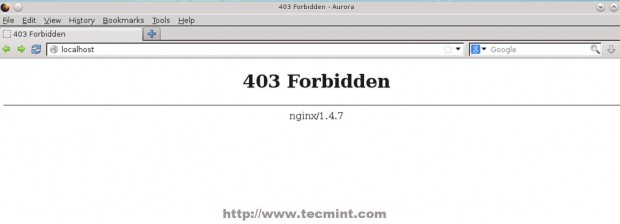
3. After Portage finishes emerging Nginx, start http daemon and verify it by directing your browser to http://localhost.
Step 2: Install PHP
4. To use PHP dynamic web programming language with Nginx server, install PHP-FastCGI Process Manager (FPM) by appending fpm and other important PHP Extensions on Portage USE flags and make sure you remove Apache extension.
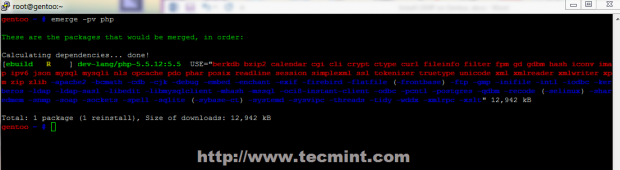
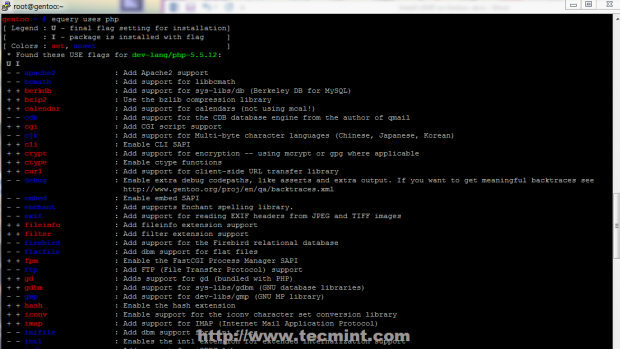
5. Before starting PHP-FPM some changes needs to be applied to service configuration file. Open php-fpm configuration file and make the following changes.
Find and uncomment the following directives to look like this.
6. After PHP-FPM configuration file it’s edited, change PHP-FPM log file permissions and start the service.
Even if PHP-FPM service is started, Nginx can’t communicate with PHP gateway, so, some changes are need to be done on Nginx configuration files.
Step 3: Edit Nginx Configurations
7. Nginx default template configuration file just provides a basic HTTP socket for localhost only. To change this behavior and enable Virtual Hosts, open nginx.conf file located on /etc/nginx/ path and make the following configurations.
Locate the first server block which corresponds to localhost and listens on 127.0.0.1 IP address and commend all its statements to look like in the screenshot below.
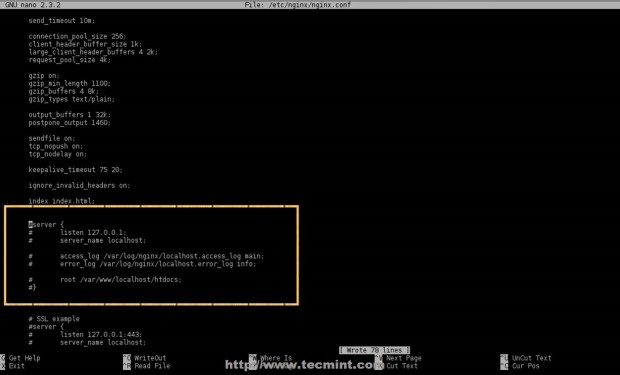
Don’t close the file yet and move to the very bottom and add the following statement before last closing curly braces “ } “.
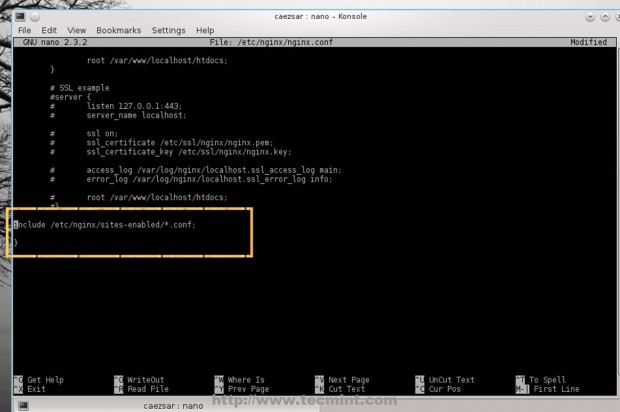
8. Next create sites-enabled and sites-available ( for unused Virtual Hosts) Nginx directories and configuration files for localhost on HTTP and HTTPS protocols.
Create the following file configuration for localhost.
Add the following file content.
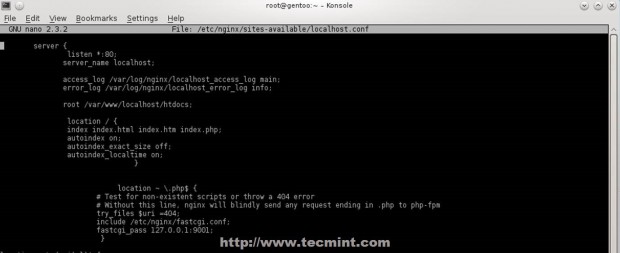
For localhost with SSL create the following configuration file.
Add the following file content.
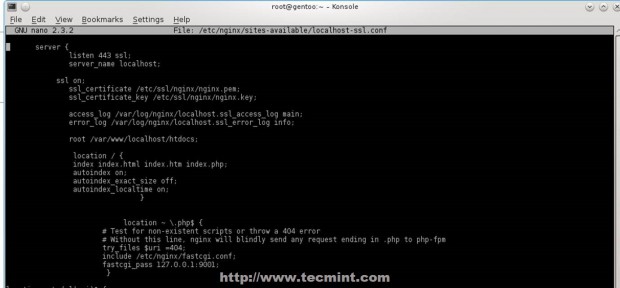
9. Now it’s time to create two scripts on a system executable path ($PATH shell variable), that acts as commands to activate or disable Nginx Virtual Hosts.
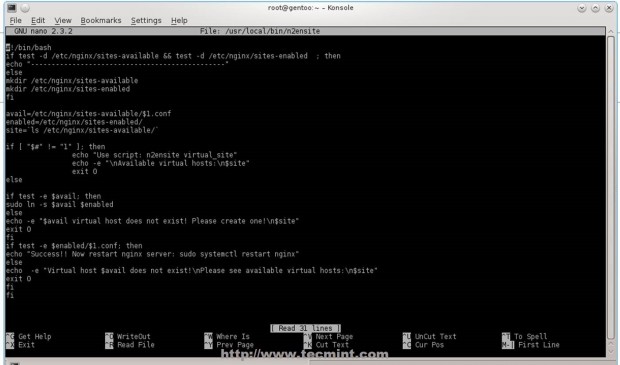
Create the first Bash script named n2ensite that will enable Virtual Hosts configuration files by creating a symbolic link between specified hosts from sites-available to sites-enabled.
Add the following file content.
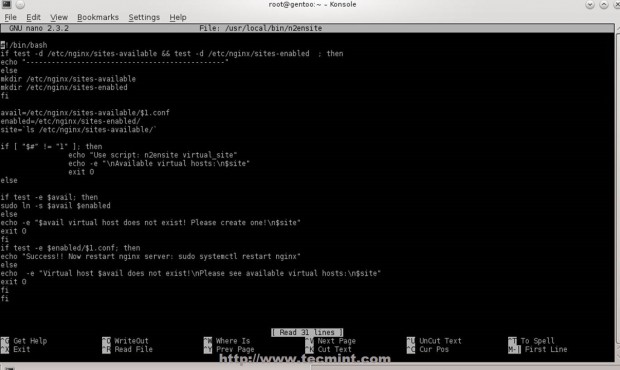
10. Then create the second script called n2dissite, that will delete specified active Virtual Hosts from sites-enabled Nginx path with the following content.
Add the following content.
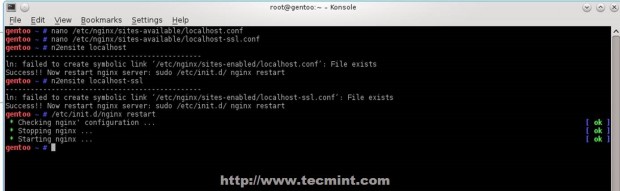
11. After finishing editing Bash scripts, append execution permissions and activate localhost Virtual Hosts – use Virtual Host configuration file name without .conf extension, then restart Nginx and PHP-FPM services to apply changes.
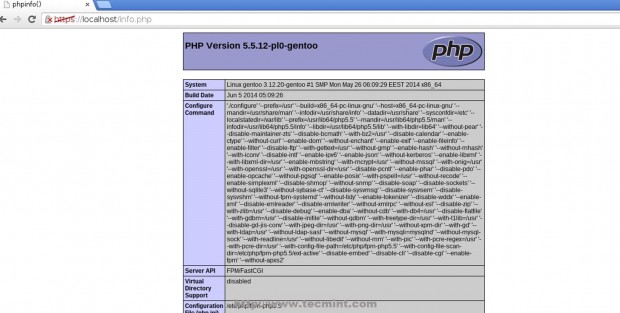
12. To test configurations create a PHP info file on localhost default root path for web files (/var/www/localhost/htdocs) and redirect your browser on https://localhost/info.php or http://localhost/info.php.
Using localhost Virtual Hosts configuration files as templates and Nginx n2enmod and n2dismod you can easily now add as many websites as you like, but assure that you have valid DNS pointers for an Internet-facing web server or use entries locally on system hosts file.
Step 4: Install MySQL/MariaDB + PhpMyAdmin
To install MySQL database and PhpMyAdmin Web interface for MySQL use the same procedure presented on Installing LAMP on Gentoo.
13. In return if you want to use MariaDB, drop-in replacement for MySQL, use the following commands to get USE flags and install it.
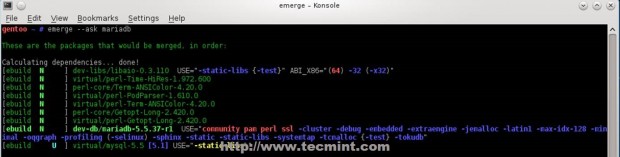
In case you get a package conflict with MySQL add the following lines to Portage package.accept.keywords.
14. After MySQL database is installed start service and secure it using mysql_secure_installation (change root password, disable root login outside localhost, remove anonymous user/test database).
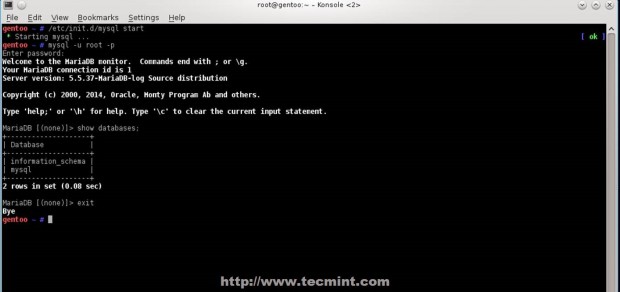
15. Enter MySQL database using, mysql -u root -p command to test its functionality and leave it with exit command.
16. If you’re not too good with MySQL command line. install PhpMyAdmin Web frontend by executing the following commands.
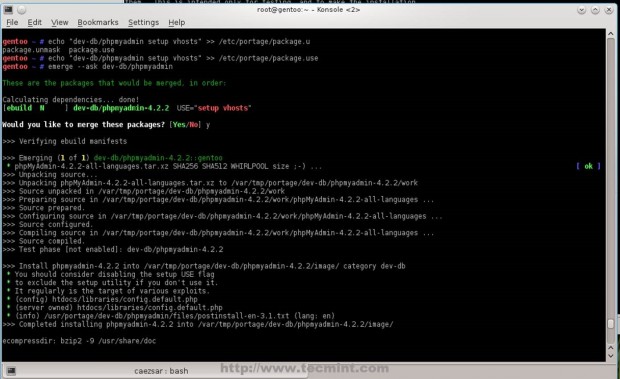
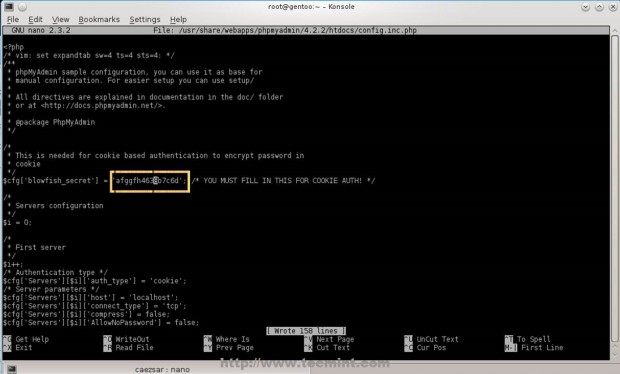
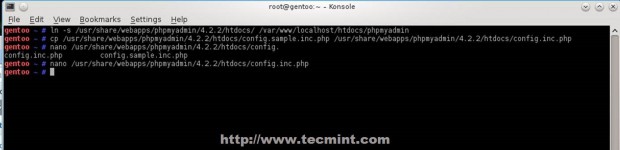
17. After PhpMyAdmin finishes installing, create a configuration file based on sample config file, change blowfish_secret passphrase with a random string, then create a symbolic link from /usr/share/webapps/phpmyadmin/phpmyadmin_version_number/htdocs/ to Virtual Hosts document root path you want to access PhpMyAdmin web interface.
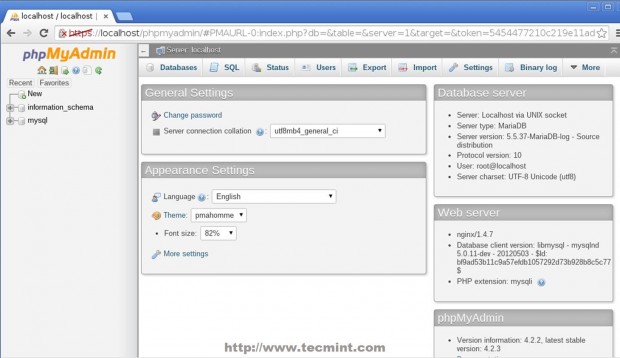
18. To access MySQL database through PhpMyAdmin Web interface, open a browser and use the following URL address https://localhost/phpmyadmin.
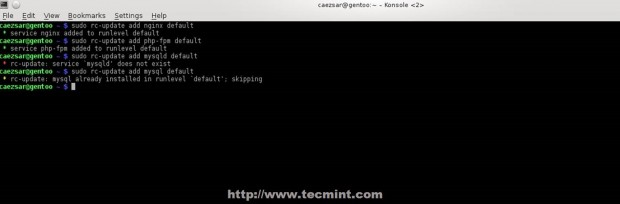
19. The final step is to enable services system-wide, to automatically start after reboot.


No comments:
Post a Comment