Understanding RAID in Linux
The technology known as Redundant Array of Independent Disks (RAID) is a storage solution that combines multiple hard disks into a single logical unit to provide redundancy of data and/or improve performance in read / write operations to disk.
However, the actual fault tolerance and disk I/O performance lean on how the hard disks are set up to form the disk array. Depending on the available devices and the fault tolerance/performance needs, different RAID levels are defined.

You can refer to the following RAID series article for know more detailed explanation of each RAID level.
Install mdadm in Linux
Our tool of choice for creating, assembling, managing, and monitoring our software RAIDs is called mdadm (short for multiple disks admin).
Assembling Partitions as RAID Devices
The process of assembling existing partitions as RAID devices consists of the following steps.
1. Create a New Array using mdadm
If one of the partitions has been formatted previously or has been a part of another RAID array previously, you will be prompted to confirm the creation of the new array.
Assuming you have taken the necessary precautions to avoid losing important data that may have resided in them, you can safely type y and press Enter.

2. Check Array Creation Status
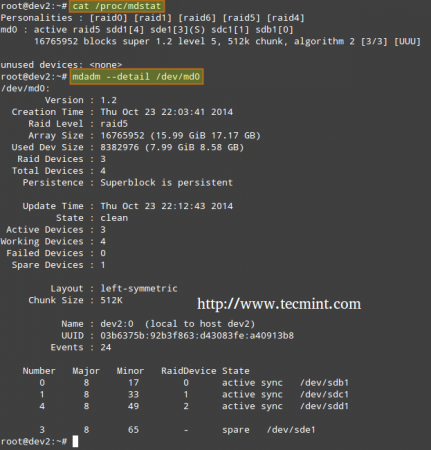
In order to check the array creation status, you will use the following commands – regardless of the RAID type. These are just as valid as when we are creating a RAID0 (as shown above), or when you are in the process of setting up a RAID5, as shown in the image below.
3. Format RAID Device
Format the device with a filesystem as per your needs/requirements, as explained in Part 4 of this series.
4. Monitor RAID Array Service
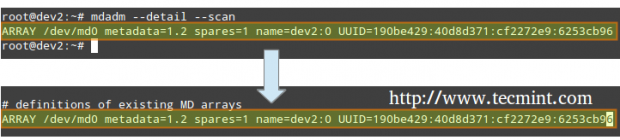
Instruct the monitoring service to “keep an eye” on the array. Add the output of mdadm --detail --scan to /etc/mdadm/mdadm.conf (Debian and derivatives) or /etc/mdadm.conf (CentOS / openSUSE), like so.
To ensure the service starts on system boot, run the following commands as root.
5. Check RAID Disk Failure
In RAID levels that support redundancy, replace failed drives when needed. When a device in the disk array becomes faulty, a rebuild automatically starts only if there was a spare device added when we first created the array.

Otherwise, we need to manually attach an extra physical drive to our system and run it.
Where /dev/md0 is the array that experienced the issue and /dev/sdX1 is the new device.
6. Disassemble a Working Array
You may have to do this if you need to create a new array using the devices – (Optional Step).
7. Create Mail Alerts
You can configure a valid email address or system account to send alerts to (make sure you have this line in mdadm.conf). – (Optional Step)
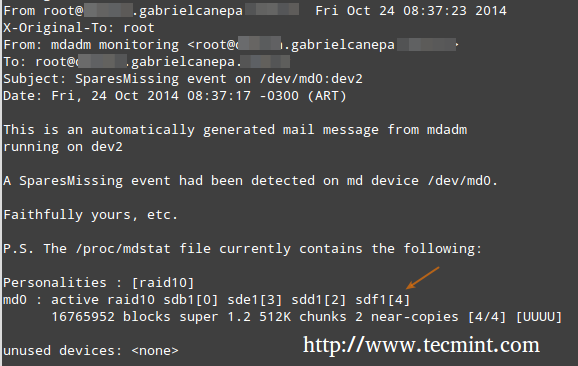
In this case, all alerts that the RAID monitoring daemon collects will be sent to the local root account’s mailbox. One of such alerts looks like the following.
Note: This event is related to the example in STEP 5, where a device was marked as faulty and the spare device was automatically built into the array by mdadm. Thus, we “ran out” of healthy spare devices and we got the alert.
Understanding RAID Levels in Linux
Here’s a brief overview of common RAID levels:
RAID 0
The total array size is n times the size of the smallest partition, where n is the number of independent disks in the array (you will need at least two drives). Run the following command to assemble a RAID 0 array using partitions /dev/sdb1 and /dev/sdc1.
Common Uses: Setups that support real-time applications where performance is more important than fault tolerance.
RAID 1 (aka Mirroring)
The total array size equals the size of the smallest partition (you will need at least two drives). Run the following command to assemble a RAID 1 array using partitions /dev/sdb1 and /dev/sdc1.
Common Uses: Installation of the operating system or important subdirectories, such as /home.
RAID 5 (aka drives with Parity)
The total array size will be (n – 1) times the size of the smallest partition. The “lost” space in (n-1) is used for parity (redundancy) calculation (you will need at least three drives).
Note that you can specify a spare device (/dev/sde1 in this case) to replace a faulty part when an issue occurs. Run the following command to assemble a RAID 5 array using partitions /dev/sdb1, /dev/sdc1, /dev/sdd1, and /dev/sde1 as spare.
Common uses: Web and file servers.
RAID 6 (aka Drives with Double Parity
The total array size will be (n*s)-2*s, where n is the number of independent disks in the array and s is the size of the smallest disk. Note that you can specify a spare device (/dev/sdf1 in this case) to replace a faulty part when an issue occurs.
Run the following command to assemble a RAID 6 array using partitions /dev/sdb1, /dev/sdc1, /dev/sdd1, /dev/sde1, and /dev/sdf1 as spare.
Common Uses: File and backup servers with large capacity and high availability requirements.
RAID 1+0 (aka Stripe of Mirrors)
The total array size is computed based on the formulas for RAID 0 and RAID 1 since RAID 1+0 is a combination of both. First, calculate the size of each mirror and then the size of the stripe.
Note that you can specify a spare device (/dev/sdf1 in this case) to replace a faulty part when an issue occurs. Run the following command to assemble a RAID 1+0 array using partitions /dev/sdb1, /dev/sdc1, /dev/sdd1, /dev/sde1, and /dev/sdf1 as spare.
Common Uses: Database and application servers that require fast I/O operations.
Creating and Managing System Backups in Linux
It never hurts to remember that RAID with all its bounties IS NOT A REPLACEMENT FOR BACKUPS! Write it 1000 times on the chalkboard if you need to, but make sure you keep that idea in mind at all times.
Before we begin, we must note that there is no one-size-fits-all solution for system backups, but here are some things that you need to take into account while planning a backup strategy.
- What do you use your system for? (Desktop or server? If the latter case applies, what are the most critical services – whose configuration would be a real pain to lose?)
- How often do you need to take backups of your system?
- What is the data (e.g. files/directories/database dumps) that you want to backup? You may also want to consider if you really need to backup huge files (such as audio or video files).
- Where (meaning physical place and media) will those backups be stored?
1. Backup Drives Using dd Command
Backup entire drives with the dd command. You can either back up an entire hard disk or a partition by creating an exact image at any point in time. Note that this works best when the device is offline, meaning it’s not mounted and there are no processes accessing it for I/O operations.
The downside of this backup approach is that the image will have the same size as the disk or partition, even when the actual data occupies a small percentage of it.
For example, if you want to image a partition of 20 GB that is only 10% full, the image file will still be 20 GB in size. In other words, it’s not only the actual data that gets backed up, but the entire partition itself. You may consider using this method if you need exact backups of your devices.
Creating a Partition Image
Restoring a Partition Image
2. Backup Files Using tar Command
Backup certain files / directories with tar command – already covered in Part 3 of this series. You may consider using this method if you need to keep copies of specific files and directories (configuration files, users’ home directories, and so on).
2. Backup and Sync Files Using rsync Command
Synchronize files with the rsync command, which is a versatile remote (and local) file-copying tool. If you need to backup and synchronize your files to/from network drives, rsync is a go.
Whether you’re synchronizing two local directories or local < --- > remote directories mounted on the local filesystem, the basic syntax is the same.
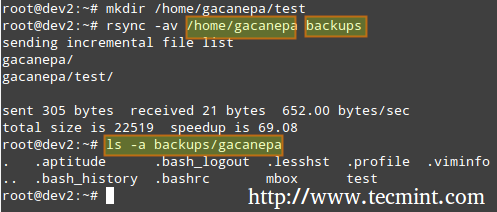
Synchronizing Two Local Directories
Where, -a recurse into subdirectories (if they exist), preserve symbolic links, timestamps, permissions, and original owner / group and -v verbose.
In addition, if you want to increase the security of the data transfer over the wire, you can use ssh over rsync.
Synchronizing Local → Remote Directories Over SSH
This example will synchronize the backup directory on the local host with the contents of /root/remote_directory on the remote host.
Where the -h option shows file sizes in human-readable format, and the -e flag is used to indicate an SSH connection.
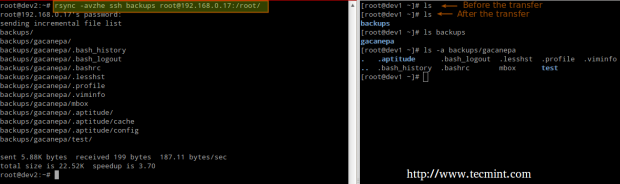
Synchronizing Remote → Local Directories Over SSH
In this case, switch the source and destination directories from the previous example.
Please note that these are only 3 examples (most frequent cases you’re likely to run into) of the use of rsync. For more examples and usages of rsync commands can be found at the following article.


No comments:
Post a Comment