Package Management
In few words, package management is a method of installing and maintaining (which includes updating and probably removing as well) software on the system.
In the early days of Linux, programs were only distributed as source code, along with the required man pages, the necessary configuration files, and more. Nowadays, most Linux distributors use by default pre-built programs or sets of programs called packages, which are presented to users ready for installation on that distribution. However, one of the wonders of Linux is still the possibility to obtain source code of a program to be studied, improved, and compiled.
How package management systems work

If a certain package requires a certain resource such as a shared library, or another package, it is said to have a dependency. All modern package management systems provide some method of dependency resolution to ensure that when a package is installed, all of its dependencies are installed as well.
Packaging Systems
Almost all the software that is installed on a modern Linux system will be found on the Internet. It can either be provided by the distribution vendor through central repositories (which can contain several thousands of packages, each of which has been specifically built, tested, and maintained for the distribution) or be available in source code that can be downloaded and installed manually.
Because different distribution families use different packaging systems (Debian: *.deb / CentOS: *.rpm / openSUSE: *.rpm built specially for openSUSE), a package intended for one distribution will not be compatible with another distribution. However, most distributions are likely to fall into one of the three distribution families covered by the LFCS certification.
High and low-level package tools
In order to perform the task of package management effectively, you need to be aware that you will have two types of available utilities: low-level tools (which handle in the backend the actual installation, upgrade, and removal of package files), and high-level tools (which are in charge of ensuring that the tasks of dependency resolution and metadata searching -”data about the data”- are performed).
| DISTRIBUTION | LOW-LEVEL TOOL | HIGH-LEVEL TOOL |
| Debian and derivatives | dpkg | apt-get / aptitude |
| CentOS | rpm | yum |
| openSUSE | rpm | zypper |
Let us see the descrption of the low-level and high-level tools.
dpkg is a low-level package manager for Debian-based systems. It can install, remove, provide information about and build *.deb packages but it can’t automatically download and install their corresponding dependencies.
Read More: 15 dpkg Command Examples
apt-get is a high-level package manager for Debian and derivatives, and provides a simple way to retrieve and install packages, including dependency resolution, from multiple sources using the command line. Unlike dpkg, apt-get does not work directly with *.deb files, but with the package proper name.
Read More: 25 apt-get Command Examples
aptitude is another high-level package manager for Debian-based systems, and can be used to perform management tasks (installing, upgrading, and removing packages, also handling dependency resolution automatically) in a fast and easy way. It provides the same functionality as apt-get and additional ones, such as offering access to several versions of a package.
rpm is the package management system used by Linux Standard Base (LSB)-compliant distributions for low-level handling of packages. Just like dpkg, it can query, install, verify, upgrade, and remove packages, and is more frequently used by Fedora-based distributions, such as RHEL and CentOS.
Read More: 20 rpm Command Examples
yum adds the functionality of automatic updates and package management with dependency management to RPM-based systems. As a high-level tool, like apt-get or aptitude, yum works with repositories.
Read More: 20 yum Command Examples
Common Usage of Low-Level Tools
The most frequent tasks that you will do with low level tools are as follows:
1. Installing a package from a compiled (*.deb or *.rpm) file
The downside of this installation method is that no dependency resolution is provided. You will most likely choose to install a package from a compiled file when such package is not available in the distribution’s repositories and therefore cannot be downloaded and installed through a high-level tool. Since low-level tools do not perform dependency resolution, they will exit with an error if we try to install a package with unmet dependencies.
Note: Do not attempt to install on CentOS a *.rpm file that was built for openSUSE, or vice-versa!
2. Upgrading a package from a compiled file
Again, you will only upgrade an installed package manually when it is not available in the central repositories.
3. Listing installed packages
When you first get your hands on an already working system, chances are you’ll want to know what packages are installed.
If you want to know whether a specific package is installed, you can pipe the output of the above commands to grep, as explained in manipulate files in Linux – Part 1 of this series. Suppose we need to verify if package mysql-common is installed on an Ubuntu system.

Another way to determine if a package is installed.
For example, let’s find out whether package sysdig is installed on our system.
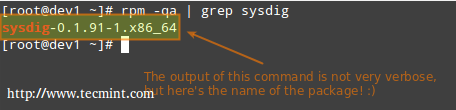
4. Finding out which package installed a file
For example, which package installed pw_dict.hwm?

Common Usage of High-Level Tools
The most frequent tasks that you will do with high level tools are as follows.
1. Searching for a package
aptitude update will update the list of available packages, and aptitude search will perform the actual search for package_name.
In the search all option, yum will search for package_name not only in package names, but also in package descriptions.
Let’s supposed we need a file whose name is sysdig. To know that package we will have to install, let’s run.
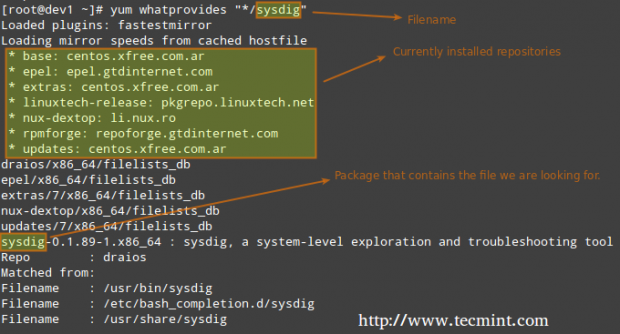
whatprovides tells yum to search the package the will provide a file that matches the above regular expression.
2. Installing a package from a repository
While installing a package, you may be prompted to confirm the installation after the package manager has resolved all dependencies. Note that running update or refresh (according to the package manager being used) is not strictly necessary, but keeping installed packages up to date is a good sysadmin practice for security and dependency reasons.
3. Removing a package
The option remove will uninstall the package but leaving configuration files intact, whereas purge will erase every trace of the program from your system.
# aptitude remove / purge package_name
# yum erase package_name
Most (if not all) package managers will prompt you, by default, if you’re sure about proceeding with the uninstallation before actually performing it. So read the onscreen messages carefully to avoid running into unnecessary trouble!
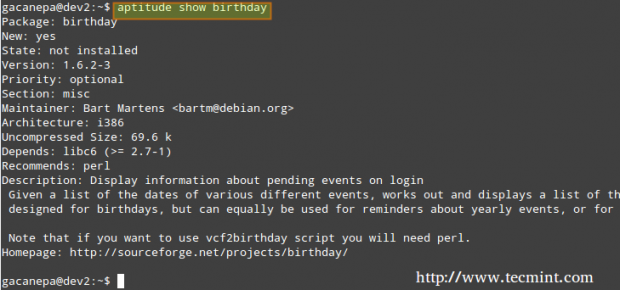
4. Displaying information about a package
The following command will display information about the birthday package.


No comments:
Post a Comment