The syntax of the rmdir command is similar to other Linux commands. At a high level, it is divided into two parts – options and arguments:
Here, the square brackets ([]) represent the optional arguments whereas angular brackets (<>) represent the mandatory arguments.
Basic Usage of rmdir Command in Linux
As the name suggests, the rmdir command is used to remove the directory. However, it is important to note that it can remove empty directories only. In this section, we will see the basic usage of the rmdir command.
Delete an Empty Directory in Linux
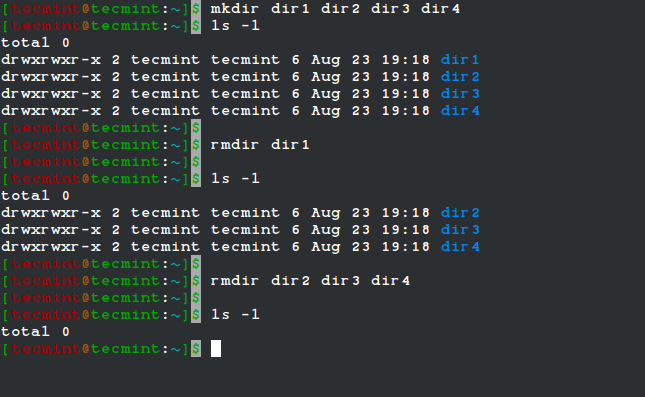
First, create a few empty directories:
Let’s verify that the required directories have been created:
Now, let’s remove the dir1 directory and verify that it has been removed:
In a similar fashion, we can use the rmdir command to remove multiple empty directories at once.
Let’s remove the remaining directories:
Finally, verify that all the directories have been removed:
Here, we can see that the ls command doesn’t show any directory.
rmdir Verbose Mode
In the previous section, we used the ls command to verify the directory removal. However, it doesn’t make sense to execute one more command just to verify the actions of the previous commands.
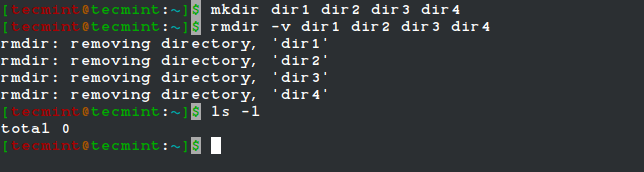
In such cases, we can enable the verbose mode using the -v option, which provides diagnostics for every processed directory.
Let’s create the same directory structure that we created previously:
Now, let’s remove the directories with the verbose mode enabled:
From the above output, we can conclude that all the directories have been removed.
Remove Empty Sub-Directories in Linux
We often create sub-directories on a file system, which allows us to organize our data in a proper way. Let’s see how to work with empty sub-directories.
As discussed in the first example, we can remove multiple directories using the rmdir command. However, the situation becomes tricky when sub-directories are large in numbers.
In such cases, we can use the -p option, which removes the directory and all its ancestors. Let’s understand this with an example.
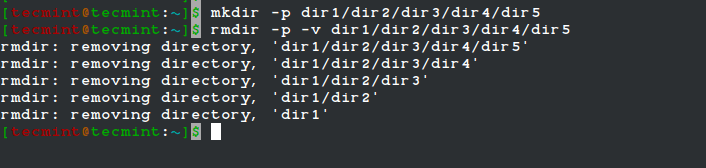
First, create a sub-directory structure:
In this example, we have used the -p option with the mkdir command to create a sub-directory structure.
Let’s remove all these directories in one go:
Here, the verbose mode removes the dir5 directory and all its ancestor directories.
Handle Directory Not Empty Failure
We already know that the rmdir can remove only empty directories. Any attempt to remove a non-empty directory will result in an error. Though this provides protection against data loss, in some rare cases it can create an issue.
For example, if we try to remove a non-empty directory from the script that is getting executed by Jenkins then the job will report a failure.
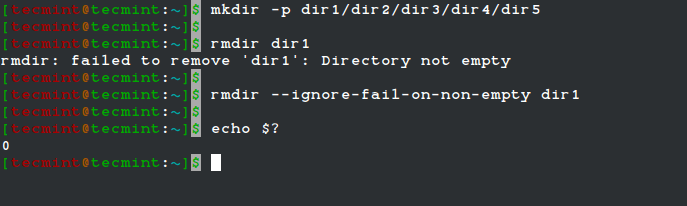
To simulate this, let’s try to remove the non-empty directory:
For such error cases, we can use the --ignore-fail-on-non-empty option, which ignores all the failures that happened due to a non-empty directory.
Let’s use this option with the command and check the return value:
In this example, we can see that the command didn’t report any error and the zero return value indicates the successful command execution. However, it is important to note that this option just suppresses the error and doesn’t remove the non-empty directory.
Use Regular Expressions in rmdir Command
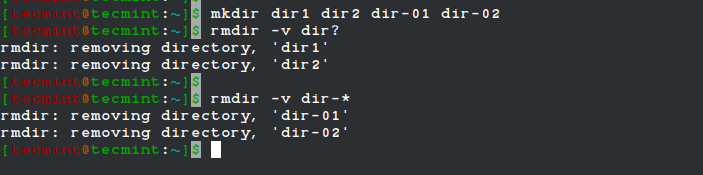
Similar to other Linux commands, we can use regular expressions with the rmdir command. Let’s see the usage of the following two regular expressions:
?– It matches exactly one character.*– It matches zero or more occurrences of the previous characters.
First, create a few empty directories:
Now, let’s use the '?' regular expression with the string ‘dir’ to remove the dir1 and dir2 directories:
Here, we can see that the command removed the correct directories.
Next, use the '*' regular expression to remove the other two directories:
In this example, we can see that the other two directories have been removed.
Use Regular Expressions in rmdir Command


No comments:
Post a Comment