Introduction
In the Linux ecosystem, having the ability to quickly locate your IP address is invaluable for various networking tasks, troubleshooting, and system administration. Whether you’re setting up a server, configuring network settings, or diagnosing connectivity issues, knowing how to find your IP address from the command line can streamline your workflow.
Prerequisites
Access to a Linux-based operating system: Make sure you have a Linux distribution installed on your system. These methods are compatible with popular distributions such as Ubuntu, Red Hat, CentOS, Debian, Fedora, and others.
Basic familiarity with the Linux command line: While some methods may involve graphical interfaces, most of the techniques covered in this guide rely on command-line utilities. A basic understanding of navigating and executing commands in the terminal will be beneficial.
Administrative privileges (optional): Depending on your system configuration and the commands used, you may need administrative privileges (root or sudo access) to execute certain commands or access certain system files. If you encounter permission errors, consider running the commands with elevated privileges.
Find Your IP address in Linux: Using the Terminal
By ensuring these prerequisites are met, you’ll be well-prepared to explore the various methods for discovering your IP address in Linux outlined in this guide. For this demostration, we’ll use a CentOS9 virtual machine. Let’s dive in!
ifconfig command
The classic ifconfig command is a reliable way to display network interface information, including IP addresses.
$ ifconfigeth0: flags=4163<UP,BROADCAST,RUNNING,MULTICAST> mtu 1500
inet 192.168.1.223 netmask 255.255.255.0 broadcast 192.168.1.255
inet6 fe80::5054:ff:fe4c:59de prefixlen 64 scopeid 0x20<link>
inet6 2600:4040:206c:ea00:5054:ff:fe4c:59de prefixlen 64 scopeid 0x0<global>
ether 52:54:00:4c:59:de txqueuelen 1000 (Ethernet)
RX packets 1200 bytes 125615 (122.6 KiB)
RX errors 0 dropped 0 overruns 0 frame 0
TX packets 1098 bytes 155148 (151.5 KiB)
TX errors 0 dropped 0 overruns 0 carrier 0 collisions 0
lo: flags=73<UP,LOOPBACK,RUNNING> mtu 65536
inet 127.0.0.1 netmask 255.0.0.0
inet6 ::1 prefixlen 128 scopeid 0x10<host>
loop txqueuelen 1000 (Local Loopback)
RX packets 0 bytes 0 (0.0 B)
RX errors 0 dropped 0 overruns 0 frame 0
TX packets 0 bytes 0 (0.0 B)
TX errors 0 dropped 0 overruns 0 carrier 0 collisions 0Typically, this command displays your private IP address. Specifically, it belongs to the IPv4 private address range defined by RFC 1918, which is reserved for use within private networks and is not routable on the public internet. These private IP addresses are commonly used for local area network (LAN) configurations within homes, businesses, and organizations. They enable devices within the same network to communicate with each other without being directly accessible from outside the network.
ip command
The ip command provides more extensive networking information and has become the modern replacement for ifconfig.
$ ip addr show1: lo: <LOOPBACK,UP,LOWER_UP> mtu 65536 qdisc noqueue state UNKNOWN group default qlen 1000
link/loopback 00:00:00:00:00:00 brd 00:00:00:00:00:00
inet 127.0.0.1/8 scope host lo
valid_lft forever preferred_lft forever
inet6 ::1/128 scope host
valid_lft forever preferred_lft forever
2: enp1s0: <BROADCAST,MULTICAST,UP,LOWER_UP> mtu 1500 qdisc fq_codel state UP group default qlen 1000
link/ether 52:54:00:4c:59:de brd ff:ff:ff:ff:ff:ff
inet 192.168.1.223/24 brd 192.168.1.255 scope global dynamic noprefixroute enp1s0
valid_lft 50540sec preferred_lft 50540sec
inet6 2600:4040:206c:ea00:5054:ff:fe4c:59de/64 scope global dynamic noprefixroute
valid_lft 7177sec preferred_lft 7177sec
inet6 fe80::5054:ff:fe4c:59de/64 scope link noprefixroute
valid_lft forever preferred_lft foreverhostname command
The hostname command coupled with the -I option can swiftly reveal your private IPv4 and IPv6 addresses.
$ hostname -I
192.168.1.223 2600:4040:206c:ea00:5054:ff:fe4c:59denmcli command
The nmcli (NetworkManager Command-Line Interface) tool is commonly used for managing network connections and can display IP address information.
$ nmcli dev showGENERAL.DEVICE: enp1s0
GENERAL.TYPE: ethernet
GENERAL.HWADDR: 52:54:00:4C:59:DE
GENERAL.MTU: 1500
GENERAL.STATE: 100 (connected)
GENERAL.CONNECTION: enp1s0
GENERAL.CON-PATH: /org/freedesktop/NetworkManager/ActiveConnection/2
WIRED-PROPERTIES.CARRIER: on
IP4.ADDRESS[1]: 192.168.1.223/24
IP4.GATEWAY: 192.168.1.1
IP4.ROUTE[1]: dst = 192.168.1.0/24, nh = 0.0.0.0, mt = 100
IP4.ROUTE[2]: dst = 0.0.0.0/0, nh = 192.168.1.1, mt = 100
IP4.DNS[1]: 192.168.1.1
IP4.DOMAIN[1]: test.infotechys.com
IP6.ADDRESS[1]: 2600:4040:206c:ea00:5054:ff:fe4c:59de/64
IP6.ADDRESS[2]: fe80::5054:ff:fe4c:59de/64
IP6.GATEWAY: fe80::56b7:bdff:fe1c:c61b
IP6.ROUTE[1]: dst = fe80::/64, nh = ::, mt = 1024
IP6.ROUTE[2]: dst = 2600:4040:206c:ea00::/64, nh = ::, mt = 100
IP6.ROUTE[3]: dst = 2600:4040:206c:ea00::/56, nh = fe80::56b7:bdff:fe1c:c61b, mt = 100
IP6.ROUTE[4]: dst = ::/0, nh = fe80::56b7:bdff:fe1c:c61b, mt = 100
IP6.DNS[1]: 2600:4040:206c:ea00::1ss command
The ss command, used for socket statistics, can also list IP addresses associated with network connections.
$ ss -tulpnNetid State Recv-Q Send-Q Local Address:Port Peer Address:Port Process
udp UNCONN 0 0 0.0.0.0:4000 0.0.0.0:*
udp UNCONN 8448 0 192.168.1.223:5353 0.0.0.0:*
udp UNCONN 0 0 0.0.0.0:5353 0.0.0.0:*
udp UNCONN 0 0 0.0.0.0:5353 0.0.0.0:*
udp UNCONN 0 0 0.0.0.0:38593 0.0.0.0:*
udp UNCONN 0 0 0.0.0.0:39163 0.0.0.0:*
udp UNCONN 0 0 0.0.0.0:40546 0.0.0.0:*
udp UNCONN 0 0 127.0.0.1:323 0.0.0.0:*
udp UNCONN 0 0 [::]:4000 [::]:*
udp UNCONN 0 0 [::]:5353 [::]:*
udp UNCONN 0 0 [::]:49449 [::]:*
udp UNCONN 0 0 [::1]:323 [::]:*
udp UNCONN 0 0 [fe80::5054:ff:fe4c:59de]%enp1s0:546 [::]:*dig command
The dig command, primarily used for querying DNS servers, can be utilized to retrieve your public IP address from external services.
$ dig ANY +short @ns1-1.akamaitech.net ANY whoami.akamai.net;; Warning, extra type option
97.107.141.141curl command (4)
The curl command combined with online IP lookup services can swiftly fetch your public IP address. We will review three of the commonly used curl commands.
$ curl -s https://checkip.amazonaws.com97.107.141.141This curl command (below) displays your public IPv6 address:
$ curl ifconfig.me2600:4040:206c:ea00:5054:ff:fe4c:59deRunning the same command with the -4 option provides your public IPv4 address
$ curl -4 ifconfig.me97.107.141.141Icanhazip.com is another commonly used online service. By executing the commands below, you can retrieve your public IPv4 and IPv6 addresses using the -4 and -6 options, respectively:
$ curl -4 https://icanhazip.com/97.107.141.141$ curl -6 https://icanhazip.com/2600:4040:206c:ea00:5054:ff:fe4c:59dewget command
Similarly, the wget command can be used to fetch your public IP address from online services
$ wget -qO- -4 ifconfig.me97.107.141.141GUI Network Settings
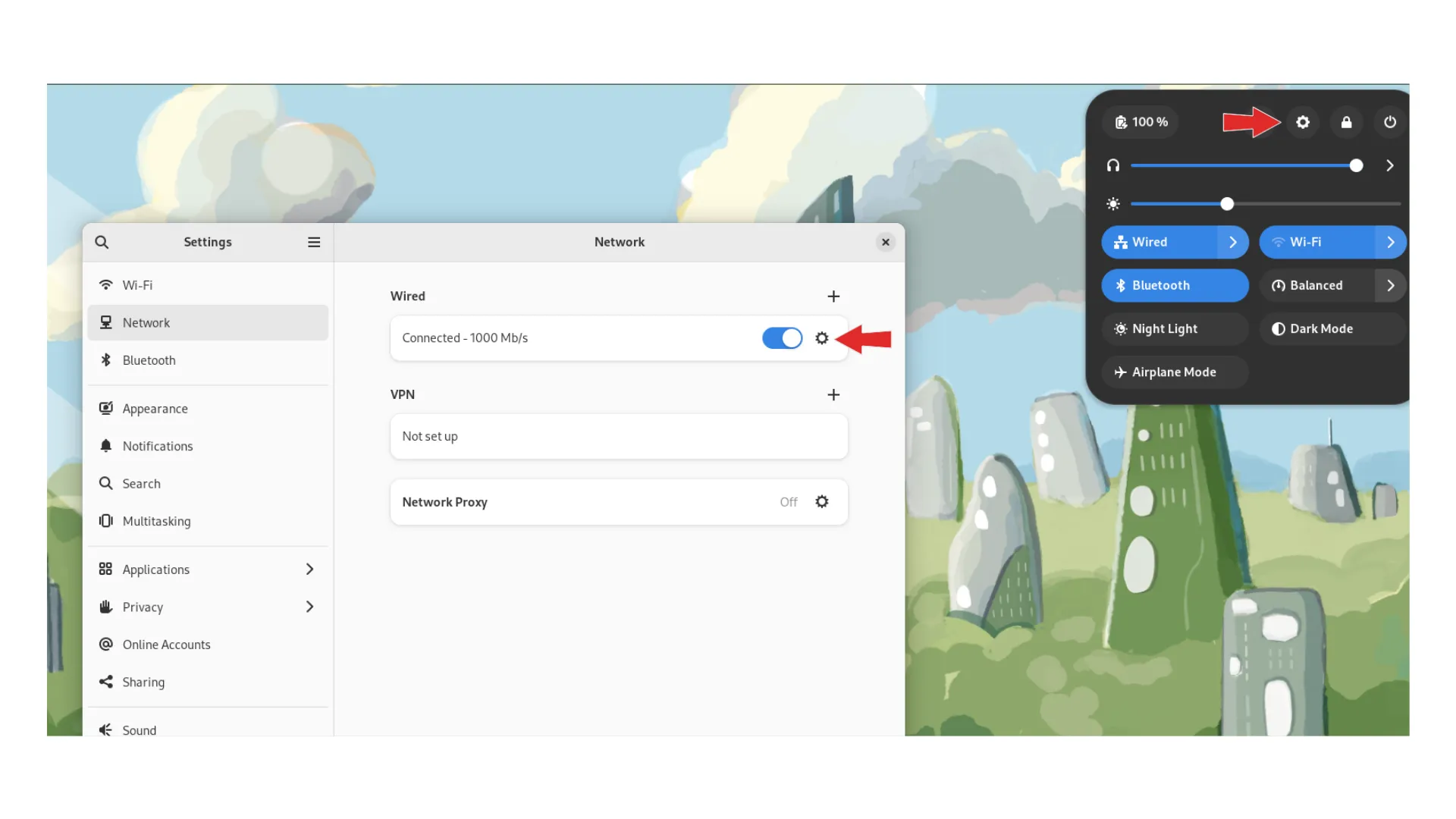
Lastly, graphical network settings interfaces like NetworkManager or System Settings in desktop environments provide an intuitive way to view and configure network connections, including IP addresses.


No comments:
Post a Comment