Introduction
Upgrading your Ubuntu operating system from one version to another ensures that you have the latest features, security updates, and performance improvements. If you’re currently running Ubuntu 23.10 and are looking to upgrade to Ubuntu 24.04, this guide will walk you through the process step-by-step. Let’s dive in!
Why Upgrade to Ubuntu 24.04?
Before we get into the technical details, it’s important to understand why upgrading to Ubuntu 24.04 is beneficial. This version offers several enhancements, including:
|
Now that we know the benefits, let’s move on to the actual upgrade process.
Pre-Upgrade Checklist
Before starting the upgrade, make sure you complete the following steps:
|
sudo apt update -y && sudo apt upgrade -y
|
sudo apt autoremove && sudo apt cleanUpgrade Ubuntu 23.10 to 24.04
Step 1: Update the System |
First, ensure your current system is fully updated. Open a terminal and run:
sudo apt updatesudo apt upgradesudo apt dist-upgradeStep 2: Install Update Manager |
Next, install the Update Manager if it’s not already installed:
sudo apt -y install update-manager-coreNext, ensure that the /etc/update-manager/release-upgrades file has Prompt=lts.
sudo vim /etc/update-manager/release-upgrades# Default behavior for the release upgrader.
[DEFAULT]
# Default prompting and upgrade behavior, valid options:
#
# never - Never check for, or allow upgrading to, a new release.
# normal - Check to see if a new release is available. If more than one new
# release is found, the release upgrader will attempt to upgrade to
# the supported release that immediately succeeds the
# currently-running release.
# lts - Check to see if a new LTS release is available. The upgrader
# will attempt to upgrade to the first LTS release available after
# the currently-running one. Note that if this option is used and
# the currently-running release is not itself an LTS release the
# upgrader will assume prompt was meant to be normal.
Prompt=ltsThis means that your system is configured to only upgrade to Long Term Support (LTS) releases. Ubuntu 24.04 is the next available LTS release after Ubuntu 23.10. Therefore, it will attempt to upgrade to that version.
However, if you’re trying to upgrade to a development version before the official release, you need to temporarily change this setting to Prompt=normal.
Step 3: Start the Upgrade Process |
Now, you can start the upgrade process using the command:
sudo do-release-upgradeThis command initiates the system upgrade to the next available LTS release, which is Ubuntu 24.04 in this case.
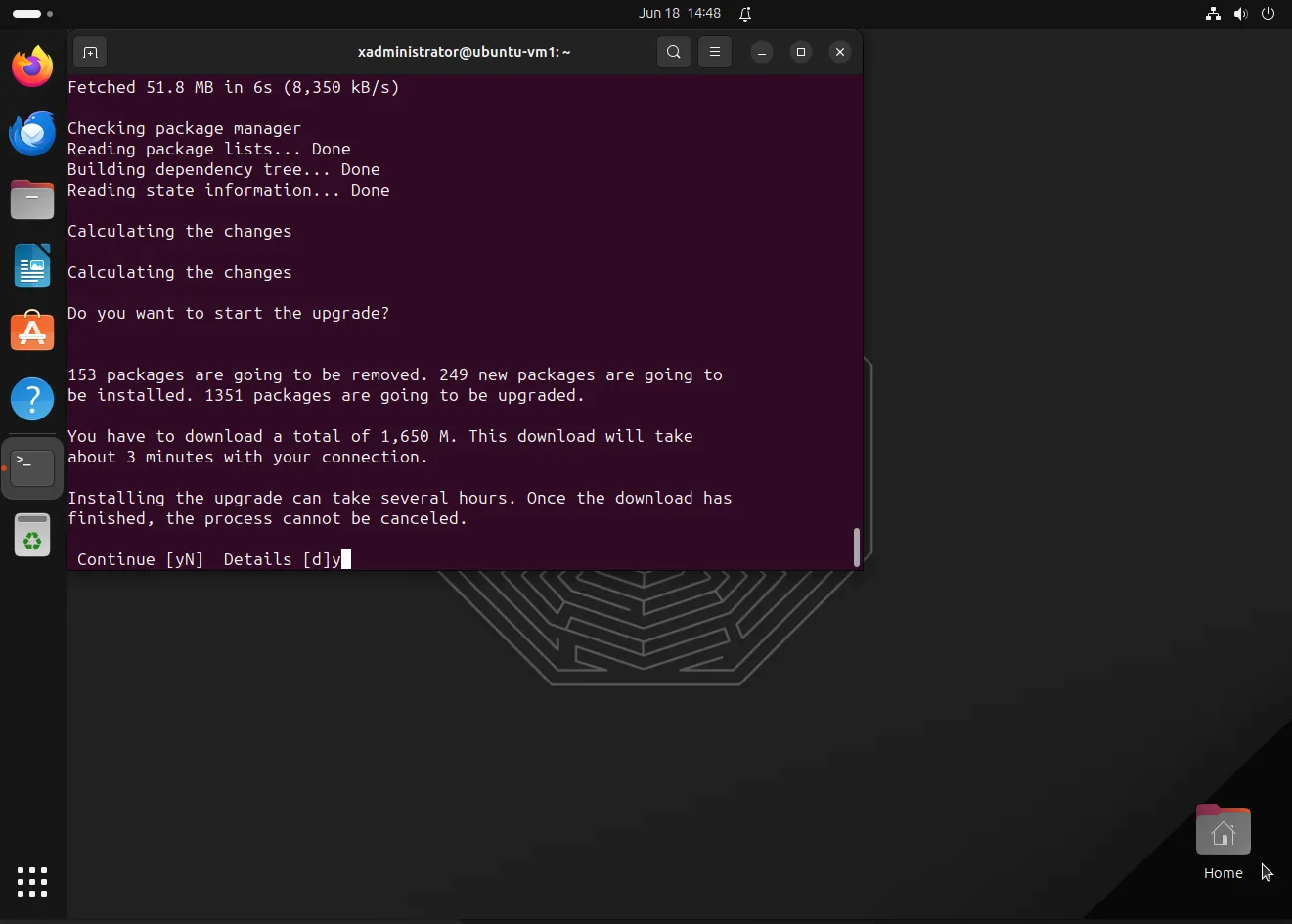
Photo by admingeek from Infotechys
Step 4: Follow the On-Screen Instructions |
The system will guide you through the upgrade process with on-screen instructions. It will ask you to confirm the upgrade and inform you about the changes. Follow these instructions carefully.
Step 5: Restart the System |
Once the upgrade process is complete, you will be prompted to restart your system. Do so to finalize the upgrade:
sudo rebootPost-Upgrade Steps |
After your system has rebooted into Ubuntu 24.04, there are a few post-upgrade steps to ensure everything is running smoothly.
Verify the Upgrade |
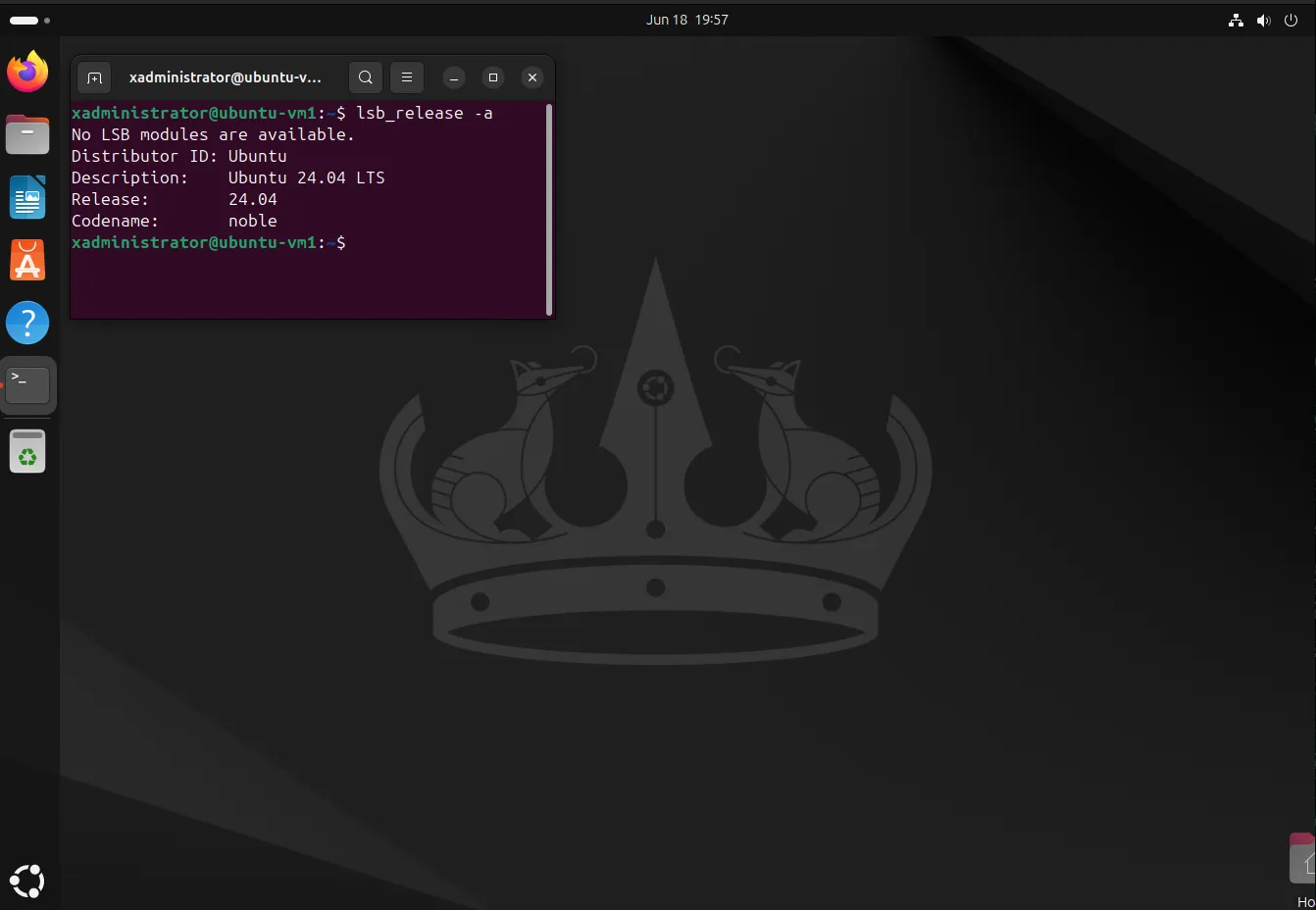
Check that the upgrade was successful by running:
lsb_release -aYou should see output indicating that you are running Ubuntu 24.04.
Check for Updates |
Ensure that your new system is up to date:
sudo apt update -y && sudo apt upgrade -yRestore Data |
If you backed up your data before the upgrade, now is the time to restore it.
Troubleshooting Common Issues
Insufficient Disk Space |
If you encounter issues with disk space during the upgrade, consider moving some files to an external drive or using cloud storage. You can also increase the size of your partitions if necessary.
Broken Packages |
Sometimes, you might face broken packages after an upgrade. To fix this, run:
sudo apt --fix-broken installNetwork Issues |
If you experience network connectivity problems, check your network settings and ensure that your drivers are up to date.
Comparison of Ubuntu Versions
To give you a better idea of what to expect, here’s a comparison of some key features between Ubuntu 23.10 and 24.04:
| Feature | Ubuntu 23.10 | Ubuntu 24.04 |
|---|---|---|
| Kernel Version | Linux 6.5.0-25-generic | Linux 6.8.0-35-generic |
| Desktop Environment | GNOME 45.2 | GNOME 46 |
| Default Browser | Firefox | Firefox |
| System Performance | Optimized | Further optimized |
| Security Enhancements | Enhanced | Further Enhanced |
| Windowing System | Wayland | Wayland |


No comments:
Post a Comment