Introduction
In the world of modern software development and deployment, Docker has become an indispensable tool. Docker simplifies the process of packaging, distributing, and running applications by providing containerization technology. Ubuntu, one of the most popular Linux distributions, seamlessly integrates with Docker.
In addition to its seamless integration with Ubuntu, Docker has gained widespread adoption across various operating systems and cloud platforms, making it a universal solution for containerization needs. Its lightweight nature and ability to isolate applications and their dependencies within containers have revolutionized the way software is developed, tested, and deployed.
With Docker, developers can create consistent environments across different machines, ensuring that their applications run reliably regardless of the underlying infrastructure. Moreover, Docker’s ecosystem boasts a vast repository of pre-built images and a thriving community, providing developers with access to a wealth of resources and support. As the industry continues to embrace containerization as a standard practice, mastering Docker is essential for staying competitive and accelerating software delivery pipelines.
Install Docker on Ubuntu 22.04: Step-by-Step Procedures
Before installing Docker, it’s essential to ensure that your Ubuntu system is up to date. Open a terminal and run the following commands:
$ sudo apt update -y; sudo apt upgrade -yThis will update the package lists and upgrade any outdated packages to their latest versions, ensuring a smooth installation process.
Install Docker Dependencies
To install Docker on Ubuntu 22.04, you need to install the necessary dependencies. Run the following command to install the required packages:
$ sudo apt install apt-transport-https ca-certificates curl software-properties-common -yThese packages are essential for enabling HTTPS transport and adding repositories required for Docker installation.
Add Docker Repository
Next, you’ll need to add the Docker repository to your system. Run the following commands to add the Docker GPG key and repository:
$ curl -fsSL https://download.docker.com/linux/ubuntu/gpg | sudo gpg --dearmor -o /usr/share/keyrings/docker-archive-keyring.gpgecho "deb [arch=amd64 signed-by=/usr/share/keyrings/docker-archive-keyring.gpg] https://download.docker.com/linux/ubuntu $(lsb_release -cs) stable" | sudo tee /etc/apt/sources.list.d/docker.list > /dev/nullThis will add the official Docker repository to your system.
Install Docker Engine
Once the repository is added, you can proceed to install the Docker Engine. Run the following commands to install Docker:
$ sudo apt update$ sudo apt install docker-ce docker-ce-cli containerd.ioThis command will install the Docker Engine, Docker CLI, and containerd.io, which is required to manage containers.
Verify Docker Installation
After the installation is complete, you can verify that Docker is installed correctly by running the following command:
$ sudo docker --versionDocker version 25.0.3, build 4debf41This command should display the installed version of Docker, confirming a successful installation.
Start and Enable Docker Service
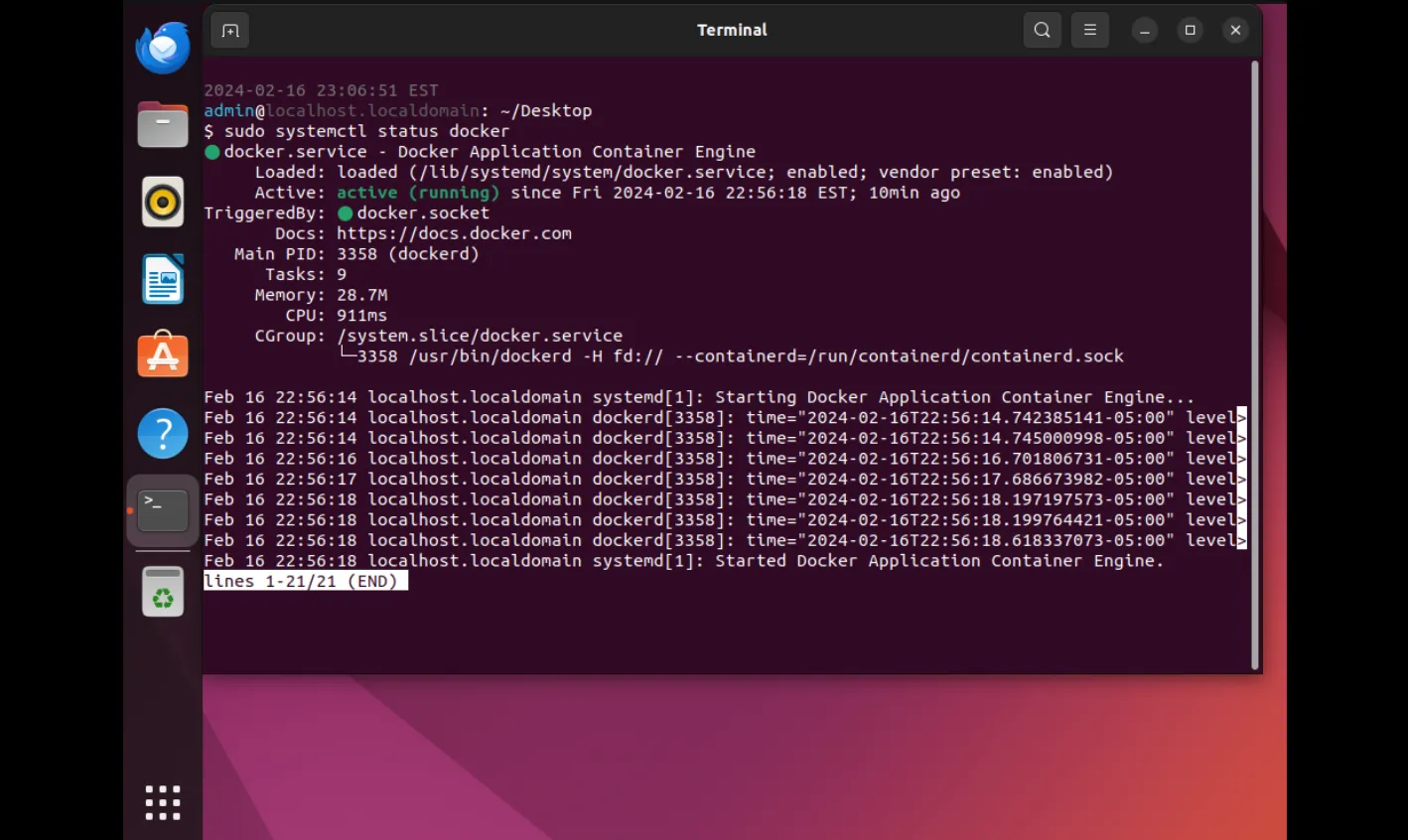
By default, Docker should start automatically after installation. However, you can manually start and enable the Docker service using the following command:
$ sudo systemctl enable --now dockerThis will ensure that Docker starts automatically upon system boot.


No comments:
Post a Comment