Introduction
LibreOffice is one of the most popular free and open-source office suites that provide users with a powerful set of applications for word processing, spreadsheets, presentations, and more. Whether you’re using it for personal productivity or professional tasks, LibreOffice is a versatile alternative to proprietary software like Microsoft Office.
If you’re using Ubuntu 24.04 and want to install LibreOffice, this guide will walk you through the process, making it easy and efficient. From installing via the official Ubuntu repositories to setting up the latest version manually, you’ll learn all the methods to get LibreOffice running smoothly on your system.
Why Choose LibreOffice?
LibreOffice offers many compelling reasons for users to choose it over other office suites:
- Completely Free & Open Source: LibreOffice is free to use and can be modified to meet your needs.
- Cross-platform: It works on Linux, Windows, and macOS.
- Full Compatibility: LibreOffice can open and edit Microsoft Office documents like .docx, .xlsx, and .pptx.
- Regular Updates: LibreOffice is actively developed with regular updates that introduce new features and security patches.
Install LibreOffice on Ubuntu 24.04: A Step-by-Step Guide
Now, let’s dive into the various methods to install LibreOffice on Ubuntu 24.04.
Method 1: Installing LibreOffice from Ubuntu’s Default Repositories |
The easiest way to install LibreOffice on Ubuntu 24.04 is by using the default Ubuntu package repositories. This method ensures you get a version that’s well-tested and supported by Ubuntu’s software maintainers.
Open a Terminal |
Press Ctrl + Alt + T to open the Terminal.
Photo by admingeek from Infotechys
Update the Package List |
Run the following command to update your package list:
sudo apt updateInstall LibreOffice |
Now, install the LibreOffice package by running:
sudo apt install libreoffice -y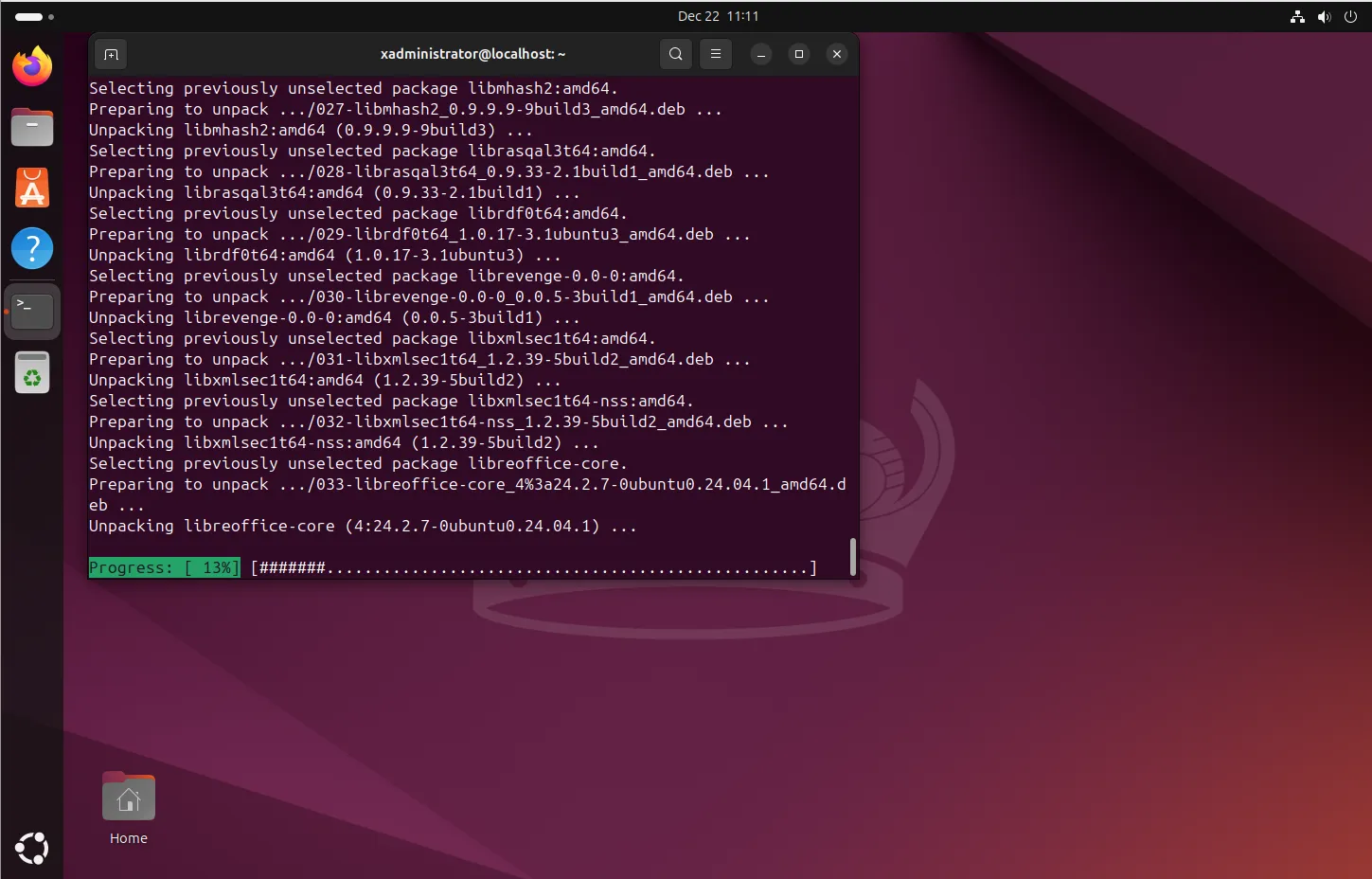
Photo by admingeek from Infotechys
This command will install the LibreOffice suite along with its components, including:
| Component | Description |
|---|---|
| LibreOffice Writer | A word processor. |
| LibreOffice Calc | A spreadsheet application. |
| LibreOffice Impress | A presentation application. |
| LibreOffice Draw | A vector graphics editor. |
| LibreOffice Base | A database management tool. |
| LibreOffice Math | An application for creating mathematical formulas. |
Confirm Installation |
Once the installation is complete, you can verify LibreOffice by typing:
libreoffice --versionLibreOffice 24.2.7.2 420(Build:2)This command will output the installed version of LibreOffice.
Advantages
Simple and Quick |
The installation is fast and doesn’t require additional configuration.
Automatically Updated |
The version in the Ubuntu repositories is stable and automatically updated with system updates.
Limitations
Older Version |
The version of LibreOffice in the default Ubuntu repositories might not be the latest.
Method 2: Installing the Latest LibreOffice Version via the LibreOffice PPA
If you need the latest version of LibreOffice on Ubuntu 24.04, the version in the official repositories might not be sufficient. To get the newest features, bug fixes, and performance improvements, you can install LibreOffice from the official LibreOffice PPA (Personal Package Archive).
Add the LibreOffice PPA |
Open your Terminal and add the PPA using the following command:
sudo add-apt-repository ppa:libreoffice/ppaUpdate Your Package List |
After adding the PPA, update your package list to include the new packages from the PPA:
sudo apt updateInstall and Verify LibreOffice |
Now, install and verify the latest version of LibreOffice by running the following commands:
sudo apt install libreoffice -y && libreoffice --version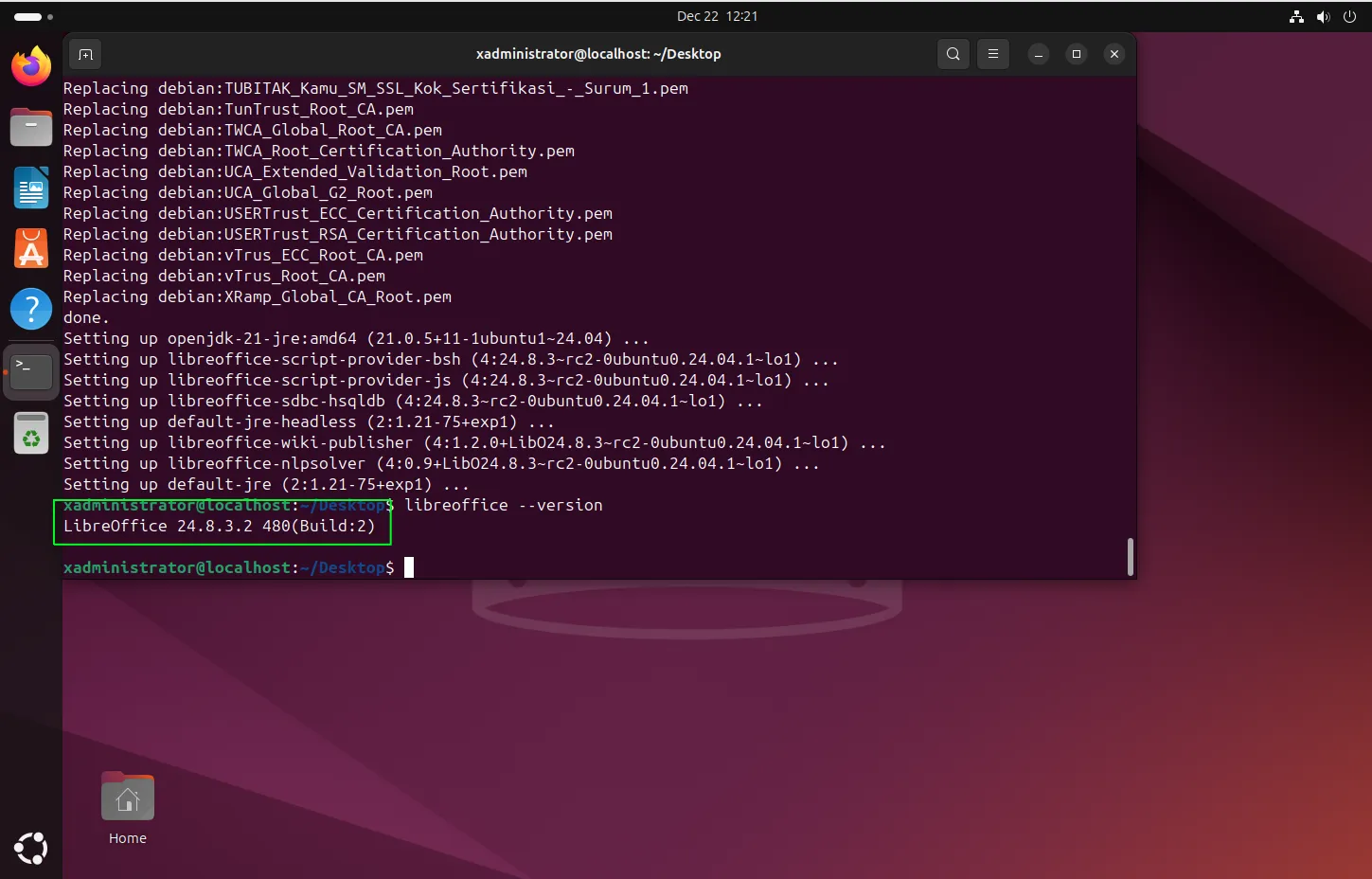
Photo by admingeek from Infotechys
Notice the difference between the versions of LibreOffice installed using Method #1 and #2.
Advantages
Up-to-date |
You get the most recent release of LibreOffice.
Full Support |
The LibreOffice PPA is maintained by the LibreOffice team, ensuring full support for the latest versions.
Limitations
Potential Stability Issues |
Sometimes, newer versions may introduce bugs, though this is rare for stable releases.
Method 3: Installing LibreOffice Using Snap
Ubuntu 24.04 supports Snap packages, a universal Linux packaging system that allows you to install software in a sandboxed environment. LibreOffice is available as a Snap package, and it’s a good option if you prefer a more isolated installation.
Install Snap (if not already installed) |
Snap comes pre-installed on Ubuntu 24.04, but if it’s missing, install it with:
sudo apt install snapdInstall LibreOffice via Snap |
Once Snap is installed, you can install LibreOffice with the following command:
sudo snap install libreoffice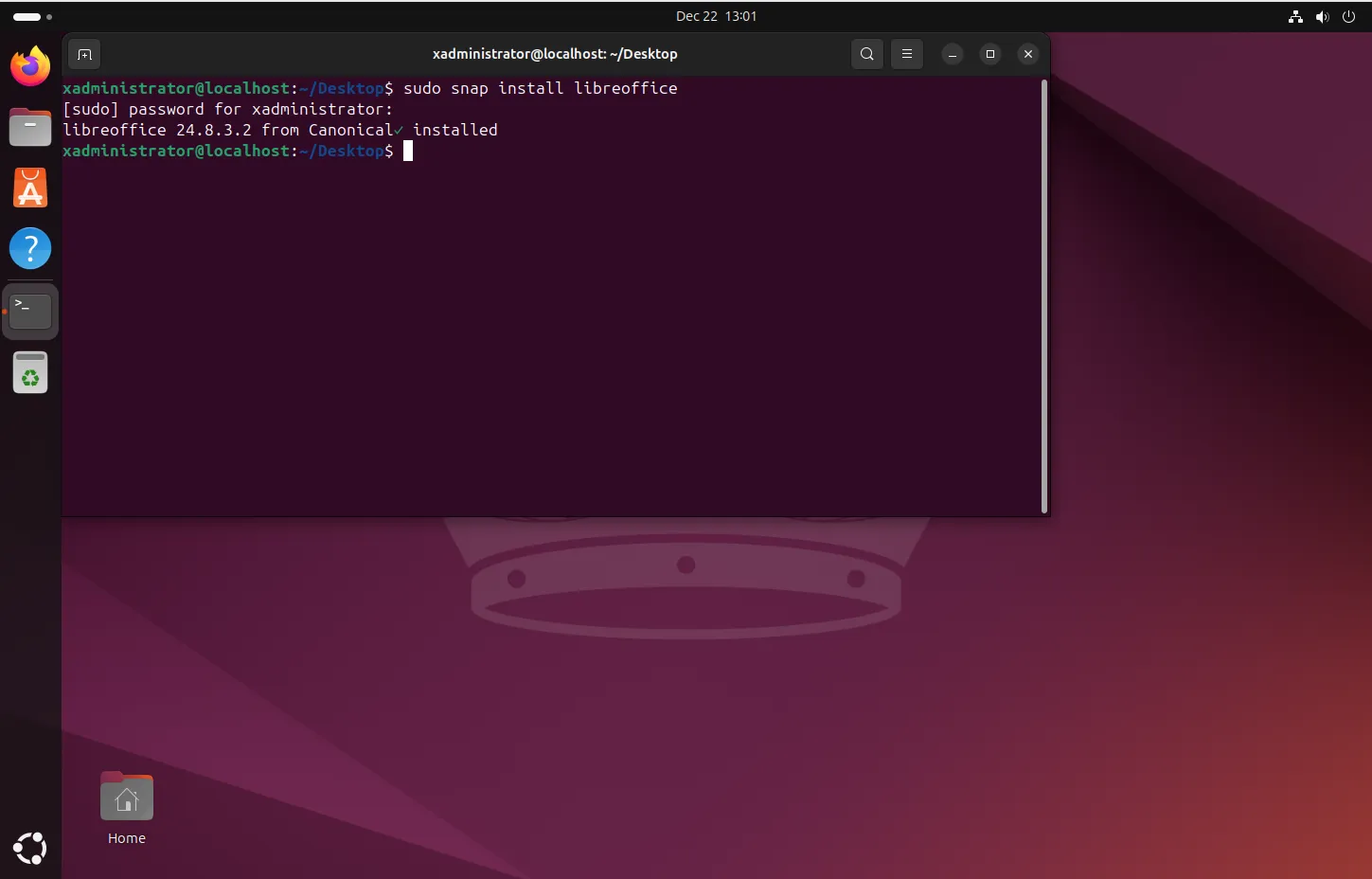
Photo by admingeek from Infotechys
Check LibreOffice Version |
After the installation completes, check the version by typing:
libreoffice --versionAdvantages
Self-contained |
Snap packages are bundled with all dependencies, meaning they work consistently across various Linux distributions.
Automatic Updates |
Snap packages are automatically updated in the background.
Limitations
Larger Size |
Snap packages tend to be larger because they bundle all dependencies.
Performance |
Some users report that Snap packages can be slower to start compared to APT installations.
Method 4: Installing LibreOffice Using Flatpak
Similar to Snap, Flatpak is another universal Linux package format. If you’re using a Flatpak-supported environment, LibreOffice is available on Flathub, which provides an easy way to install and update the software.
Install Flatpak |
If Flatpak is not installed, use the following command:
sudo apt install flatpak -yAdd Flathub Repository |
To access the official repository of Flatpak apps, add the Flathub repository:
flatpak remote-add --if-not-exists flathub https://flathub.org/repo/flathub.flatpakrepoInstall LibreOffice |
Now, install LibreOffice using the following command:
flatpak install flathub org.libreoffice.LibreOfficeLooking for matches…
Required runtime for org.libreoffice.LibreOffice/x86_64/stable (runtime/org.freedesktop.Platform/x86_64/24.08) found in remote flathub
Do you want to install it? [Y/n]: Yorg.libreoffice.LibreOffice permissions:
ipc network fallback-x11 pulseaudio wayland x11 dri file access [1]
dbus access [2] bus ownership [3]
[1] host, xdg-config/fontconfig:ro, xdg-config/gtk-3.0, xdg-run/gvfsd
[2] com.canonical.AppMenu.Registrar, org.gtk.vfs.*
[3] org.libreoffice.LibreOfficeIpc0
ID Branch Op Remote Download
1. [✓] org.freedesktop.Platform.GL.default 24.08 i flathub 156.1 MB / 156.3 MB
2. [✓] org.freedesktop.Platform.GL.default 24.08extra i flathub 25.1 MB / 156.3 MB
3. [✓] org.freedesktop.Platform.Locale 24.08 i flathub 18.6 kB / 379.7 MB
4. [✓] org.freedesktop.Platform.openh264 2.4.1 i flathub 920.7 kB / 976.5 kB
5. [✓] org.freedesktop.Platform 24.08 i flathub 207.3 MB / 261.4 MB
6. [✓] org.libreoffice.LibreOffice.Locale stable i flathub 1.4 MB / 86.4 MB
7. [✓] org.libreoffice.LibreOffice stable i flathub 300.0 MB / 320.8 MB
Installation complete.Run LibreOffice |
After installation, you can run LibreOffice via:
flatpak run org.libreoffice.LibreOffice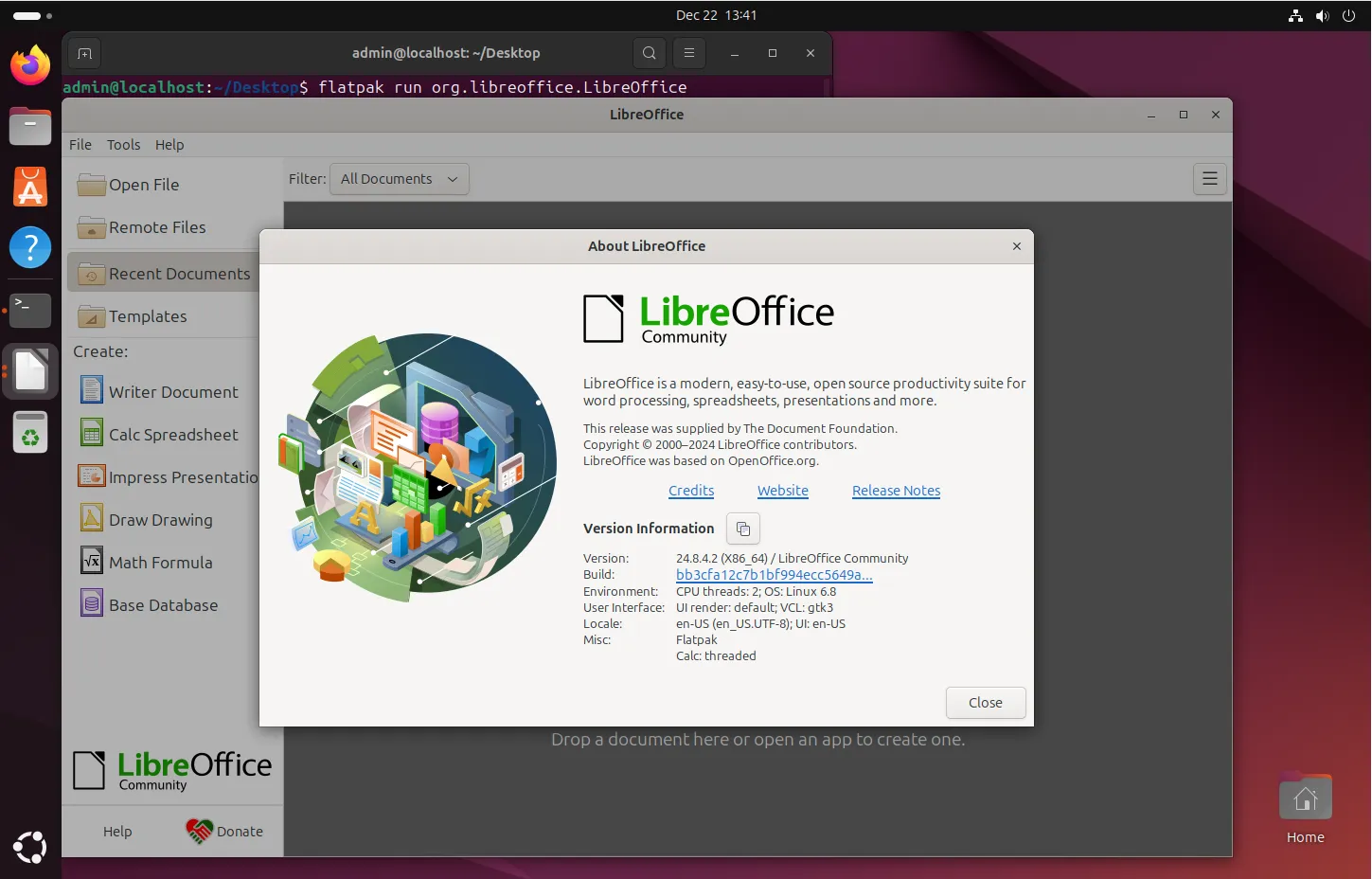
Photo by admingeek from Infotechys
Advantages
Portable |
Like Snap, Flatpak applications are packaged with their dependencies, ensuring they work the same on all distributions.
Isolated Environment |
Flatpak also provides isolation, improving security.
Limitations
Size |
Like Snap, Flatpak packages can be large.
Performance |
Some users report slight delays in launching Flatpak apps compared to traditional packages.
Comparison Table: Different Installation Methods for LibreOffice on Ubuntu 24.04
| Method | Installation Command | Pros | Cons |
|---|---|---|---|
| APT (Official Ubuntu Repositories) | sudo apt install libreoffice | – Fast and easy – Stable and well-tested | – May not be the latest version |
| PPA (Latest Version) | sudo add-apt-repository ppa:libreoffice/ppasudo apt install libreoffice | – Latest version – Full support from LibreOffice team | – Potential for minor instability with new releases |
| Snap | sudo snap install libreoffice | – Bundled dependencies – Automatic updates – Easy install | – Larger package size – Slower startup times |
| Flatpak | flatpak install flathub org.libreoffice.LibreOffice | – Portable – Isolated environment – Cross-distro support | – Larger package size – Slower performance |


No comments:
Post a Comment