Introduction
Are you looking to harness the power of containers without the overhead of Docker? Podman is an excellent alternative that allows you to manage containers easily and securely. In this guide, we’ll walk you through the step-by-step process to install Podman on your Ubuntu 24.04 Server. We’ll also cover its key features, common commands, and how to troubleshoot any issues you might encounter. By following this guide, you’ll be well on your way to leveraging container technology for your applications.
What is Podman?
Podman (Pod Manager) is an open-source container management tool that allows you to create, manage, and run OCI containers. Unlike Docker, Podman operates as a daemonless tool, meaning it doesn’t require a long-running service to manage containers. This feature enhances security and simplifies operations, especially in environments where resources are limited.
Key Features of Podman |
- Daemonless Architecture: No need for a background service.
- Rootless Containers: Run containers without root privileges, enhancing security.
- Docker CLI Compatibility: Podman provides a Docker-compatible command-line interface, making the transition smooth for Docker users.
- Pod Management: Manage groups of containers (pods) easily.
- Integration with Kubernetes: Easily integrates with Kubernetes for orchestrating containerized applications.
System Requirements
Before we begin the installation process, ensure your system meets the following requirements:
| Requirement | Details |
|---|---|
| Operating System | Ubuntu 24.04 Server |
| RAM | Minimum 1 GB (2 GB recommended) |
| Disk Space | At least 1 GB free |
| Network | Internet access |
Install Podman on Ubuntu 24.04 Server: Step-by-Step Installation Guide
Step 1: Update Your System |
It’s always a good idea to start with an updated system. Open your terminal and execute the following commands:
sudo apt update && sudo apt upgrade -yStep 2: Install Required Packages |
Podman requires a few dependencies. Install them using the command:
sudo apt install -y software-properties-commonStep 3: Install Podman |
You can now install Podman directly from the official repositories:
sudo apt install -y podmanStep 4: Verify Installation |
Check if Podman was installed correctly:
podman --versionpodman version 4.9.3You should see the version number, confirming the installation.
Using Podman
You can now use Podman with these basic commands. Here are a few examples:
Pull an Image |
To pull a container image, use:
podman pull docker.io/library/ubuntuTrying to pull docker.io/library/ubuntu:latest...
Getting image source signatures
Copying blob ff65ddf9395b done |
Copying config 59ab366372 done |
Writing manifest to image destination
59ab366372d56772eb54e426183435e6b0642152cb449ec7ab52473af8ca6e3fTo list all pulled images, use:
podman imagesREPOSITORY TAG IMAGE ID CREATED SIZE
docker.io/library/ubuntu latest 59ab366372d5 5 days ago 80.6 MBRun a Container |
To run a simple Ubuntu container:
podman run -it ubuntu /bin/bashroot@44d532be97a3:/#List Running Containers |
To list all running containers:
podman psTo list all running containers (including stopped ones):
podman ps -aInspecting a Container |
To get detailed information about a specific container, use the podman inspect command. This command provides comprehensive details, including configuration settings and state information:
podman inspect <container_id_or_name>For example:
podman inspect ubuntu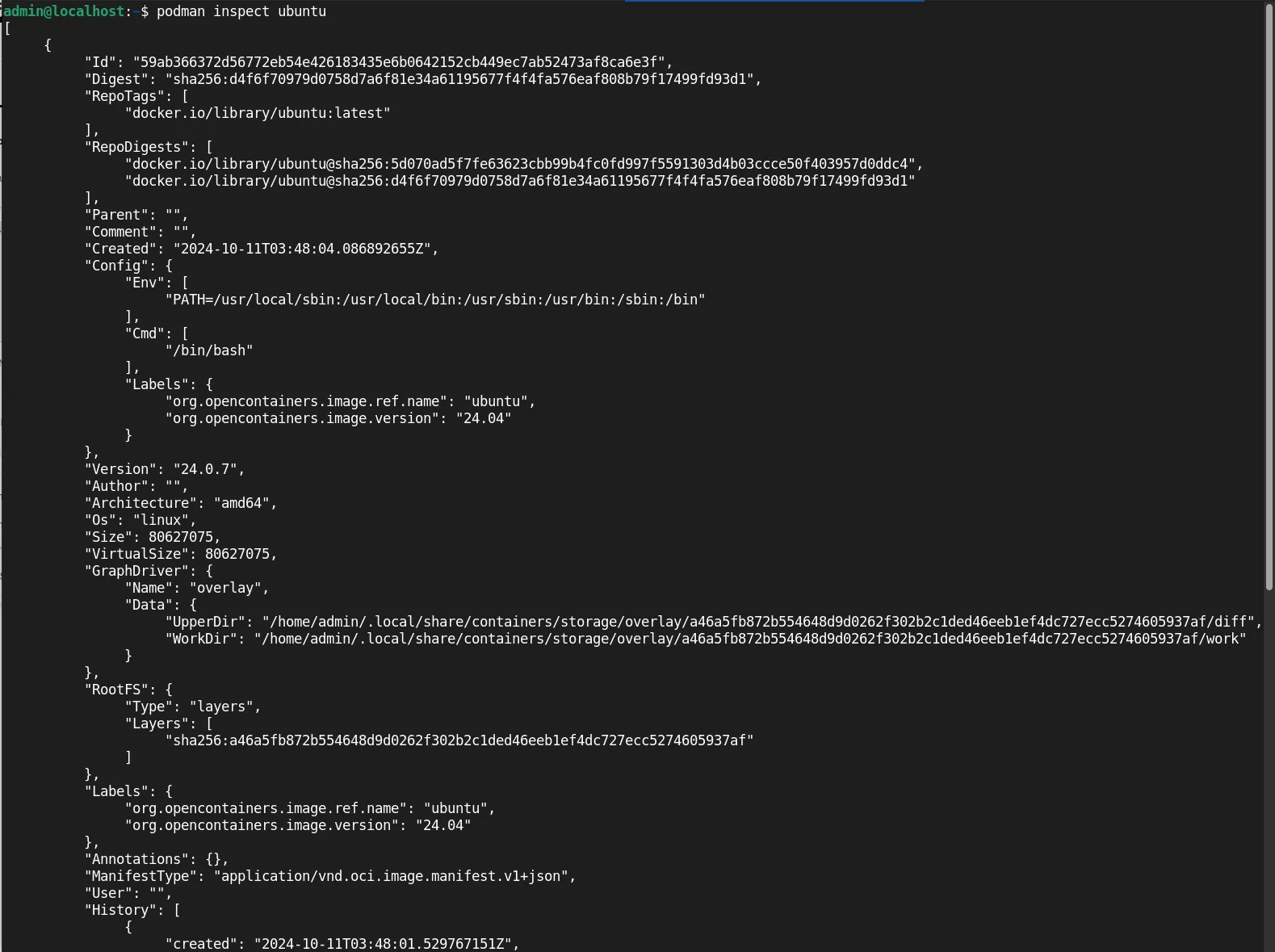
Photo by admingeek from Infotechys
This command outputs a JSON-formatted summary of the container’s configuration, environment variables, and runtime status, which can be extremely useful for debugging and understanding how your container is set up.
Stopping a Container |
To stop a running container, first find its ID or name using podman ps, then run:
podman stop <container_id_or_name>Removing a Container |
To remove a stopped container:
podman rm <container_id_or_name>Running Containers in Detached Mode |
To run a container in detached mode, add the -d flag:
podman run -d ubuntu sleep 1000Using Pods with Podman
One of the unique features of Podman is its ability to manage pods. A pod is a group of one or more containers. Here’s how you can create and manage pods:
Creating a Pod |
To create a new pod:
podman pod create --name mypodRunning Containers in a Pod |
To run a container in the newly created pod:
podman run -d --pod mypod ubuntu sleep 1000Listing Pods |
To list all pods:
podman pod psPOD ID NAME STATUS CREATED INFRA ID # OF CONTAINERS
872290dd8cab mypod Running 5 mins ago 3768d84bdabf 1Troubleshooting Common Issues
Issue: Podman Not Starting |
If Podman doesn’t start, ensure you have the necessary permissions and podman installed.
Issue: Container Fails to Run |
If a container fails to start, check the logs using:
podman logs <container_id_or_name>Issue: Network Issues |
Ensure your server has proper network access, especially if you are pulling images from external registries.


No comments:
Post a Comment