Introduction
In today’s fast-paced development environment, containerization has become an indispensable tool for software developers and system administrators alike. Docker, the leading containerization platform, empowers users to build, ship, and run applications seamlessly across different environments. If you’re running Fedora 37 and looking to harness the power of Docker, you’re in the right place.
What is Docker?
Docker is an open-source platform that automates the deployment of applications inside lightweight, portable containers. These containers bundle the application code, runtime, system tools, libraries, and dependencies, allowing them to run reliably across any environment, from development to production. Docker’s containerization technology enables developers to package their applications with all the necessary components, ensuring consistency and eliminating the “it works on my machine” problem. Additionally, Docker provides tools for managing and orchestrating containers at scale, making it easy to deploy and manage complex applications in distributed environments.
Installing Docker on Fedora 37: Step-by-Step Instructions
Before diving into the installation process, it’s crucial to ensure that your Fedora 37 system is up to date. Open the terminal and execute the following command:
$ sudo dnf update -yThis command will update the package repositories and install any available updates for your system. It’s essential to have the latest packages to avoid compatibility issues during the Docker installation process.
Install Docker Dependencies
Next, we need to install the necessary dependencies for Docker to function correctly on Fedora 37. Execute the following command in the terminal:
$ sudo dnf install dnf-plugins-core -yThis command will install the dnf-plugins-core package, which provides essential plugins for the DNF package manager. These plugins are required to enable the Docker repository on Fedora 37.
Enable Docker Repository
To install Docker on Fedora 37, we need to enable the official Docker repository. Execute the following command in the terminal:
$ sudo dnf config-manager --add-repo=https://download.docker.com/linux/fedora/docker-ce.repoThis command adds the Docker CE repository to your system’s repository list, allowing you to install Docker Community Edition (CE) using DNF.
Install Docker Engine
With the Docker repository enabled, you can now install the Docker Engine package. Execute the following command in the terminal:
$ sudo dnf install docker-ce docker-ce-cli containerd.io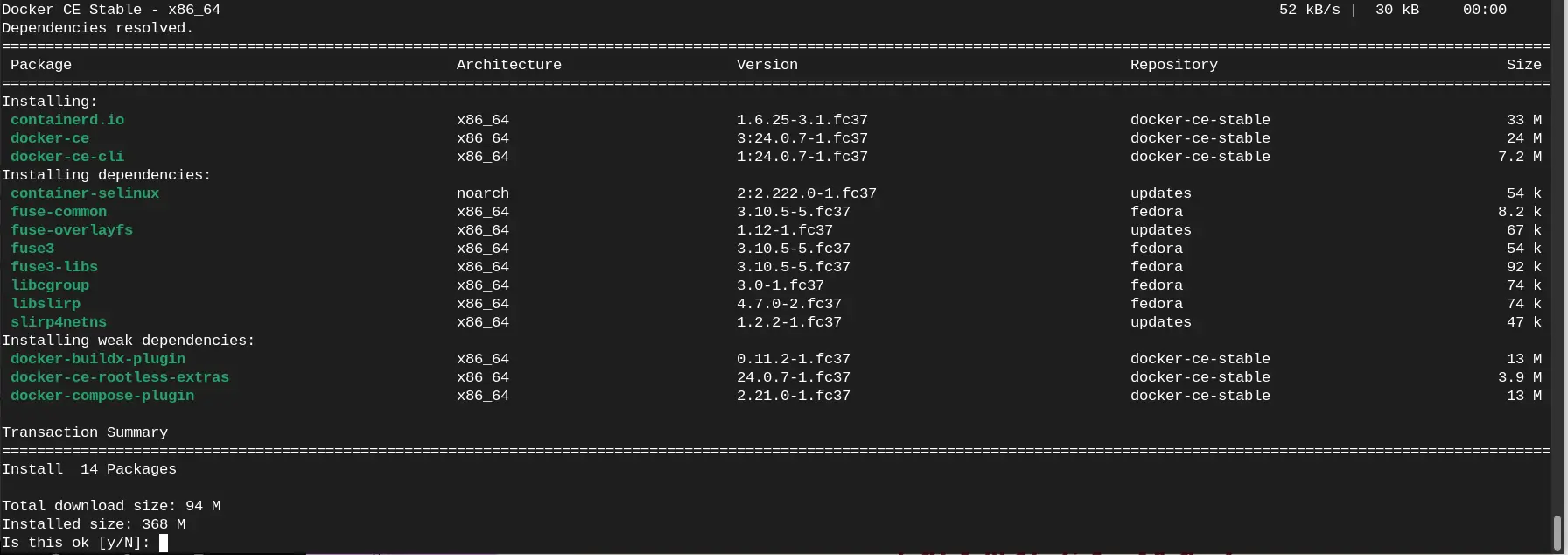
Photo by admingeek from Infotechys
This command will install the Docker Engine, Docker CLI, and containerd.io packages on your Fedora 37 system. Once the installation is complete, the Docker service will start automatically.
Start and Enable Docker Service
To ensure that Docker starts automatically every time your system boots up, you need to enable the Docker service. Execute the following command in the terminal:
$ sudo systemctl enable --now dockerThis command will start the Docker service immediately and enable it to start at boot time. You can verify that Docker is running correctly by executing the following command:
$ sudo systemctl status dockerIf Docker is running without any errors, you’re all set to start using Docker on your Fedora 37 system.
Test Docker Installation
To confirm that Docker is installed and functioning correctly on your Fedora 37 system, you can run a simple test by executing the following command in the terminal:
$ sudo docker run hello-worldUnable to find image 'hello-world:latest' locally
latest: Pulling from library/hello-world
c1ec31eb5944: Pull complete
Digest: sha256:4bd78111b6914a99dbc560e6a20eab57ff6655aea4a80c50b0c5491968cbc2e6
Status: Downloaded newer image for hello-world:latest
Hello from Docker!
This message shows that your installation appears to be working correctly.
To generate this message, Docker took the following steps:
1. The Docker client contacted the Docker daemon.
2. The Docker daemon pulled the "hello-world" image from the Docker Hub.
(amd64)
3. The Docker daemon created a new container from that image which runs the
executable that produces the output you are currently reading.
4. The Docker daemon streamed that output to the Docker client, which sent it
to your terminal.
To try something more ambitious, you can run an Ubuntu container with:
$ docker run -it ubuntu bash
Share images, automate workflows, and more with a free Docker ID:
https://hub.docker.com/
For more examples and ideas, visit:
https://docs.docker.com/get-started/This command will download a small Docker image called “hello-world” and run it in a container. If everything is set up correctly, you should see a message confirming that your Docker installation is working correctly (as shown above).


No comments:
Post a Comment