Introduction
Managing multiple SSH keys for different GitHub accounts can be a bit tricky, but it’s a common requirement for developers who work on various projects or contribute to both personal and professional repositories. This guide will walk you through the process of setting up and managing multiple SSH keys for GitHub access, ensuring a seamless and secure workflow.
Why Use Multiple SSH Keys?
Using multiple SSH keys is essential when you have:
- Different GitHub accounts (e.g., personal and work accounts).
- Different access levels or roles on various repositories.
- A need to segregate your personal and professional identities for security and organizational purposes.
Multiple SSH Keys for GitHub: A Step-by-Step Guide
1. Generate SSH Keys
First, generate SSH keys for each GitHub account. Open your terminal and use the ssh-keygen command:
ssh-keygen -t ed25519 -C "your_email@example.com"For a second GitHub account, you might name the key differently:
ssh-keygen -t ed25519 -C "your_other_email@example.com" -f ~/.ssh/id_ed25519_otherThis command will generate two files: a private key (id_ed25519_other) and a public key (id_ed25519_other.pub).
2. Add SSH Keys to SSH Agent
Start the SSH agent and add the keys:
eval "$(ssh-agent -s)"
ssh-add ~/.ssh/id_ed25519
ssh-add ~/.ssh/id_ed25519_other3. Add SSH Keys to GitHub Accounts
Log in to your GitHub accounts and add the public keys:
- Navigate to Settings > SSH and GPG keys.
- Click New SSH key.
- Copy the contents of your public key file (
id_ed25519.puborid_ed25519_other.pub) and paste it into the Key field. - Give it a descriptive title (e.g., “Work Laptop” or “Personal PC”).
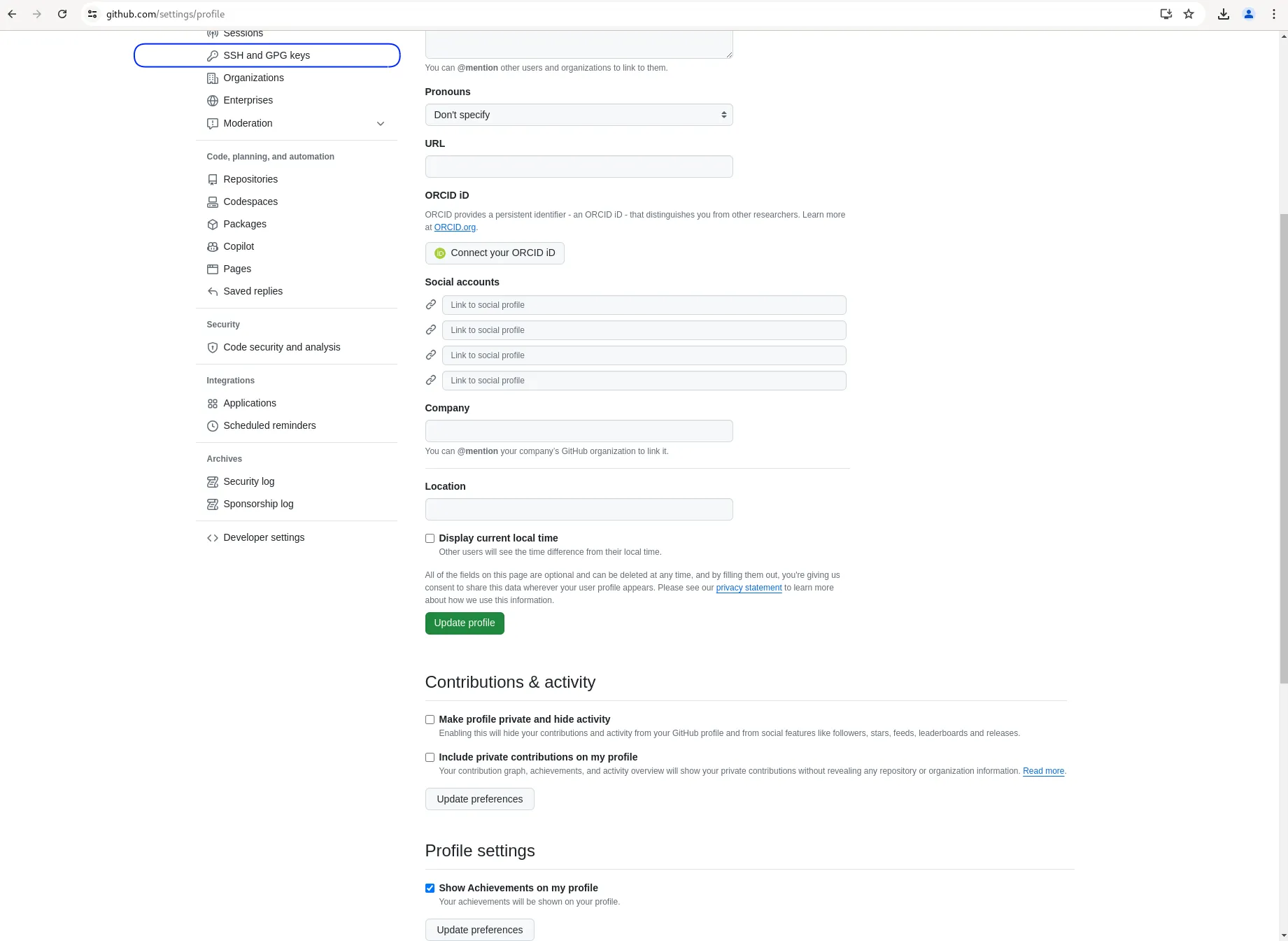
Photo by admingeek from Infotechys
4. Configure SSH to Use Multiple Keys
Create or edit the ~/.ssh/config file to specify which key to use for each GitHub account:
# Personal GitHub account
Host github.com-personal
  HostName github.com
  User git
  IdentityFile ~/.ssh/id_ed25519

# Work GitHub account
Host github.com-work
  HostName github.com
  User git
IdentityFile ~/.ssh/id_ed25519_other$ sudo <enter linux commands>command output goes here5. Clone Repositories Using the Correct Host
When cloning repositories, use the aliases defined in your SSH config file:
git clone git@github.com-personal:username/repo.gitgit clone git@github.com-work:work-username/repo.git6. Managing Multiple Git Configurations
If you need to use different Git configurations (e.g., user name and email) for each account, you can configure Git to use repository-specific settings.
Navigate to your repository and set the local configuration:
cd path/to/repogit config user.name "Your Name"git config user.email "your_email@example.com"Multiple SSH Keys for GitHub: Common Issues and Troubleshooting
1. Permission Denied (Publickey)
If you encounter a “Permission denied (publickey)” error, ensure that:
- Your SSH keys are added to the SSH agent (
ssh-add -lto list added keys). - The correct SSH key is specified in the
~/.ssh/configfile. - The public key is correctly added to the respective GitHub account.
2. Multiple SSH Keys Not Working
Ensure that:
- You are using the correct alias (e.g.,
github.com-personalorgithub.com-work) when cloning or pushing to repositories. - The
~/.ssh/configfile is correctly formatted and saved.


No comments:
Post a Comment