Introduction
If you’re a Fedora user, you know the thrill of upgrading to the latest version. Fedora 36 brings several exciting new features, enhancements, and performance improvements. This guide will walk you through the process of upgrading from Fedora 35 to Fedora 36. Whether you’re a seasoned Fedora user or a newcomer, these steps will help ensure a smooth transition.
Why Upgrade to Fedora 36?
Before diving into the upgrade process, let’s explore why upgrading to Fedora 36 is beneficial. Fedora 36 introduces a range of enhancements, including:
- Improved GNOME 42: Enjoy a refined user interface with better performance and new features.
- Updated Packages: Benefit from the latest software versions and security updates.
- Enhanced Developer Tools: Access new and improved development tools for a better coding experience.
- Better Hardware Support: Experience enhanced compatibility with the latest hardware.
Pre-Upgrade Checklist
Before upgrading, it’s crucial to prepare your system to avoid any potential issues. Here’s a checklist to follow:
- Backup Your Data: Ensure all your important data is backed up. Use tools like rsync,
Deja Dup, or cloud storage services. - Update Your System: Make sure your Fedora 35 system is up-to-date. Run the following commands in your terminal:
sudo dnf update -ysudo dnf upgrade --refresh -y- Check Disk Space: Ensure you have enough disk space for the upgrade. Use the
df -hcommand to check your disk usage. - Review Release Notes: Read the Fedora 36 release notes to understand the changes and potential issues.
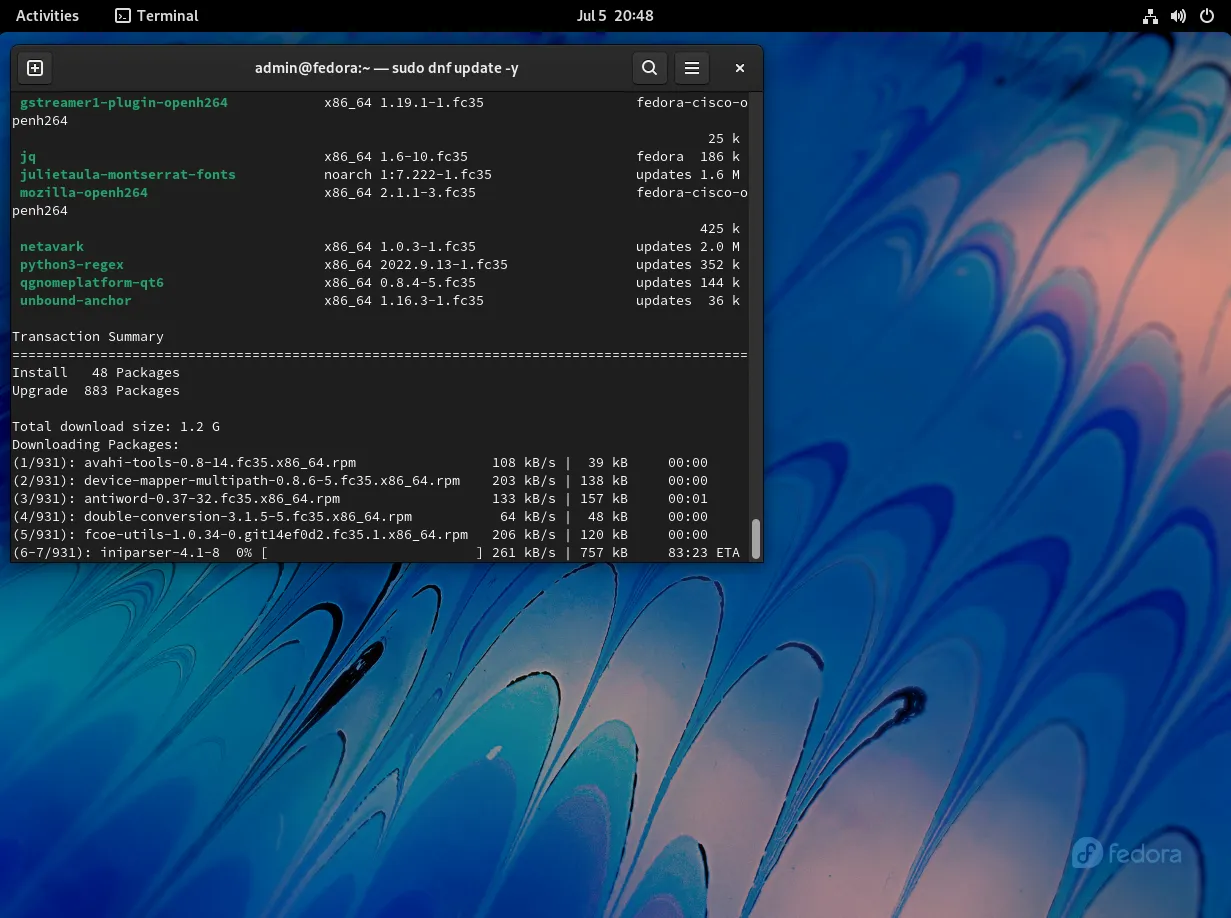
Photo by admingeek from Infotechys
Upgrade from Fedora 35 to Fedora 36: Step-by-Step Process
Follow these steps to upgrade from Fedora 35 to Fedora 36:
Step 1: Install DNF Plugin |
First, install the DNF plugin, which simplifies the upgrade process. Open your terminal and run:
sudo dnf install dnf-plugin-system-upgrade -yStep 2: Download the Fedora 36 Packages |
Next, download the Fedora 36 packages. This process may take some time, depending on your internet speed:
sudo dnf system-upgrade download --releasever=36Step 3: Resolve Dependencies |
During the package download, you might encounter dependency issues. Use the following command to resolve them:
sudo dnf system-upgrade download --releasever=36 --allowerasingThis command allows the removal of packages that conflict with the upgrade.
Step 4: Start the Upgrade |
Once all packages are downloaded, start the upgrade process:
sudo dnf system-upgrade rebootYour system will reboot and begin the upgrade. This step may take a while, so be patient.
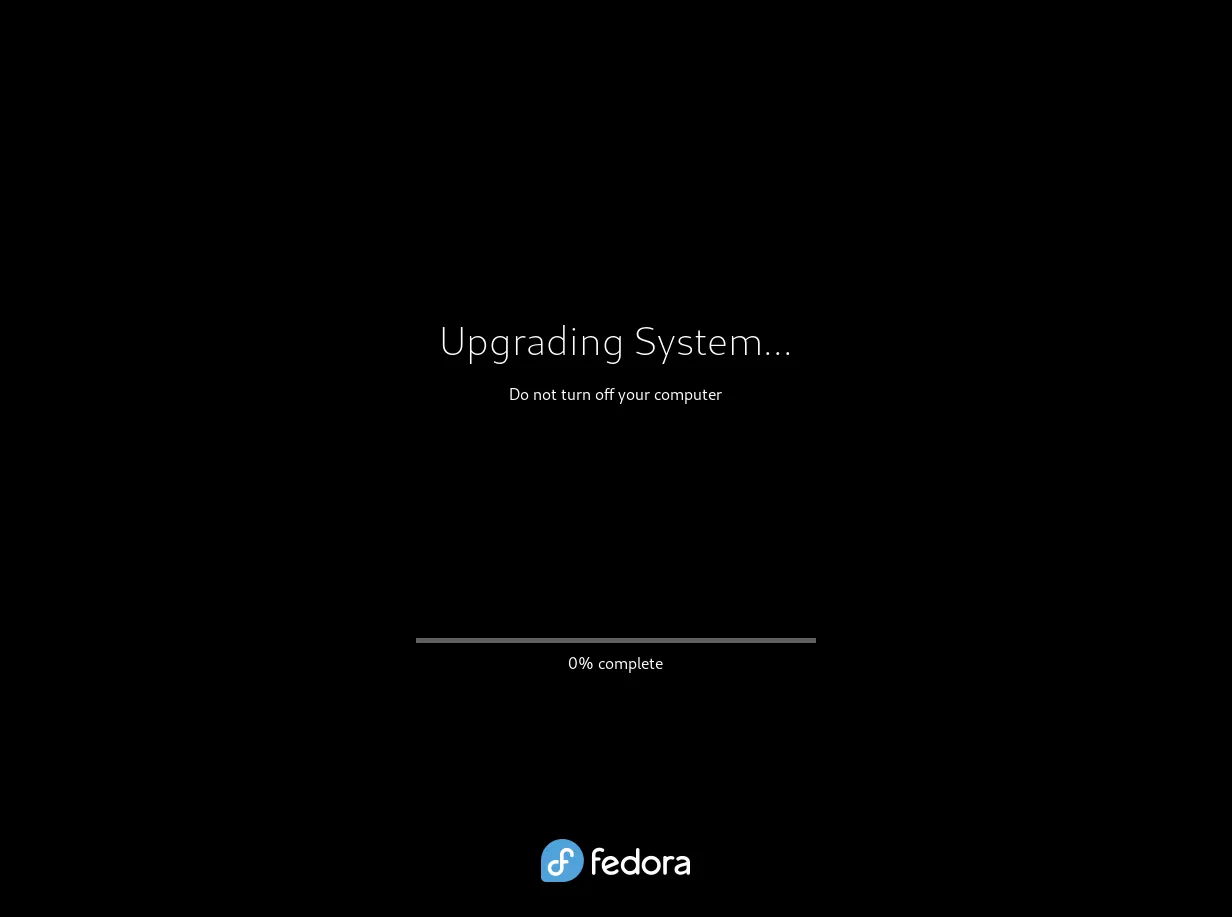
Photo by admingeek from Infotechys
Step 5: Post-Upgrade Steps |
After the upgrade, perform some post-upgrade tasks to ensure everything runs smoothly:
- Check for Issues: Verify that all applications and services are working correctly.
- Update Packages: Ensure all packages are up-to-date:
sudo dnf update -yTroubleshooting Common Issues
Even with careful preparation, you might encounter some issues during or after the upgrade. Here are solutions to common problems:
Issue 1: Broken Dependencies |
If you encounter broken dependencies, try the following:
sudo dnf distro-syncThis command ensures all packages are in sync with the new distribution.
Issue 2: Boot Issues |
If your system fails to boot after the upgrade, boot into the previous kernel from the GRUB menu. Then, investigate the issue using the system logs:
journalctl -xeIssue 3: Application Crashes |
If certain applications crash, try reinstalling them:
sudo dnf reinstall <application-name>
Photo by admingeek from Infotechys
Additional Troubleshooting Tips
Network Issues |
Sometimes, network settings might get disrupted during the upgrade. To troubleshoot network issues:
Check Network Services: Ensure that network services are running properly:
sudo systemctl status NetworkManagerRestart Network Services: If there are issues, restart the network services:
sudo systemctl restart NetworkManagerGraphics Issues |
If you encounter graphics issues, particularly with proprietary drivers:
Switch to Open Source Drivers: Temporarily switch to open source drivers:
sudo dnf remove <proprietary-driver-package>sudo dnf install <open-source-driver-package>Reinstall Proprietary Drivers: Once the upgrade is stable, you can reinstall proprietary drivers.
Fedora 36 New Features and Enhancements
Now that you’ve upgraded, let’s explore some of the exciting new features in Fedora 36.
GNOME 42 |
Fedora 36 includes GNOME 42, which brings a host of improvements:
- Enhanced Performance: Enjoy faster and more responsive performance.
- New Features: Experience new features like the global dark mode and improved settings.
Updated Development Tools |
Developers will appreciate the updated development tools in Fedora 36, including:
- GCC 12: The latest version of the GNU Compiler Collection.
- Python 3.10: Benefit from the new features in Python 3.10.
- Container Tools: Enhanced container tools for a better development experience.
Improved Hardware Support |
Fedora 36 offers better hardware support, ensuring compatibility with the latest devices:
- New Drivers: Support for the latest GPUs and other hardware components.
- Improved Performance: Optimized performance for various hardware configurations.


No comments:
Post a Comment