List Currently Defined Aliases in Linux
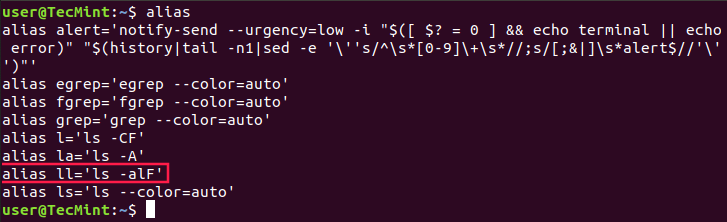
You can see a list of defined aliases on your profile by simply executing the alias command.
Here you can see the default aliases defined for your user in the Ubuntu system.
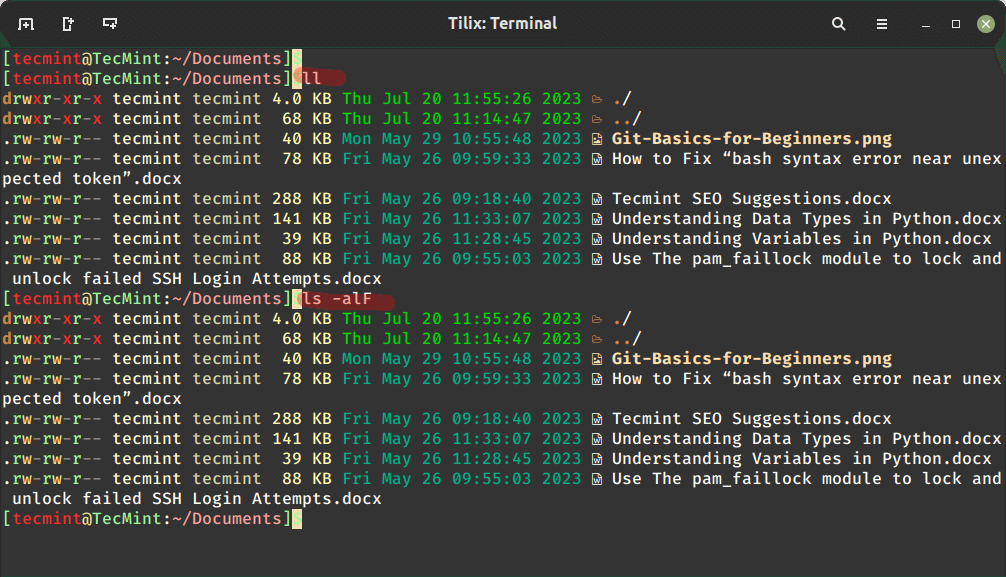
As you can see, executing the ll command is equivalent to running ls -alF command.
You can create an alias with a single character that will be equivalent to a command of your choice.
How to Create Aliases in Linux
Creating aliases is a relatively easy and quick process. You can create two types of aliases – temporary and permanent. We will review both types.
Creating Temporary Aliases in Linux
What you need to do is type the word alias then use the name you wish to use to execute a command followed by "=" sign and quote the command you wish to alias.
The syntax is as follows:
Here is an actual example:
You can then use "wr" shortcut to go to the webroot directory. The problem with that alias is that it will only be available for your current terminal session.
If you open a new terminal session, the alias will no longer be available. If you wish to save your aliases across sessions you will need a permanent alias.
Creating Permanent Aliases in Linux
To keep aliases between sessions, you can save them in your user’s shell configuration profile file. This can be:
- Bash – ~/.bashrc
- ZSH – ~/.zshrc
- Fish – ~/.config/fish/config.fish
The syntax you should use is practically the same as creating a temporary alias. The only difference comes from the fact that you will be saving it in a file this time. So for example, in bash, you can open a .bashrc file with your favorite editor like this:
Find a place in the file, where you want to keep the aliases. For example, you can add them at the end of the file. For organization purposes, you can leave a comment before your aliases something like this:
Save the file. The file will be automatically loaded in your next session. If you want to use the newly defined alias in the current session, issue the following command:
To remove an alias added via the command line can be unaliased using the unalias command.


No comments:
Post a Comment