How to Create Hard Links in Linux
To create a hard links in Linux, we will use ln utility. For example, the following command creates a hard link named tp to the file topprocs.sh.
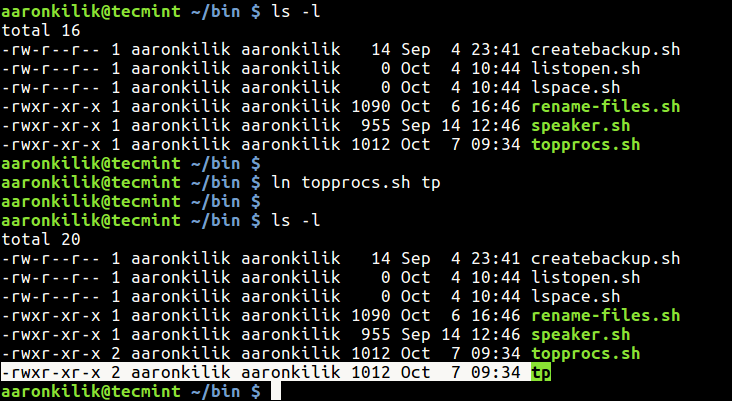
Looking at the output above, using ls command, the new file is not indicated as a link, it is shown as a regular file. This implies that tp is just another regular executable file that points to the same underlying inode as topprocs.sh.
To make a hard link directly into a soft link, use the -P flag like this.
How to Create Symbolic Links in Linux
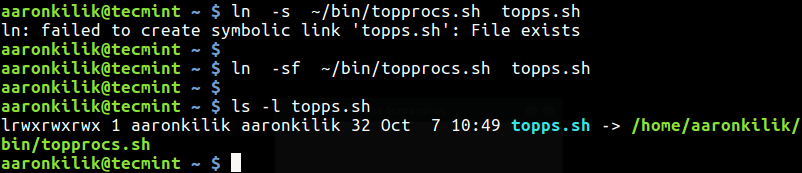
To create a symbolic links in Linux, we will use same ln utility with -s switch. For example, the following command creates a symbolic link named topps.sh to the file topprocs.sh.

From the above output, you can see from the file permissions section that topps.sh is a link indicated by l: meaning it is a link to another filename.
If the symbolic link already exist, you may get an error, to force the operation (remove exiting symbolic link), use the -f option.
To enable verbose mode, add the -v flag to prints the name of each linked file in the output.



No comments:
Post a Comment