Introduction
In today’s world, ensuring the security of your systems is paramount. For organizations that handle sensitive data, the Federal Information Processing Standards (FIPS) compliance is not just a requirement; it’s a necessity. This guide will walk you through enabling FIPS mode on Red Hat Enterprise Linux (RHEL) 9 and CentOS 9, complete with CLI examples, tables, and best practices to help you rank higher on search engines.
What is FIPS?
FIPS (Federal Information Processing Standards) is a set of guidelines and standards used to ensure that computer systems and networks maintain a high level of security. FIPS 140-2, in particular, is focused on the security requirements for cryptographic modules. Enabling FIPS mode in RHEL or CentOS ensures that only FIPS-compliant cryptographic algorithms and protocols are used, which can help organizations meet regulatory compliance.
Why Enable FIPS on RHEL 9 and CentOS 9?
- Regulatory Compliance: Many organizations are required to comply with federal regulations.
- Enhanced Security: FIPS-compliant systems use stronger cryptographic algorithms.
- Trustworthiness: Achieving FIPS compliance can improve customer trust and business reputation.
Prerequisites |
Before you enable FIPS mode, ensure you have the following:
- A running instance of RHEL 9 or CentOS 9.
- Administrative (root) access to the system.
- Backup of your current configuration and data.
Enable FIPS mode on RHEL 9: A Step-by-Step Guide
Step 1: Verify Current System Settings |
Before making any changes, it’s good practice to verify your current system settings. You can use the following command to check if FIPS mode is already enabled:
$ sudo cat /proc/sys/crypto/fips_enabledA return value of 1 indicates FIPS mode is enabled, while 0 indicates it is not.
Step 2: Update Your System |
Ensure your system is up to date:
$ sudo dnf update -yThis command will ensure that you have the latest security patches and updates.
$ sudo vim /etc/default/grubLook for the line that starts with GRUB_CMDLINE_LINUX. You will need to append fips=1 to this line. For example:
GRUB_CMDLINE_LINUX="... fips=1"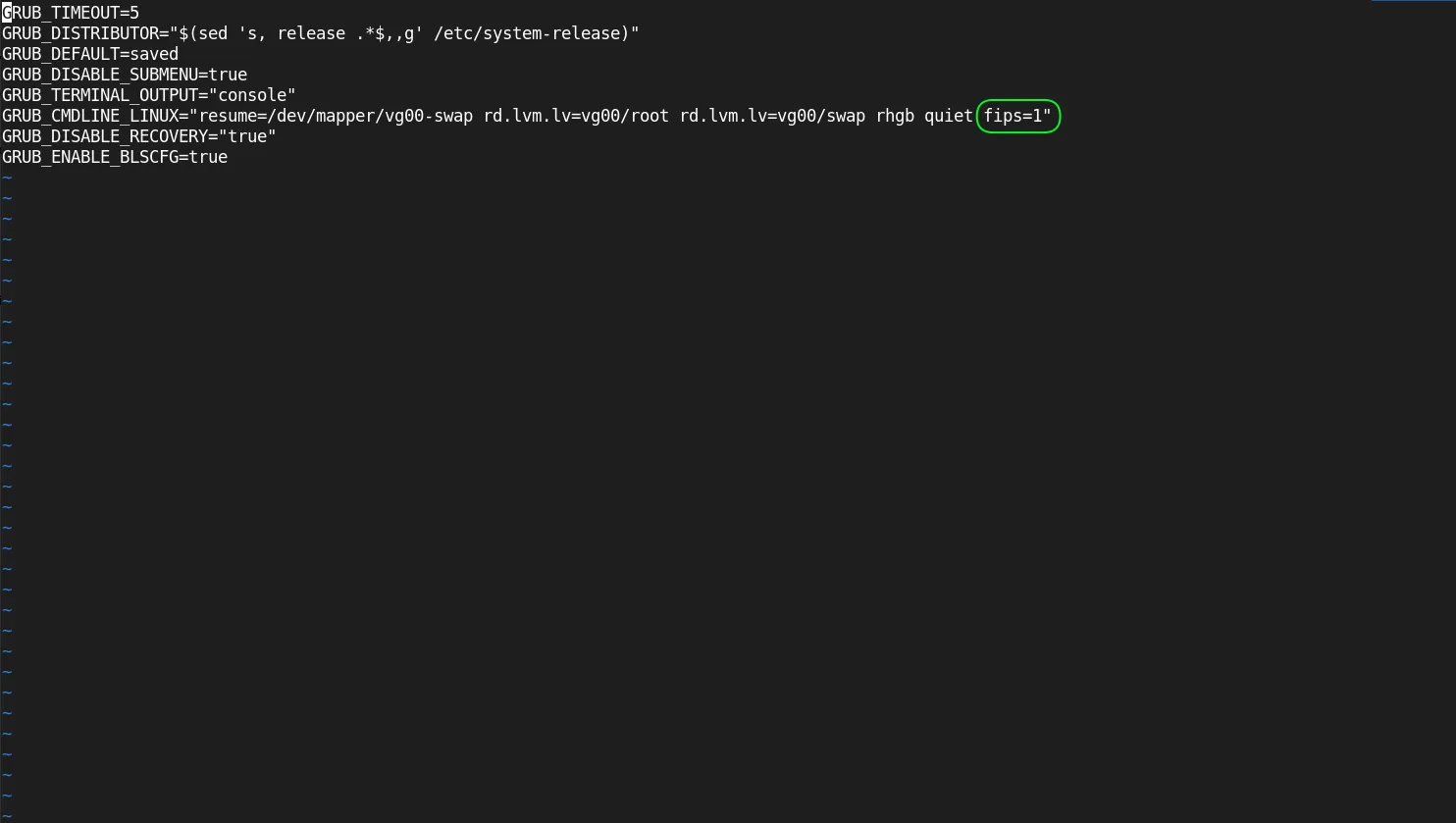
Photo by admingeek from Infotechys
Step 4: Regenerate GRUB Configuration |
After modifying the GRUB configuration, regenerate the GRUB file:
$ sudo grub2-mkconfig -o /boot/grub2/grub.cfgStep 5: Reboot Your System |
Now, reboot your system to apply the changes:
$ sudo systemctl rebootStep 6: Verify FIPS Mode is Enabled |
After the system reboots, you can verify that FIPS mode is enabled by running the following command again:
$ sudo cat /proc/sys/crypto/fips_enabledThis time, it should return 1.
Understanding FIPS Compliance
FIPS Compliance in a Nutshell |
| Aspect | Details |
|---|---|
| Standard | FIPS 140-2 |
| Focus | Cryptographic Module Security Requirements |
| Purpose | To protect sensitive data by ensuring cryptographic strength |
| Compliance | Required for federal agencies and certain contractors |
Common FIPS Algorithms
FIPS mode restricts the use of certain algorithms that are not compliant. Here’s a table of commonly used FIPS-compliant algorithms:
| Algorithm | Description |
|---|---|
| AES | Advanced Encryption Standard |
| SHA-256 | Secure Hash Algorithm, version 256 |
| RSA | Rivest-Shamir-Adleman for secure data transmission |
| ECDSA | Elliptic Curve Digital Signature Algorithm |
Applications and Services Affected by FIPS Mode
Enabling FIPS mode may affect various applications and services on your system. Below are some common implications:
| Service/Application | Impact |
|---|---|
| OpenSSH | Only FIPS-compliant algorithms will be used. |
| OpenSSL | Non-compliant ciphers will be disabled. |
| Apache | Must be configured to use FIPS-compliant modules. |
Testing FIPS Mode |
To ensure that your applications are functioning correctly under FIPS mode, perform the following tests:
Verify Cryptographic Operations: Use the openssl command to check if your system is using FIPS-compliant algorithms.
$ sudo openssl list -cipher-algorithmsRun Security Scans: Use tools like nmap or OpenVAS to check for vulnerabilities.
Troubleshooting FIPS Mode
If you encounter issues while enabling or using FIPS mode, consider the following steps:
Check Logs |
Look at the system logs for any errors related to FIPS:
$ sudo journalctl -xe | grep fipsReview Configuration Files |
Make sure that you’ve edited the GRUB configuration correctly and regenerated the GRUB configuration.
Validate Applications |
Ensure that the applications you are using are FIPS-compliant and properly configured to run in FIPS mode.


No comments:
Post a Comment