Introduction
If you’re looking to install Docker on Ubuntu 24.04, you’ve come to the right place. Docker is an essential tool for developers, system administrators, and DevOps engineers. It simplifies the process of managing application containers, enabling you to develop, ship, and run applications consistently across different environments. This guide will walk you through the steps to install Docker on Ubuntu 24.04.
Why Use Docker?
Before diving into the installation process, let’s briefly explore why Docker is so popular:
Consistency: Docker ensures that your application runs the same way, regardless of where it is deployed. Isolation: Each Docker container runs in its isolated environment, which helps prevent conflicts between different applications. Portability: Containers can be easily moved from one server to another. Efficiency: Docker uses fewer resources than traditional virtual machines. |
With these benefits in mind, let’s get started with the installation process.
Prerequisites
Before you install Docker, ensure your system meets the following prerequisites:
- Ubuntu 24.04 installed
- A user account with
sudoprivileges - Internet access
Install Docker on Ubuntu 24.04: Step-by-Step Instructions |
Step 1: Update Your System
First, update your system’s package index to ensure you have access to the latest updates and security patches.
sudo apt update -y && sudo apt upgrade -yStep 2: Install Required Dependencies
Next, install the necessary packages to allow apt to use repositories over HTTPS.
sudo apt install apt-transport-https ca-certificates curl software-properties-common -yStep 3: Add Docker’s Official GPG Key
To ensure the authenticity of the Docker packages, add Docker’s official GPG key:
curl -fsSL https://download.docker.com/linux/ubuntu/gpg | sudo gpg --dearmor -o /usr/share/keyrings/docker-archive-keyring.gpgStep 4: Set Up the Docker Repository
Add the Docker repository to apt sources:
echo "deb [arch=amd64 signed-by=/usr/share/keyrings/docker-archive-keyring.gpg] https://download.docker.com/linux/ubuntu $(lsb_release -cs) stable" | sudo tee /etc/apt/sources.list.d/docker.list > /dev/nullStep 5: Install Docker Engine
Now, update the package database with the Docker packages from the newly added repository:
sudo apt updateThen, install Docker:
sudo apt install docker-ce docker-ce-cli containerd.io -y...omitted for brevity...
Setting up pigz (2.8-1) ...
Setting up docker-ce-rootless-extras (5:26.1.4-1~ubuntu.24.04~noble) ...
Setting up slirp4netns (1.2.1-1build2) ...
Setting up docker-ce (5:26.1.4-1~ubuntu.24.04~noble) ...
Created symlink /etc/systemd/system/multi-user.target.wants/docker.service → /usr/lib/systemd/system/docker.service.
Created symlink /etc/systemd/system/sockets.target.wants/docker.socket → /usr/lib/systemd/system/docker.socket.
Processing triggers for man-db (2.12.0-4build2) ...
Processing triggers for libc-bin (2.39-0ubuntu8.2) ...Step 6: Verify Docker Installation
After the installation is complete, verify that Docker is installed and running:
sudo systemctl status docker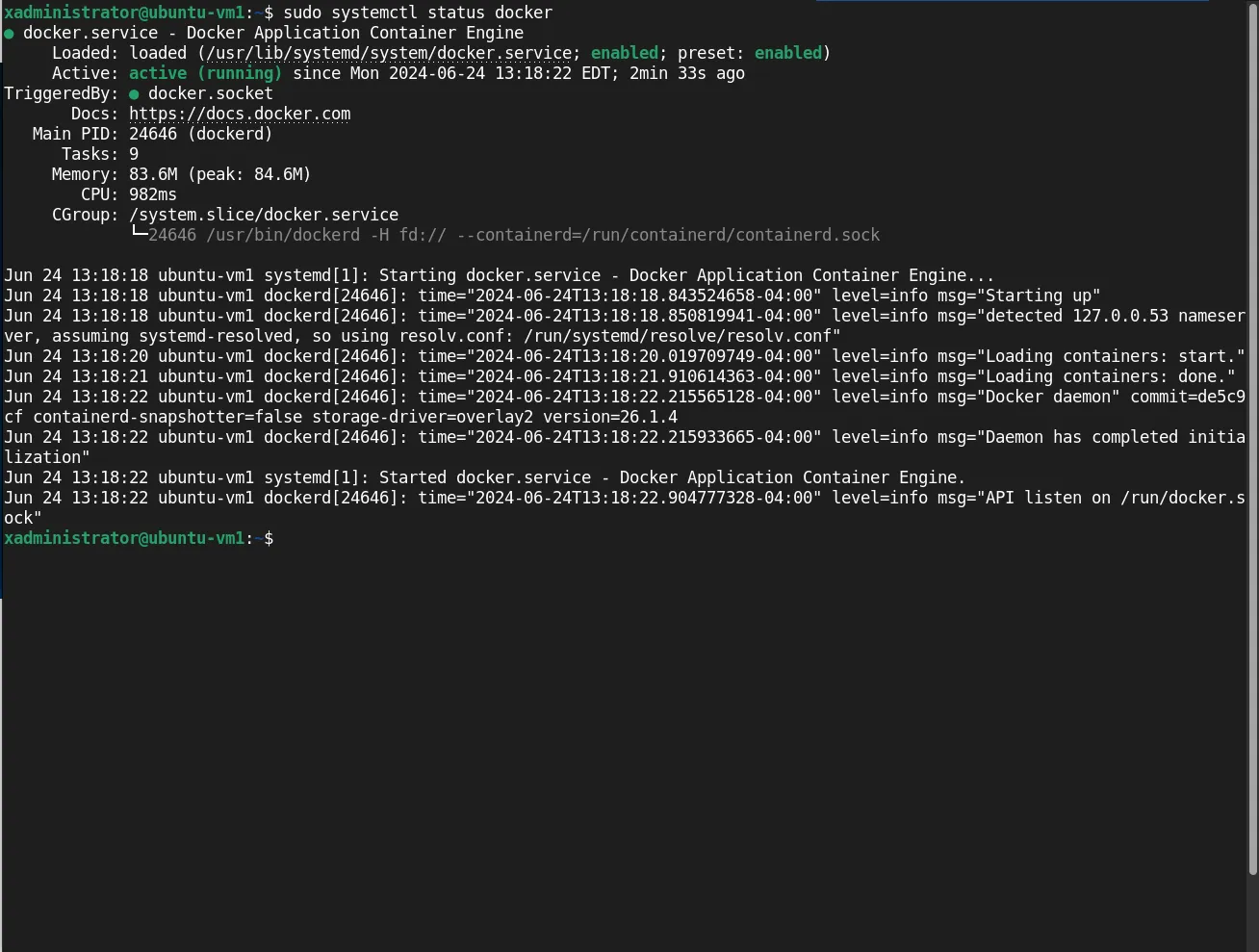
Photo by admingeek from Infotechys
You should see output indicating that Docker is active and running. Additionally, you can check the Docker version:
docker --versionDocker version 26.1.4, build 5650f9bStep 7: Manage Docker as a Non-root User
By default, Docker commands must be run as the root user or with sudo. To avoid typing sudo before every Docker command, add your user to the docker group:
sudo usermod -aG docker $USERAfter running this command, log out and log back in to apply the changes. NOTE: When Docker is installed on Ubuntu 24.04, it is set to start automatically upon reboot. However, it is advisable to verify this configuration and restart your machine to ensure everything is working correctly.
sudo systemctl rebootWhen your machine is back online, repeat Step #6 to verify docker is operational.
Step 8: Test Docker Installation
To confirm that Docker is installed correctly, run the hello-world image:
docker run hello-world...omitted for brevity...
Hello from Docker!
This message shows that your installation appears to be working correctly.
To generate this message, Docker took the following steps:
1. The Docker client contacted the Docker daemon.
2. The Docker daemon pulled the "hello-world" image from the Docker Hub.
(amd64)
3. The Docker daemon created a new container from that image which runs the
executable that produces the output you are currently reading.
4. The Docker daemon streamed that output to the Docker client, which sent it
to your terminal.
To try something more ambitious, you can run an Ubuntu container with:
$ docker run -it ubuntu bash
Share images, automate workflows, and more with a free Docker ID:
https://hub.docker.com/
For more examples and ideas, visit:
https://docs.docker.com/get-started/If everything is set up correctly, you should see a message indicating that Docker is working.
Troubleshooting Tips
If you encounter any issues during the installation, consider the following troubleshooting tips:
1. Check Service Status: Ensure the Docker service is active using sudo systemctl status docker. |
sudo systemctl status docker| 2. Reinstall Docker: If problems persist, you can remove Docker: |
sudo apt remove docker-ce docker-ce-cli containerd.io| Along with any associated docker directories: |
sudo rm -rvf /var/lib/docker && sudo rm -rvf /var/lib/containerd| Then, reinstall docker: |
sudo apt install docker-ce docker-ce-cli containerd.io3. Review Logs: Check Docker logs for any errors using sudo journalctl -u docker. |
sudo journalctl -u dockerJun 24 14:27:36 ubuntu-vm1 systemd[1]: Stopped docker.service - Docker Application Container Engine.
Jun 24 14:27:36 ubuntu-vm1 systemd[1]: docker.service: Consumed 1.309s CPU time, 109.1M memory peak, 0B memory swap peak.
Jun 24 14:27:36 ubuntu-vm1 systemd[1]: Starting docker.service - Docker Application Container Engine...
Jun 24 14:27:36 ubuntu-vm1 dockerd[2686]: time="2024-06-24T14:27:36.187522167-04:00" level=info msg="Starting up"
Jun 24 14:27:36 ubuntu-vm1 dockerd[2686]: time="2024-06-24T14:27:36.189339853-04:00" level=info msg="detected 127.0.0.53 nameserver, assuming syste>
Jun 24 14:27:36 ubuntu-vm1 dockerd[2686]: time="2024-06-24T14:27:36.864013079-04:00" level=info msg="[graphdriver] using prior storage driver: over>
Jun 24 14:27:36 ubuntu-vm1 dockerd[2686]: time="2024-06-24T14:27:36.866641629-04:00" level=info msg="Loading containers: start."
...omitted for brevity...Summary
Installing Docker on Ubuntu 24.04 is a straightforward process. By following these steps, you can quickly get Docker up and running, allowing you to harness the power of containerization for your development and deployment needs.
Here’s a quick summary of the commands:
| Step | Command |
|---|---|
| Update System | sudo apt update && sudo apt upgrade -y |
| Install Dependencies | sudo apt install apt-transport-https ca-certificates curl software-properties-common -y |
| Add GPG Key | curl -fsSL https://download.docker.com/linux/ubuntu/gpg | sudo gpg --dearmor -o /usr/share/keyrings/docker-archive-keyring.gpg |
| Add Repository | echo "deb [arch=amd64 signed-by=/usr/share/keyrings/docker-archive-keyring.gpg] https://download.docker.com/linux/ubuntu $(lsb_release -cs) stable" | sudo tee /etc/apt/sources.list.d/docker.list > /dev/null |
| Install Docker | sudo apt update && sudo apt install docker-ce docker-ce-cli containerd.io -y |
| Verify Installation | sudo systemctl status docker && docker --version |
| Manage as Non-root User | sudo usermod -aG docker $USER |
| Test Installation | docker run hello-world |
With Docker installed, you are now ready to create, deploy, and manage containerized applications. Enjoy the flexibility and efficiency Docker brings to your workflow!


No comments:
Post a Comment