Introduction
In the realm of container orchestration, Docker Swarm stands out as a powerful tool for managing clusters of Docker hosts. If you’re running Red Hat Enterprise Linux RHEL 9 or CentOS 9 and looking to harness the capabilities of Docker Swarm, you’re in the right place. In this guide, we’ll walk you through the step-by-step process of installing and configuring Docker Swarm on your RHEL or CentOS system.
What is Docker Swarm?
Docker Swarm is Docker’s native clustering and orchestration tool, allowing you to deploy and manage a cluster of Docker hosts. With Docker Swarm, you can easily scale your containerized applications, ensure high availability, and manage resources efficiently.
Prerequisites
Before diving into the installation process, make sure you have the following prerequisites:
- A machine (or machines if you’re running cluster) running RHEL 9 or CentOS 9 with root access.
For demonstration purposes, we’ve configured our Linux nodes as follows:
| Hostname | RAM | Cores | OS |
| master.naijalabs.net | 4 | 2 | Red Hat Enterprise Linux release 9.4 (Plow) |
| worker1.naijalabs.net | 4 | 2 | Red Hat Enterprise Linux release 9.4 (Plow) |
| worker2.naijalabs.net | 4 | 2 | Red Hat Enterprise Linux release 9.4 (Plow) |
Docker Swarm on RHEL 9 or CentOS 9: Step-by-Step Installation Procedure
Start by ensuring that your system packages are up to date. Open a terminal and run the following command:
sudo dnf update -yThis command will update all installed packages to the latest versions.
Install Docker Swarm
To install Docker Swarm, you’ll need to install the Docker Engine and Docker Swarm mode separately. First, install the Docker Engine by running the following commands:
sudo dnf install -y dnf-utils device-mapper-persistent-data lvm2sudo dnf config-manager --add-repo https://download.docker.com/linux/centos/docker-ce.reposudo dnf install docker-ce docker-ce-cli containerd.io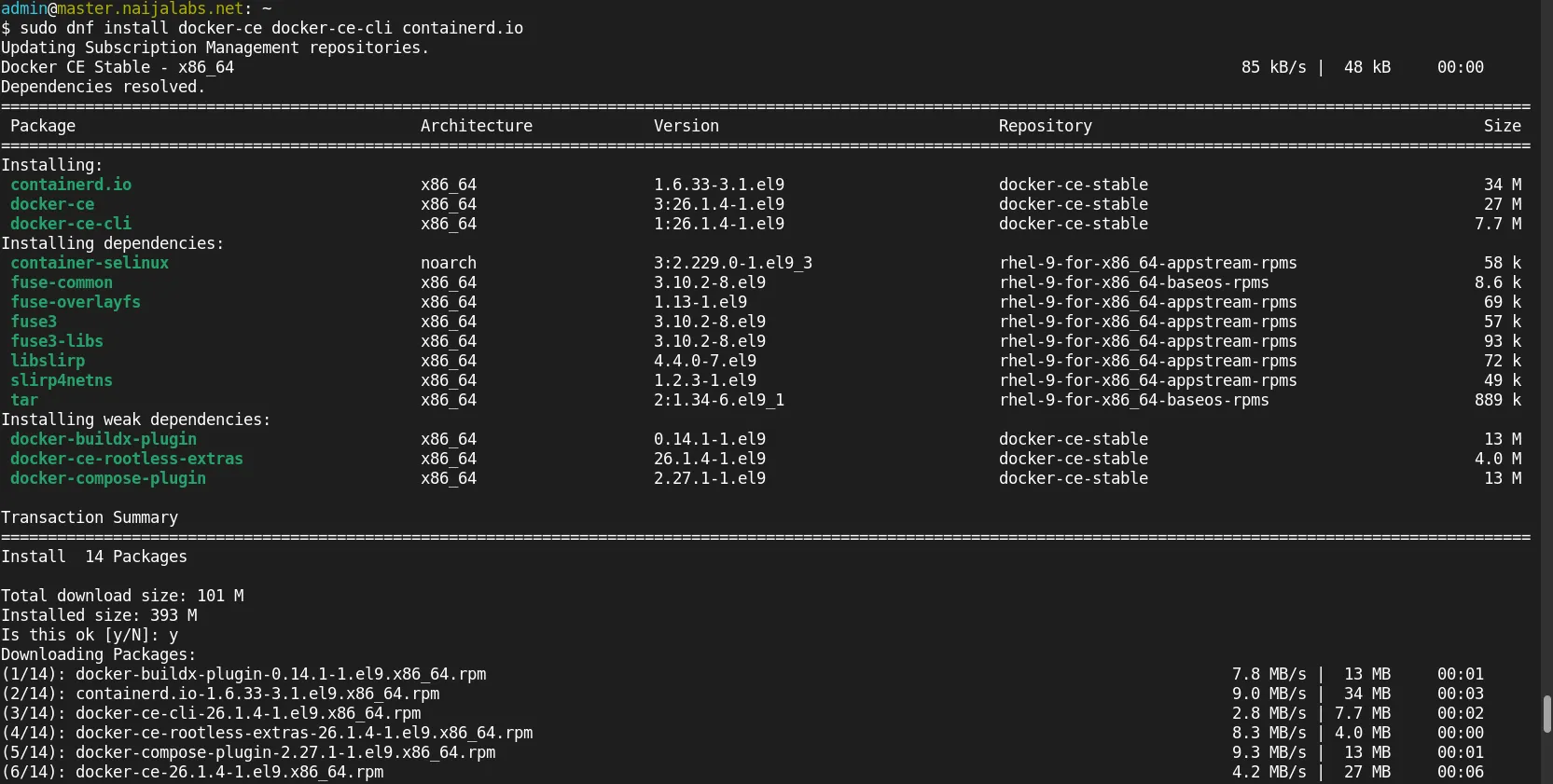
Photo by admingeek from Infotechys
Once Docker is installed, enable and start the Docker service:
sudo systemctl enable --now dockerNext, install Docker Swarm mode by running:
sudo docker swarm initSwarm initialized: current node (ge3p36ohsvbwkmz6u31zgcc8q) is now a manager.
To add a worker to this swarm, run the following command:
docker swarm join --token SWMTKN-1-40hep4n55kfmm7quyjx6sxbdwskflnyf02kej13rksfv0vyqdh-40my85cqehm91ahbrna6h2cum 192.168.1.26:2377
To add a manager to this swarm, run 'docker swarm join-token manager' and follow the instructions.This command initializes the Docker Swarm mode on your machine and sets it up as a manager node.
Join Worker Nodes (Optional)
If you have additional machines that you want to add to the Docker Swarm cluster as worker nodes, you can do so by running the command provided by the docker swarm init output on each worker node (NOTE: Open the firewall for <port> on the master and worker nodes).
sudo firewall-cmd --zone=public --add-port=2377/tcp --permanent; sudo firewall-cmd --reloadsudo docker swarm join --token <token> <manager-ip>:<port>Replace <token> with the token generated during the initialization process and <manager-ip>:<port> with the IP address and port of the manager node.
Verify Swarm Status
To verify that Docker Swarm is installed and running correctly, run the following command on the manager node:
sudo docker node lsID HOSTNAME STATUS AVAILABILITY MANAGER STATUS ENGINE VERSION
ge3p36ohsvbwkmz6u31zgcc8q * master.naijalabs.net Ready Active Leader 26.1.4
qwjc5mne8x9yjsng5gizjbb51 worker1.naijalabs.net Ready Active 26.1.4
qmjle0xt2yvc3v8cev957bszq worker2.naijalabs.net Ready Active 26.1.4This command should display information about the manager node and any joined worker nodes.
Deploy Services
Now that Docker Swarm is up and running, you can deploy services to the cluster using Docker Compose or the Docker CLI. Define your services in a docker-compose.yml file and use the docker stack deploy command to deploy them to the Swarm cluster.
sudo docker stack deploy -c docker-compose.yml <stack-name>Replace <stack-name> with the name you want to give to your stack.


No comments:
Post a Comment