Introduction
GitLab Community Edition (CE) is a powerful web-based DevOps tool that provides Git repository management, CI/CD features, issue tracking, and more. In this blog post, we’ll guide you through installing GitLab CE on RHEL 9 or CentOS 9 using Ansible roles, ensuring a smooth and automated setup. This approach not only simplifies the installation process but also maintains consistency across environments, making it perfect for DevOps practices.
Why Use Ansible for GitLab Installation?
Using Ansible for installing GitLab CE offers several benefits:
- Automation: Reduces human error and speeds up the installation process.
- Consistency: Ensures the same environment is replicated across servers.
- Scalability: Easily scale your installation across multiple servers.
- Maintainability: Easily update or modify configurations using playbooks.
Prerequisites |
Before you start, make sure you have:
- A fresh installation of RHEL 9 or CentOS 9.
- Two nodes with Ansible installed on your control machine.
- SSH access to the target server or node.
- A user with
sudoprivileges. - If you do not have a DNS setup, each node should have the following entries in the
/etc/hostsfile:
# Gitlab
192.168.1.21 	ansible.dev.naijalabs.net    # Replace with your actual hostname and IP address
192.168.1.7 gitlab.dev.naijalabs.net # Replace with your actual hostname and IP addressFor demonstration purposes, we’ve configured our Linux nodes as follows:
| Hostname | RAM | Cores | OS |
| ansible.dev.naijalabs.net (control) | 4 | 2 | Red Hat Enterprise Linux release 9.4 (Plow) |
| gitlab.dev.naijalabs.net (target) | 4 | 2 | Red Hat Enterprise Linux release 9.4 (Plow) |
To install Ansible (on your control node), use the following command:
$ sudo dnf install ansible -yGitLab CE on RHEL 9 | CentOS 9 Using Ansible: Ansible Roles Overview
Ansible roles allow you to organize your playbooks and tasks effectively. A role can include tasks, handlers, variables, files, templates, and more. For this installation, we will create a role specifically for GitLab.
Setting Up Your Ansible Environment |
Create a Directory for Your Ansible Project
$ mkdir -p ~/ansible-gitlab && cd ~/ansible-gitlabCreate the Basic Structure for Ansible Roles
$ ansible-galaxy init gitlabThis command will create a directory structure like this:
gitlab/
├── README.md
├── tasks
│   └── main.yml
├── handlers
│   └── main.yml
├── vars
│   └── main.yml
├── defaults
│   └── main.yml
└── templates
Creating Ansible Roles |
Role: GitLab
Edit the
tasks/main.ymlFile:
Here’s how you can configure the tasks for installing GitLab CE.
---
# tasks file for GitLab
- name: Install necessary packages
  dnf:
    name:
      - curl
      - policycoreutils
      - openssh-server
      - perl
      - python3-cryptography
      - postfix
    state: present

- name: Enable and start SSH service
  systemd:
    name: sshd
    state: started
    enabled: true

# Configure GitLab Repository
- name: Configure GitLab Repository
  ansible.builtin.shell: |
    curl -sS https://packages.gitlab.com/install/repositories/gitlab/gitlab-ce/script.rpm.sh | sudo bash
  changed_when: false

- name: Create SSL directory
  file:
    path: /etc/gitlab/ssl
    state: directory
    mode: '0755'

- name: Generate private key
  community.crypto.openssl_privatekey:
    path: "/etc/gitlab/ssl/{{ fqdn }}.key"
    type: RSA
    size: 2048
    state: present

- name: Generate self-signed certificate and private key
  shell: |
    openssl req -x509 -nodes -days 365 \
      -newkey rsa:2048 \
      -keyout /etc/gitlab/ssl/{{ fqdn }}.key \
      -out /etc/gitlab/ssl/{{ fqdn }}.crt \
      -subj "/CN={{ fqdn }}"

  args:
    creates: "/etc/gitlab/ssl/{{ fqdn }}.crt"

# Install GitLab CE
- name: Install GitLab CE
  dnf:
    name: gitlab-ce
    state: latest

- name: Reconfigure GitLab
  command: gitlab-ctl reconfigure
  async: 10
  poll: 0

- name: Open firewall ports 80 and 443
  firewalld:
    port: "{{ item }}"
    permanent: yes
    state: enabled
  with_items:
    - "80/tcp"     # HTTP port
    - "443/tcp"    # HTTPS/SSL port for Apache
  notify:
    - Reload firewalld

- name: Set SELinux boolean for httpd_can_network_connect
  command: sudo setsebool -P httpd_can_network_connect 1

- name: Set SELinux boolean for nis_enabled
command: sudo setsebool -P nis_enabled 1Create Handlers for Restarting Services
In the handlers/main.yml, add the following to manage GitLab services:
---
# handlers file for gitlab
- name: restart gitlab
  systemd:
    name: gitlab-runsvdir
    state: restarted

- name: Reload firewalld
  service:
    name: firewalld
state: reloadedSet Variables
If you want to customize your GitLab installation, set up variables in the vars/main.yml file.
---
# vars file for gitlab
gitlab_external_url: 'https://gitlab.dev.naijalabs.net'
fqdn: 'gitlab.dev.naijalabs.net'GitLab CE on RHEL 9 | CentOS 9 Using Ansible: Executing the Playbook
Now that we have our role ready, we can create a playbook to run the GitLab installation.
Create a Playbook File |
Create a file named gitlab_install.yml:
---
- hosts: all
  become: yes
  roles:
- gitlabRun the Playbook |
Execute the playbook with the following command:
$ ansible-playbook -i hosts gitlab_install.yml -KHere, hosts is your inventory file where you specify the IP addresses or hostnames of your target servers.
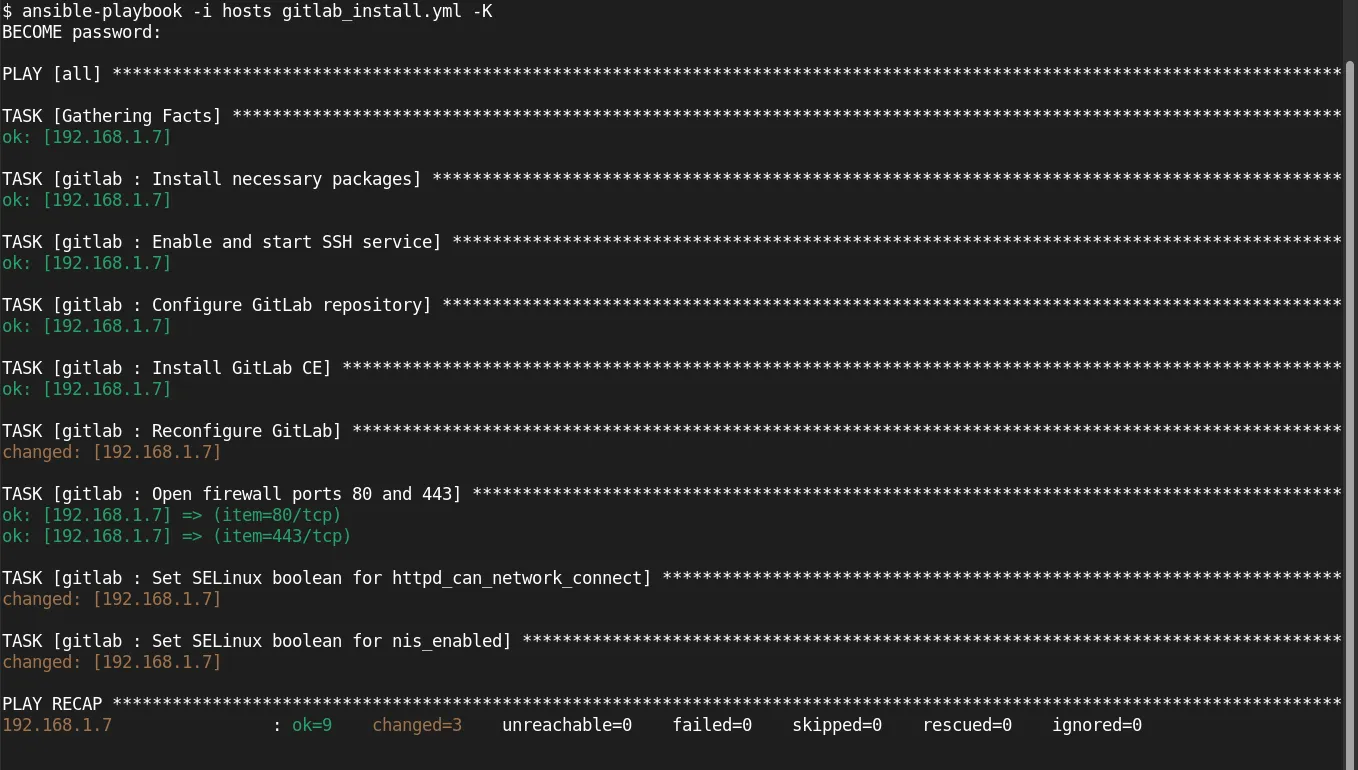
Photo by admingeek from Infotechys
Example Inventory File (hosts):
[gitlab]
your_server_ip ansible_ssh_user=your_userOur setup looks like this (below):
[gitlab]
192.168.1.7 ansible_ssh_user=adminPost-Installation Steps
Access GitLab |
Open your web browser and navigate to http://gitlab.dev.naijalabs.net or <server-ip-address>. You should see the GitLab welcome page.
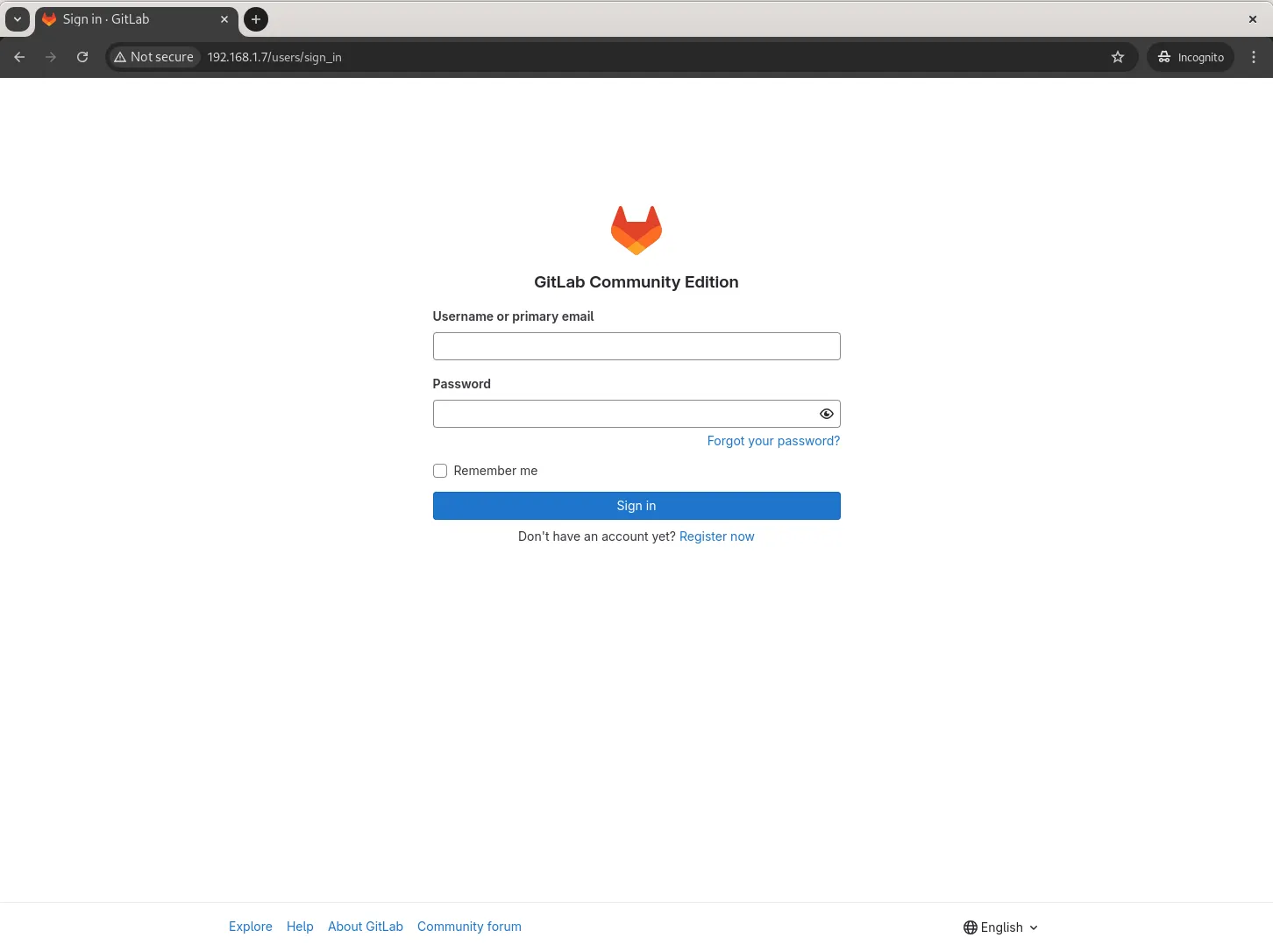
Photo by admingeek from Infotechys
Set Up GitLab Admin Account |
During the first login, you will be prompted to set up an admin password. Make sure to keep it secure. Your initial login credentials are located in the /etc/gitlab/initial_root_password file for the root user. You can also reset the root password with the following command:
$ sudo gitlab-rake "gitlab:password:reset[root]"Configure Email Notifications (Optional) |
Modify the configuration in /etc/gitlab/gitlab.rb to set up email notifications. After making changes, run gitlab-ctl reconfigure to apply them.
SSL Configuration (Optional) |
For production environments, it’s advisable to use HTTPS. You can configure Let’s Encrypt or your own SSL certificates in the gitlab.rb file.
external_url 'https://gitlab.dev.naijalabs.net'
letsencrypt['enable'] = trueIn the bonus section below, we outline the steps for configuring SSL on your GitLab instance.
GitLab CE on RHEL 9 | CentOS 9 Using Ansible (Bonus): Setting Up SSL for GitLab CE
Setting up SSL for your GitLab installation is essential for protecting your data and enhancing security. You can use Let’s Encrypt for free SSL certificates or use your own certificates. Below, we’ll cover both methods.
Option 1: Using Let’s Encrypt |
1. Update GitLab Configuration
Using your preferred text editor, open the GitLab configuration file:
$ sudo vim /etc/gitlab/gitlab.rbLocate the external_url line and change it to use HTTPS:
external_url 'https://gitlab.dev.naijalabs.net'Enable Let’s Encrypt by adding the following lines:
letsencrypt['enable'] = true
letsencrypt['contact_emails'] = ['your_email@example.com'] # Change this to your email2. Reconfigure GitLab
After updating the configuration, run the following command to apply the changes:
$ sudo gitlab-ctl reconfigure3. Verify SSL Configuration
Open your web browser and navigate to https://gitlab.dev.naijalabs.net. You should see the GitLab login page with a secure connection indicator.
Option 2: Using Custom SSL Certificates |
If you prefer to use your own SSL certificates, follow these steps:
1. Obtain SSL Certificates
If you don’t already have SSL certificates, you can generate them or purchase them from a certificate authority (CA). Make sure you have the following files:
your_domain.crt: Your SSL certificate.your_domain.key: Your private key.- (Optional)
ca_bundle.crt: Intermediate certificate if required by your CA.
2. Copy SSL Certificates
Copy your SSL certificate files to the GitLab configuration directory:
$ sudo cp your_domain.crt /etc/gitlab/ssl/
$ sudo cp your_domain.key /etc/gitlab/ssl/If using an intermediate certificate, also copy it:
$ sudo cp ca_bundle.crt /etc/gitlab/ssl/3. Update GitLab Configuration
Open the GitLab configuration file:
$ sudo vi /etc/gitlab/gitlab.rbSet the external_url to use HTTPS:
external_url 'https://gitlab.dev.naijalabs.net'Configure the paths to your SSL certificate and key:
nginx['ssl_certificate'] = "/etc/gitlab/ssl/your_domain.crt"
nginx['ssl_certificate_key'] = "/etc/gitlab/ssl/your_domain.key"(Include ca_bundle.crt if required.)
4. Reconfigure GitLab
Run the following command to apply your SSL configuration:
$ sudo gitlab-ctl reconfigure5. Verify SSL Configuration:
Open your web browser and navigate to https://gitlab.dev.naijalabs.net to ensure that SSL is working correctly.
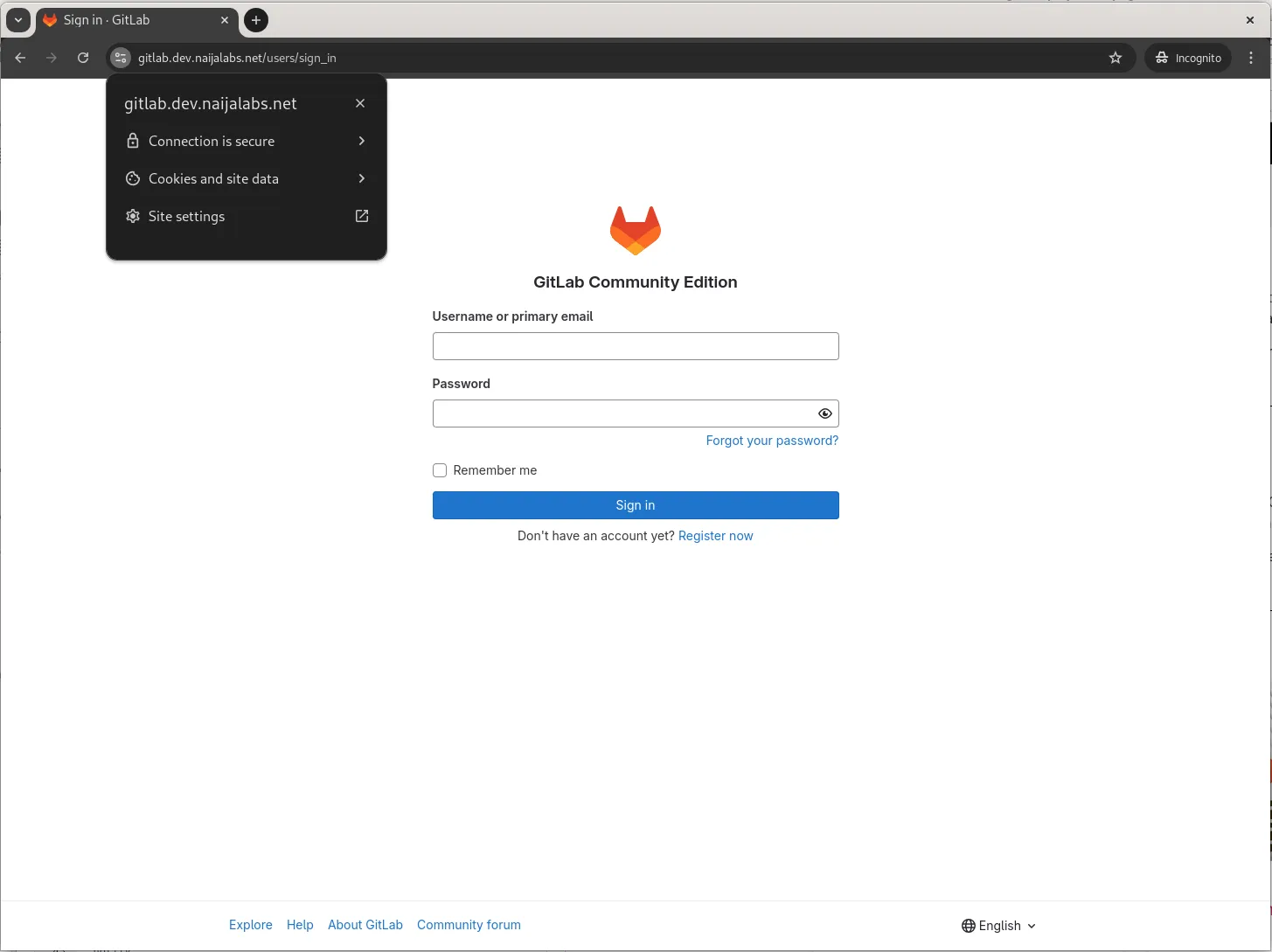
Photo by admingeek from Infotechys
Additional SSL Configuration Options
If you want to enhance security further, you can customize NGINX settings in the GitLab configuration file by adding:
nginx['ssl_protocols'] = "TLSv1.2 TLSv1.3"
nginx['ssl_ciphers'] = "HIGH:!aNULL:!MD5"These settings ensure that only strong encryption protocols are used.
Setting up SSL for your GitLab CE installation is crucial for maintaining data security and integrity. Whether you choose Let’s Encrypt for a hassle-free, automatic solution or use your own certificates, securing your GitLab instance helps safeguard sensitive information.
Make sure to test your SSL setup after configuration and monitor it regularly to ensure continued security.


No comments:
Post a Comment