Introduction
HAProxy (High Availability Proxy) is a reliable and versatile solution for load balancing and proxying. It is widely used to improve the performance and reliability of websites by distributing workloads across multiple servers. In this guide, we will walk you through the process of installing and configuring HAProxy on RHEL 9 or CentOS 9. By the end, you will have a fully functional HAProxy setup tailored to your needs.
Prerequisites
Before diving into the installation process, ensure that you have the following prerequisites in place:
- A server running RHEL 9 or CentOS 9
- Root or sudo access to the server
- Basic knowledge of command-line operations
Lab Settings |
For demonstration purposes, we’ve configured our Linux nodes as follows:
| Hostnames | RAM (GB) | Cores | Operating System (OS) |
| haproxy.dev.naijalabs.net | 4 | 2 | Red Hat Enterprise Linux release 9.4 (Plow) |
| webserver1.dev.naijalabs.net | 4 | 2 | Red Hat Enterprise Linux release 9.4 (Plow) |
| webserver2.dev.naijalabs.net | 4 | 2 | CentOS Stream release 9 |
| webserver3.dev.naijalabs.net | 4 | 2 | CentOS Stream release 9 |
Copy and paste the following entries in the /etc/hosts file on each node (replace IP addresses and hostnames with your actual settings):
# HAProxy Nodes
192.168.1.18	haproxy.dev.naijalabs.net    haproxy
192.168.1.223	webserver1.dev.naijalabs.net webserver1
192.168.1.225	webserver2.dev.naijalabs.net webserver2
192.168.1.228	webserver3.dev.naijalabs.net webserver3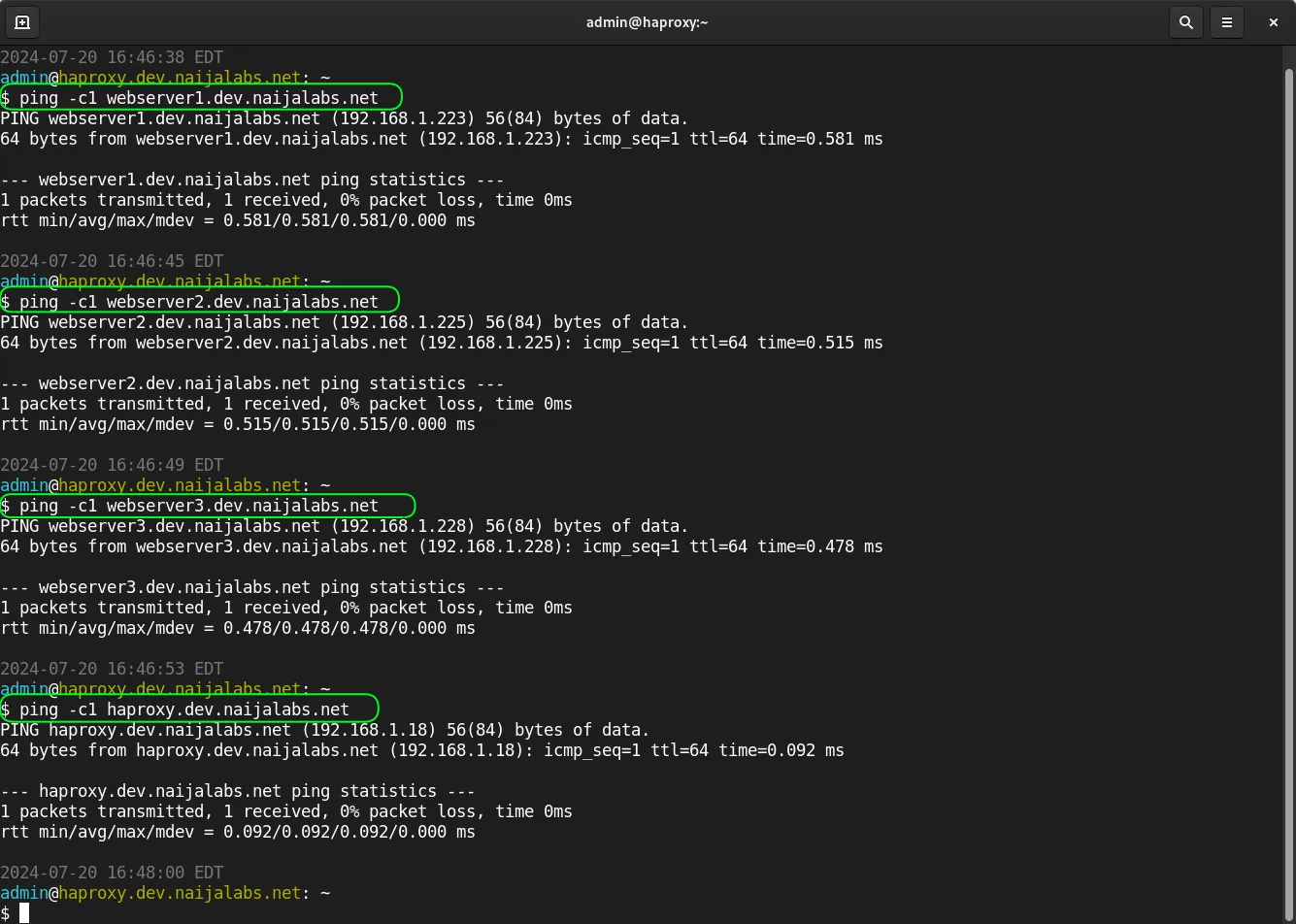
Photo by admingeek from Infotechys
Install HAProxy on RHEL 9 or CentOS 9: A Step-by-Step Guide
Step 1: Update Your System |
The first step in setting up HAProxy is to ensure your system is up-to-date. This helps in avoiding compatibility issues and ensures you have the latest security patches.
sudo dnf update -yUpdating your system guarantees that all installed packages are current and your system is secure.
Step 2: Install HAProxy |
With your system updated, the next step is to install HAProxy on your load balancer (haproxy node). Fortunately, HAProxy is available in the default repositories of RHEL 9 and CentOS 9.
sudo dnf install haproxy -yThe -y flag automatically confirms the installation process.
Step 3: Configure HAProxy |
Once HAProxy is installed, it’s time to configure it. The primary configuration file for HAProxy is located at /etc/haproxy/haproxy.cfg.
Backup the Default Configuration |
Before making any changes, it’s good practice to create a backup of the default configuration file.
sudo cp /etc/haproxy/haproxy.cfg /etc/haproxy/haproxy.cfg.bakBasic Configuration |
Open the configuration file with your preferred text editor. Here, we will use vim.
sudo vim /etc/haproxy/haproxy.cfgBelow is an example of a basic HAProxy configuration (given our lab settings):
#---------------------------------------------------------------------
# Global settings
#---------------------------------------------------------------------
global
    # to have these messages end up in /var/log/haproxy.log you will
    # need to:
    #
    # 1) configure syslog to accept network log events.  This is done
    #    by adding the '-r' option to the SYSLOGD_OPTIONS in
    #    /etc/sysconfig/syslog
    #
    # 2) configure local2 events to go to the /var/log/haproxy.log
    #   file. A line like the following can be added to
    #   /etc/sysconfig/syslog
    #
    #    local2.*                       /var/log/haproxy.log
    #
    log         127.0.0.1 local2

    chroot      /var/lib/haproxy
    pidfile     /var/run/haproxy.pid
    maxconn     4000
    user        haproxy
    group       haproxy
    daemon

    # turn on stats unix socket
    stats socket /var/lib/haproxy/stats

    # utilize system-wide crypto-policies
    ssl-default-bind-ciphers PROFILE=SYSTEM
    ssl-default-server-ciphers PROFILE=SYSTEM

#---------------------------------------------------------------------
# common defaults that all the 'listen' and 'backend' sections will
# use if not designated in their block
#---------------------------------------------------------------------
defaults
    mode                    http
    log                     global
    option                  httplog
    option                  dontlognull
    option http-server-close
    option forwardfor       except 127.0.0.0/8
    option                  redispatch
    retries                 3
    timeout http-request    10s
    timeout queue           1m
    timeout connect         10s
    timeout client          1m
    timeout server          1m
    timeout http-keep-alive 10s
    timeout check           10s
    maxconn                 3000

#---------------------------------------------------------------------
# main frontend which proxys to the backends
#---------------------------------------------------------------------

frontend http_front
    bind *:80
    stats uri /haproxy?stats
    default_backend http_back

#---------------------------------------------------------------------
# round robin balancing between the various backends
#---------------------------------------------------------------------

backend http_back
    balance roundrobin
    server webserver1 192.168.1.223:80 check
    server webserver2 192.168.1.225:80 check
server webserver3 192.168.1.228:80 checkExplanation of Configuration |
Let’s break down the provided HAProxy configuration file step by step to explain its components and settings (to skip this section and continue with the install, click here).
Global Settings |
The global section defines settings that apply to the entire HAProxy instance. Here’s what each directive does:
#---------------------------------------------------------------------
# Global settings
#---------------------------------------------------------------------
globalLogging Configuration |
# to have these messages end up in /var/log/haproxy.log you will
# need to:
#
# 1) configure syslog to accept network log events.  This is done
#    by adding the '-r' option to the SYSLOGD_OPTIONS in
#    /etc/sysconfig/syslog
#
# 2) configure local2 events to go to the /var/log/haproxy.log
#   file. A line like the following can be added to
#   /etc/sysconfig/syslog
#
#    local2.*                       /var/log/haproxy.log
#
log 127.0.0.1 local2This line configures HAProxy to log messages to the syslog server running on the localhost (
127.0.0.1) using thelocal2facility. This facility can be directed to specific log files, such as/var/log/haproxy.log, by adjusting syslog settings.The comments above suggest steps to ensure that HAProxy logs are properly recorded:
- Modify the syslog daemon’s options to accept remote logs by adding
-rtoSYSLOGD_OPTIONSin/etc/sysconfig/syslog. - Add a line to route
local2logs to the specified log file:
- Modify the syslog daemon’s options to accept remote logs by adding
local2.* /var/log/haproxy.logChroot Directory |
chroot /var/lib/haproxy- This command restricts HAProxy to the specified directory (
/var/lib/haproxy). This enhances security by limiting the filesystem access HAProxy has.
PID File |
pidfile /var/run/haproxy.pid- This sets the file where the process ID (PID) of the HAProxy process will be stored. This file can be useful for managing the HAProxy process (e.g., for restarting).
Maximum Connections |
maxconn 4000- This specifies the maximum number of simultaneous connections that HAProxy can handle. In this case, it is set to 4000.
User and Group |
user        haproxy
group haproxy- These directives specify that HAProxy should run as the
haproxyuser and group, providing a layer of security by preventing HAProxy from running with root privileges.
Daemon Mode |
daemon- This tells HAProxy to run in the background as a daemon, allowing it to run independently of the terminal.
Stats Socket |
stats socket /var/lib/haproxy/stats- This line enables a Unix socket for HAProxy statistics. This socket can be used to get real-time metrics about HAProxy’s performance.
SSL Default Ciphers |
ssl-default-bind-ciphers PROFILE=SYSTEM
ssl-default-server-ciphers PROFILE=SYSTEM- These directives configure the default SSL/TLS ciphers used for binding to clients and for server connections. The
PROFILE=SYSTEMoption indicates that it should use the system-wide crypto policies for cipher selection.
Defaults Section |
The defaults section provides a way to set common parameters that can be used in all other sections unless overridden. This helps maintain consistency across different configurations.
#---------------------------------------------------------------------
# common defaults that all the 'listen' and 'backend' sections will
# use if not designated in their block
#---------------------------------------------------------------------
defaultsMode |
mode http- This specifies that the default mode for all connections will be HTTP. HAProxy supports both HTTP and TCP modes.
Logging |
log global- This uses the logging configuration defined in the global section.
HTTP Logging Options |
option                  httplog
option dontlognullhttplogenables detailed logging for HTTP requests.dontlognullprevents logging of connection attempts that are closed without any HTTP data.
HTTP Server Close Option |
option http-server-close- This option instructs HAProxy to close the server connection after the response is sent, which can help manage resource utilization.
Forwarding Options |
option forwardfor except 127.0.0.0/8- This directive adds the
X-Forwarded-Forheader to the requests, allowing the backend servers to see the original client IP address. The exceptionexcept 127.0.0.0/8ensures that this header is not added for localhost connections.
Redispatch |
option redispatch- This option allows HAProxy to retry requests on another server if the first server is not available.
Retries |
retries 3- This sets the number of times HAProxy will retry a failed connection to a backend server before considering it down.
Timeouts |
- The various timeout settings control how long HAProxy will wait for different stages of the request/response lifecycle:
timeout http-request    10s
timeout queue           1m
timeout connect         10s
timeout client          1m
timeout server          1m
timeout http-keep-alive 10s
timeout check 10s- http-request: Maximum time to wait for an HTTP request from the client.
- queue: Maximum time a request can wait in the queue if all backends are busy.
- connect: Maximum time to wait for a connection to a backend server.
- client: Maximum inactivity time for the client connection.
- server: Maximum inactivity time for the server connection.
- http-keep-alive: Maximum time to keep an HTTP connection alive.
- check: Timeout for health checks on backend servers.
Maximum Connections |
maxconn 3000- This sets the maximum number of simultaneous connections that can be handled by the HAProxy instance, limiting it to 3000 connections.
Frontend Section |
The frontend section defines how incoming traffic is handled and routed to the backend servers.
#---------------------------------------------------------------------
# main frontend which proxys to the backends
#---------------------------------------------------------------------

frontend http_front
    bind *:80
    stats uri /haproxy?stats
default_backend http_backBind Directive |
bind *:80- This line binds the frontend to listen on all available network interfaces on port 80 for incoming HTTP requests.
Stats URI |
stats uri /haproxy?stats- This allows access to the HAProxy statistics page at the specified URI (
/haproxy?stats), providing real-time insights into the HAProxy’s performance.
Default Backend |
default_backend http_back- This specifies that incoming requests should be routed to the
http_backbackend section unless specified otherwise.
Backend Section |
The backend section defines how requests are distributed among the servers listed.
#---------------------------------------------------------------------
# round robin balancing between the various backends
#---------------------------------------------------------------------

backend http_back
    balance roundrobin
    server webserver1 192.168.1.223:80 check
    server webserver2 192.168.1.225:80 check
server webserver3 192.168.1.228:80 checkLoad Balancing Method |
balance roundrobin- This sets the load balancing algorithm to round-robin, which distributes requests evenly across the backend servers.
Server Definitions |
server webserver1 192.168.1.223:80 check
server webserver2 192.168.1.225:80 check
server webserver3 192.168.1.228:80 check- Each line defines a backend server:
- webserver1, webserver2, and webserver3 are given names for easy reference.
- Each server’s IP address and port (80) are specified, allowing HAProxy to forward requests to these servers.
- The
checkparameter enables health checks on these servers, ensuring HAProxy only sends traffic to healthy servers.
Summary
This HAProxy configuration file sets up a robust load balancing system with extensive logging and monitoring capabilities. It defines global settings that affect all aspects of HAProxy’s behavior, establishes common defaults for connections, and specifies how incoming requests should be routed to multiple backend servers using a round-robin approach. The configuration prioritizes security, reliability, and ease of monitoring, making it suitable for handling web traffic effectively.
Step 4: SELinux Settings |
Now, let’s set a rule that enables HAProxy to establish outbound connections to any remote server by setting the SELinux boolean haproxy_connect_any to true. The -P flag ensures that this change is persistent across system reboots.
sudo setsebool -P haproxy_connect_any 1Step 5: Start and Enable HAProxy |
After configuring HAProxy, start the service and enable it to run at boot.
sudo systemctl enable --now haproxyCreated symlink /etc/systemd/system/multi-user.target.wants/haproxy.service → /usr/lib/systemd/system/haproxy.service.Verify the status of HAProxy to ensure it’s running correctly.
sudo systemctl status haproxy● haproxy.service - HAProxy Load Balancer
Loaded: loaded (/usr/lib/systemd/system/haproxy.service; enabled; preset: disabled)
Active: active (running) since Sat 2024-07-20 18:57:40 EDT; 1h 36min ago
Process: 1793 ExecStartPre=/usr/sbin/haproxy -f $CONFIG -f $CFGDIR -c -q $OPTIONS (code=exited, status=0/SUCCESS)
Main PID: 1795 (haproxy)
Tasks: 3 (limit: 23170)
Memory: 4.1M
CPU: 2.816s
CGroup: /system.slice/haproxy.service
├─1795 /usr/sbin/haproxy -Ws -f /etc/haproxy/haproxy.cfg -f /etc/haproxy/conf.d -p /run/haproxy.pid
└─1797 /usr/sbin/haproxy -Ws -f /etc/haproxy/haproxy.cfg -f /etc/haproxy/conf.d -p /run/haproxy.pid
Jul 20 18:57:40 haproxy.dev.naijalabs.net systemd[1]: Started HAProxy Load Balancer.
Jul 20 18:57:40 haproxy.dev.naijalabs.net haproxy[1797]: [WARNING] (1797) : Server http_back/webserver1 is DOWN, reason: Layer4 connection problem, info: "No route to host",>
Jul 20 18:57:41 haproxy.dev.naijalabs.net haproxy[1797]: [WARNING] (1797) : Server http_back/webserver2 is DOWN, reason: Layer4 connection problem, info: "No route to host",>
Jul 20 18:57:42 haproxy.dev.naijalabs.net haproxy[1797]: [WARNING] (1797) : Server http_back/webserver3 is DOWN, reason: Layer4 connection problem, info: "No route to host",>
...omitted for brevity...Notice the WARNING message: This is to be expected since we have not set up our web server instances yet.
Step 6: Open Firewall Ports |
If your server has a firewall enabled, you’ll need to open the necessary ports for HAProxy. By default, HAProxy listens on port 80 for HTTP traffic.
sudo firewall-cmd --permanent --add-port=80/tcpsudo firewall-cmd --reloadInstall HAProxy on RHEL 9 or CentOS 9: Setting up Webservers
So far, we have configured HAProxy to function as a load balancer, distributing the workload across the web servers using the round-robin algorithm. The next step is to set up the web servers.
Step 1: Install Apache |
First, let’s install Apache on each server (in our scenario, webservers1, 2, and 3):
sudo dnf install httpd -yNext, start and enable httpd on each server:
sudo systemctl enable --now httpdThen, open port 80 to allow HTTP traffic on each server:
sudo firewall-cmd --permanent --add-port=80/tcp && sudo firewall-cmd --reloadStep 2: Configure the Webservers |
With Apache installed and running on our webservers, we can proceed to the next step and configure each instance by creating an index.html file.
sudo vim /var/www/html/index.htmlCopy and paste following entries into the file (on webserver1):
<!DOCTYPE html>
<html lang="en">
<head>
    <meta charset="UTF-8">
    <meta name="viewport" content="width=device-width, initial-scale=1.0">
    <title>Login Page</title>

</head>
<body>
    <div class="container">
        <h2>Webserver1 Login</h2>
        <form action="login.php" method="POST">
            <label for="username">Username:</label>
            <input type="text" id="username" name="username" required>
            <label for="password">Password:</label>
            <input type="password" id="password" name="password" required>
            <input type="submit" value="Login">
        </form>
    </div>
</body>
</html>Repeat on webserver2:
<!DOCTYPE html>
<html lang="en">
<head>
    <meta charset="UTF-8">
    <meta name="viewport" content="width=device-width, initial-scale=1.0">
    <title>Login Page</title>

</head>
<body>
    <div class="container">
        <h2>Webserver2 Login</h2>
        <form action="login.php" method="POST">
            <label for="username">Username:</label>
            <input type="text" id="username" name="username" required>
            <label for="password">Password:</label>
            <input type="password" id="password" name="password" required>
            <input type="submit" value="Login">
        </form>
    </div>
</body>
</html>Then, repeat once more on webserver3:
<!DOCTYPE html>
<html lang="en">
<head>
    <meta charset="UTF-8">
    <meta name="viewport" content="width=device-width, initial-scale=1.0">
    <title>Login Page</title>

</head>
<body>
    <div class="container">
        <h2>Webserver3 Login</h2>
        <form action="login.php" method="POST">
            <label for="username">Username:</label>
            <input type="text" id="username" name="username" required>
            <label for="password">Password:</label>
            <input type="password" id="password" name="password" required>
            <input type="submit" value="Login">
        </form>
    </div>
</body>
</html>This html code will display a basic non-functioning login page. Restart httpd on each server:
sudo systemctl restart httpdNow, let’s revisit our haproxy server and run a status check:
sudo systemctl status haproxy...
Jul 21 05:27:59 haproxy.dev.naijalabs.net haproxy[1797]: [WARNING] (1797) : Server http_back/webserver1 is UP, reason: Layer4 check passed, check duration: 0ms. 1 active and>
Jul 21 05:30:05 haproxy.dev.naijalabs.net haproxy[1797]: [WARNING] (1797) : Server http_back/webserver2 is UP, reason: Layer4 check passed, check duration: 0ms. 2 active and>
Jul 21 05:34:03 haproxy.dev.naijalabs.net haproxy[1797]: [WARNING] (1797) : Server http_back/webserver3 is UP, reason: Layer4 check passed, check duration: 0ms. 3 active andYou’ll notice that all backend webservers are UP or online.
Step 3: Test HAProxy |
The final step is to test if the load balancer is functioning correctly. To do this, visit the load balancer’s IP address or http://192.168.1.18 in our example:

Photo by admingeek from Infotechys
Initially, you should see the login page for webserver1.

Photo by admingeek from Infotechys
Each time you refresh the page, you will be redirected to anyone of the backend web servers.

Photo by admingeek from Infotechys
Advanced Configuration
Now that you have a basic HAProxy setup, you might want to explore more advanced configurations. Here are a few examples:
Load Balancing Algorithms |
HAProxy supports various load balancing algorithms such as roundrobin, leastconn, and source. Modify your backend configuration to use the desired algorithm.
backend http_back
balance leastconn
server webserver1 192.168.1.223:80 check
server webserver2 192.168.1.225:80 check
server webserver3 192.168.1.228:80 checkSSL Termination |
To handle HTTPS traffic, you need to configure SSL termination. First, install the necessary SSL package.
sudo dnf install haproxy-ssl -yThen, update your configuration to include SSL termination.
frontend https_front
    bind *:443 ssl crt /etc/haproxy/ssl/haproxy.pem
    default_backend https_back

backend https_back
    balance roundrobin
    server webserver1 192.168.1.223:443 check ssl verify none
    server webserver2 192.168.1.225:443 check ssl verify none
server webserver3 192.168.1.228:443 check ssl verify noneMake sure you have your SSL certificate and key combined in the /etc/haproxy/ssl/haproxy.pem file.
Monitoring and Management |
HAProxy provides a built-in statistics page that can be very useful for monitoring and managing your load balancer. To enable the stats page, ensure you have the following lines in your frontend configuration.
frontend http_front
bind *:80
stats enable
stats uri /haproxy?stats
stats auth admin:password
default_backend http_backYou can access the stats page by navigating to http://haproxy-server-ip-address/haproxy?stats or http://192.168.1.18/haproxy?stats in our example:
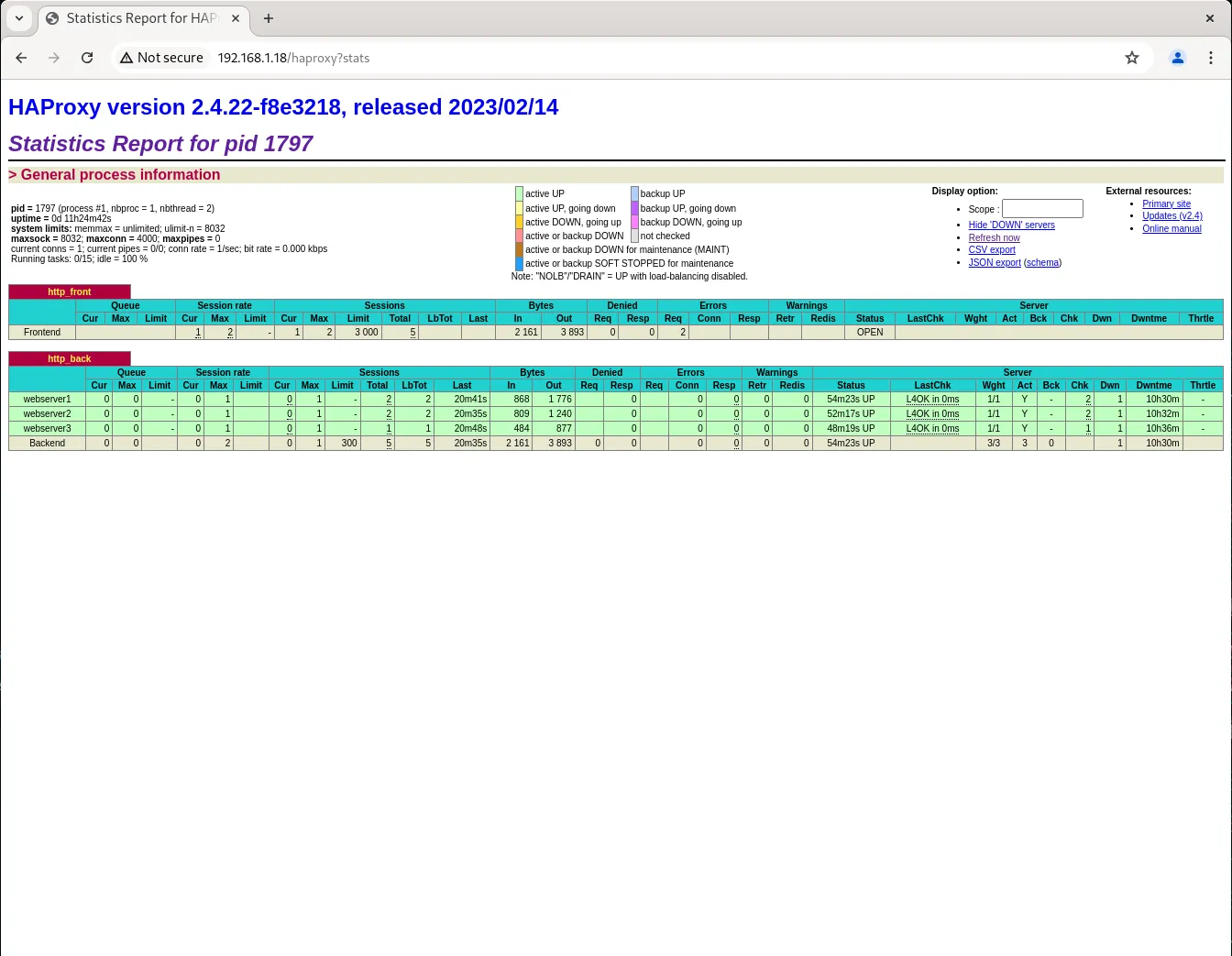
Photo by admingeek from Infotechys
Troubleshooting |
If you encounter issues with your HAProxy setup, here are a few troubleshooting tips:
Check Logs: HAProxy logs are invaluable for diagnosing problems. You can find them in
/var/log/haproxy.log.Configuration Test: Before restarting HAProxy, always test your configuration with the following command:
sudo haproxy -c -f /etc/haproxy/haproxy.cfg- Service Status: Use
systemctl status haproxyto check the status of the HAProxy service.


No comments:
Post a Comment