Introduction
If you’re looking to set up a robust web development environment on RHEL 9 or CentOS 9, installing the LAMP stack using Podman is an efficient and containerized approach. In this comprehensive guide, we’ll walk through the steps to install and configure the LAMP stack—Linux, Apache, MySQL (PostgreSQL in our case), and PHP—using Podman. By following these steps, you’ll be able to create a portable and scalable web application setup.
What is Podman?
Podman is a container management tool that allows you to run containers without needing a daemon. It’s particularly popular in environments that prefer lightweight and secure applications. Unlike Docker, Podman doesn’t require root privileges to run containers, making it a great choice for many Linux users.
What You’ll Need |
Before you begin, ensure you have:
- RHEL 9 or CentOS 9 installed
- Podman installed (You can install it via your package manager)
- Basic knowledge of command-line interface (CLI)
Why Use Podman for LAMP Stack?
| Feature | Description |
|---|---|
| Daemonless | Runs containers directly as a non-root user. |
| Compatibility | Similar command structure to Docker. |
| Easy Management | Simplifies the management of containers and pods. |
Install LAMP Stack on RHEL 9 | CentOS 9 Using Podman
Step 1: Create a Pod |
First, we need to create a pod to host our LAMP stack containers. If the pod doesn’t already exist, you can create it with the following command:
podman pod create --name my-lamp-pod -p 9601:443 -p 5432:5432Note: Mapping the HTTPS port 443 to 9601 (using the notation 9601:443) is just an example for this demonstration. You can map it to 443:443 or any port number within the available range of 1025 to 65535 that suits your needs.
Command [podman pod create]: Breakdown
| Option | Description |
|---|---|
pod create | Command to create a new pod. |
--name my-lamp-pod | Sets the name of the pod. |
-p 9601:443 | Maps port 443 (HTTPS) to host port 9601. |
-p 5432:5432 | Maps PostgreSQL port 5432 for database access. |
Step 2: Build a LAMP stack image |
1.) First, open a Containerfile:
vim Containerfile2.) Copy and paste the following into the file:
# Use a UBI/RHEL 9 base image
FROM registry.access.redhat.com/ubi9/ubi

# Install Nginx and PHP-FPM
RUN dnf install -y \
    nginx \
    php \
    php-fpm \
    php-mysqlnd \
    && dnf clean all

# Create the PHP-FPM socket directory
RUN mkdir -p /run/php-fpm && \
    chown -R nginx:nginx /run/php-fpm

# Copy custom Nginx configuration
COPY nginx.conf /etc/nginx/nginx.conf

# Copy SSL certificates (if needed)
COPY server.crt /etc/ssl/certs/server.crt
COPY server.key /etc/ssl/private/server.key

# Set permissions
RUN chown -R nginx:nginx /usr/share/nginx/html && \
    chmod -R 755 /usr/share/nginx/html

# Expose ports
EXPOSE 80
EXPOSE 443

# Start both Nginx and PHP-FPM
CMD ["sh", "-c", "php-fpm & nginx -g 'daemon off;'"]File [Containerfile]: Breakdown
| Step | Command | Purpose |
|---|---|---|
| 1 | FROM registry.access.redhat.com/ubi9/ubi | Use a Universal Base Image (UBI) from Red Hat, specifically version 9. |
| 2 | RUN dnf install -y \ nginx \ php \ php-fpm \ php-mysqlnd \ && dnf clean all | Install Nginx, PHP, PHP-FPM, and MySQL native driver, then clean up. |
| 3 | RUN mkdir -p /run/php-fpm && chown -R nginx:nginx /run/php-fpm | Create PHP-FPM socket directory and change ownership to the nginx user. |
| 4 | COPY nginx.conf /etc/nginx/nginx.conf | Copy custom Nginx configuration file into the container. |
| 5 | COPY server.crt /etc/ssl/certs/server.crt | Copy SSL certificate into the container. |
| 5 | COPY server.key /etc/ssl/private/server.key | Copy SSL key into the container. |
| 6 | RUN chown -R nginx:nginx /usr/share/nginx/html && chmod -R 755 /usr/share/nginx/html | Change ownership and set permissions for the Nginx HTML directory. |
| 7 | EXPOSE 80 | Declare that the container listens on port 80 (HTTP). |
| 7 | EXPOSE 443 | Declare that the container listens on port 443 (HTTPS). |
| 8 | CMD ["sh", "-c", "php-fpm & nginx -g 'daemon off;'"] | Start PHP-FPM in the background and Nginx in the foreground. |
3.) Build the LAMP stack image (called lampstack in this example) with the following command:
podman build -t lampstack .Run podman images command to verify:
podman imagesREPOSITORY TAG IMAGE ID CREATED SIZE
localhost/lampstack latest a6005d6b66d2 5 mins ago 345 MBStep 3: Run the Application Container |
Next, let’s deploy the Apache and PHP application container. We’ll mount a directory from the host to the container to serve the web application files.
podman run -d --pod my-lamp-pod --name my-web-container -v /path/to/directory:/var/www/html lampstack:latestCommand [podman run]: Breakdown
| Option | Description |
|---|---|
podman run -d | Runs the container in detached mode. |
--pod my-lamp-pod | Connects the container to the specified pod. |
--name my-web-container | Assigns a name to the container. |
-v /path/to/directory:/var/www/html | Binds the specified directory to the container. |
Configuring Apache and PHP |
Ensure you have an index.php file in the /path/to/directory to test your setup (copy and paste the following line to the index.php file):
<?php phpinfo(); ?>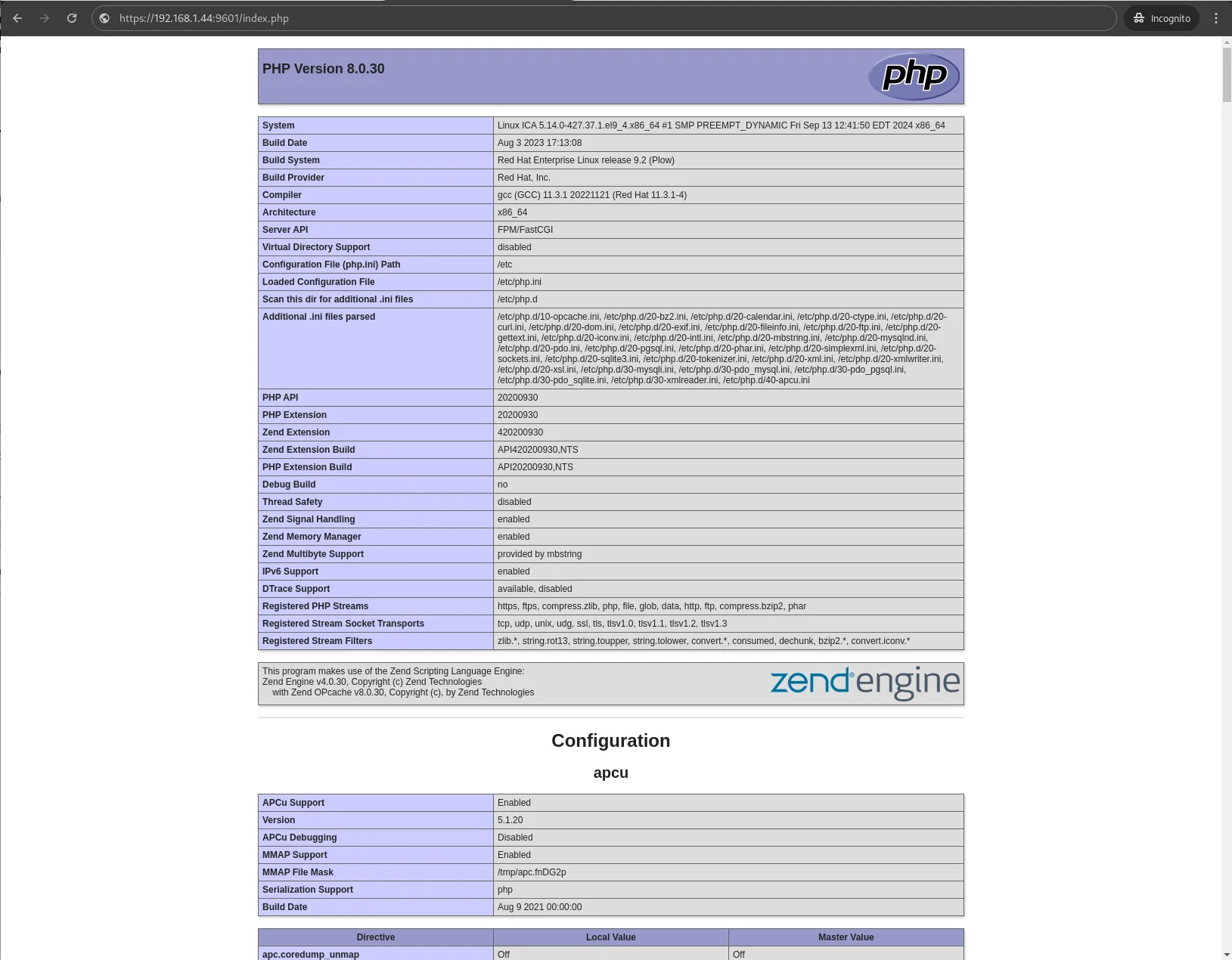
Photo by admingeek from Infotechys
You can place this file in your mounted directory to see if Apache serves it correctly.
Step 4: Run the PostgreSQL Container |
Now, we need to run the PostgreSQL container. We will configure it with a user, password, and database:
podman run -d --rm --pod my-lamp-pod --name my-db-container -e POSTGRES_USER=testuser -e POSTGRES_PASSWORD=pgpass_test_123 -e POSTGRES_DATABASE=login -v /path/to/directory/pgdata:/var/lib/postgresql/data:Z docker.io/postgresReplace the POSTGRES variable names with your chosen names, such as DATABASE and USER.
Command [podman run]: Breakdown
| Option | Description |
|---|---|
--rm | Automatically removes the container when stopped. |
--name my-db-container | Assigns a name to the PostgreSQL container. |
-e POSTGRES_USER=testuser | Sets the PostgreSQL username. |
-e POSTGRES_PASSWORD=pgpass_test_123 | Sets the password for the PostgreSQL user. |
-e POSTGRES_DB=login | Creates a database named ‘login’. |
-v /path/to/directory/pgdata:/var/lib/postgresql/data:Z | Binds a directory for persistent data. (:Z) is a SELinux context modifier.
|
Step 5: Verify Installation |
Check Running Containers
To verify that your containers are running, use the following command:
podman psCONTAINER ID IMAGE COMMAND CREATED STATUS PORTS NAMES
73e6d92ea406 localhost/podman-pause:4.9.4-rhel-1723107101 4 hours ago Up 4 hours 0.0.0.0:5432->5432/tcp, 0.0.0.0:9601->443/tcp 7a3b1227bf52-infra
69a3a918ebed localhost/lampstack:latest /sbin/init 4 hours ago Up 4 hours 0.0.0.0:5432->5432/tcp, 0.0.0.0:9601->443/tcp my-web-container
49d1879e546c docker.io/library/postgres:latest postgres 4 hours ago Up 4 hours 0.0.0.0:5432->5432/tcp, 0.0.0.0:9601->443/tcp my-db-containerYou should see both my-web-container and my-db-container listed.
Accessing the Web Application
Open a web browser and navigate to https://<your_server_ip>:9601 . You should see the PHP info page if everything is set up correctly.
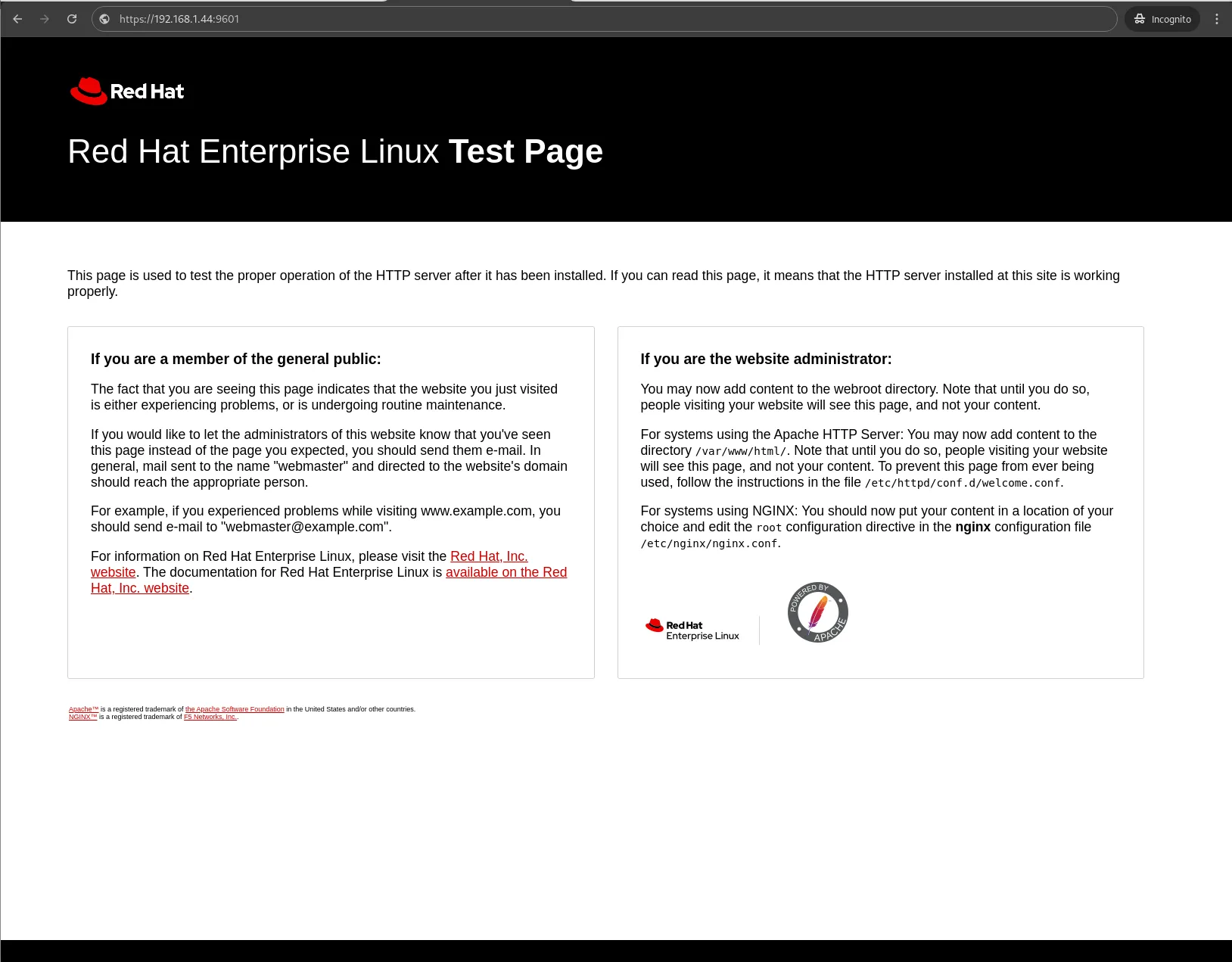
Photo by admingeek from Infotechys
Accessing PostgreSQL
You can access PostgreSQL using the following command from your terminal:
podman exec -it my-db-container psql -U testuser -d loginpsql (17.0 (Debian 17.0-1.pgdg120+1))
Type "help" for help.
login=#This command will connect you to the PostgreSQL database using the user and database you specified.
Install LAMP Stack on RHEL 9 | CentOS 9 Using Podman: Benefits of Using Podman for LAMP Stack
| Feature | Description |
|---|---|
| Lightweight | Podman containers consume fewer resources compared to traditional virtual machines. |
| Isolation | Each container operates in isolation, minimizing conflicts between applications. |
| Portability | Easily migrate your setup across different systems without dependency issues. |
Troubleshooting Common Issues
Web Application fails to start |
If you’re unable to launch the web application or if Apache isn’t starting from your web browser, the issue is likely related to the firewall. To resolve this, run the following commands to allow traffic for HTTP, HTTPS, and the mapped port 9601:
sudo firewall-cmd --permanent --add-port=80/tcp --add-port=443/tcp --add-port=9601/tcpsudo firewall-cmd --reloadPort Conflicts |
Ensure that the ports you’re trying to map are not already in use by other services on your host machine.
Permissions Issues |
If you encounter permission errors with mounted volumes, you may need to adjust the permissions of the host directories or use the :Z option to label the files correctly for SELinux.


No comments:
Post a Comment