Introduction
GEdit is a powerful yet straightforward text editor that comes pre-installed with the GNOME desktop environment. Known for its simplicity and flexibility, it’s an excellent choice for programmers and everyday users alike. In this blog post, we’ll guide you through the process of installing and using GEdit on Ubuntu 24.04, ensuring you get the most out of this versatile tool.
Why Choose Gedit? |
Before diving into the installation, let’s explore why Gedit is a popular choice:
- User-Friendly Interface: Gedit features a clean, intuitive interface, making it easy for both novices and experienced users.
- Syntax Highlighting: Supports various programming languages, allowing developers to read and write code more easily.
- Extensibility: With plugins available, users can enhance functionality according to their needs.
- Multi-Document Interface: Gedit allows users to work with multiple files simultaneously, increasing productivity.
Prerequisites
To install Gedit on Ubuntu 24.04, ensure you have:
| Prerequisites | Description |
|---|---|
| Active Internet Connection | Necessary for downloading GEdit. |
| Sufficient Disk Space | GEdit requires very little space. |
| Access to the Terminal | Needed to execute installation commands. |
Install and Use Gedit on Ubuntu 24.04
Step 1: Open the Terminal |
You can open the terminal by searching for it in the applications menu or using the shortcut Ctrl + Alt + T.
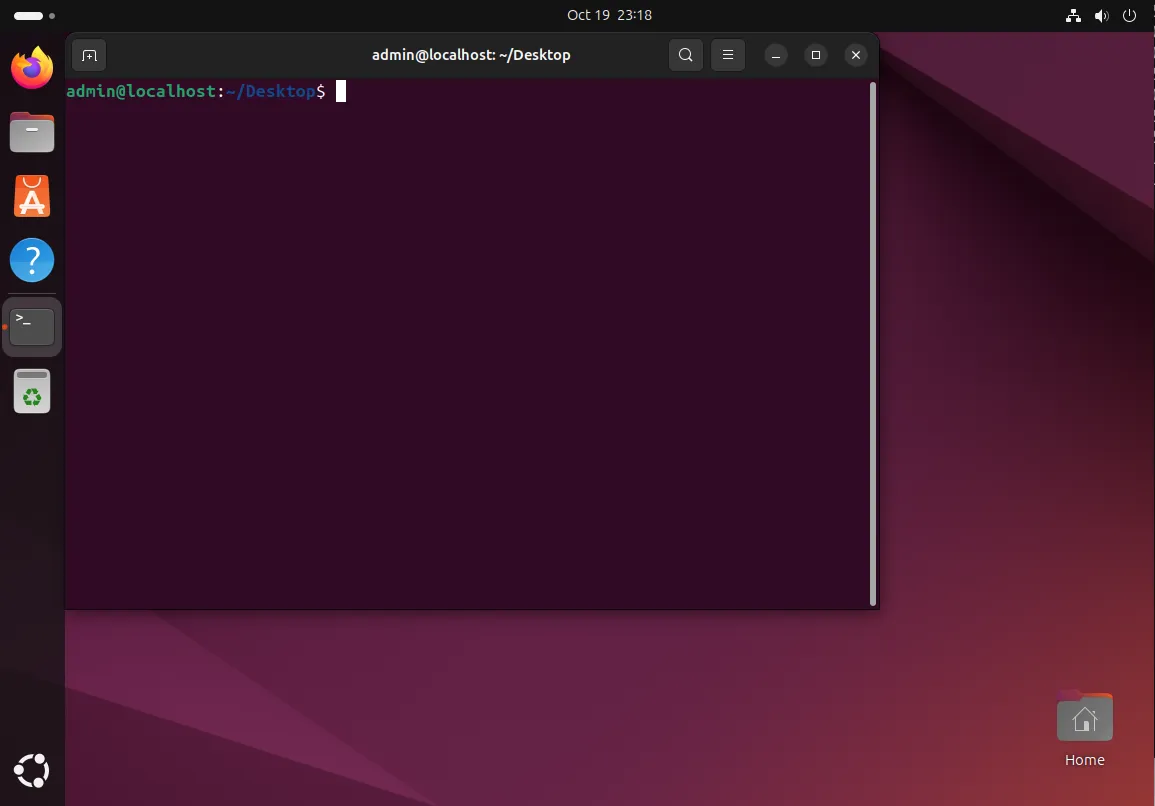
Photo by admingeek from Infotechys
Step 2: Update Package Lists |
Before installing any new software, it’s essential to update your package lists. Run the following command:
sudo apt updateStep 3: Install Gedit |
Now, you can install Gedit using the following command:
sudo apt install geditStep 4: Verify Installation |
To ensure Gedit has been installed correctly, you can check its version with this command:
gedit --versiongedit - Version 46.2You should see an output displaying the installed version of Gedit.
Using Gedit
Now that Gedit is installed, let’s explore how to use it effectively.
Launching Gedit |
You can launch Gedit in several ways:
- From the Terminal: Simply type
geditand hit Enter. - From the Applications Menu: Search for “Gedit” and click on the icon.
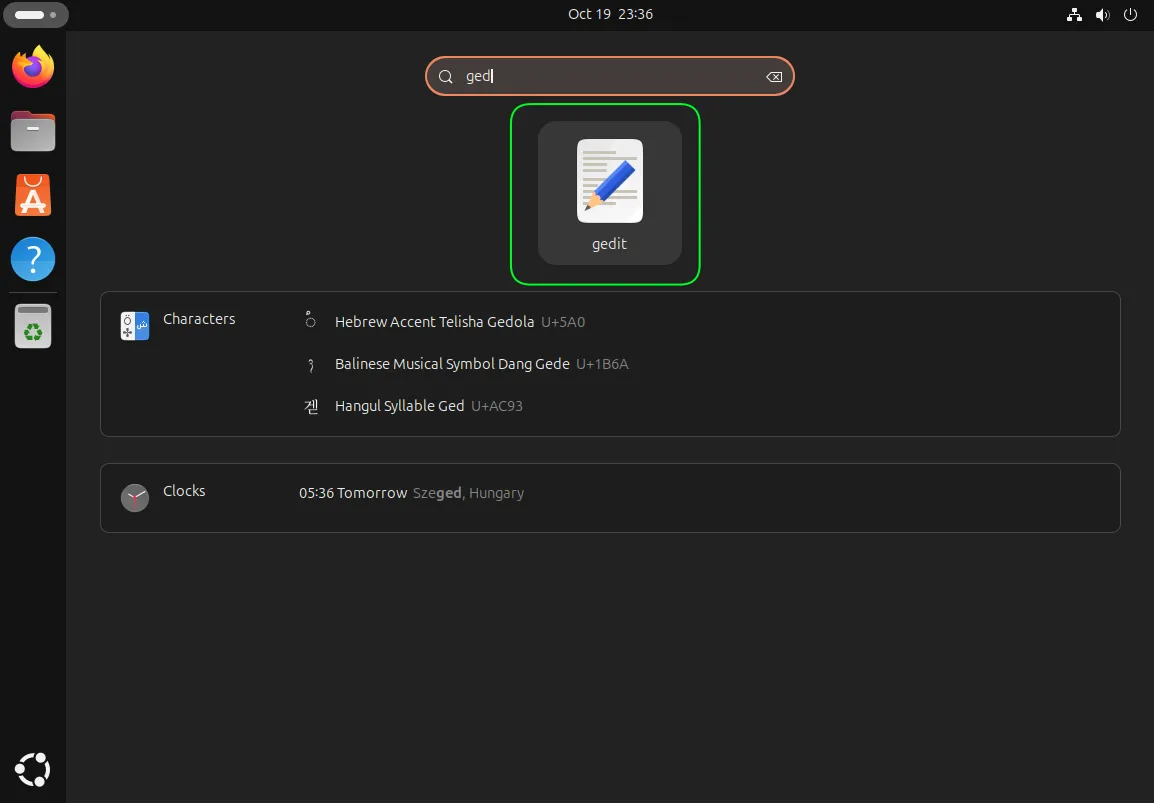
Photo by admingeek from Infotechys
Basic Features |
Creating a New File
To create a new file, follow these steps:
- Launch Gedit.
- Click on the hamburger menu icon next to the Save button or use the shortcut Ctrl + N.
Opening an Existing File |
To open a file, click on the Open button or use Ctrl + O. Navigate to the file’s location and select it.
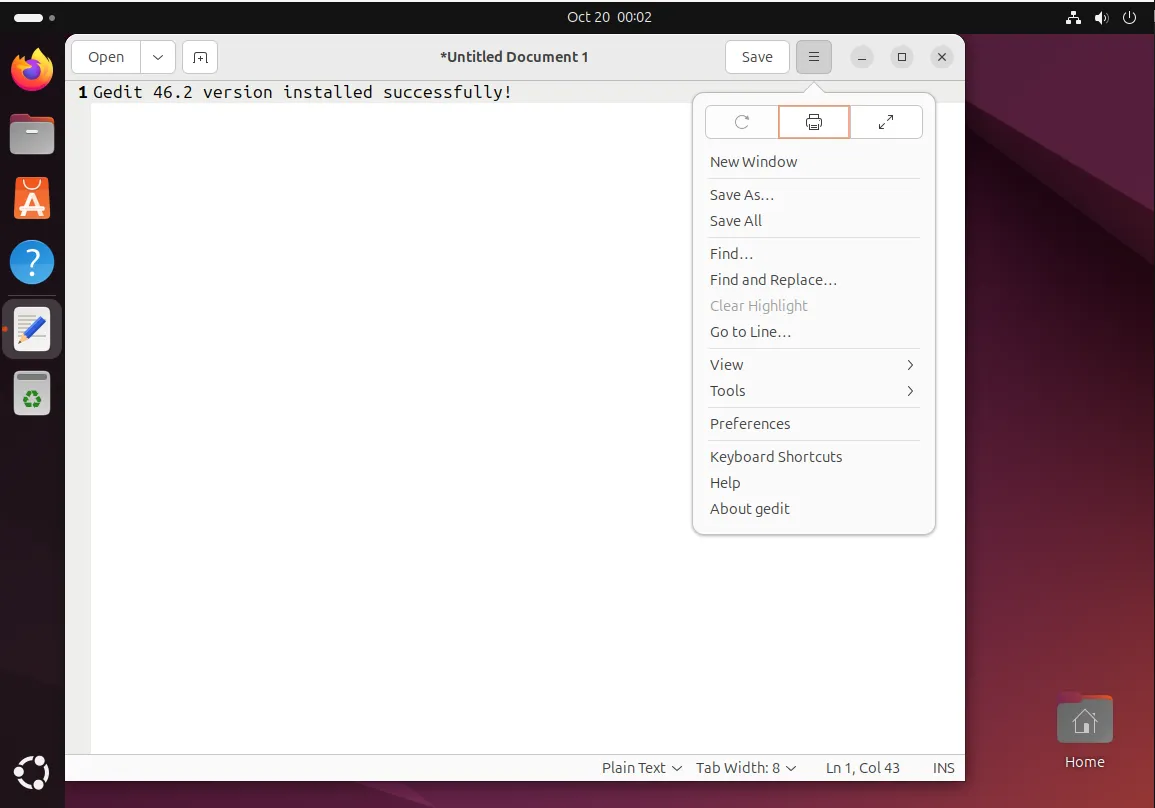
Photo by admingeek from Infotechys
Saving Files |
To save your work, click on the Save button or use the shortcut Ctrl + S. If it’s a new file, you’ll be prompted to choose a name and location.
Utilizing Syntax Highlighting
Gedit supports syntax highlighting for various programming languages. Here’s how to enable it:
- Open the file you want to edit.
- Click on View > Highlight Mode.
- Choose the language from the list (e.g., Python, HTML, etc.).
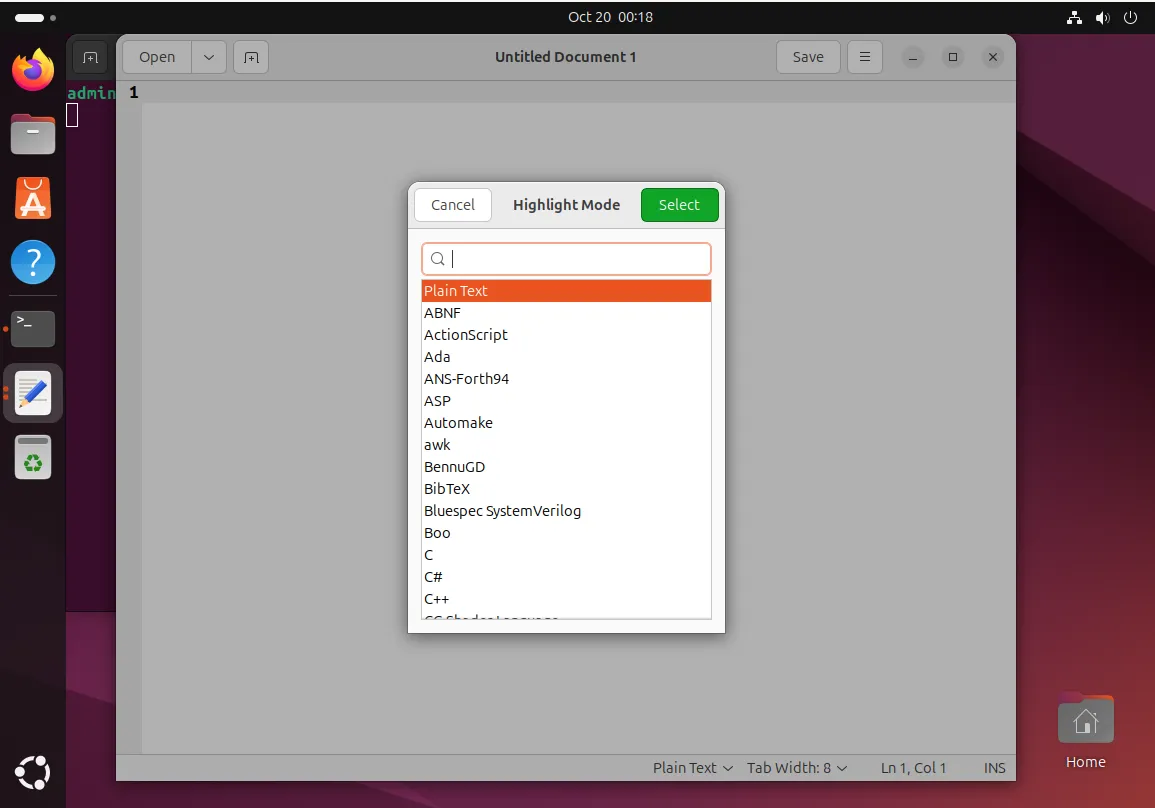
Photo by admingeek from Infotechys
Gedit for Developers
If you’re a developer, Gedit can be an effective tool for coding. Here’s how to optimize it for programming:
Enabling Line Numbers |
- Open Gedit.
- Click on the hamburger menu icon > Preferences.
- Under the View tab, check the box for Display line numbers.
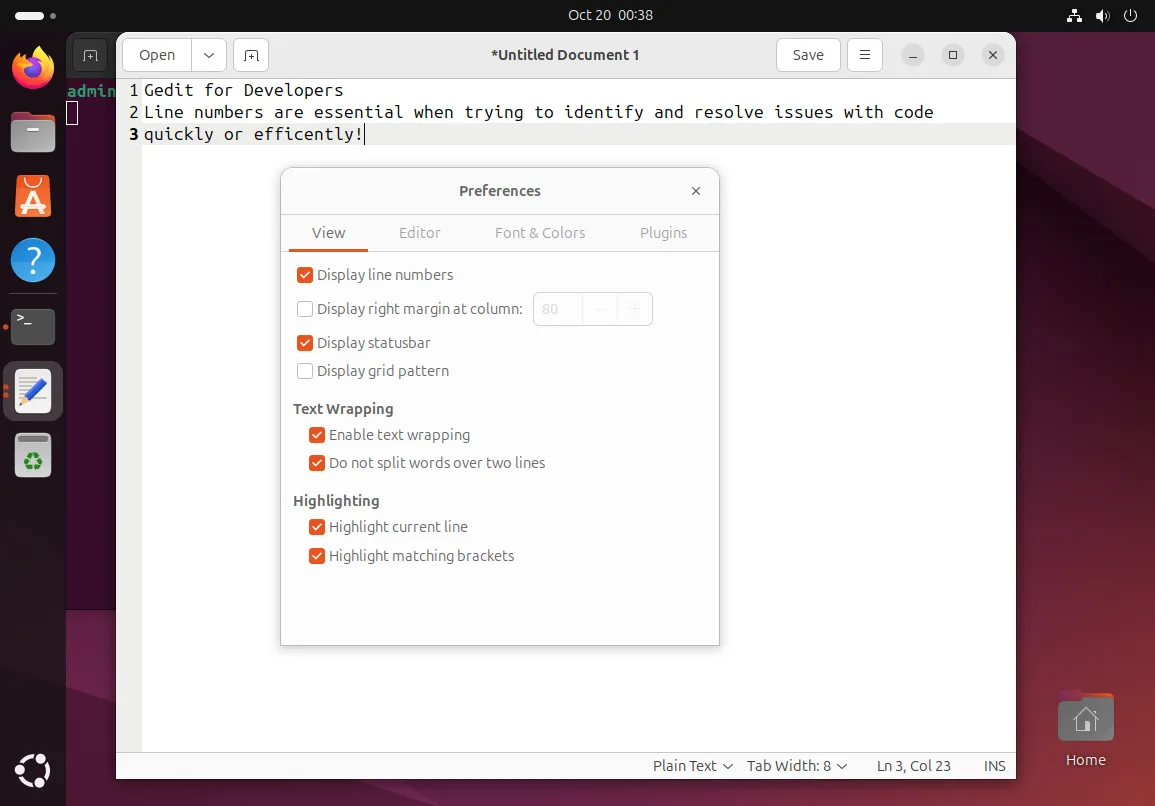
Photo by admingeek from Infotechys
Customizing the Appearance |
Gedit allows you to customize its appearance through themes. Here’s how to change the theme:
- Open Gedit.
- Click on the hamburger menu icon > Preferences > Font & Colors.
- Select a theme that suits your preference.
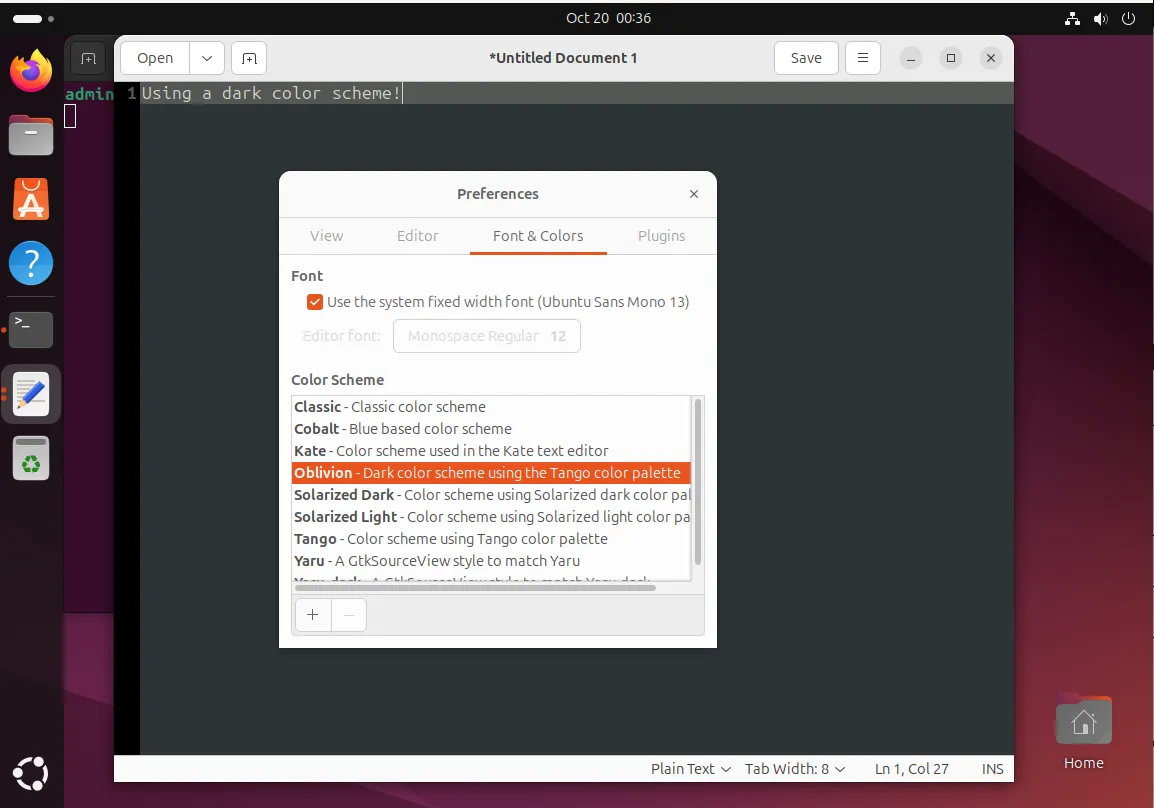
Photo by admingeek from Infotechys
Keyboard Shortcuts
Knowing keyboard shortcuts can significantly boost your efficiency. Here are some essential shortcuts for GEdit:
| Action | Shortcut |
|---|---|
| New Document | Ctrl + N |
| Open Document | Ctrl + O |
| Save Document | Ctrl + S |
| Close Document | Ctrl + W |
| Find | Ctrl + F |
| Replace | Ctrl + H |
| Undo | Ctrl + Z |
| Redo | Ctrl + Shift + Z |
Plugins
Gedit’s functionality can be enhanced with plugins. Here’s how to manage plugins:
Step 1: Access the Plugins Manager |
- Click on the hamburger menu icon > Preferences.
- Navigate to the Plugins tab.
Step 2: Enable/Disable Plugins |
You’ll see a list of available plugins. Check the boxes to enable them or uncheck to disable them.
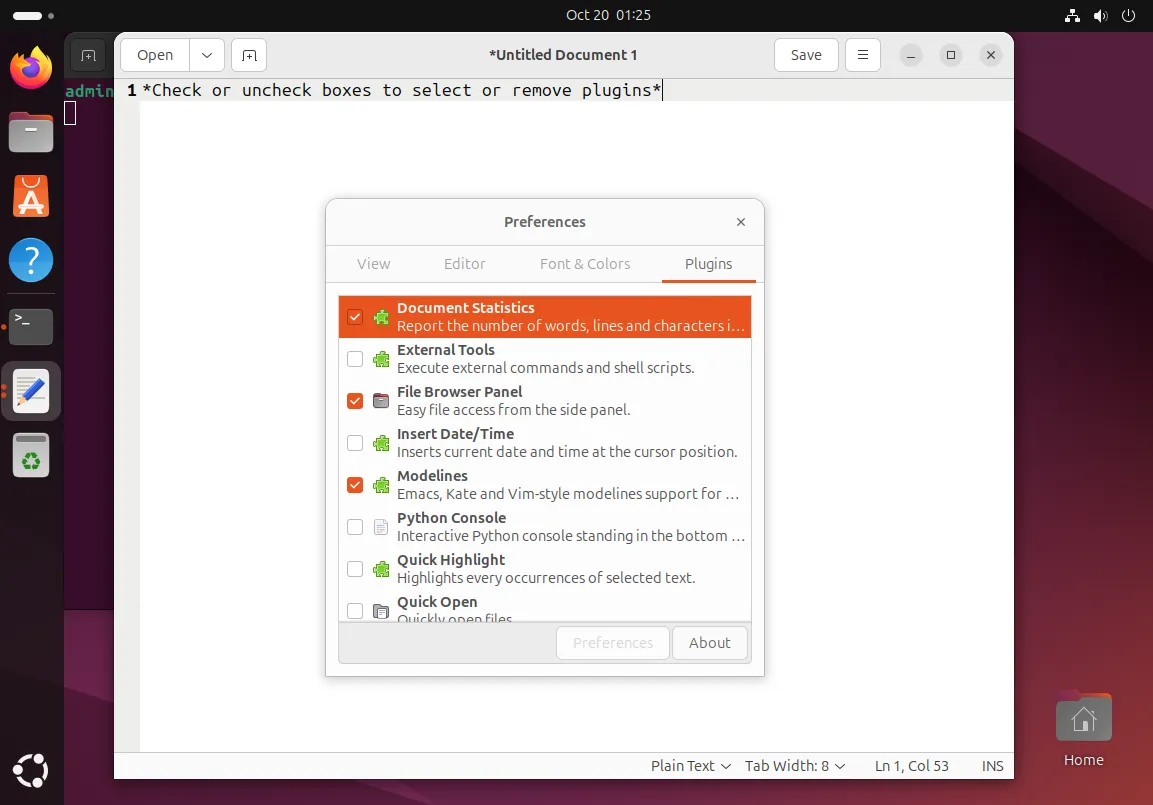
Photo by admingeek from Infotechys
Common Plugins to Consider
|
Auto-Completion |
To enhance coding efficiency, consider using snippets. You can create your custom snippets or use existing ones through the Snippets plugin.
Troubleshooting Common Issues
While Gedit is reliable, users may encounter some issues. Here are solutions to common problems:
Gedit Won’t Open |
Check if Gedit is already running: Sometimes, Gedit may already be open. Use the command
pkill geditto close it and try launching again.Reinstall Gedit: If problems persist, consider reinstalling it with the commands:
sudo apt remove gedit -y && sudo apt install gedit -ySyntax Highlighting Not Working |
If syntax highlighting is not working:
- Ensure you have selected the correct language under View > Highlight Mode.
- Check for any updates to the Gedit package, as newer versions may fix bugs.


No comments:
Post a Comment