Introduction
Are you a Linux aficionado venturing into the newest release of Red Hat Enterprise Linux (RHEL 9) or CentOS 9, but encountering difficulties installing LibreOffice? Fear not! LibreOffice, the potent open-source office suite, remains an essential tool for many users.
Why LibreOffice?
Before we dive into the installation process, let’s quickly recap why LibreOffice is worth your attention. LibreOffice offers a comprehensive suite of office productivity tools, including Writer (word processing), Calc (spreadsheet), Impress (presentation), and more. It’s free, open-source, and compatible with popular office formats, making it an excellent alternative to proprietary office suites.
Step 1: Update Your System
Before installing any new software, it’s essential to ensure that your system is up-to-date. Open a terminal and run the following commands:
$ sudo dnf update -yThis command will update your system’s package repository and install any available updates.
Step 2: Enable EPEL Repository
LibreOffice isn’t available in the default repositories of RHEL or CentOS. We’ll need to enable the Extra Packages for Enterprise Linux (EPEL) repository, which contains additional packages not included in the base distribution.
$ sudo dnf install epel-release                                                              # On CentOS 9
$ sudo dnf install https://dl.fedoraproject.org/pub/epel/epel-release-latest-9.noarch.rpm # On RHEL 9Step 3: Install LibreOffice
Now that we have the EPEL repository enabled, we can proceed to install LibreOffice using the following command:
$ sudo dnf -y install libreofficeThis command will download and install the LibreOffice suite along with any necessary dependencies.
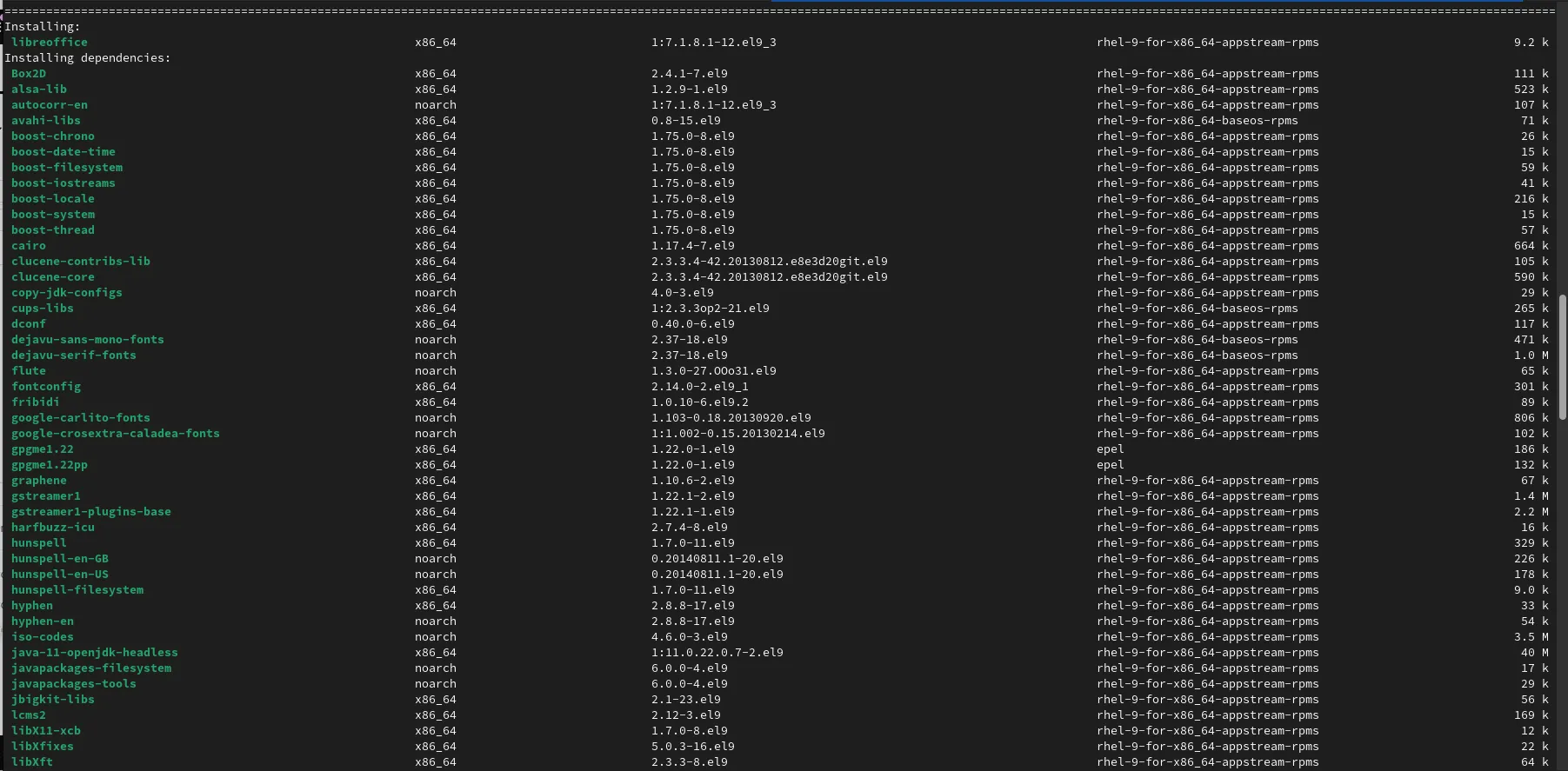
Photo by admingeek from Infotechys
Step 4: Launch LibreOffice
Once the installation is complete, you can launch LibreOffice from the applications menu or by running the following command in the terminal:
$ libreoffice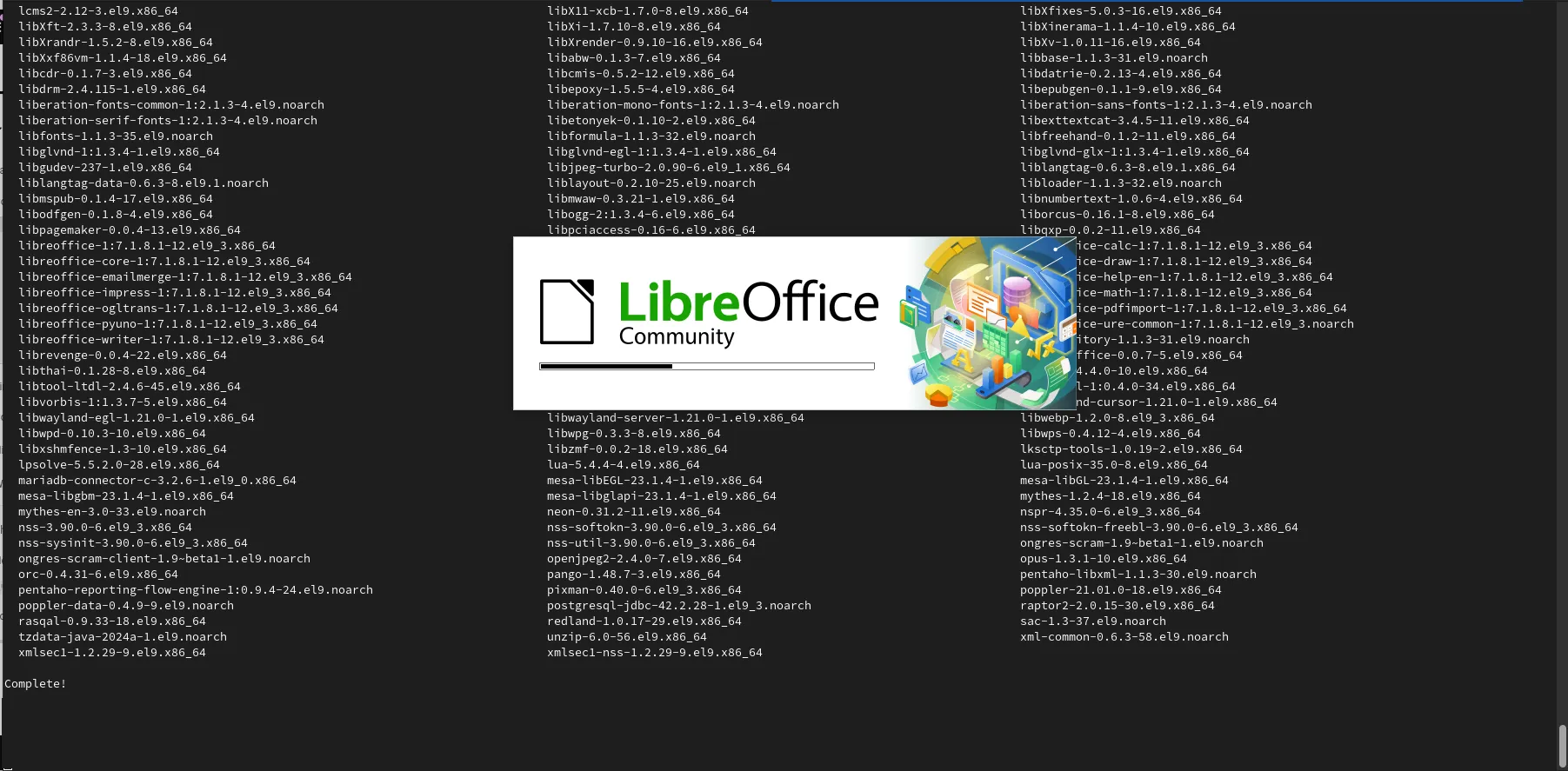
Photo by admingeek from Infotechys
And there you have it! LibreOffice is now installed and ready to use on your RHEL 9 or CentOS 9 system.
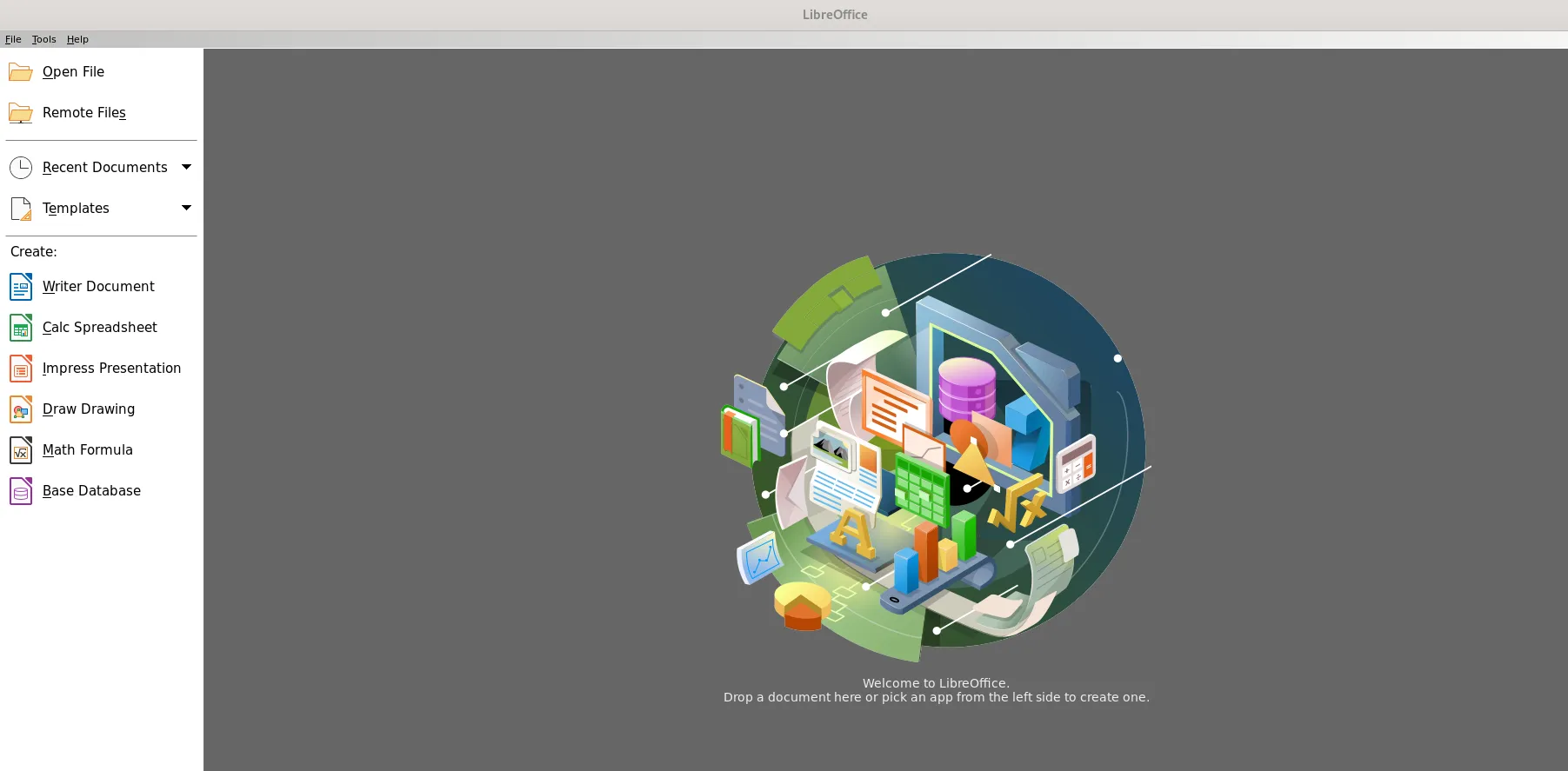
Photo by admingeek from Infotechys
Troubleshooting Tips
If you encounter any issues during the installation process, here are a few troubleshooting tips to help you out:
| Issue | Solution |
|---|---|
| Dependency Errors | If you encounter dependency errors, ensure that the EPEL repository is properly enabled and retry running the installation command. |
| Installation Failures | Check the terminal output for error messages if the installation fails. These messages can offer valuable insights into the underlying issue. |
| Incomplete Installation | In rare instances where the installation seems successful but LibreOffice fails to launch correctly, consider reinstalling LibreOffice using the sudo dnf reinstall libreoffice command. |


No comments:
Post a Comment