Introduction
If you’ve found yourself locked out of your Ubuntu 24.04 system due to a forgotten root password, don’t worry. This guide will walk you through the steps to recover or reset your root password effectively. We’ll cover everything from understanding the recovery process to detailed command-line instructions, ensuring you regain access to your system swiftly.
Understanding the Root Account |
In Ubuntu, the root account has full administrative privileges. By default, Ubuntu encourages the use of the sudo command for administrative tasks, but sometimes direct access to the root account is necessary. Whether you’ve forgotten your password or encountered issues with user permissions, knowing how to reset your root password is essential for system recovery.
Key Points
| Concept | Explanation |
|---|---|
| Root Account | The system’s primary administrator. |
| Sudo | A command to execute tasks with root privileges. |
| Recovery Mode | A boot mode allowing access to recovery options. |
Preparation: Accessing GRUB Menu
Before you can reset your root password, you’ll need to access the GRUB menu. This is crucial as it allows you to boot your system into recovery mode.
Steps to Access GRUB |
- Restart your computer.
- As your system boots up, repeatedly press the Shift key (for BIOS systems) or the Esc key (for UEFI systems) to bring up the GRUB menu.
- If you see the GRUB menu, you’re ready to proceed. If not, try restarting and pressing the keys again.
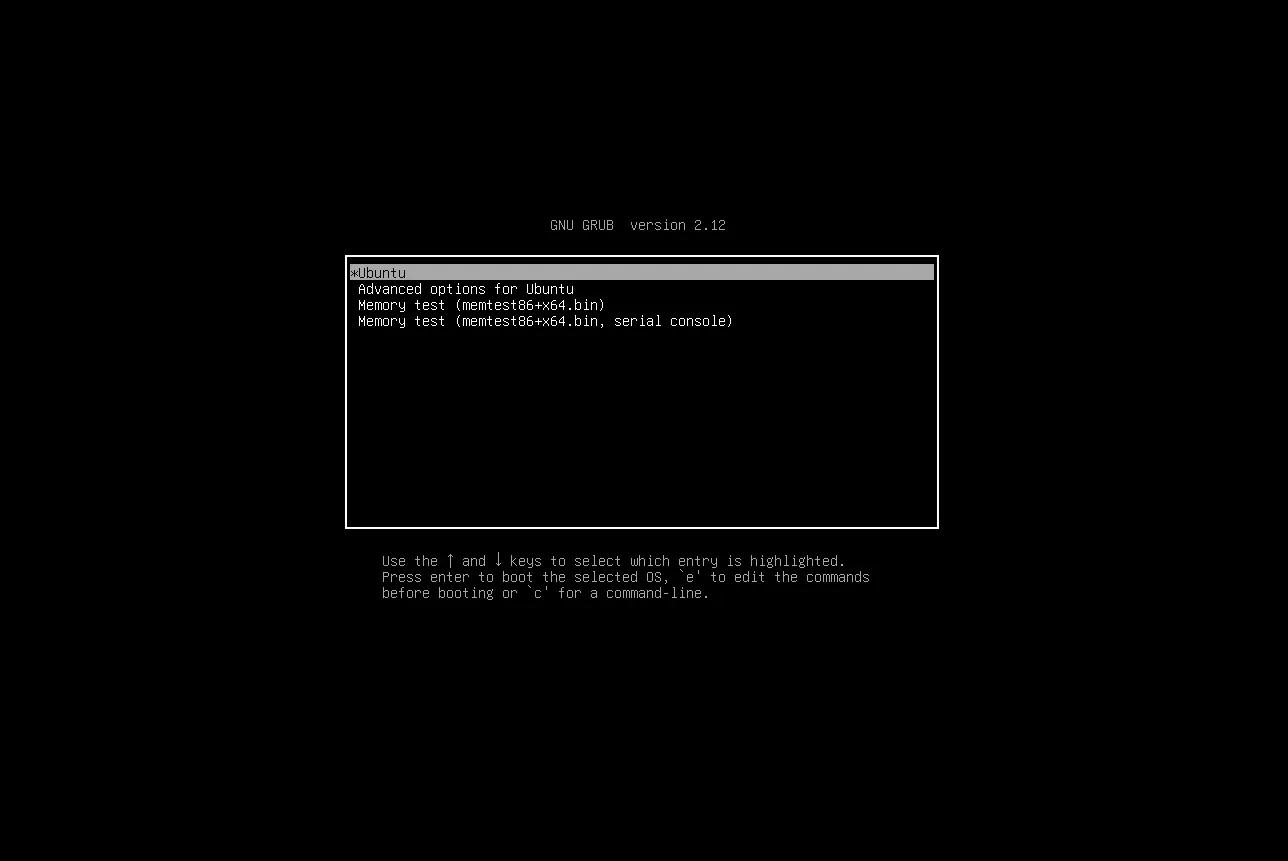
Photo by admingeek from Infotechys
Booting into Recovery Mode
Once in the GRUB menu, follow these steps to boot into recovery mode:
- Use the arrow keys to highlight the entry for your Ubuntu installation.
- Press the ‘e’ key to edit the boot parameters.
- Find the line starting with
linuxand remove everything fromro quietand appendrw init=/bin/bashto the end of this line. - Press F10 or Ctrl + X to boot with these parameters.
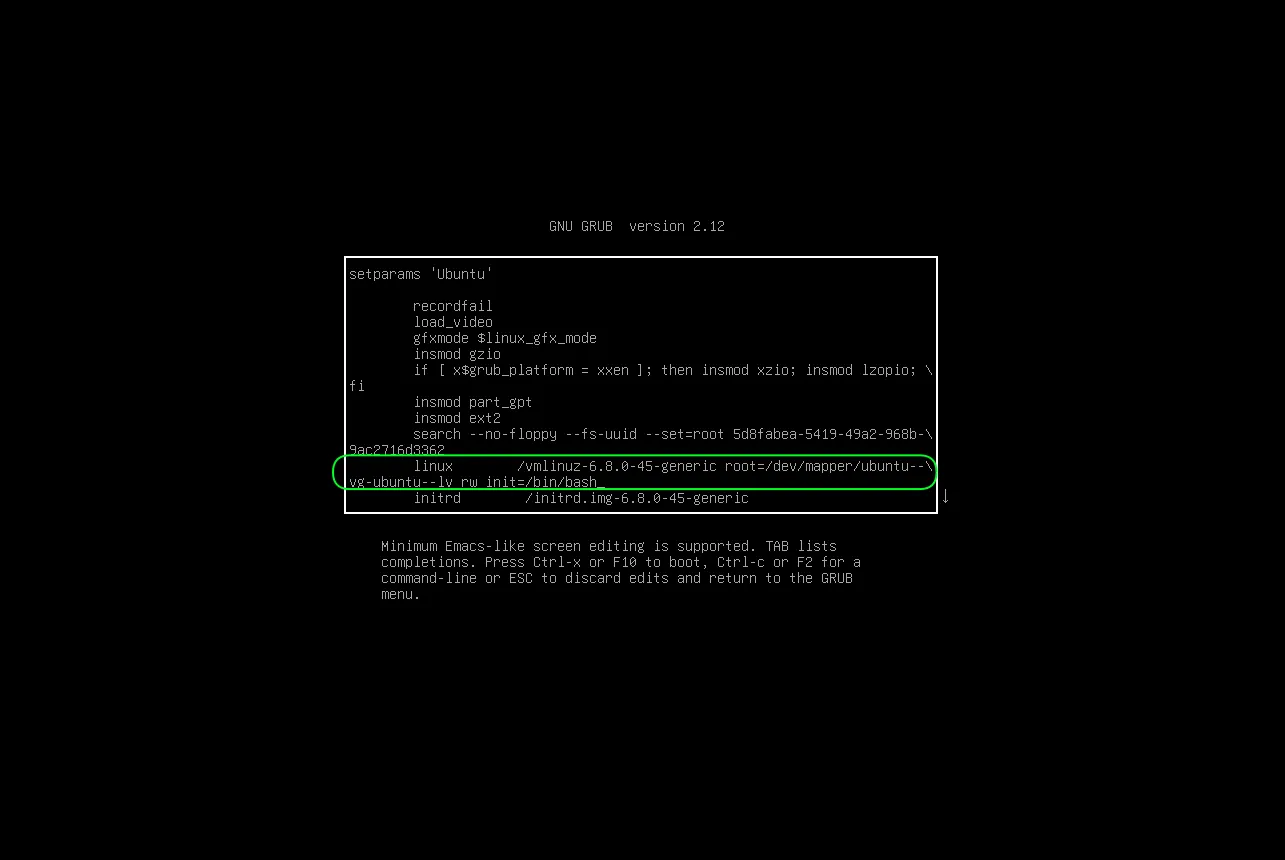
Photo by admingeek from Infotechys
Important Note |
This process grants you root access to the system without needing a password, but it’s also a significant security risk. Only perform these actions on systems you own or have explicit permission to access.
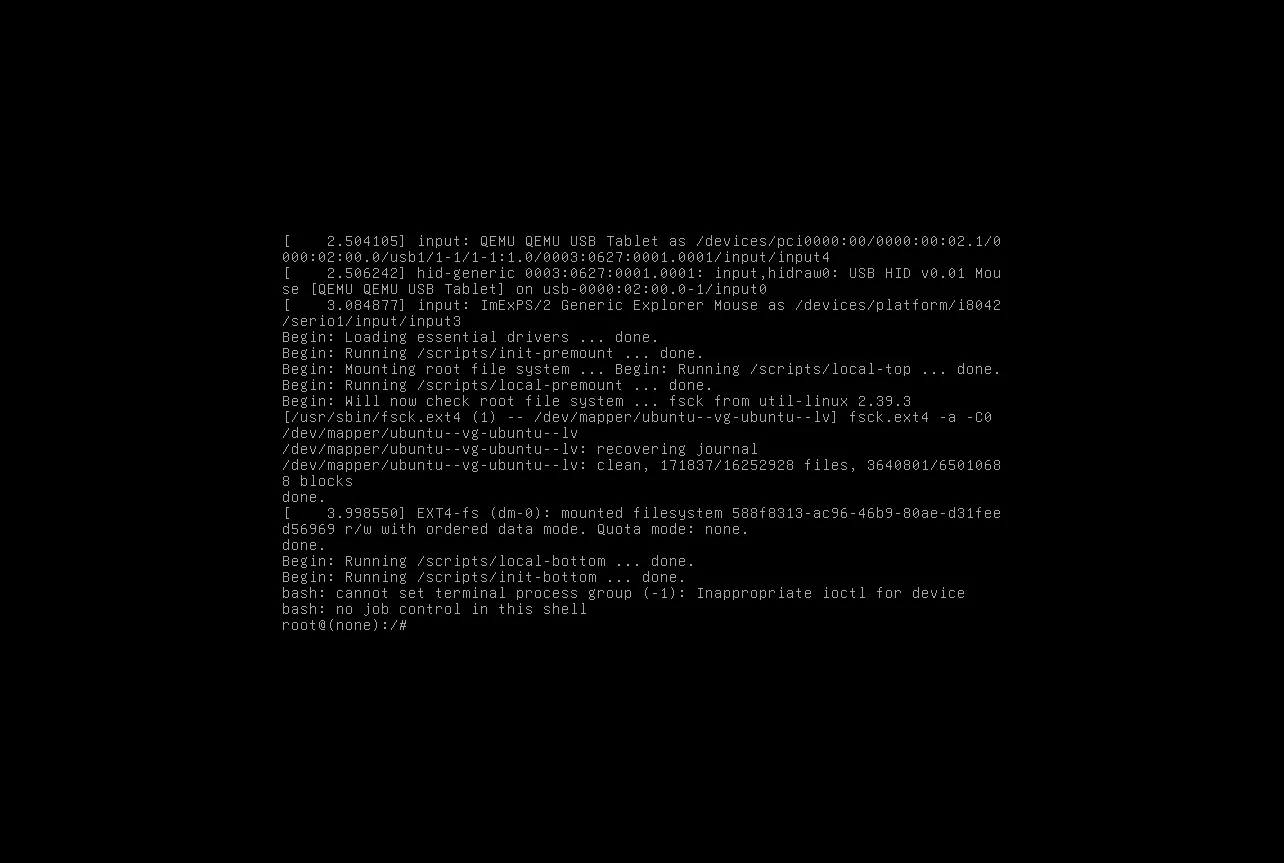
Photo by admingeek from Infotechys
Mounting the File System
Once you have booted into recovery mode, your file system will be in a read-only state. To reset your password, you need to mount it with write permissions.
Command to Mount |
mount -o remount,rw /This command remounts the root file system as read-write, allowing you to make changes.
Resetting the Root Password
Now that you have write access to the file system, you can reset the root password.
Command to Reset Password |
passwd rootWhen prompted, enter your new root password. You’ll need to enter it twice for confirmation. Make sure to choose a strong password that you can remember.
Enter new password:
Retype new password:
passwd: password updated successfully
Verifying the Changes
To ensure that your changes have taken effect, you can attempt to switch to the root user with the new password.
Command to Switch User |
admin@(none):~$ su -
Password:Enter the root password you just set. If successful, you should see the root shell prompt.
root@(none):~#If you encounter any issues, recheck the steps and ensure you followed them correctly.
Rebooting the System
With the root password reset, you can now reboot your system to access it normally.
Command to Reboot |
exec /sbin/initAlternatively, you can use:
rebootYour system should now boot normally, and you can log in using the root account or your regular user account with sudo privileges.
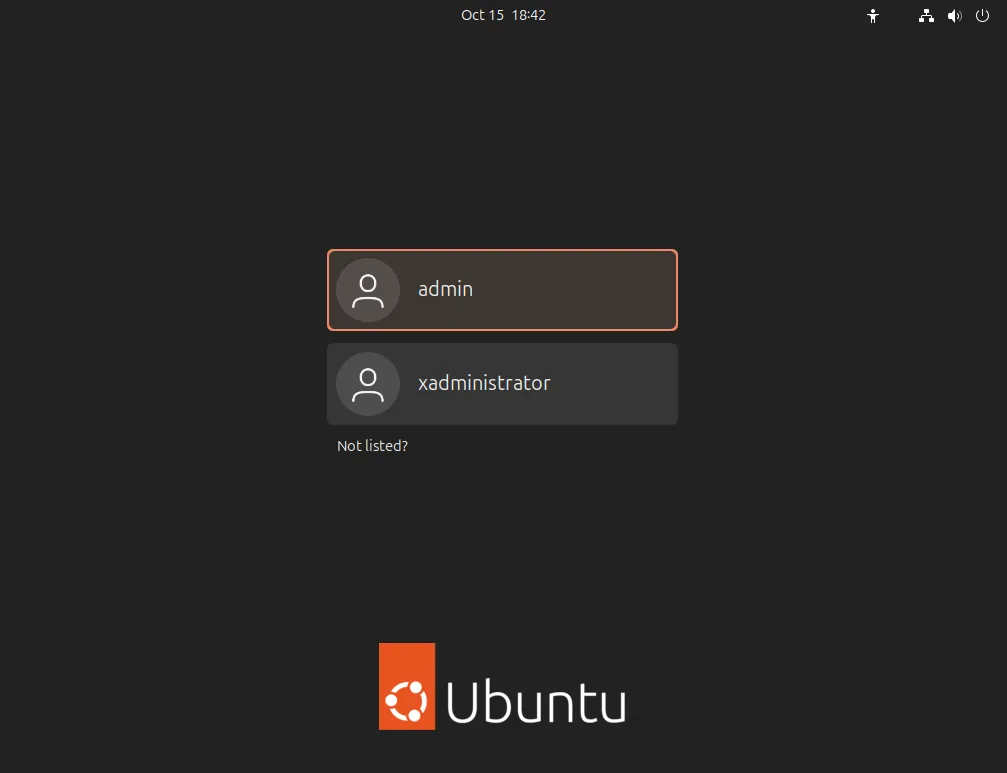
Photo by admingeek from Infotechys


No comments:
Post a Comment