Introduction
Kubernetes has become the de facto standard for container orchestration, providing powerful tools to deploy, manage, and scale containerized applications. Setting up a Kubernetes cluster on Ubuntu 23.10 can significantly enhance your development and deployment workflows. This comprehensive guide will walk you through the steps to install and configure a Kubernetes cluster on Ubuntu 23.10, ensuring a smooth and efficient setup.
Why Kubernetes?
Kubernetes, often abbreviated as K8s, is a powerful open-source platform for managing containerized workloads and services. It provides a robust set of features that make it an essential tool for modern DevOps practices:
|
Prerequisites
Before we begin, ensure you have the following prerequisites:
- Three or more Ubuntu 23.10 machines (one master and at least two worker nodes)
- Minimum 2 GB RAM and 2 CPUs per machine
- Root or sudo access to all machines
- Stable internet connection
- If you do not have a DNS setup, each node should have the following entries in the
/etc/hostsfile:
# Kubernetes Cluster
192.168.1.243 	master.naijalabs.net   master   # Replace with your actual hostname and IP address
192.168.1.244 	worker1.naijalabs.net  worker1  # Replace with your actual hostname and IP address
192.168.1.245 worker2.naijalabs.net worker2 # Replace with your actual hostname and IP addressFor demonstration purposes, we’ve configured our Ubuntu servers as follows:
| Hostname | RAM | Cores | OS |
| master.naijalabs.net | 4 | 2 | Ubuntu 23.10 (Mantic Minotaur) |
| worker1.naijalabs.net | 4 | 2 | Ubuntu 23.10 (Mantic Minotaur) |
| worker2.naijalabs.net | 4 | 2 | Ubuntu 23.10 (Mantic Minotaur) |
Setting up a Kubernetes Cluster on Ubuntu 23.10
Step 1: Update Your System
First, update the package lists and upgrade the existing packages on all your nodes.
sudo apt update && sudo apt upgrade -yStep 2: Install Docker
Docker is the container runtime for Kubernetes. Install Docker on all your nodes.
sudo apt install docker.io -yStart and enable Docker:
sudo systemctl enable --now dockerVerify the Installation:
docker --versionDocker version 24.0.7, build 24.0.7-0ubuntu2~23.10.1Step 3: Disable Swap
Kubernetes requires swap to be disabled. Turn off swap and remove any swap entries in /etc/fstab.
sudo swapoff -asudo sed -i '/\/swap.img\s\+none\s\+swap\s\+sw\s\+0\s\+0/s/^/#/' /etc/fstabThis is an ideal point to perform a reboot.
sudo systemctl rebootOnce the system is back online, execute the following command to verify that swap has been disabled.
free -m | tail -n 1Swap: 0 0 0Step 4: Load Kernel Parameters
Configure the required kernel parameters to ensure Kubernetes runs optimally:
sudo tee /etc/modules-load.d/containerd.conf <<EOF
overlay
br_netfilter
EOFsudo modprobe overlaysudo modprobe br_netfilterBy loading these modules, you’re setting up your servers for Kubernetes installation, helping them handle networking and load balancing within the cluster. Next, as the root user on each node, create a configuration file to make sure these modules load at boot:
sudo tee /etc/sysctl.d/kubernetes.conf <<EOF
net.bridge.bridge-nf-call-ip6tables = 1
net.bridge.bridge-nf-call-iptables = 1
net.ipv4.ip_forward = 1
EOFReload the changes:
sudo sysctl --systemStep 5: Install Kubernetes Components
Install kubeadm, kubelet, and kubectl on all nodes.
sudo apt-get install -y curl gnupg2 software-properties-common apt-transport-https ca-certificates curlNOTE: As of recent updates, the apt-key utility is deprecated. You should use the /etc/apt/trusted.gpg.d directory to manage your keyrings. Here’s how you can add a GPG key and repository securely without using apt-key.
Adding a GPG Key to Trusted Keyring Directory
First, download the GPG key:
curl -fsSL https://pkgs.k8s.io/core:/stable:/v1.30/deb/Release.key | sudo gpg --dearmor -o /etc/apt/keyrings/kubernetes-apt-keyring.gpgAdding the Kubernetes APT Repository
Next, add the Kubernetes APT repository, specifying the signed-by option to use the key from the keyring:
sudo echo 'deb [signed-by=/etc/apt/keyrings/kubernetes-apt-keyring.gpg] https://pkgs.k8s.io/core:/stable:/v1.30/deb/ /' | sudo tee /etc/apt/sources.list.d/kubernetes.listdeb [signed-by=/etc/apt/keyrings/kubernetes-apt-keyring.gpg] https://pkgs.k8s.io/core:/stable:/v1.30/deb/ /Ensure all packages are up-to-date.
sudo apt update...
Get:2 https://prod-cdn.packages.k8s.io/repositories/isv:/kubernetes:/core:/stable:/v1.30/deb InRelease [1,186 B]
Get:6 https://prod-cdn.packages.k8s.io/repositories/isv:/kubernetes:/core:/stable:/v1.30/deb Packages [5,226 B]
Fetched 6,412 B in 1s (4,785 B/s)
Reading package lists... Done
Building dependency tree... Done
Reading state information... Done
All packages are up to date.Updating and Installing Kubernetes Components
Finally, update the package lists and install kubeadm, kubelet, and kubectl:
sudo apt-get update ; sudo apt-get install -y kubelet kubeadm kubectlHolding the Kubernetes packages (kubelet, kubeadm, and kubectl) ensures that they won’t be automatically upgraded, which can sometimes cause compatibility issues with your existing cluster setup. Run the following command:
sudo apt-mark hold kubelet kubeadm kubectlkubelet set on hold.
kubeadm set on hold.
kubectl set on hold.Run the following command to verify the install:
kubeadm versionkubeadm version: &version.Info{Major:"1", Minor:"30", GitVersion:"v1.30.2", GitCommit:"39683505b630ff2121012f3c5b16215a1449d5ed", GitTreeState:"clean", BuildDate:"2024-06-11T20:27:59Z", GoVersion:"go1.22.4", Compiler:"gc", Platform:"linux/amd64"}Step 6: Set Firewall Rules
In Ubuntu, you can use ufw (Uncomplicated Firewall). Here are the equivalent commands to open the necessary ports for Kubernetes using ufw (on each node):
sudo ufw allow 6443/tcp
sudo ufw allow 2379:2380/tcp
sudo ufw allow 10250/tcp
sudo ufw allow 10251/tcp
sudo ufw allow 10252/tcp
sudo ufw allow 10255/tcp
sudo ufw allow 5473/tcpAfter adding these rules, enable the firewall (if it isn’t already enabled) and reload the rules to apply the changes:
sudo ufw enable
sudo ufw reloadNOTE: If you received this message (below). Make sure to allow your SSH port to avoid blocking remote access to your machine.
Command may disrupt existing ssh connections. Proceed with operation (y|n)? y
Firewall is active and enabled on system startup
Firewall reloaded
sudo ufw allow 22/tcp; sudo ufw reload| Port(s) | Description |
|---|---|
| 6443 | Kubernetes API server |
| 2379-2380 | etcd server client API |
| 10250 | Kubelet API |
| 10251 | kube-scheduler |
| 10252 | kube-controller-manager |
| 10255 | Read-only Kubelet API |
| 5473 | ClusterControlPlaneConfig API |
These commands configure the firewall on Ubuntu to allow the necessary communication for various Kubernetes components, ensuring that your cluster operates smoothly.
Step 7: Configure Containerd
Run the following command to build out the containerd configuration file:
sudo sh -c "containerd config default > /opt/containerd/config.toml" ; cat /opt/containerd/config.tomlOpen the containerd config file and set the SystemdCgroup variable to true (SystemdCgroup = true):
sudo vim /opt/containerd/config.tomlSystemdCgroup = trueSave and quit the file. Then, reload the configuration file and restart containerd.
sudo systemctl daemon-reload && sudo systemctl restart containerd.serviceStep 8: Configure Kubelet
First, open the kubelet configuration file. You can do this by running:
sudo vim /etc/default/kubeletIn this file, add a line to set the cgroup driver. Just paste this line at the end:
KUBELET_EXTRA_ARGS="--cgroup-driver=cgroupfs"Save the file and exit the text editor. Also, for the changes to take effect, you need to reload the configuration and restart kubelet. Run this command:
sudo systemctl daemon-reload && sudo systemctl enable --now kubeletNo need to stress about any kubelet errors right now. Once you join the worker nodes to the Kubernetes cluster with the provided join command, the kubelet service on each worker node will kick in and start talking to the control plane automatically. The kubelet’s job is to manage the containers on the node and make sure they run according to what the Kubernetes control plane dictates.
NOTE: Up until this point of the installation process, we’ve installed and configured Kubernetes components on all nodes. From this point onward, we will focus on the master node.
Step 9: Initialize Kubernetes on the Master Node
Now that you’ve set up your cluster nodes, it’s time to get Kubernetes running on the master node. Here’s how to do it:
1. Edit the Docker configuration |
Next, open the Docker daemon configuration file by running:
sudo nano /etc/docker/daemon.jsonAdd the following configuration block to this file:
{
  "exec-opts": ["native.cgroupdriver=systemd"],
  "log-driver": "json-file",
  "log-opts": {
    "max-size": "100m"
  },
  "storage-driver": "overlay2"
}This sets up Docker to work better with Kubernetes. After adding this block, save the file and exit the editor. Then, reload the configuration and restart docker.
sudo systemctl daemon-reload && sudo systemctl restart docker2. Edit the kubeadm configuration file |
Open the kubeadm configuration file:
sudo vim /usr/lib/systemd/system/kubelet.service.d/10-kubeadm.confAdd this line to the file (under the last Environment entry):
Environment="KUBELET_EXTRA_ARGS=--fail-swap-on=false"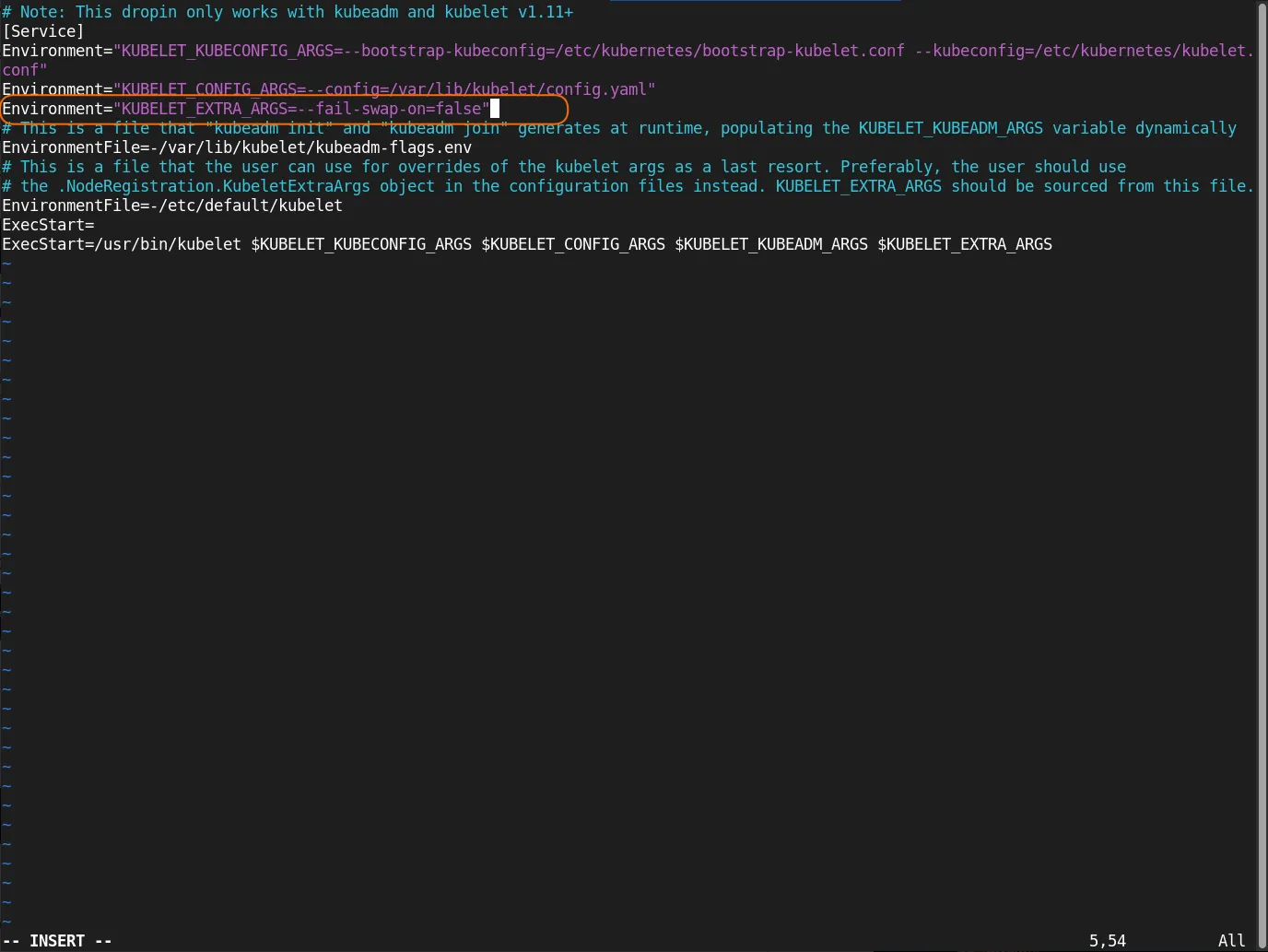
Photo by admingeek from Infotechys
Save the file and exit. Then, reload the configuration and restart the kubelet.
sudo systemctl daemon-reload && sudo systemctl restart kubelet3. Initializing Kubernetes Control Plane |
Proceed with initializing the Kubernetes control plane on the master node. Run the following command:
sudo kubeadm config images pull[config/images] Pulled registry.k8s.io/kube-apiserver:v1.30.2
[config/images] Pulled registry.k8s.io/kube-controller-manager:v1.30.2
[config/images] Pulled registry.k8s.io/kube-scheduler:v1.30.2
[config/images] Pulled registry.k8s.io/kube-proxy:v1.30.2
[config/images] Pulled registry.k8s.io/coredns/coredns:v1.11.1
[config/images] Pulled registry.k8s.io/pause:3.9
[config/images] Pulled registry.k8s.io/etcd:3.5.12-0This step is typically performed before initializing the Kubernetes cluster to ensure that all required images are available locally and can be used without relying on an external registry during cluster setup. Next, run the following command:
sudo kubeadm init --pod-network-cidr=10.244.0.0/16Your Kubernetes control-plane has initialized successfully!
To start using your cluster, you need to run the following as a regular user:
mkdir -p $HOME/.kube
sudo cp -i /etc/kubernetes/admin.conf $HOME/.kube/config
sudo chown $(id -u):$(id -g) $HOME/.kube/config
Alternatively, if you are the root user, you can run:
export KUBECONFIG=/etc/kubernetes/admin.conf
You should now deploy a pod network to the cluster.
Run "kubectl apply -f [podnetwork].yaml" with one of the options listed at:
https://kubernetes.io/docs/concepts/cluster-administration/addons/
Then you can join any number of worker nodes by running the following on each as root:
kubeadm join 192.168.1.243:6443 --token 4xuevo.18r48crs8esypteq \
--discovery-token-ca-cert-hash sha256:8ab1eedb69eea68ad59103384cc7043a58185738a74ef93f393fd6ec54288454This command sets up the Kubernetes control plane on the master node. The --pod-network-cidr flag defines the IP address range for the pod network.
4. Set Up kubeconfig File |
Set up the kubeconfig file to enable communication with the Kubernetes cluster. Run the following commands:
mkdir -p $HOME/.kubesudo cp -i /etc/kubernetes/admin.conf $HOME/.kube/configsudo chown $(id -u):$(id -g) $HOME/.kube/config5. Deploy Pod Network |
To enable networking between pods across the cluster, deploy a pod network.
There are several pod network solutions available for Kubernetes, each with its own characteristics and compatibility requirements. Some popular pod network providers include:
|
The choice of pod network depends on factors such as scalability, performance requirements, network policies, and integration with existing infrastructure. For this demonstration, we’ll utilize the Flannel node network manager to create a pod network (on the master node).
kubectl apply -f https://github.com/flannel-io/flannel/releases/latest/download/kube-flannel.ymlnamespace/kube-flannel created
serviceaccount/flannel created
clusterrole.rbac.authorization.k8s.io/flannel created
clusterrolebinding.rbac.authorization.k8s.io/flannel created
configmap/kube-flannel-cfg created
daemonset.apps/kube-flannel-ds createdUntaint the node:
kubectl taint nodes --all node-role.kubernetes.io/control-plane-node/master.naijalabs.net untaintedThis concludes the master node configuration. Our next step is to integrate the worker nodes into the cluster using the details obtained during the initialization phase.
Step 10: Join Worker Nodes
Repeat the following steps on each worker node:
1. Generate Join Token |
In the event you need to, you can generate the kubeadm join information with the following command (Otherwise, skip to Step 2.):
sudo kubeadm token create --print-join-command2. Execute Join on Worker Nodes |
You can join any number of worker nodes by running the following on each as root (or with sudo prefix):
sudo kubeadm join <MASTER_IP>:<MASTER_PORT> --token <TOKEN> --discovery-token-ca-cert-hash <DISCOVERY_TOKEN_CA_CERT_HASH>Run the following command on each worker node as the root user or with the sudo prefix.
Replace <MASTER_IP>, <MASTER_PORT>, <TOKEN>, and <DISCOVERY_TOKEN_CA_CERT_HASH> with the appropriate values from the join command generated on the master node (or in our example below – Your entry will be different):
sudo kubeadm join 192.168.1.243:6443 --token 4xuevo.18r48crs8esypteq --discovery-token-ca-cert-hash sha256:8ab1eedb69eea68ad59103384cc7043a58185738a74ef93f393fd6ec54288454[preflight] Running pre-flight checks
[preflight] Reading configuration from the cluster...
[preflight] FYI: You can look at this config file with 'kubectl -n kube-system get cm kubeadm-config -o yaml'
[kubelet-start] Writing kubelet configuration to file "/var/lib/kubelet/config.yaml"
[kubelet-start] Writing kubelet environment file with flags to file "/var/lib/kubelet/kubeadm-flags.env"
[kubelet-start] Starting the kubelet
[kubelet-check] Waiting for a healthy kubelet. This can take up to 4m0s
[kubelet-check] The kubelet is healthy after 2.503038677s
[kubelet-start] Waiting for the kubelet to perform the TLS Bootstrap
This node has joined the cluster:
* Certificate signing request was sent to apiserver and a response was received.
* The Kubelet was informed of the new secure connection details.
Run 'kubectl get nodes' on the control-plane to see this node join the cluster.3. Verify Node Status |
Switch to the master node and enter the following command to check the status of the nodes:
kubectl get nodesNAME STATUS ROLES AGE VERSION
master.naijalabs.net Ready control-plane 16m v1.30.2
worker1.naijalabs.net Ready <none> 4m11s v1.30.2
worker2.naijalabs.net Ready <none> 3m v1.30.2This command will list all the nodes in the cluster, including the master node and the new worker nodes. The worker nodes should show a status of “Ready,” meaning they’ve successfully joined the cluster and are ready to handle workloads.
kubectl get po -ANAMESPACE NAME READY STATUS RESTARTS AGE
kube-flannel kube-flannel-ds-fsdvz 1/1 Running 0 7m3s
kube-flannel kube-flannel-ds-j8mzj 1/1 Running 0 5m52s
kube-flannel kube-flannel-ds-lfsk4 1/1 Running 0 18m
kube-system coredns-7db6d8ff4d-9trj9 1/1 Running 0 19m
kube-system coredns-7db6d8ff4d-kz67l 1/1 Running 0 19m
kube-system etcd-master.naijalabs.net 1/1 Running 0 19m
kube-system kube-apiserver-master.naijalabs.net 1/1 Running 0 19m
kube-system kube-controller-manager-master.naijalabs.net 1/1 Running 0 19m
kube-system kube-proxy-4jdc4 1/1 Running 0 19m
kube-system kube-proxy-kpnnd 1/1 Running 0 5m52s
kube-system kube-proxy-phkxb 1/1 Running 0 7m3s
kube-system kube-scheduler-master.naijalabs.net 1/1 Running 0 19mkubectl get po -A will list the pods from all namespaces in the cluster.
kubectl describe nodesName: master.naijalabs.net
Roles: control-plane
Labels: beta.kubernetes.io/arch=amd64
beta.kubernetes.io/os=linux
kubernetes.io/arch=amd64
kubernetes.io/hostname=master.naijalabs.net
kubernetes.io/os=linux
node-role.kubernetes.io/control-plane=
node.kubernetes.io/exclude-from-external-load-balancers=
Annotations: flannel.alpha.coreos.com/backend-data: {"VNI":1,"VtepMAC":"3a:0b:cb:45:88:d2"}
flannel.alpha.coreos.com/backend-type: vxlan
flannel.alpha.coreos.com/kube-subnet-manager: true
flannel.alpha.coreos.com/public-ip: 192.168.1.243
kubeadm.alpha.kubernetes.io/cri-socket: unix:///var/run/containerd/containerd.sock
node.alpha.kubernetes.io/ttl: 0
volumes.kubernetes.io/controller-managed-attach-detach: true
CreationTimestamp: Wed, 19 Jun 2024 12:06:16 -0400
Taints: <none>
Unschedulable: false
Lease:
HolderIdentity: master.naijalabs.net
AcquireTime: <unset>
RenewTime: Wed, 19 Jun 2024 12:26:56 -0400
Conditions:
Type Status LastHeartbeatTime LastTransitionTime Reason Message
---- ------ ----------------- ------------------ ------ -------
NetworkUnavailable False Wed, 19 Jun 2024 12:08:02 -0400 Wed, 19 Jun 2024 12:08:02 -0400 FlannelIsUp Flannel is running on this node
MemoryPressure False Wed, 19 Jun 2024 12:23:19 -0400 Wed, 19 Jun 2024 12:06:16 -0400 KubeletHasSufficientMemory kubelet has sufficient memory available
DiskPressure False Wed, 19 Jun 2024 12:23:19 -0400 Wed, 19 Jun 2024 12:06:16 -0400 KubeletHasNoDiskPressure kubelet has no disk pressure
PIDPressure False Wed, 19 Jun 2024 12:23:19 -0400 Wed, 19 Jun 2024 12:06:16 -0400 KubeletHasSufficientPID kubelet has sufficient PID available
Ready True Wed, 19 Jun 2024 12:23:19 -0400 Wed, 19 Jun 2024 12:07:58 -0400 KubeletReady kubelet is posting ready status
Addresses:
InternalIP: 192.168.1.243
Hostname: master.naijalabs.net
Capacity:
cpu: 2
...omitted for brevity...The kubectl describe nodes command provides detailed information about the nodes in a Kubernetes cluster, including their status, capacity, conditions, and resource usage.


No comments:
Post a Comment