Introduction
In the ever-evolving landscape of web development, containerization has become a game-changer. Kubernetes, the de facto standard for container orchestration, provides a robust platform for deploying and managing containerized applications. However, setting up Kubernetes clusters for development and testing purposes can be complex and resource-intensive. Enter Minikube – a tool that allows you to run Kubernetes clusters locally.
What is Minikube?
Minikube is a lightweight Kubernetes implementation that runs a single-node Kubernetes cluster on your local machine. It’s perfect for development, testing, and learning Kubernetes concepts without the need for a full-fledged cluster.
Prerequisites
Before we dive into deploying WordPress on Minikube, ensure you have the following (listed below):
A minikube instance ready to deploy–preferably with 12GiB of RAM and 4 CPUs to ensure a smoother operating experience.
Your minikube instance should have
xorg-x11-xauthpackage installed for forwarding X11 and a browser of your choice (e.g. Firefox, google, etc..)
We’ve configured our minikube instance with the following settings:
| Hostname | mkube-srv2.localdomain |
| IP address | 192.168.1.156 |
| RAM | 12 |
| Cores | 4 |
| Docker Version | Docker version 25.0.1, build 29cf629 |
| Kubectl Version | Client Version: v1.29.1 Kustomize Version: v5.0.4-0.20230601165947-6ce0bf390ce3 Server Version: v1.28.3 |
| Working Directory | /home/admin/wordpress-deployment |
| Minikube Version | v1-32.0 |
Deploying WordPress on Minikube: Step-by-step Instructions
Now, let’s delve into the process of deploying WordPress on your Minikube instance.
Start Minikube
First, start Minikube by running the following command in your terminal:
$ minikube startThis command will spin up a local Kubernetes cluster using the Minikube VM. Run the following command (below) to check the running status of the various kubernetes components running on your Minikube instance:
$ kubectl get pods --all-namespacesNAMESPACE NAME READY STATUS RESTARTS AGE
kube-system coredns-5dd5756b68-gbnw5 1/1 Running 0 3h5m
kube-system etcd-minikube 1/1 Running 0 3h5m
kube-system kube-apiserver-minikube 1/1 Running 0 3h6m
kube-system kube-controller-manager-minikube 1/1 Running 0 3h5m
kube-system kube-proxy-s9vzj 1/1 Running 0 3h5m
kube-system kube-scheduler-minikube 1/1 Running 0 3h6m
kube-system storage-provisioner 1/1 Running 0 3h5mSetting up your Kustomization YAML file
$ mkdir -p wordpress-deployment; cd wordpress-deploymentGenerating secret
[admin@mkube-srv2 wordpress-deployment]$ cat <<EOF >./kustomization.yaml
secretGenerator:
- name: mysql-pass
  literals:
  - password=YOUR_PASSWORD
EOFDeploy MySQL
WordPress relies on a MySQL database to store its data. Let’s deploy MySQL to our Minikube cluster using the following YAML manifest:
apiVersion: v1
kind: Service
metadata:
  name: wordpress-mysql
  labels:
    app: wordpress
spec:
  ports:
    - port: 3306
  selector:
    app: wordpress
    tier: mysql
  clusterIP: None
---
apiVersion: v1
kind: PersistentVolumeClaim
metadata:
  name: mysql-pv-claim
  labels:
    app: wordpress
spec:
  accessModes:
    - ReadWriteOnce
  resources:
    requests:
      storage: 5Gi
---
apiVersion: apps/v1
kind: Deployment
metadata:
  name: wordpress-mysql
  labels:
    app: wordpress
spec:
  selector:
    matchLabels:
      app: wordpress
      tier: mysql
  strategy:
    type: Recreate
  template:
    metadata:
      labels:
        app: wordpress
        tier: mysql
    spec:
      containers:
      - image: mysql:8.0
        name: mysql
        env:
        - name: MYSQL_ROOT_PASSWORD
          valueFrom:
            secretKeyRef:
              name: mysql-pass
              key: password
        - name: MYSQL_DATABASE
          value: wordpress
        - name: MYSQL_USER
          value: wordpress
        - name: MYSQL_PASSWORD
          valueFrom:
            secretKeyRef:
              name: mysql-pass
              key: password
        ports:
        - containerPort: 3306
          name: mysql
        volumeMounts:
        - name: mysql-persistent-storage
          mountPath: /var/lib/mysql
      volumes:
      - name: mysql-persistent-storage
        persistentVolumeClaim:
claimName: mysql-pv-claimSave the above YAML manifest to a file named mysql.yaml, we’ll apply it in the later sections.
Deploy WordPress
Now, let’s deploy WordPress to our Minikube cluster. Save the following YAML manifest to a file named wordpress.yaml:
apiVersion: v1
kind: Service
metadata:
  name: wordpress
  labels:
    app: wordpress
spec:
  ports:
    - port: 80
  selector:
    app: wordpress
    tier: frontend
  type: LoadBalancer
---
apiVersion: v1
kind: PersistentVolumeClaim
metadata:
  name: wp-pv-claim
  labels:
    app: wordpress
spec:
  accessModes:
    - ReadWriteOnce
  resources:
    requests:
      storage: 5Gi
---
apiVersion: apps/v1
kind: Deployment
metadata:
  name: wordpress
  labels:
    app: wordpress
spec:
  selector:
    matchLabels:
      app: wordpress
      tier: frontend
  strategy:
    type: Recreate
  template:
    metadata:
      labels:
        app: wordpress
        tier: frontend
    spec:
      containers:
      - image: wordpress:6.2.1-apache
        name: wordpress
        env:
        - name: WORDPRESS_DB_HOST
          value: wordpress-mysql
        - name: WORDPRESS_DB_PASSWORD
          valueFrom:
            secretKeyRef:
              name: mysql-pass
              key: password
        - name: WORDPRESS_DB_USER
          value: wordpress
        ports:
        - containerPort: 80
          name: wordpress
        volumeMounts:
        - name: wordpress-persistent-storage
          mountPath: /var/www/html
      volumes:
      - name: wordpress-persistent-storage
        persistentVolumeClaim:
claimName: wp-pv-claimUpdate the Kustomization.yaml file
Once you’ve finished both the MySQL and WordPress YAML manifests, it’s time to update our kustomization file with the relevant information. Execute the following command to incorporate entries into the file:
[admin@mkube-srv2 wordpress-deployment]$ cat <<EOF >>./kustomization.yaml
resources:
  - mysql.yaml
  - wordpress.yaml
EOFApply Kustomization
Finally, apply the contents of the kustomization.yaml file with the following command:
$ kubectl apply -k ./Executing this command will apply the secrets, persistent storage volumes, MySQL, and WordPress deployments as displayed in the output below.
secret/mysql-pass-df44tkf8t9 created
service/wordpress created
service/wordpress-mysql created
persistentvolumeclaim/mysql-pv-claim created
persistentvolumeclaim/wp-pv-claim created
deployment.apps/wordpress created
deployment.apps/wordpress-mysql createdVerify Deployments
Check and verify the status of all running deployments using the following command:
$ kubectl get pods; kubectl get pvc; kubectl get secret; kubectl get deploymentsNAME READY STATUS RESTARTS AGE
wordpress-cd74ffcf-b4wmb 1/1 Running 0 16m
wordpress-mysql-86f59dbdd7-l6qgz 1/1 Running 0 16m
NAME STATUS VOLUME CAPACITY ACCESS MODES STORAGECLASS AGE
mysql-pv-claim Bound pvc-850f1849-363d-4e54-bc2b-7413051edcb1 5Gi RWO standard 16m
wp-pv-claim Bound pvc-77ab030d-c54b-4332-a18d-6226482719a8 5Gi RWO standard 16m
NAME TYPE DATA AGE
mysql-pass-df44tkf8t9 Opaque 1 16m
NAME READY UP-TO-DATE AVAILABLE AGE
wordpress 1/1 1 1 16m
wordpress-mysql 1/1 1 1 16mAccess WordPress
Once all deployments are up and running, you can access WordPress by running:
$ minikube service wordpress|-----------|-----------|-------------|---------------------------|
| NAMESPACE | NAME | TARGET PORT | URL |
|-----------|-----------|-------------|---------------------------|
| default | wordpress | 80 | http://192.168.49.2:31251 |
|-----------|-----------|-------------|---------------------------|
🎉 Opening service default/wordpress in default browser...
👉 http://192.168.49.2:31251This command will open WordPress in your default web browser, allowing you to complete the installation process.
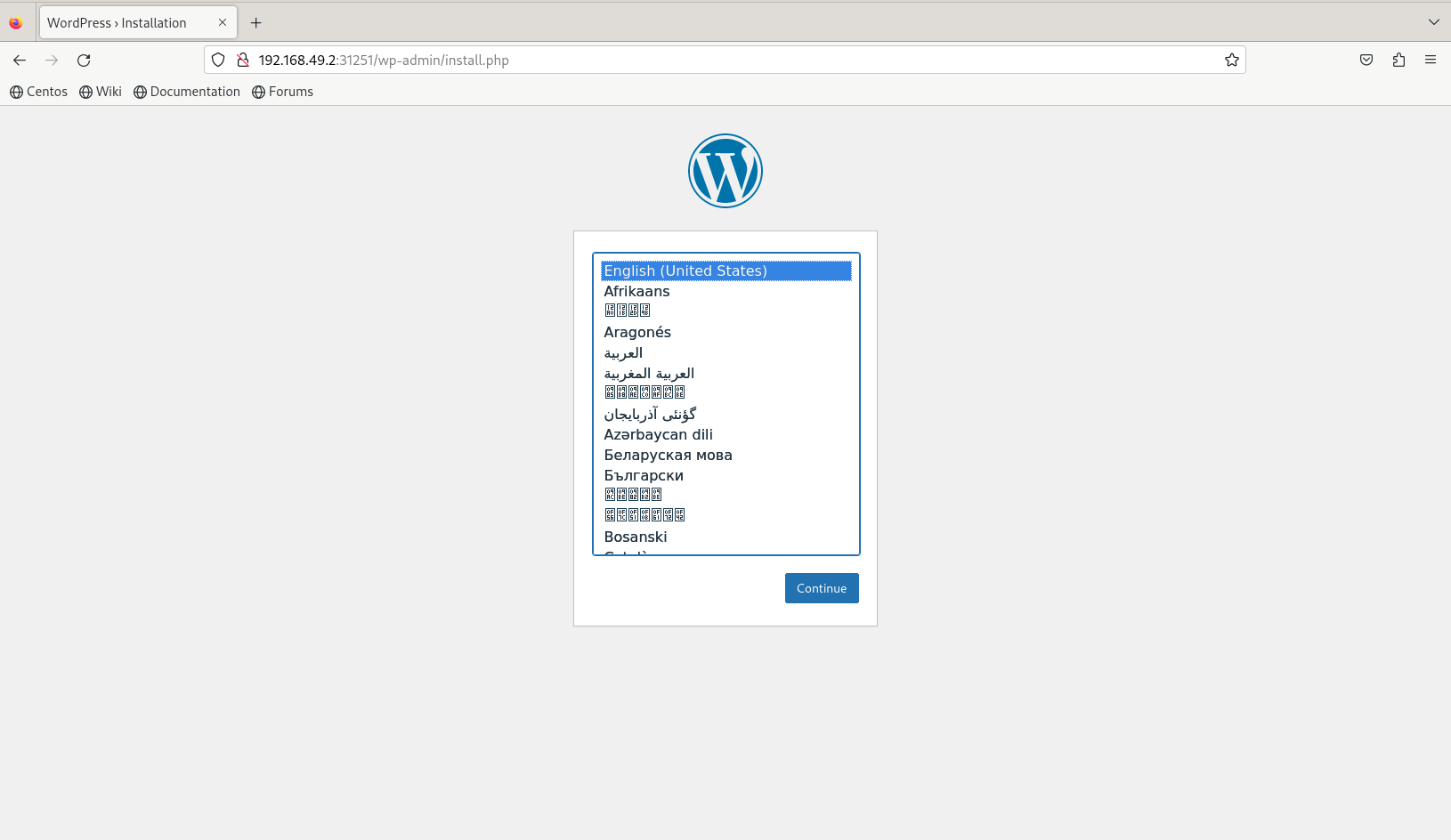
Photo by admingeek from Infotechys
Perfect! Our wordpress site is working as expected. In case you need to wipe the slate clean and start over with something else, run the following command to delete all deployments in your kustomization.yaml file:
$ kubectl delete -k ./


No comments:
Post a Comment