Introduction
In the world of web browsing, Chromium stands out as a robust, open-source project that forms the foundation for many popular browsers, including Google Chrome. If you’re a Fedora 37 user looking to enhance your browsing experience with Chromium, you’re in the right place.
What is Chromium?
Chromium is an open-source web browser project developed and maintained by the Chromium Project, a community-driven initiative overseen by Google. It serves as the upstream source for many web browsers, including Google Chrome, Microsoft Edge, Opera, and numerous others. Chromium’s primary goal is to provide a fast, stable, and secure browsing experience while promoting transparency and collaboration within the web development community.
Features of Chromium
Key features of Chromium include:
Speed: | Chromium is known for its fast performance, allowing users to navigate the web with minimal lag or delay. |
| Security: | Chromium prioritizes user security by regularly updating its codebase to address potential vulnerabilities and exploits. |
| Customization: | Chromium offers a range of customization options, allowing users to tailor their browsing experience to suit their preferences. |
| Compatibility: | Chromium supports a wide range of web standards and technologies, ensuring compatibility with the latest web applications and services. |
| Privacy: | Chromium includes features designed to protect user privacy, such as incognito mode and built-in ad-blocking capabilities. |
Installing Chromium on Fedora 37: Step-by-Step Guide
By installing Chromium on your Fedora 37 system, you gain access to those features (above) and more!
Step 1: Update Your System
Before diving into the installation process, it’s essential to ensure your Fedora 37 system is up to date. Open a terminal and execute the following commands:
$ sudo dnf update -yThis command will update all installed packages to their latest versions, ensuring a smooth installation process for Chromium.
Step 2: Enable RPM Fusion Repository
Chromium is not available in the default Fedora repositories due to licensing restrictions on some of its components. To install Chromium, you’ll need to enable the RPM Fusion repository, which provides access to additional software packages. Execute the following commands in your terminal:
$ sudo dnf install https://download1.rpmfusion.org/free/fedora/rpmfusion-free-release-$(rpm -E %fedora).noarch.rpm$ sudo dnf install https://download1.rpmfusion.org/nonfree/fedora/rpmfusion-nonfree-release-$(rpm -E %fedora).noarch.rpmThese commands will add the RPM Fusion repository to your system.
Step 3: Install Chromium
With the RPM Fusion repository enabled, you can now proceed to install Chromium. Execute the following command in your terminal:
$ sudo dnf install chromium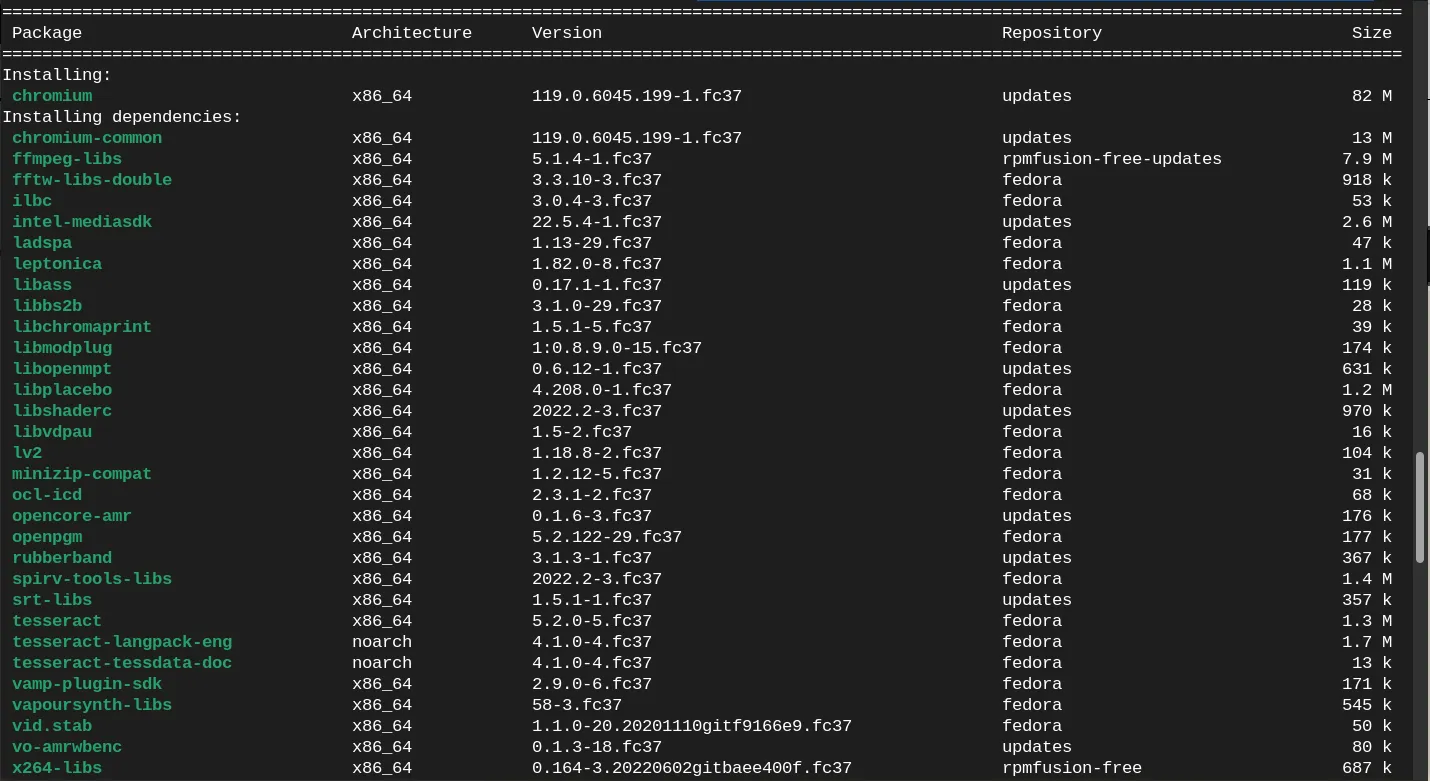
Photo by admingeek from Infotechys
This command will download and install the Chromium browser along with any necessary dependencies.
Step 4: Launch Chromium
Once the installation is complete, you can launch Chromium from your terminal by executing the following command:
$ chromium-browserOr, from your Activities Menu (top-left corner of the screen) by typing “chromium” in the search bar:
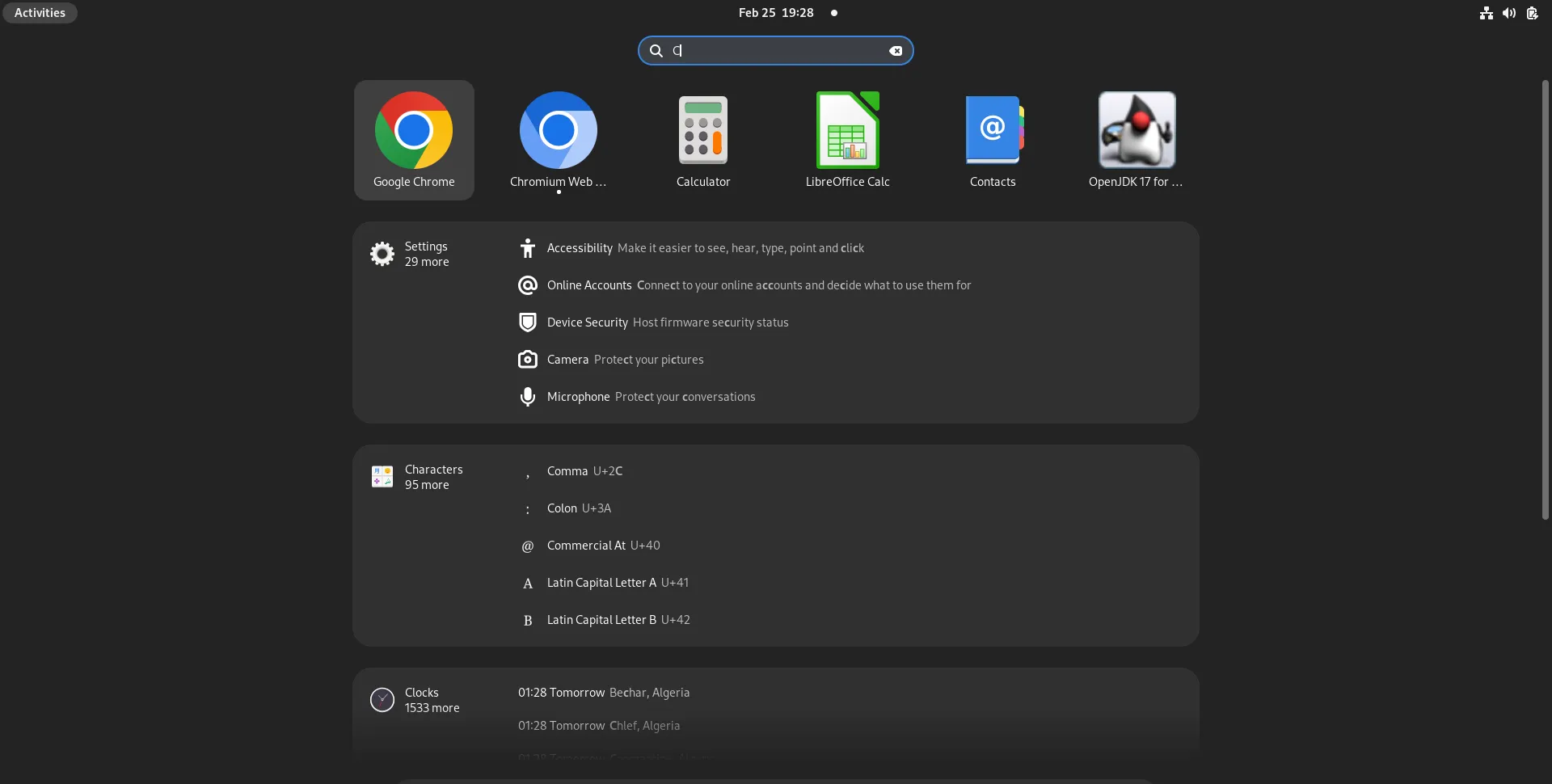
Photo by admingeek from Infotechys
Step 5: Optional: Set Chromium as the Default Browser
If you prefer to use Chromium as your default web browser, you can set it as such in your Fedora 37 system settings. Navigate to the settings menu, select “Default Browser,” and click the “Make default” button.


No comments:
Post a Comment